Building a Custom Inspector in Unity: Collecting Child Colliders Automatically
Custom Inspectors in Unity: your shortcut to a smoother workflow
Building a Custom Inspector in Unity: Collecting Child Colliders Automatically
Introduction
Sometimes in Unity, you want a component to automatically keep track of other components in its hierarchy. Doing this manually is tedious and error-prone, especially when there are tens of hierarchical children. That’s where Custom Inspectors come in. With a Custom Inspector, you can add buttons and tools directly into the Inspector to automate repetitive work.
In this article, we’ll walk through creating a custom Inspector that:
- Finds all 2D Colliders in the children of a GameObject.
- Assigns them to a list.
- Add it to the Undo system of Unity so you can keep using your Ctrl + z.
- Ensuring changes are saved by making everything dirty.
1. The Base Component
First, let’s define a simple component that will hold a list of colliders.
using System.Collections.Generic;
using UnityEngine;

public class ColliderCollector : MonoBehaviour
{
    public List<Collider2D> colliders = new List<Collider2D>();
}
This is just a MonoBehaviour with a list of Collider2D. Nothing fancy yet.
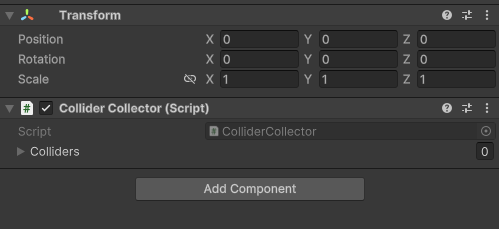
Make a gameObject in your scene and assign ColliderCollector to it.
The inspector should look like this:
2. Creating the Custom Inspector
Make a folder called Editor in your project. All Editor scripts should be in Editor folders in Unity. You will have compile errors on builds if you don’t follow this rule. Now we’ll add a Custom Inspector with a button to populate the list for our component.
using UnityEngine;
using UnityEditor;

[CustomEditor(typeof(ColliderCollector))]
public class ColliderCollectorEditor : Editor
{
    private ColliderCollector collderCollector;

    private void OnEnable()
    {
      collderCollector = (ColliderCollector)target;
    }

    public override void OnInspectorGUI()
    {
        base.OnInspectorGUI();
    }
}
Up to now, our new editor script doesn’t do anything new. Just cache the target component and draw the default inspector. Next, we will add a button at the end of our inspector to find all colliders in our game object’s children when we press it.
public override void OnInspectorGUI()
{
    base.OnInspectorGUI();


    if (GUILayout.Button("Find All 2D Colliders in Children", GUILayout.Height(30)))
    {
         var allCollider = collderCollector.GetComponentsInChildren<Collider2D>();
         collderCollector.colliders = new List<Collider2D>(allCollider);
    }
}
The inspector will be like this:
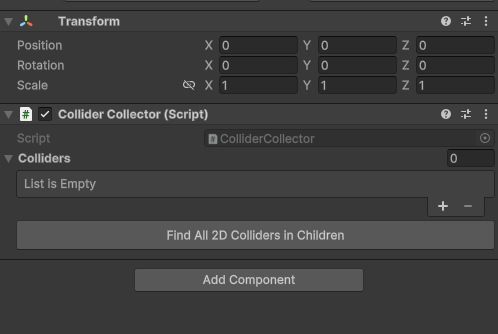
And when you hit that button, all colliders in the children of your game object will be added to the Colliders list.
But something is wrong here. After hitting the button and storing all colliders, try to undo your action. Press Ctrl + z. It doesn’t work.
It’s because you have to record your current state of your object in Unity's Undo system before any change to be able to revert that change and restore the last state stored. Let's add it to our script.
public override void OnInspectorGUI()
{
    base.OnInspectorGUI();


    if (GUILayout.Button("Find All 2D Colliders in Children", GUILayout.Height(30)))
    {
         Undo.RecordObject(collderCollector, "Collect colliders");
         var allCollider = collderCollector.GetComponentsInChildren<Collider2D>();
         collderCollector.colliders = new List<Collider2D>(allCollider);
    }
}
Now try collecting and then undoing this action again. Everything is alright.
3. What’s wrong with prefabs?
Try this scenario:
- Make a prefab from your game object with a
ColliderCollectorcomponent with an empty collider list. - Hit the button for collecting colliders.
- Apply changes to the prefab.
As you can notice, the items in the list will become None (Collider 2D). All changes to the items will be missed, but the number of items will be saved. It’s because we didn’t flag our object as a modified or “Dirty” object properly for Unity. Because of that Unity prefab system didn’t notice all the changes in the prefab to save it. Let’s fix this, too.
public override void OnInspectorGUI()
{
    base.OnInspectorGUI();


    if (GUILayout.Button("Find All 2D Colliders in Children", GUILayout.Height(30)))
    {
         Undo.RecordObject(collderCollector, "Collect colliders");
         var allCollider = collderCollector.GetComponentsInChildren<Collider2D>();
         collderCollector.colliders = new List<Collider2D>(allCollider);
         EditorUtility.SetDirty(collderCollector);
    }
}
EditorUtility.SetDirty function set the object dirty for Unity prefab system to take care of it when saving the changes. Repeat the above scenario to be sure about the correctness of your code.
4. Result
Now, in the Inspector forColliderCollector, you’ll see a button: Find All 2D Colliders in Children.
- Pressing it will automatically find all
Collider2Dcomponents in children. - If you make a mistake, just hit Undo and everything goes back.
- The result is saved properly, thanks to
SetDirty().
5. Why This Matters
This may look like a small improvement, but tools like this:
- Save time during level design and testing.
- Reduce mistakes from manual assignments.
Once you understand these basics, you can extend the idea further — for example, filtering only certain collider types, or applying settings to all collected colliders at once.
Conclusion
Custom Inspectors are a powerful way to make Unity work for you instead of against you. In this article, we built a tool that automatically collects all child colliders, while also handling Undo and ensuring the object saves correctly.
The takeaway: whenever you catch yourself repeating manual steps, that’s a perfect opportunity to write a small editor tool.
메타데이터
- post_id
- 00a8f6c2b16b
- slug
- building-a-custom-inspector-in-unity-collecting-child-colliders-automatically-00a8f6c2b16b
- url
- https://medium.com/@shahabfatal14/building-a-custom-inspector-in-unity-collecting-child-colliders-automatically-00a8f6c2b16b
- canonical_url
- https://medium.com/@shahabfatal14/building-a-custom-inspector-in-unity-collecting-child-colliders-automatically-00a8f6c2b16b
- author_url
- https://medium.com/@shahabfatal14
- status
- ok
- fetched_at
- 2026-07-20 04:01:29