Azure AI Search Multimodal RAG with Copilot Studio
I recently came across an enterprise scenario that is becoming increasingly common for agentic search: source documents contain not only…
Azure AI Search Multimodal RAG with Copilot Studio
I recently came across an enterprise scenario that is becoming increasingly common for agentic search: source documents contain not only text, but also many images. In these cases, the complete knowledge base is built by understanding both modalities together.
In this article, we will walk through how to use multimodal RAG with Azure AI Search and Copilot Studio.
The Data Source
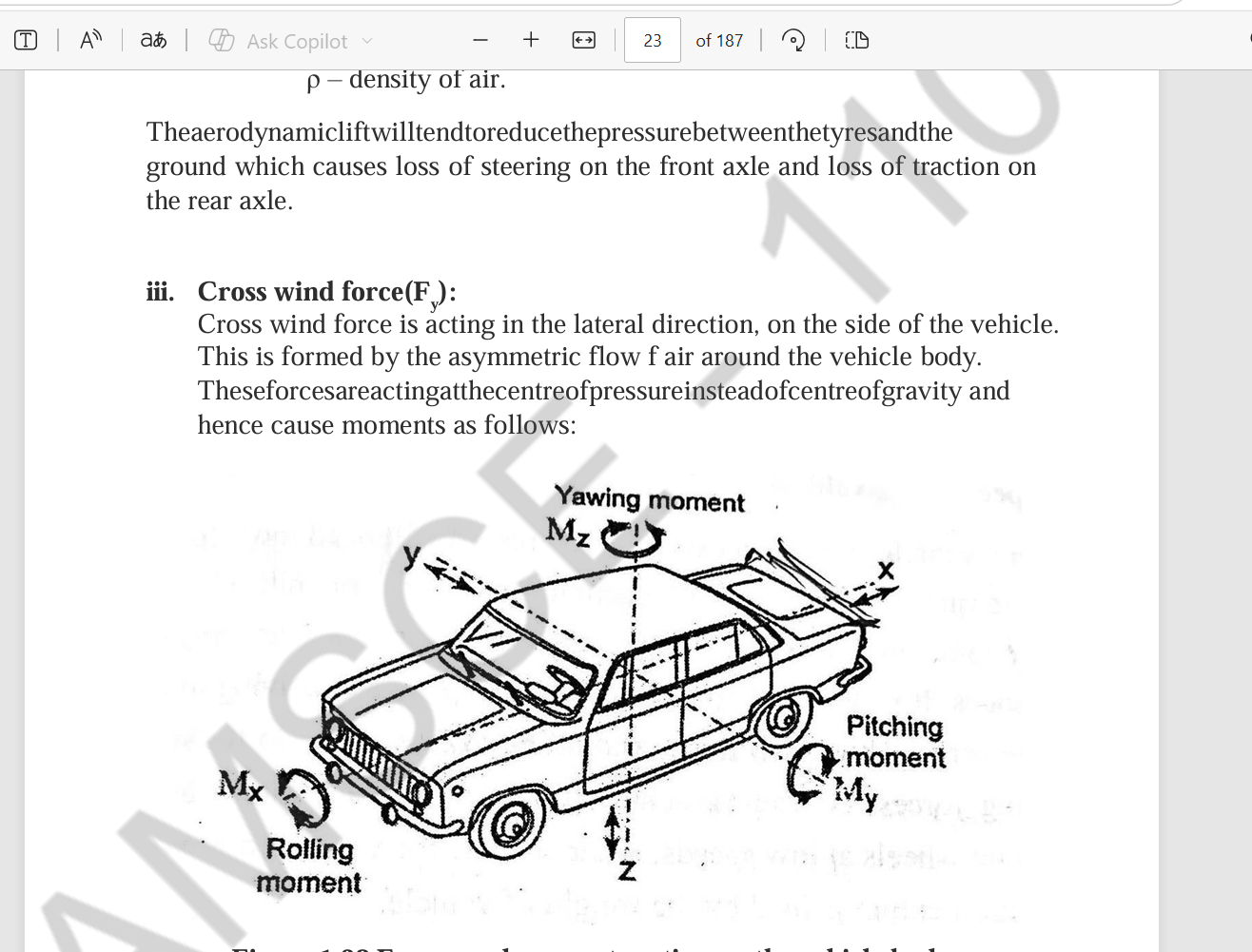
Our data source is a set of PDFs that contain a large amount of text as well as many images.
Prerequisites
You will need the following Azure components:
- Azure AI Search instance, Basic tier or higher.
- Azure AI services multi-service account.
- Azure OpenAI instance.
- Storage account, optionally with hierarchical namespace enabled.
Supported Regions
There are currently some regional considerations, so try to use one of the following regions:
- East US
- West US
- Central US
- West Europe
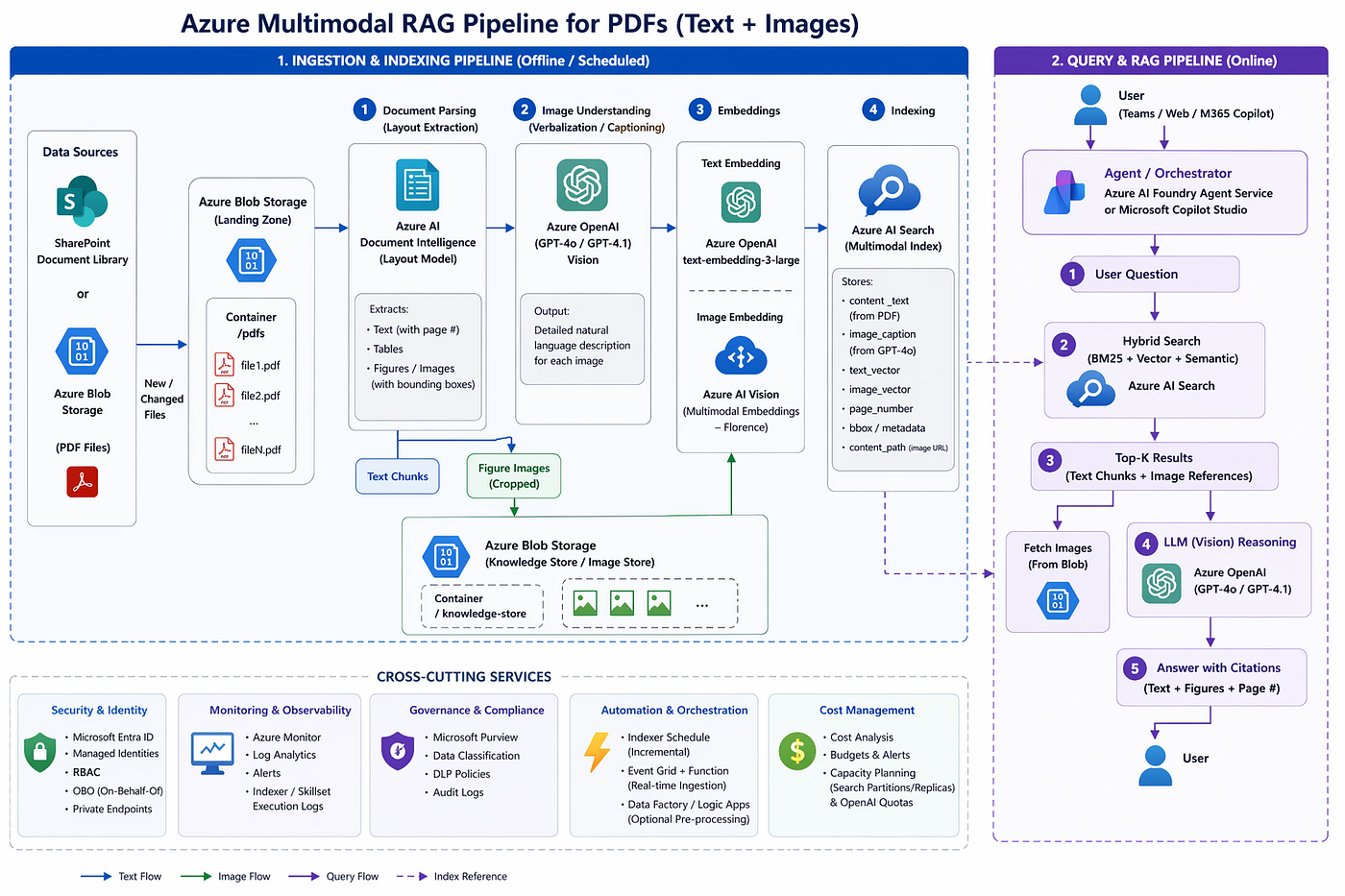
Pipeline Architecture
Creating the AI Search Service
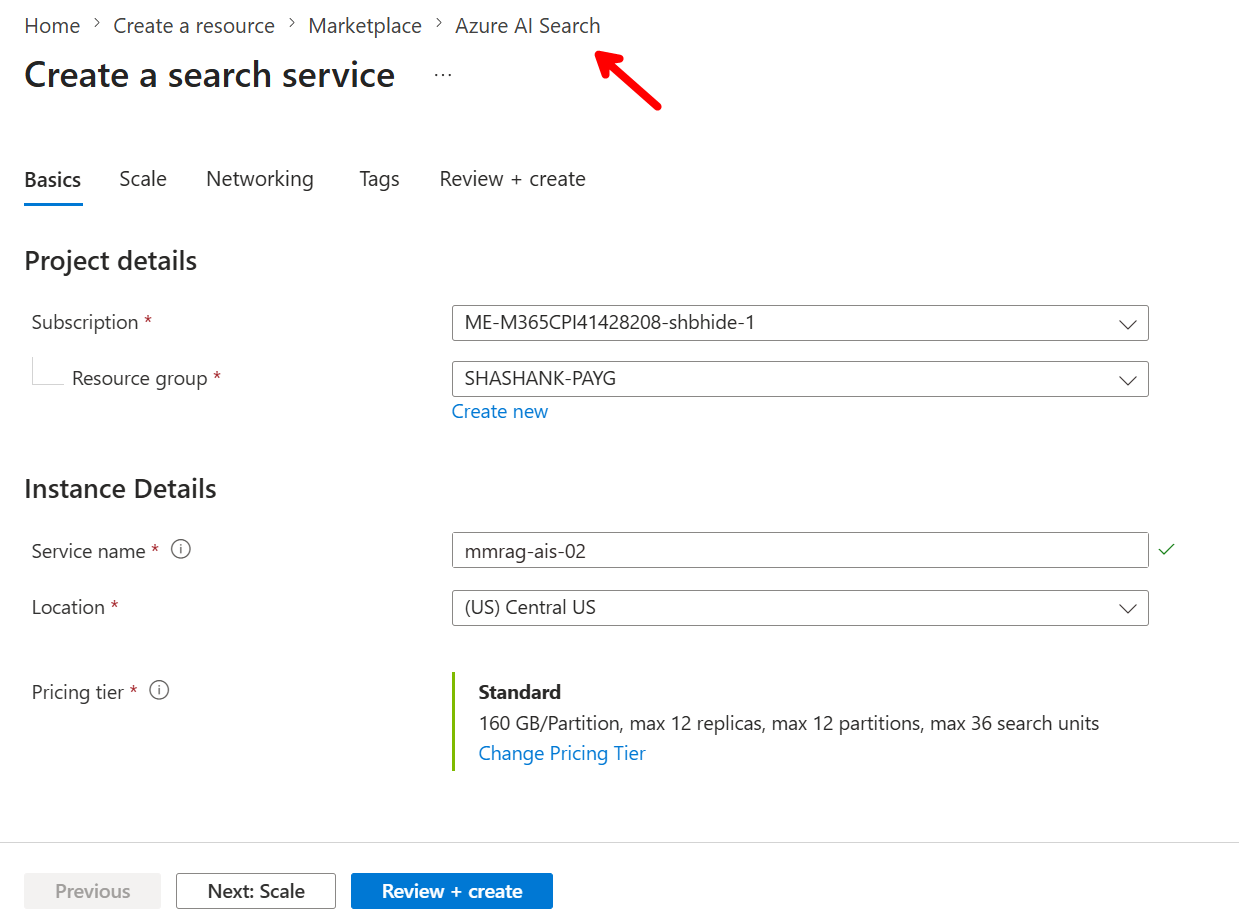
Create an Azure AI Search instance as shown below.
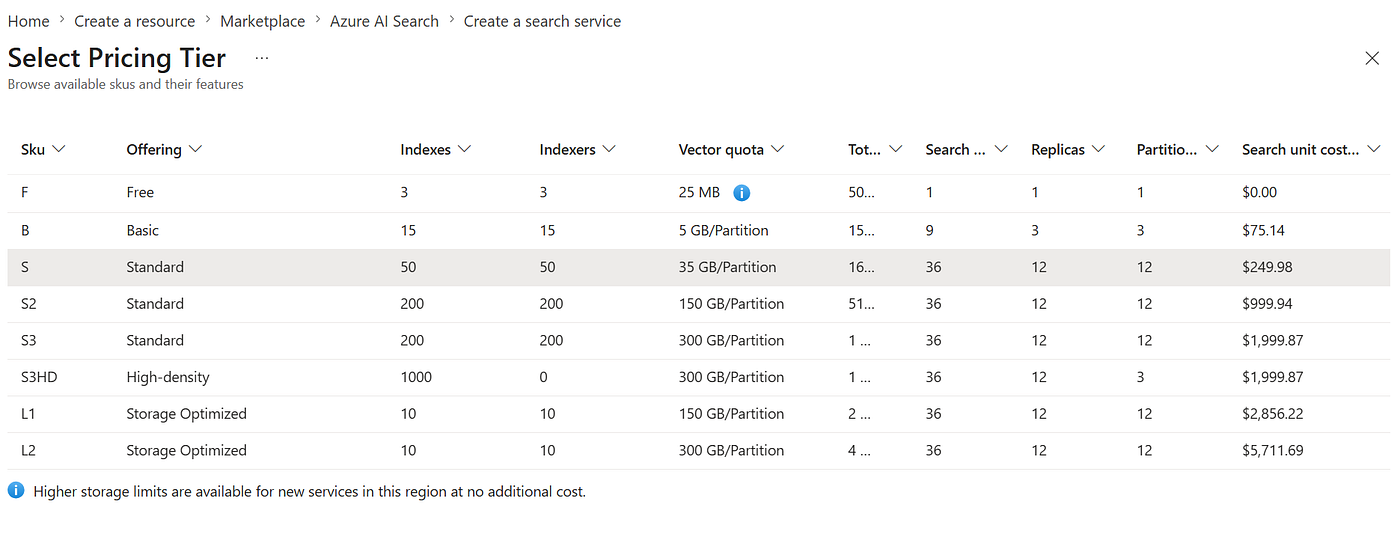
Pricing Tier
Choose at least the Basic pricing tier.
Storage Account Configuration
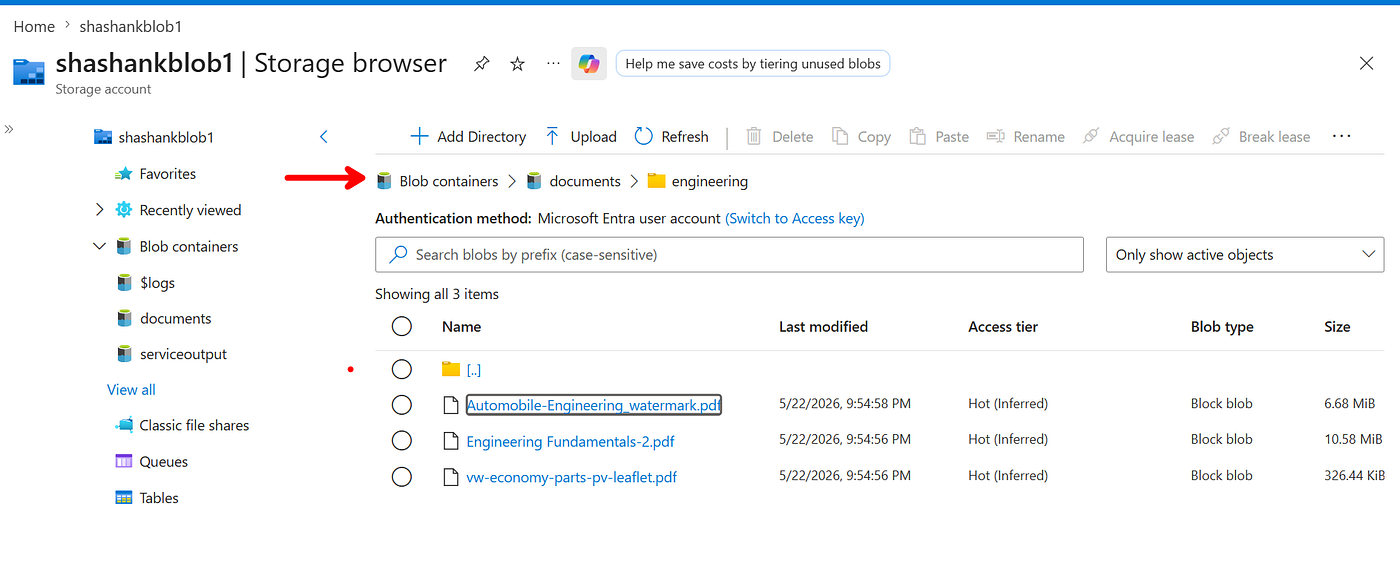
Create the blob containers as shown below. The engineering folder is optional.
After the container is set up, add a few sample PDFs to it. You can download the sample PDFs here.
Configure the AI Search Instance
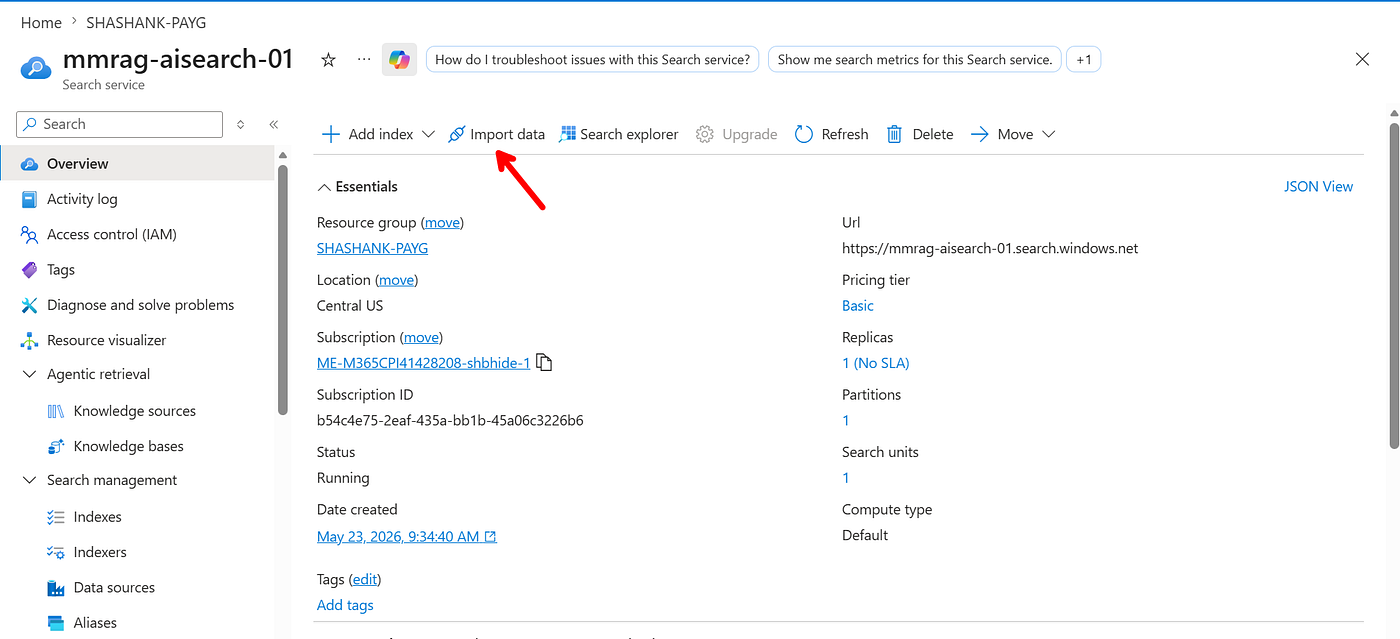
Now you are ready to configure the AI Search instance. Follow the steps below.
- Click Import data.
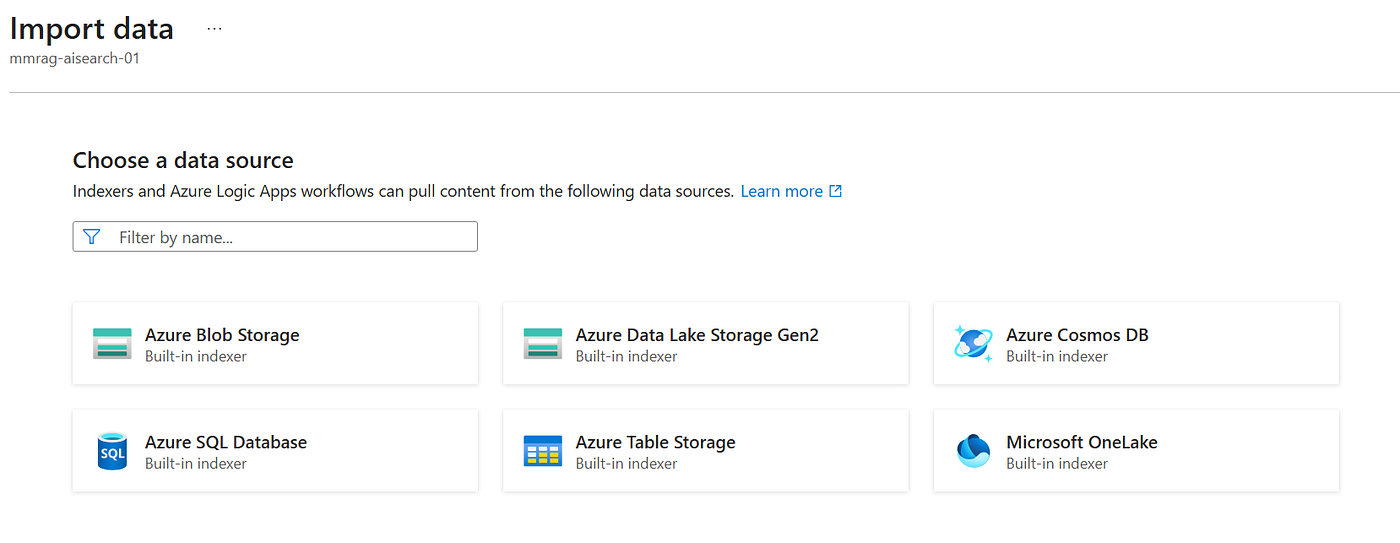
- Select your blob storage. In this example, I will select the Storage Gen2 account.
- Select Multimodal RAG, since that is what we are building.
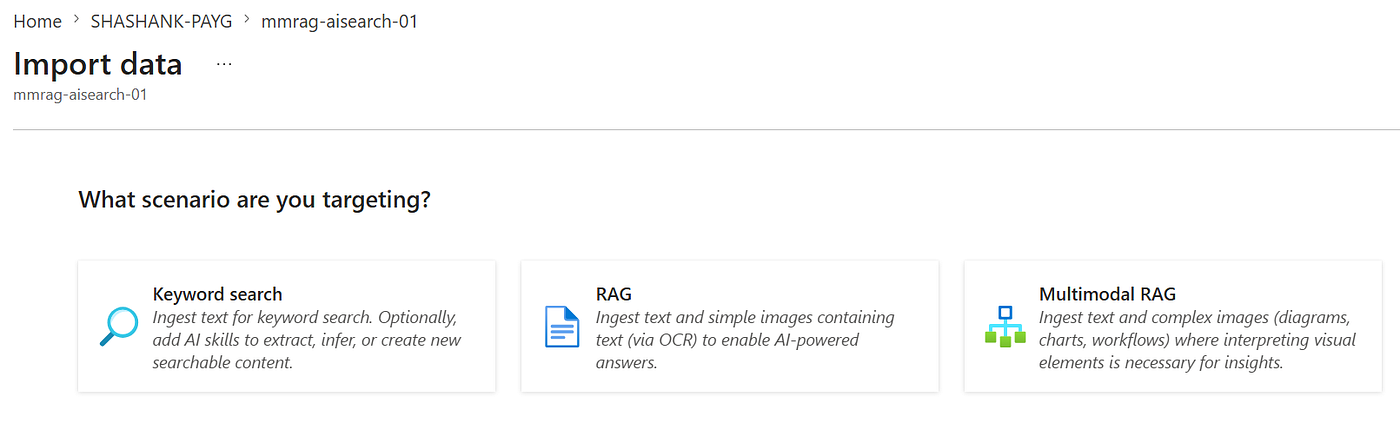
Connect the Storage Account to the Service
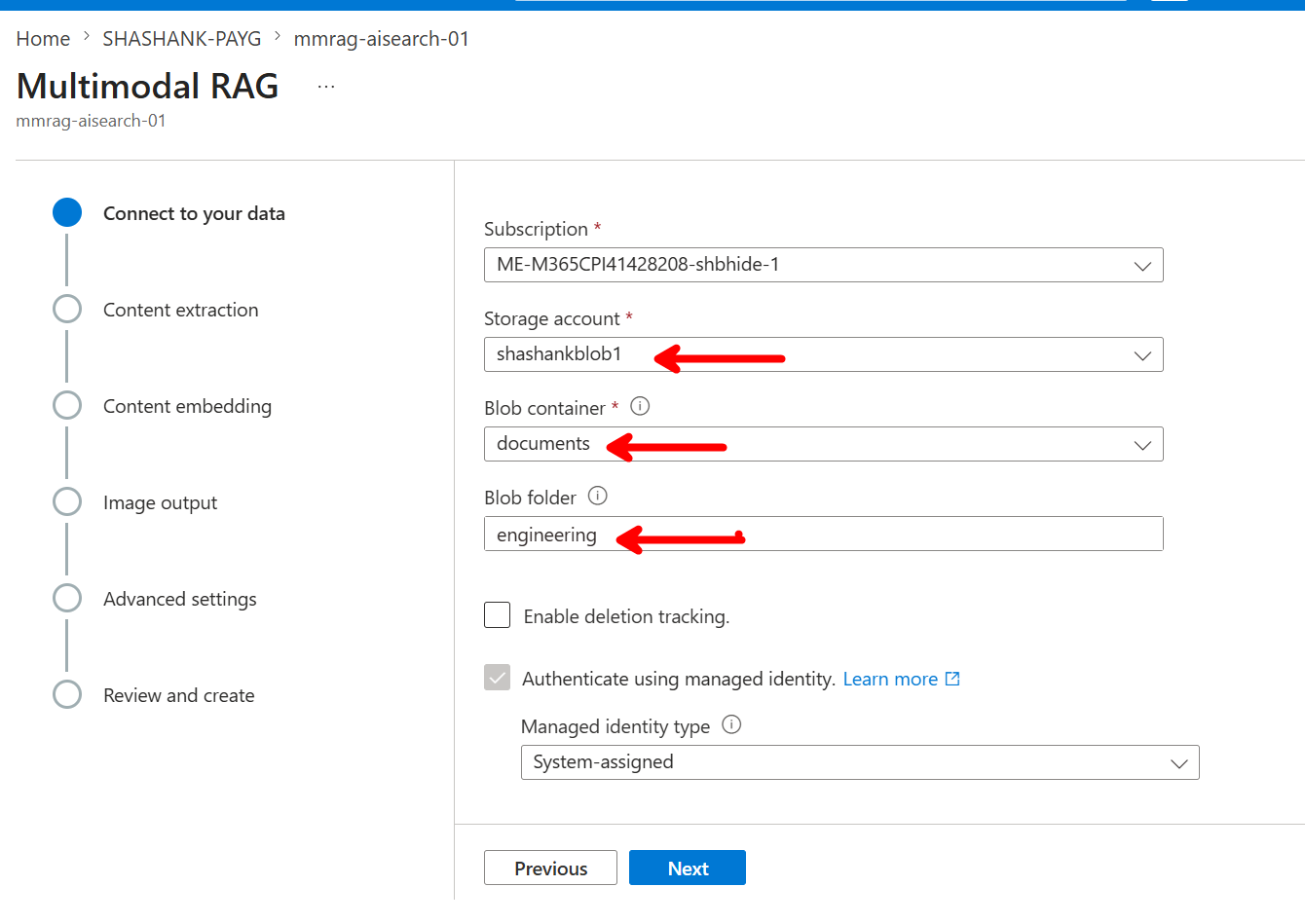
- Provide the details of your storage account.
- The next step is content extraction. Azure AI Search uses the Azure AI services multi-service account for this. This service provides document intelligence capabilities for locating images and identifying bounding boxes around images and text.
After this step is complete, click Next.
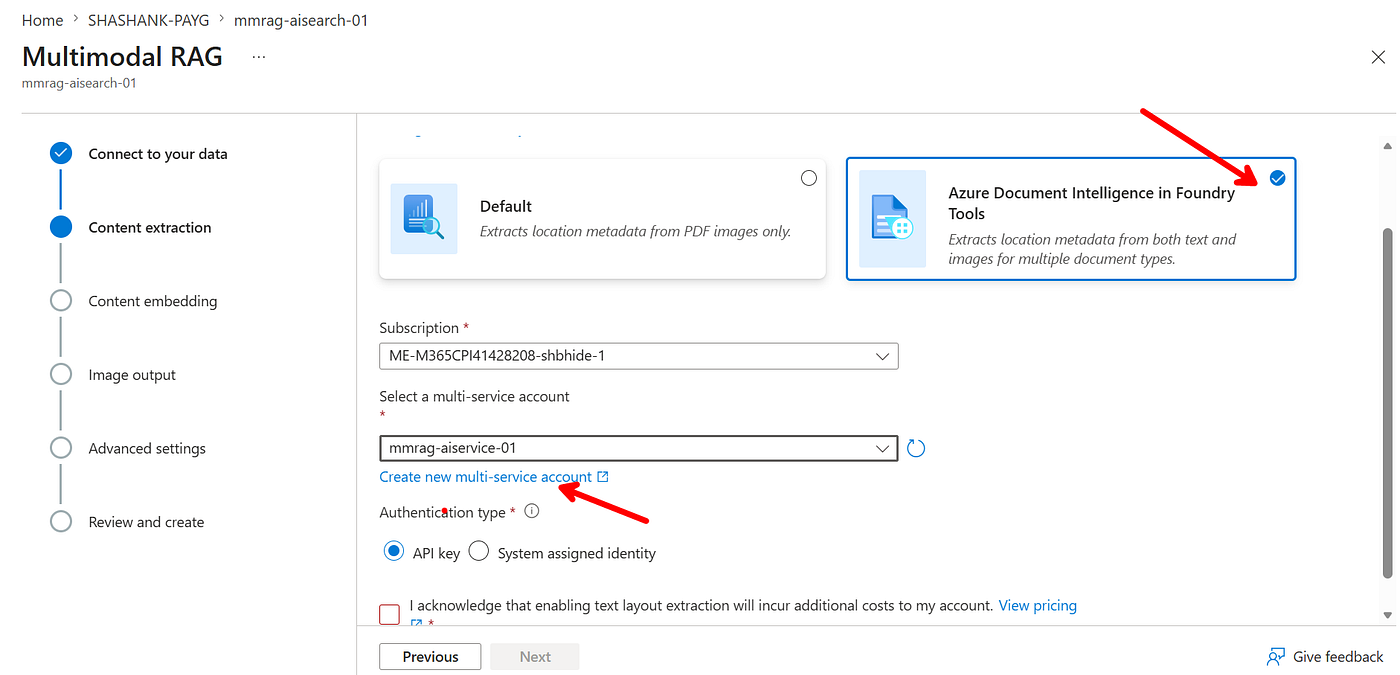
Except for blob storage, all other components should be in the same region as the Azure AI Search service.
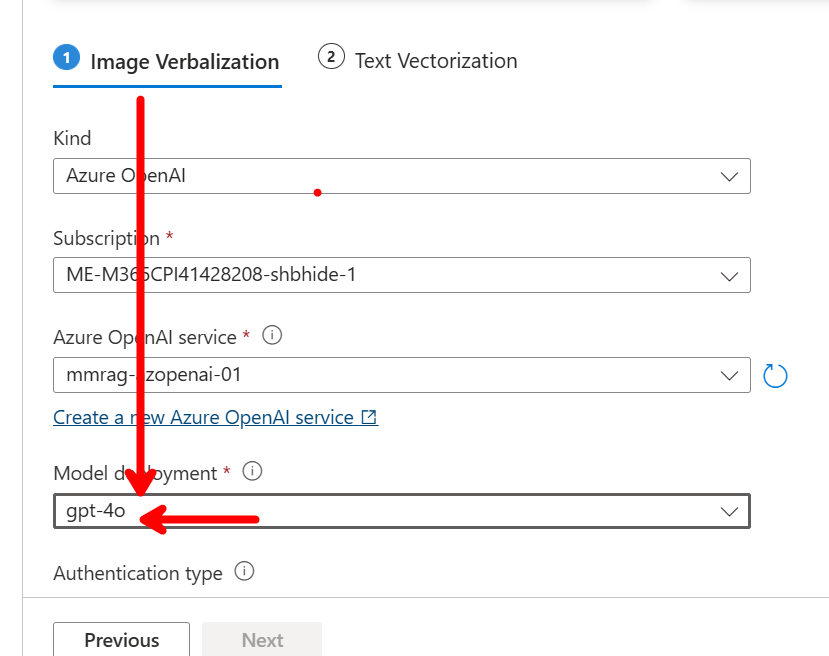
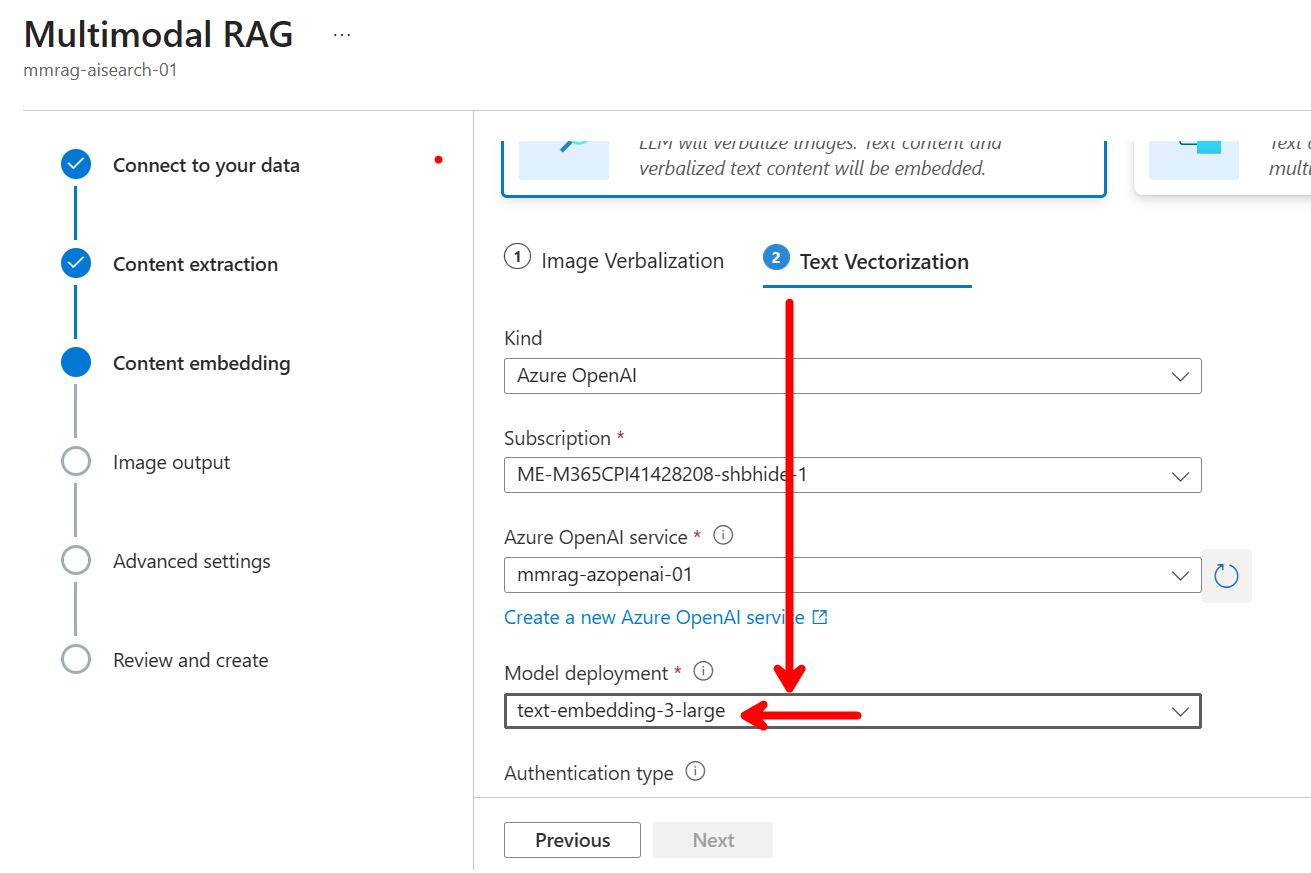
- Configure image verbalization and text vectorization. These next two steps are important, and you will need an Azure OpenAI service for them.
Image verbalization is essentially a way to ask an LLM: Look at this image and describe it. This is important because it enriches the index with enough image detail for that content to be searched later.
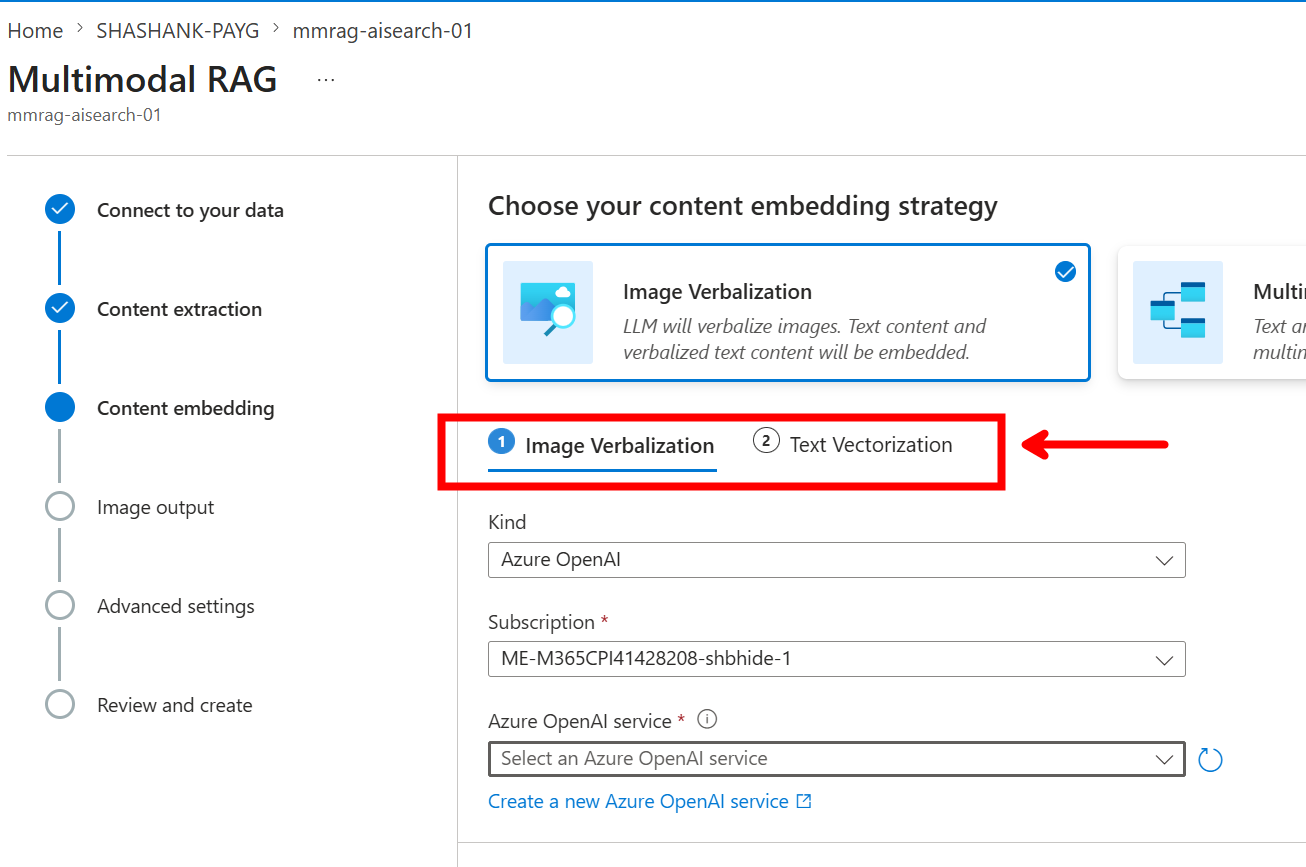
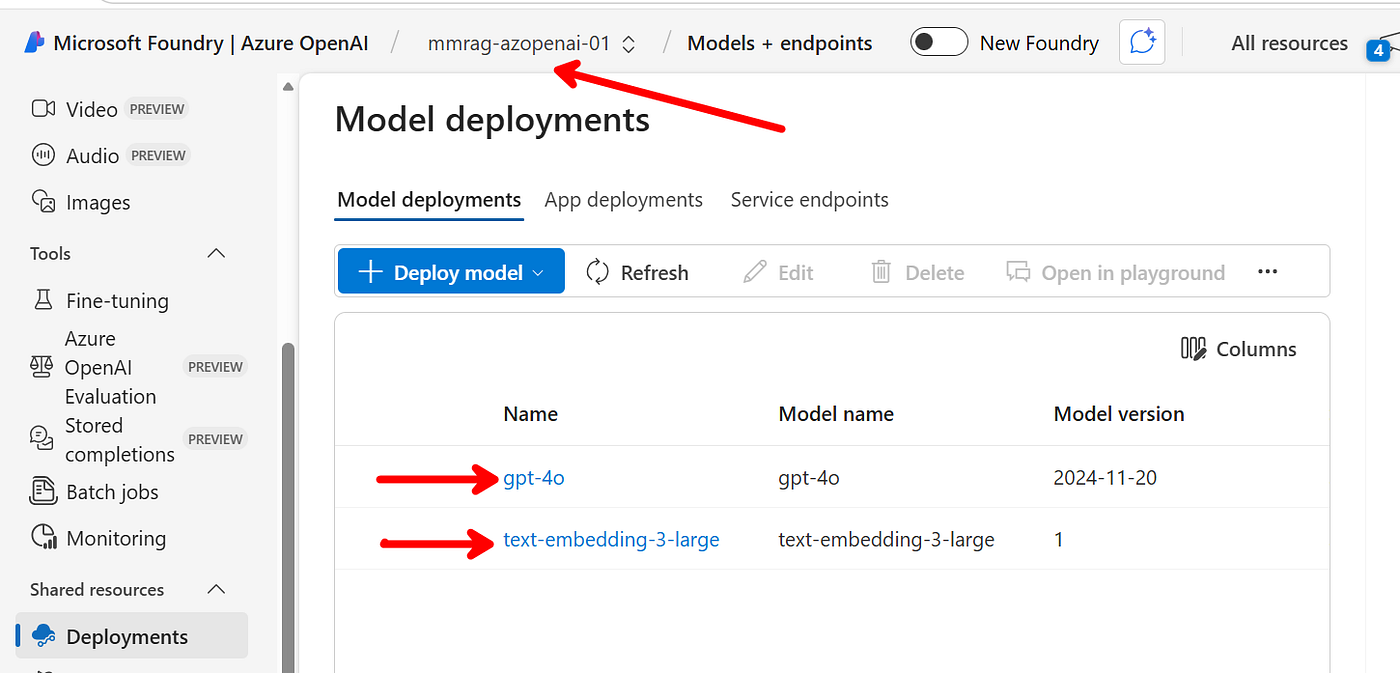
After you create an Azure OpenAI service, deploy two models: one for image processing and one for text embeddings.
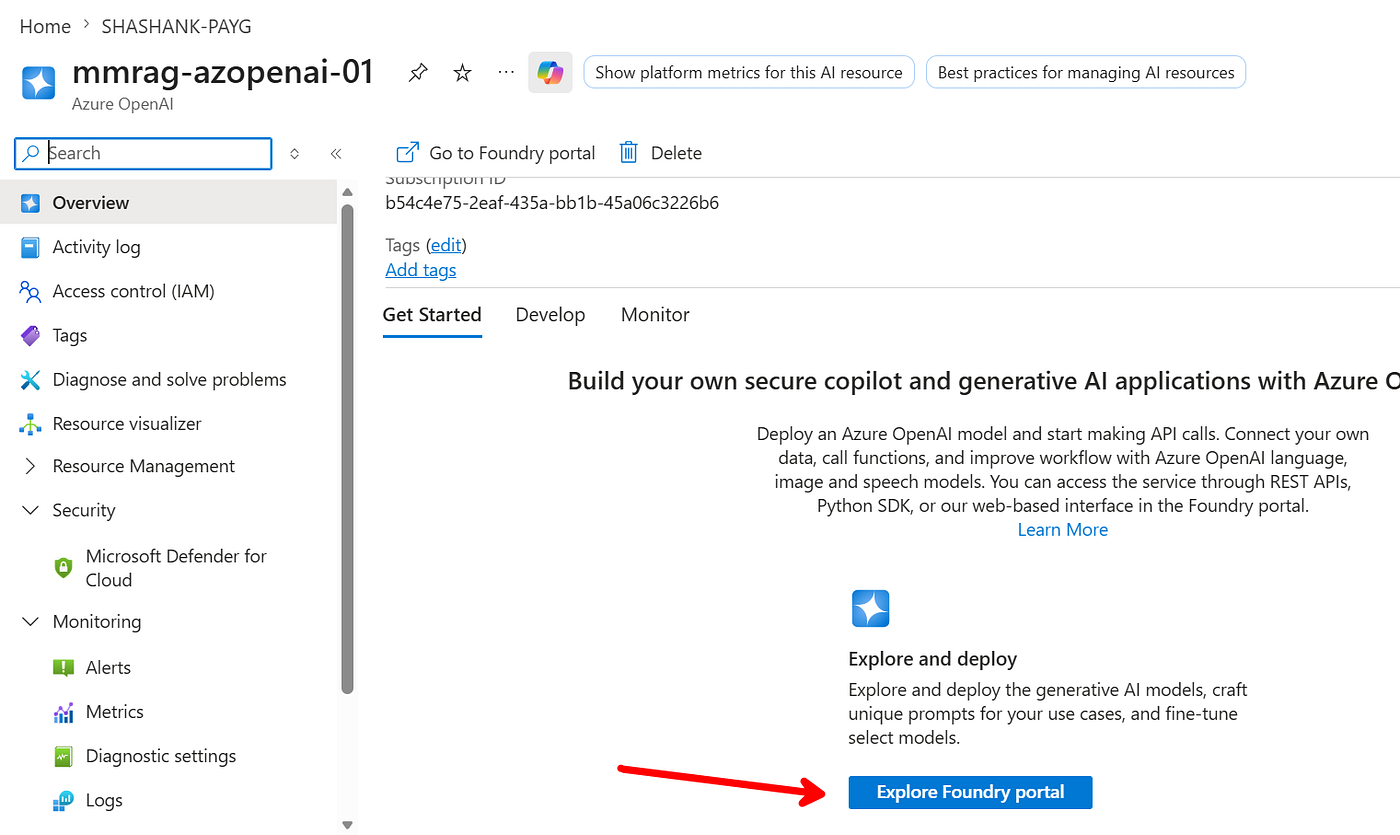
From your Azure OpenAI instance, use the Foundry button to launch the Azure AI Foundry portal.
In the Foundry portal, create two deployments using the following models:
- GPT-4o
- Text embedding large
You can use other models as well, as long as they support the required image and text modalities. You will also need a separate embedding model for text vectorization.
Now provide these inputs to the AI Search service. In the example below, we select the gpt-4o deployment for image verbalization.
Then select the embedding model for text vectorization.
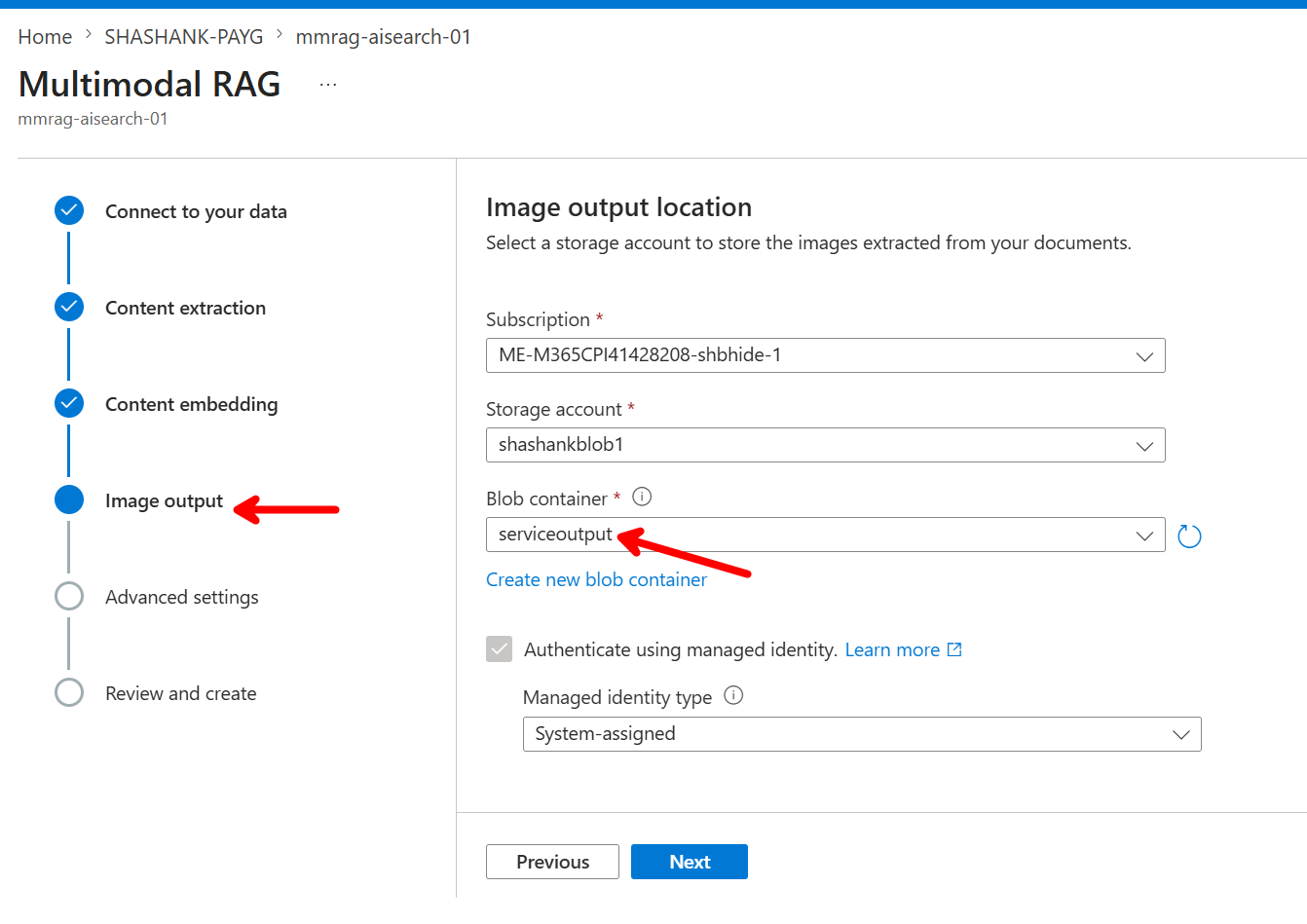
On the next screen, provide an additional container for normalized image output.
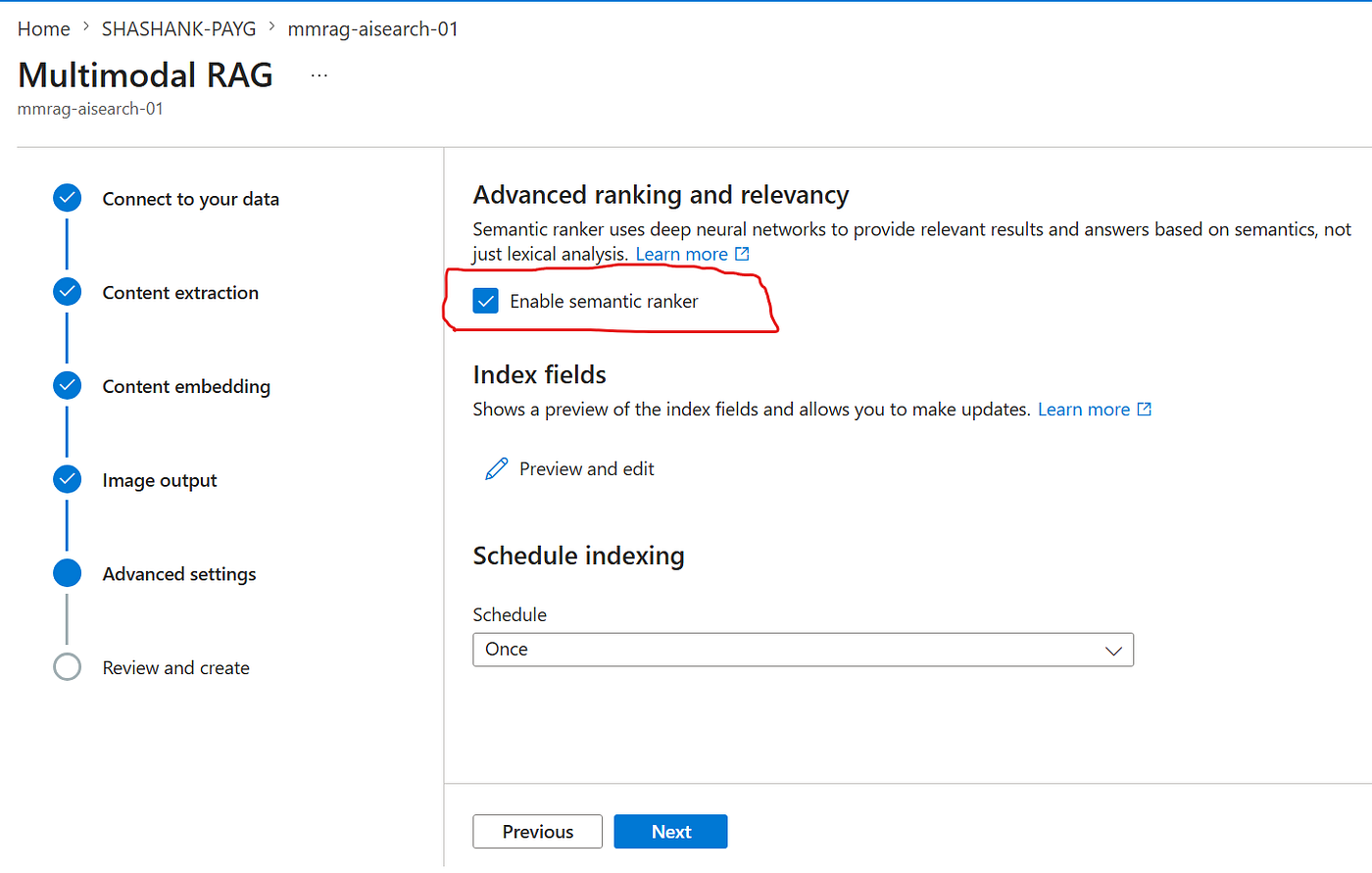
On the following screen, enable the semantic ranker.
Click Next, and then create the index.
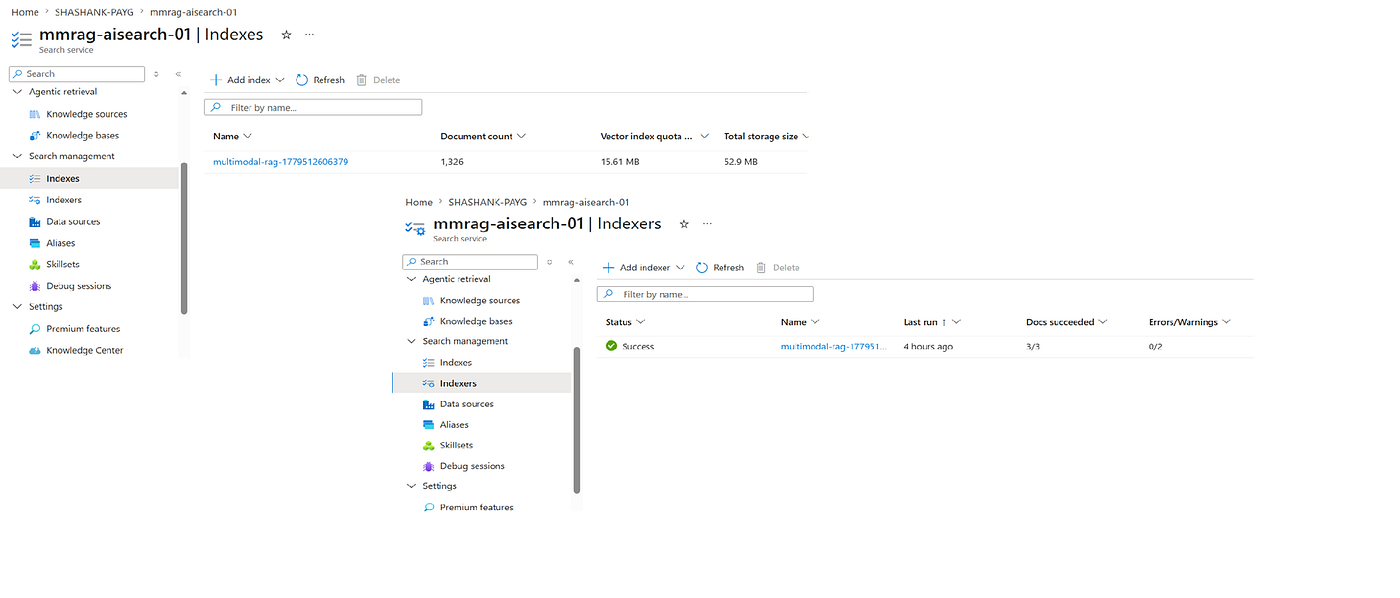
The process can take a short or long time depending on the size of the documents in the source blob storage. When it completes, you will have both an index and an indexer ready for search.
Searching the Index with Copilot Studio
- Create a Copilot Studio agent as shown below.
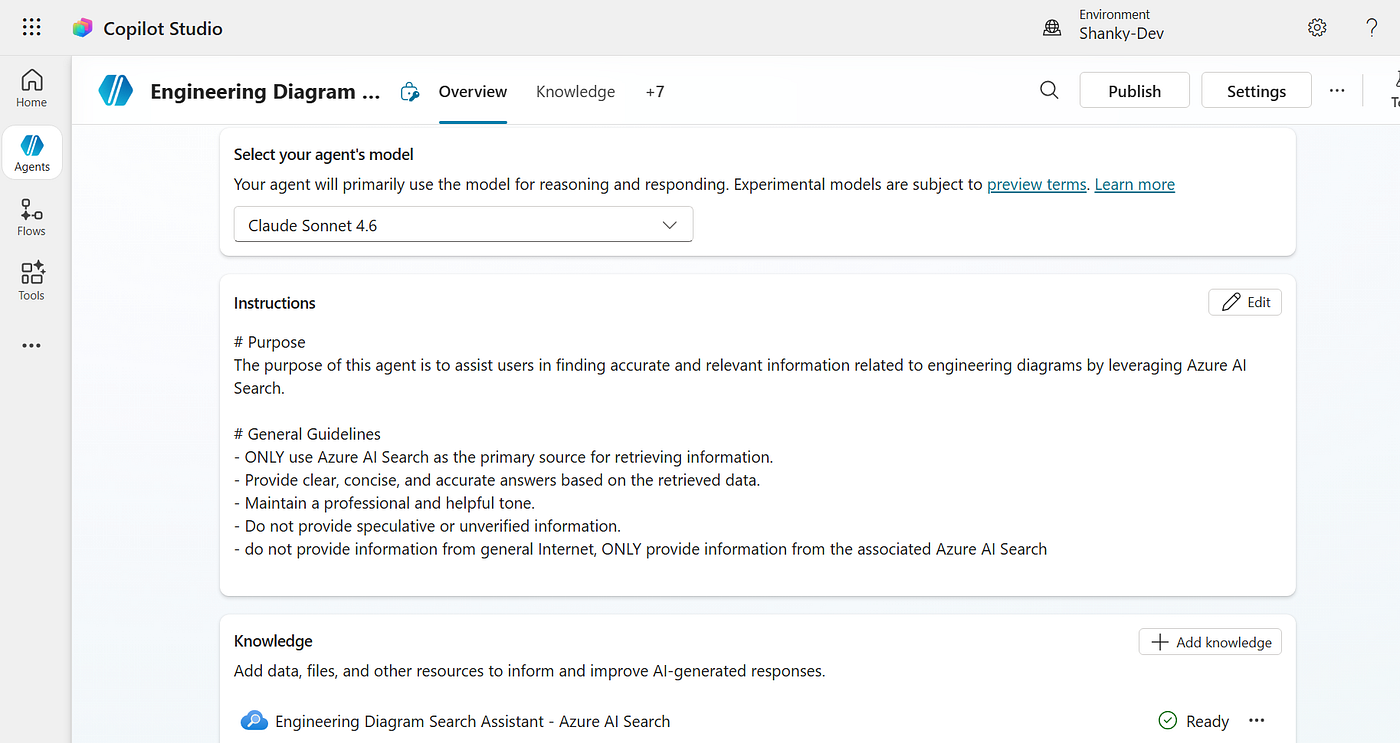
- Add the Azure AI Search instance as knowledge.
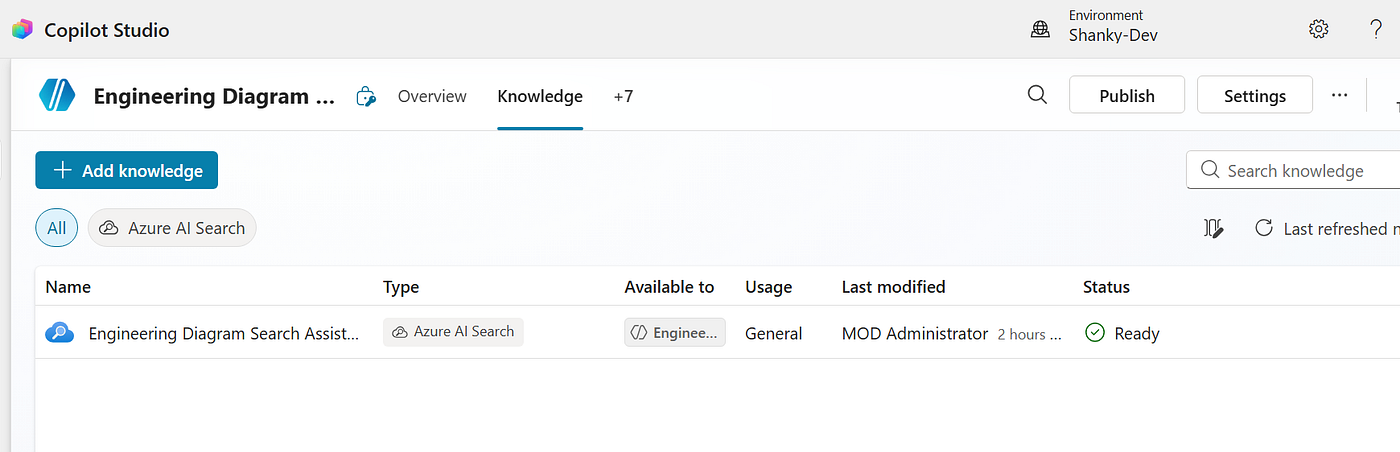
Performing the Search
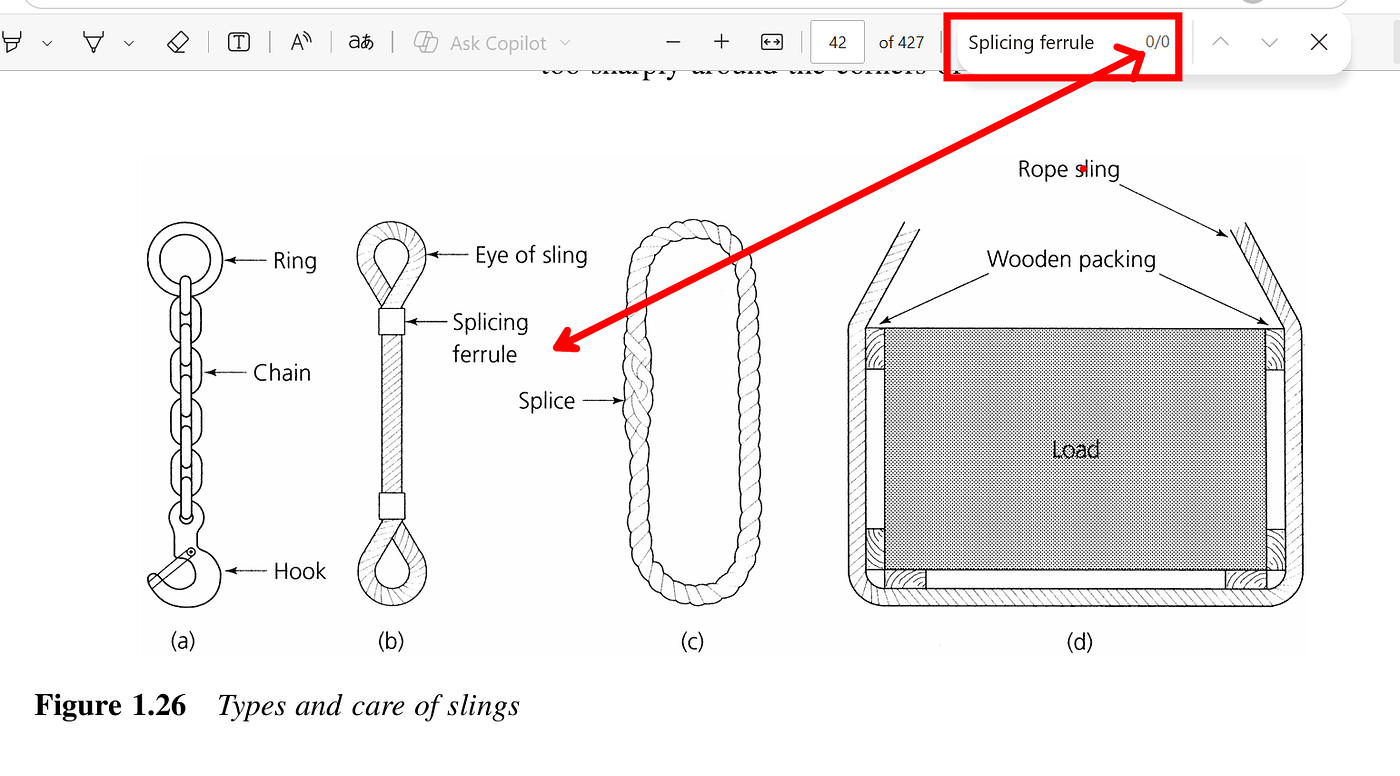
Now let us perform an image search. In the image below, notice that the phrase splicing ferrule does not appear anywhere as text in the document. Because of that, a traditional text search would not find it. However, the phrase is visible inside the image.
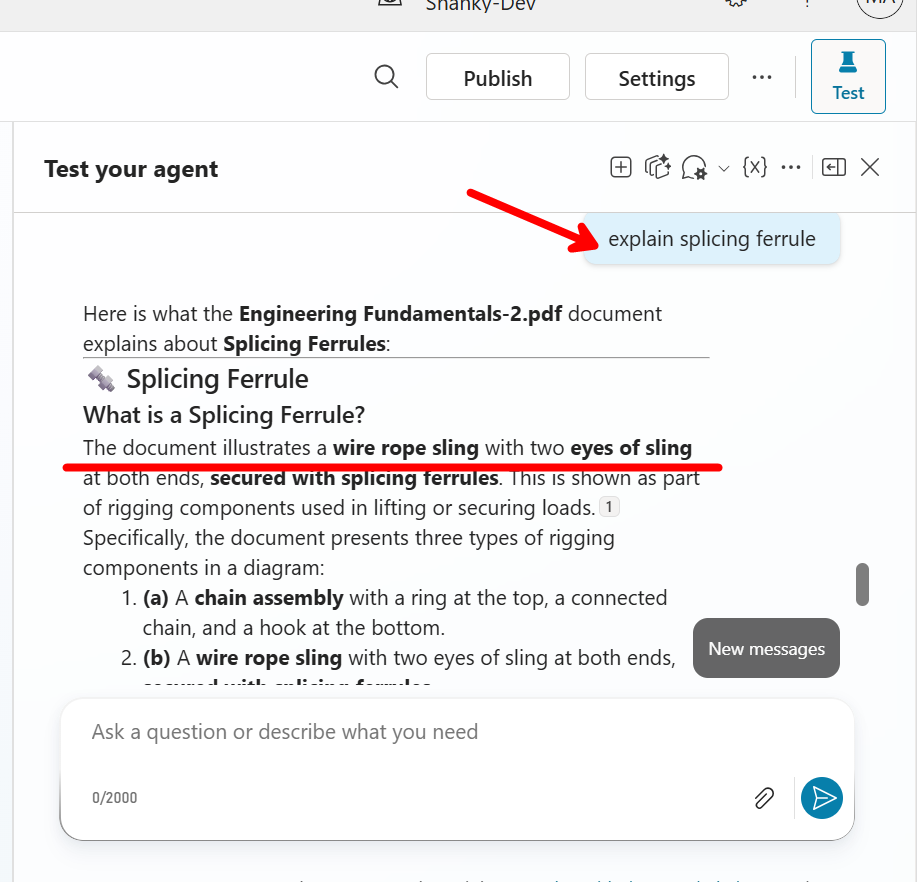
Azure AI Search is able to search across the image content and find the term splicing ferrule. It also accurately describes the rope design, including the two loops at the ends, as shown in the image above.
Editing the LLM Prompt
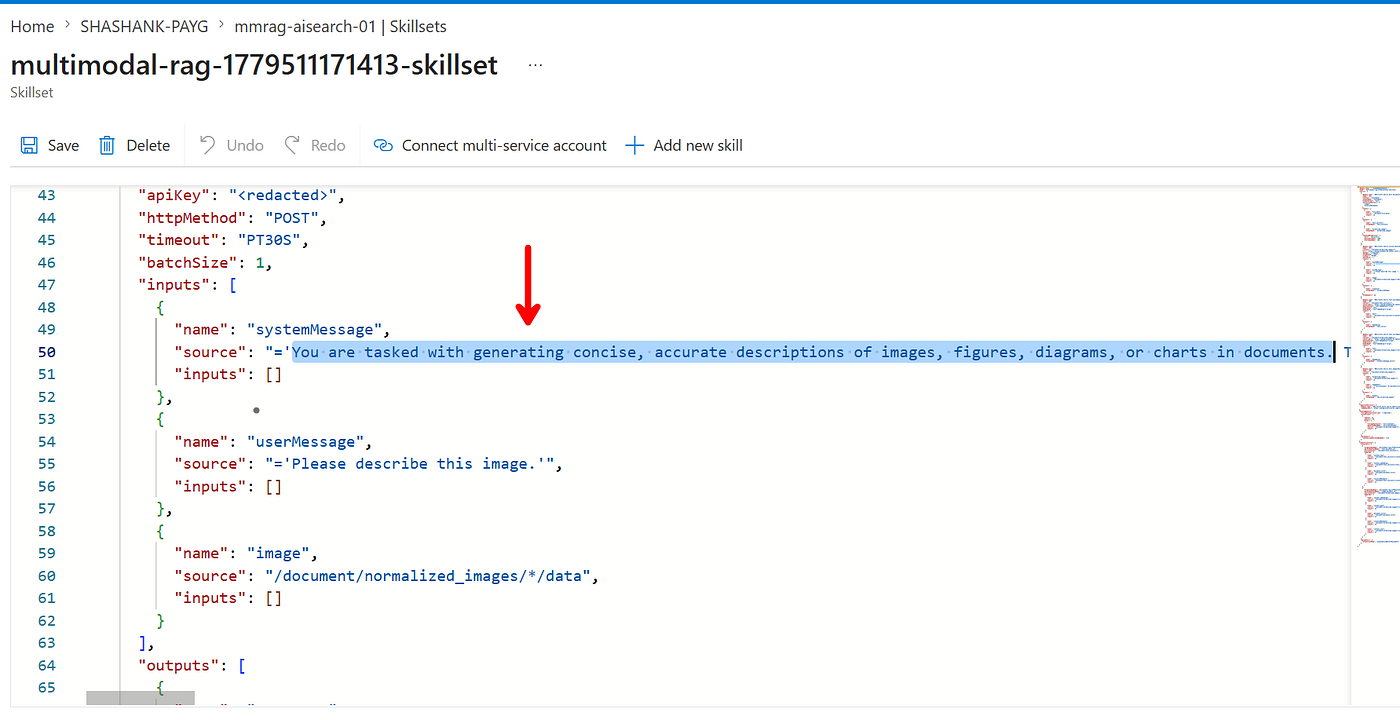
When image verbalization is performed, the AI Search instance uses a skillset. The skillset is a JSON document that contains the configuration details, including the LLM instructions. If you want to provide custom instructions, you need to modify the skillset.
Open the Skillsets tab as shown below, and then open the skill. In my case, I have two skills because I ran the vectorization wizard twice.
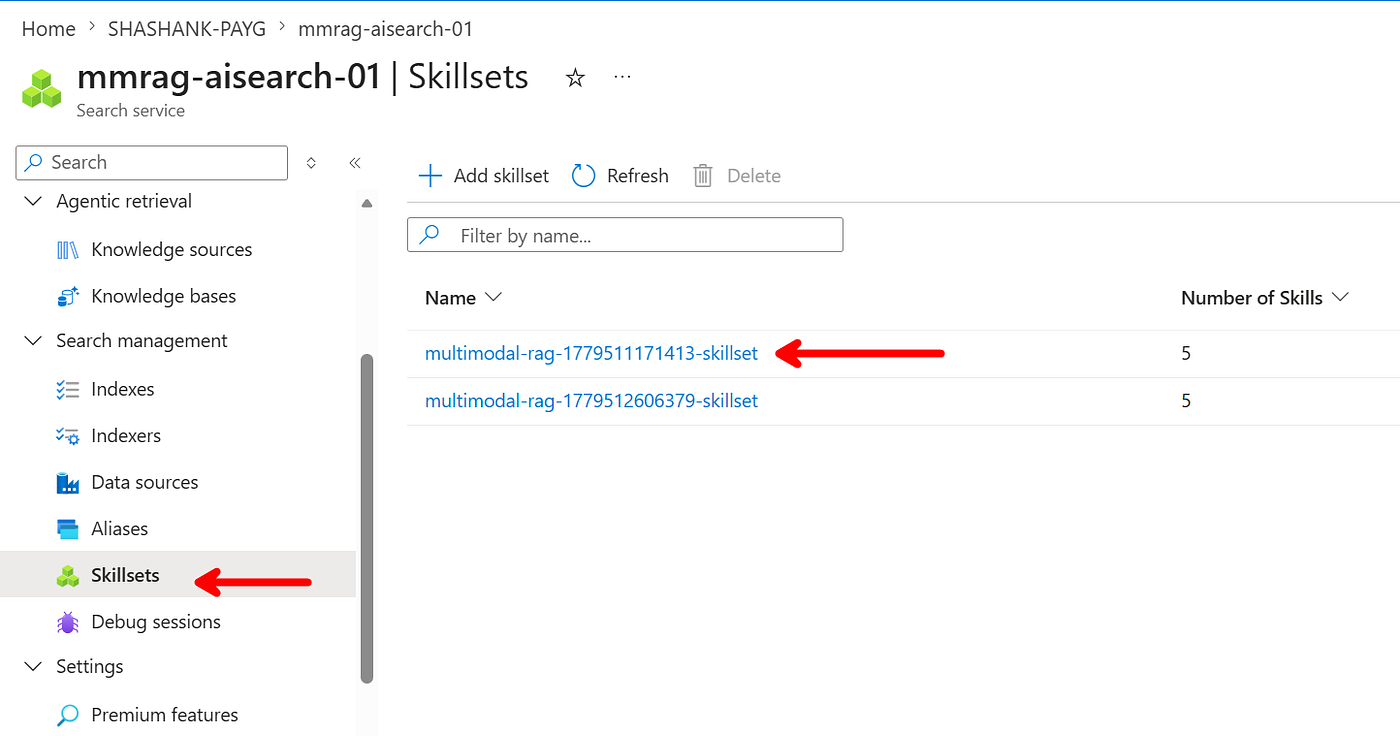
Notice the system instructions. This is where you can provide your own custom instructions, then run the indexer again.
메타데이터
- post_id
- 69eec6538b1e
- slug
- azure-ai-search-multimodal-rag-with-copilot-studio-69eec6538b1e
- url
- https://medium.com/@shashankgwl/azure-ai-search-multimodal-rag-with-copilot-studio-69eec6538b1e
- canonical_url
- https://medium.com/@shashankgwl/azure-ai-search-multimodal-rag-with-copilot-studio-69eec6538b1e
- author_url
- https://medium.com/@shashankgwl
- status
- ok
- fetched_at
- 2026-06-09 15:37:30




