Automated Receipt Processor Using The Cloud & AI
AWS Cloud Services Used:
Automated Receipt Processor Using The Cloud & AI

AWS Cloud Services Used:
- Amazon S3 to upload and store receipts
- Amazon Textract to extract the details
- DynamoDB to save and organize important data
- SES to send receipt summaries via email
- AWS Lambda to automate the whole thing
Problem:
Organizing receipts can be a very stressfull task. A grocery store needs to find a way to upload and organize its store receipts for tax purposes.
Solution:
Step 1
Set up the storage by creating a S3 bucket
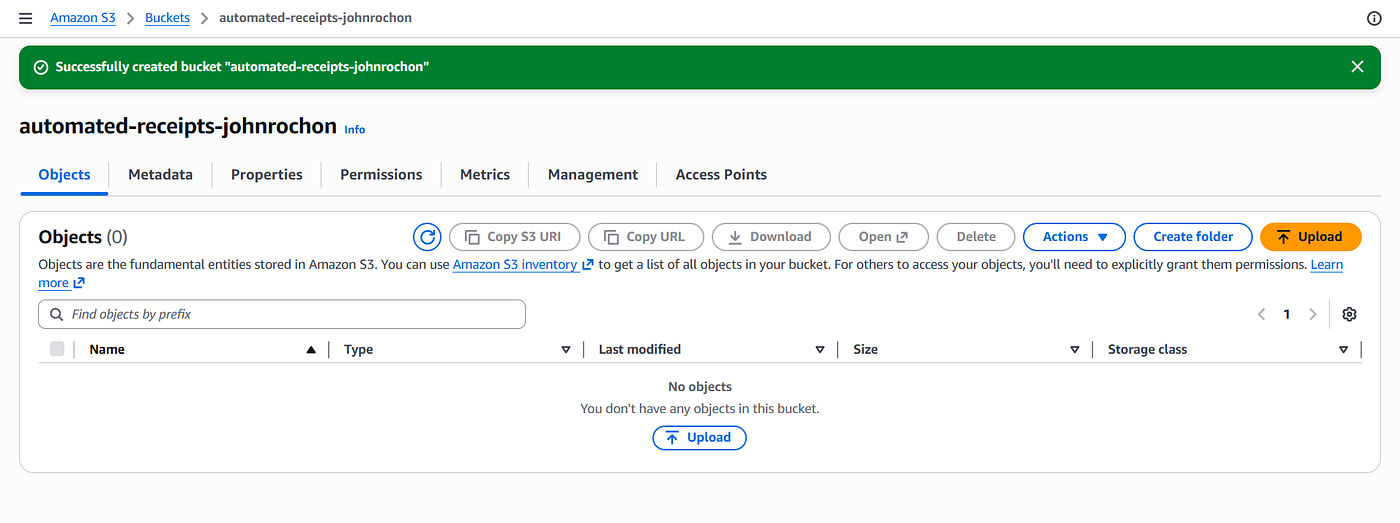
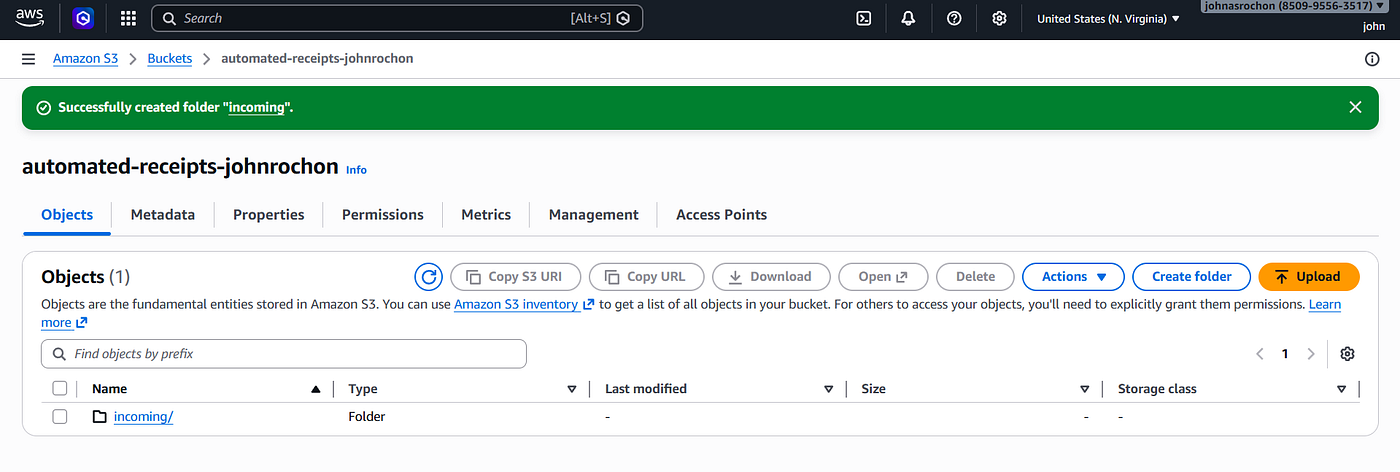
Once bucket is created, navigate into it and create a folder for new receipt uploads
Step 2
Go to AWS console and navigate to DynamoDB and create a table
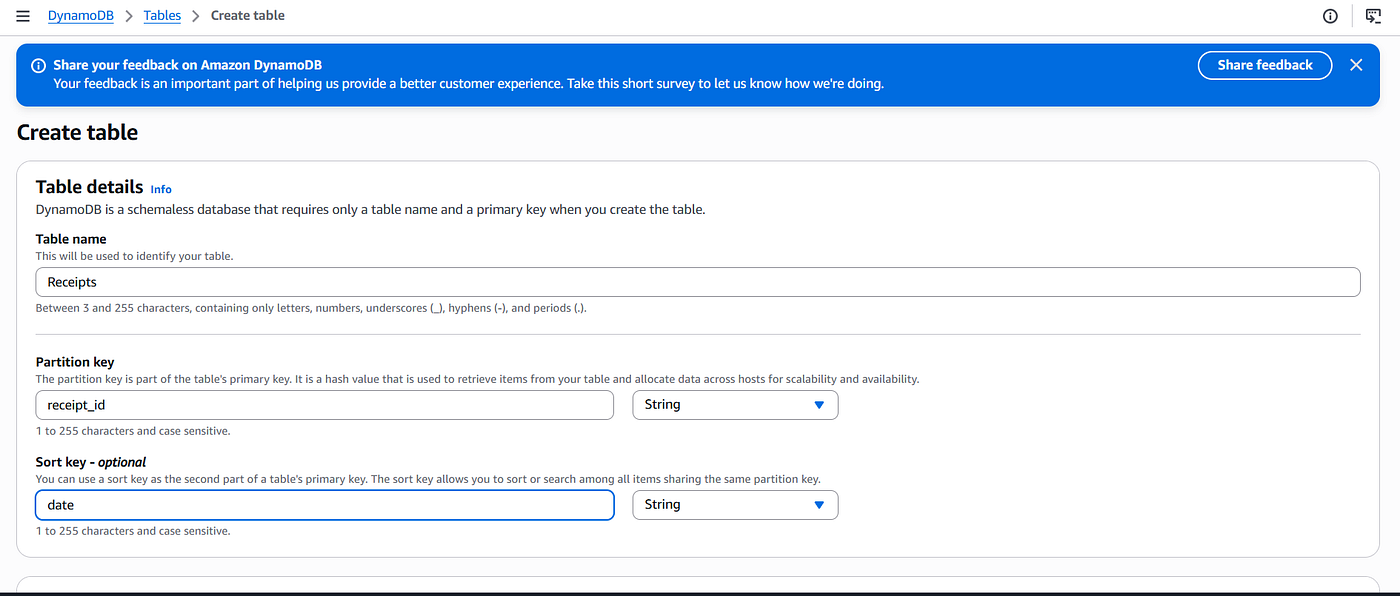
- This table will store all the extracted receipt information.
- Create a table name
- Create a Partition Key indentifier that will be used for each receipt
- Enter date for the sort key so the receipts can be arranged by dates
Step 3
Navigate back to AWS console and go to Amazon SES
- Click on configuration
- Click on identities
Add you email. This will setup notifications and allow to receive details of the receipts you upload.
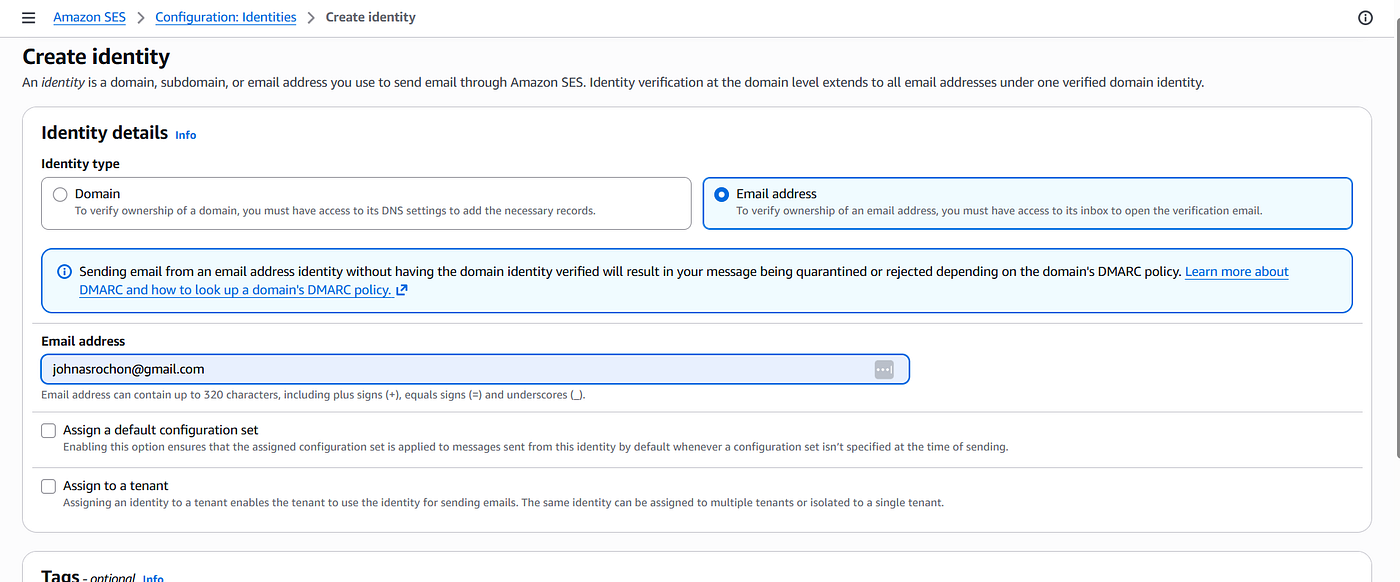
AWS will then send a verification email to the email you provided
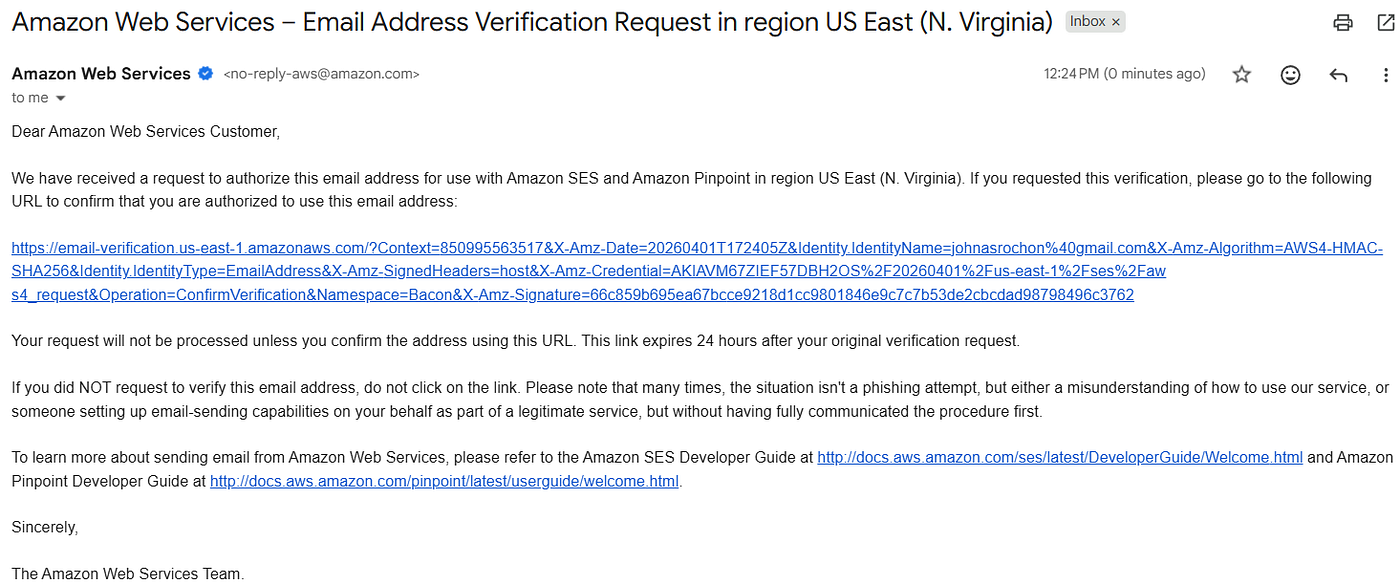
Go to your email and click on the verificaton link.
Step 4
This will be your security setup. Navigate back to AWS console and go to IAM (Identity & Access Managment).
- Click create role
- Click AWS as the trusted entity type (this specifies which AWS service can assume this role
- Choose Lambda as the service, then click next
- Attach the following 5 permission policies using the search box
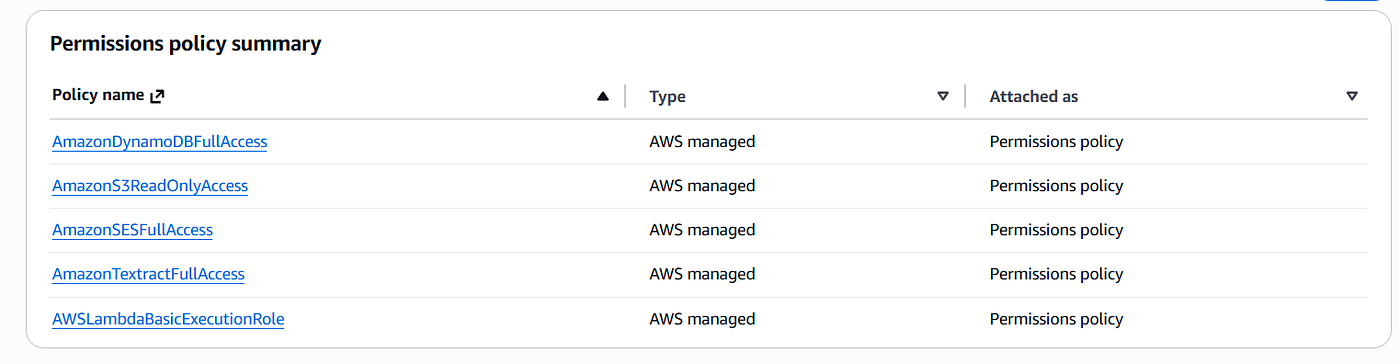
- Click next
- Give a role name, click create role to finalize
Step 5
Go to AWS console and navigate to Lambda. This is one of the most important part of this process, this is the magic that will connect everything together.
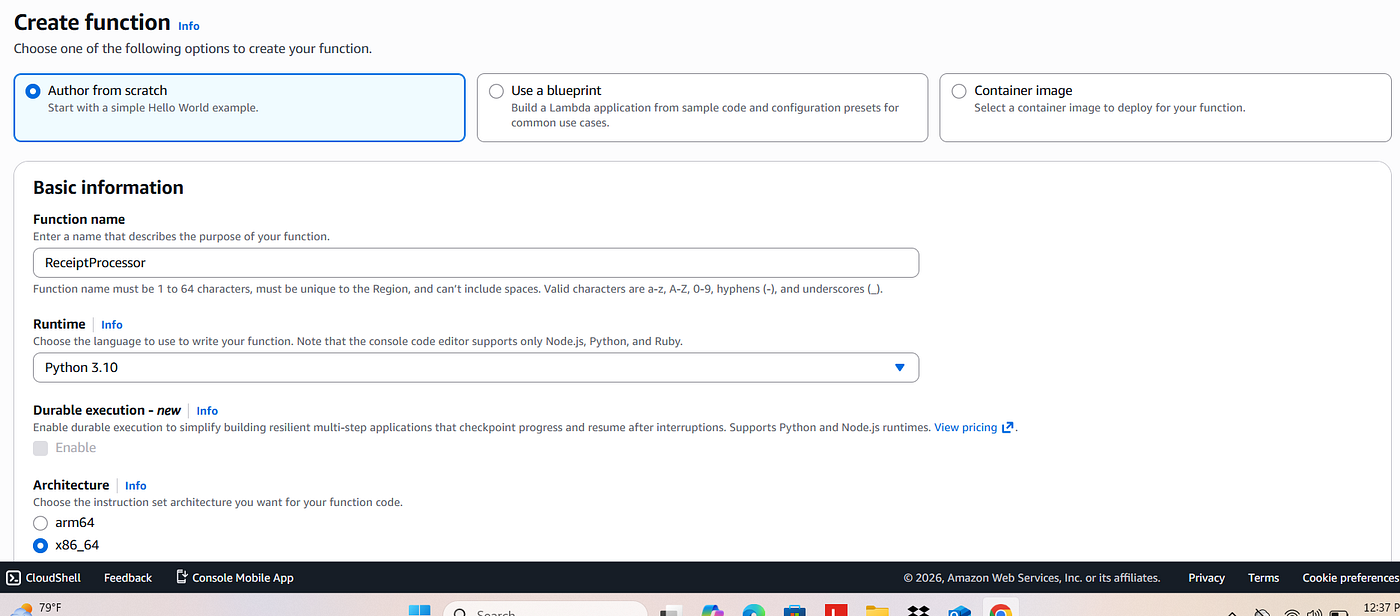
- Click create function
- Click author from scratch which will allow you to create a custom function from the begining
- Create a function name
- For runtime select Python 3.10
- Expand change default execution role
- Select use existing role
- Choose the role you created earlier from the drop down menu (ReceiptProcessingLambdaRole)
- Click create function
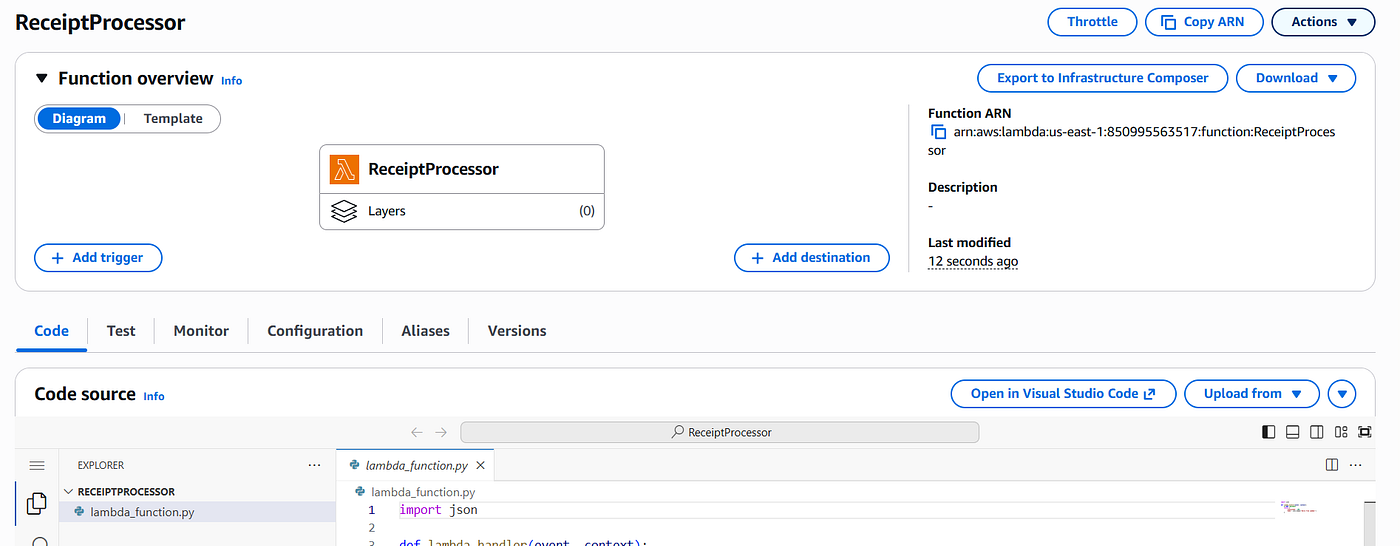
- Navigate to the configuration tab from the pic above
- Click edit
- Change the timeout from the default to 3 mins, this will allow time for processing complex receipts
- Click save
- Stay in the configuration tab and click Environment Variables in the menu to the left
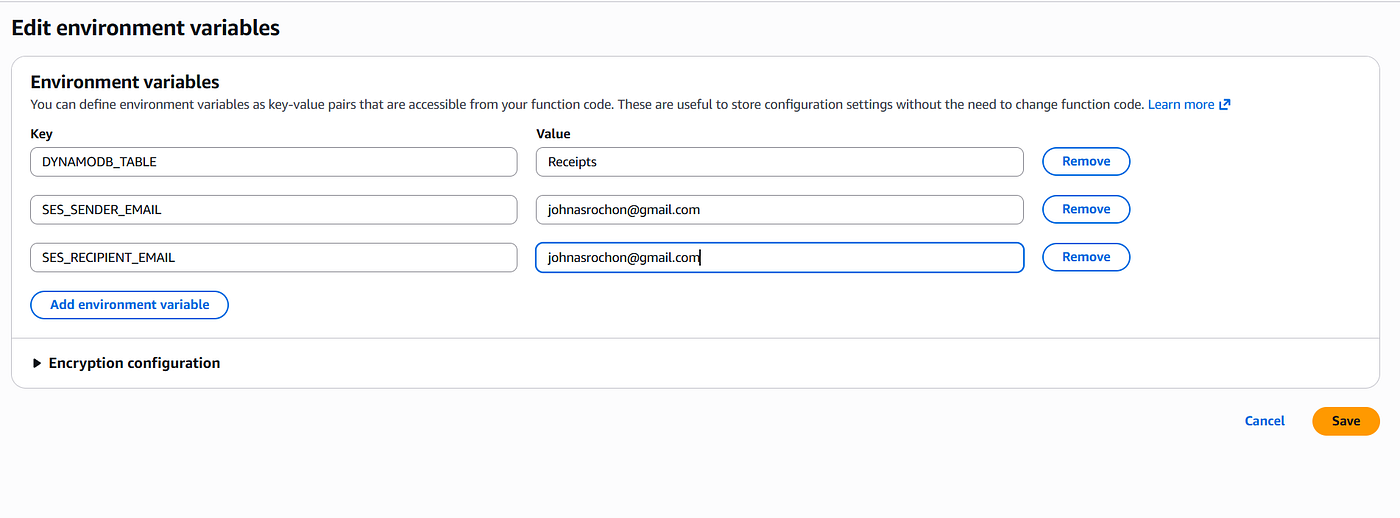
- Enter the 3 Key and Value info from above
(These will come into play once we add the code to our Lambda function)
- Click on the the code tab on the same row as the configuration tab
- Replace this Hello Code with the following code:
import json import os import boto3 import uuid from datetime import datetime import urllib.parse
Initialize AWS clients
s3 = boto3.client(‘s3’) textract = boto3.client(‘textract’) dynamodb = boto3.resource(‘dynamodb’) ses = boto3.client(‘ses’)
Environment variables
DYNAMODB_TABLE = os.environ.get(‘DYNAMODB_TABLE’, ‘Receipts’) SES_SENDER_EMAIL = os.environ.get(‘SES_SENDER_EMAIL’, ‘your-email@example.com’) SES_RECIPIENT_EMAIL = os.environ.get(‘SES_RECIPIENT_EMAIL’, ‘recipient@example.com’)
def lambda_handler(event, context): try:
Get the S3 bucket and key from the event
bucket = event[‘Records’][0][‘s3’][‘bucket’][‘name’]
URL decode the key to handle spaces and special characters
key = urllib.parse.unquote_plus(event[‘Records’][0][‘s3’][‘object’][‘key’])
print(f”Processing receipt from {bucket}/{key}”)
Verify the object exists before proceeding
try: s3.head_object(Bucket=bucket, Key=key) print(f”Object verification successful: {bucket}/{key}”) except Exception as e: print(f”Object verification failed: {str(e)}”) raise Exception(f”Unable to access object {key} in bucket {bucket}: {str(e)}”)
Step 1: Process receipt with Textract
receipt_data = process_receipt_with_textract(bucket, key)
Step 2: Store results in DynamoDB
store_receipt_in_dynamodb(receipt_data, bucket, key)
Step 3: Send email notification
send_email_notification(receipt_data)
return { ‘statusCode’: 200, ‘body’: json.dumps(‘Receipt processed successfully!’) } except Exception as e: print(f”Error processing receipt: {str(e)}”) return { ‘statusCode’: 500, ‘body’: json.dumps(f’Error: {str(e)}’) }
def process_receipt_with_textract(bucket, key): “””Process receipt using Textract’s AnalyzeExpense operation””” try: print(f”Calling Textract analyze_expense for {bucket}/{key}”) response = textract.analyze_expense( Document={ ‘S3Object’: { ‘Bucket’: bucket, ‘Name’: key } } ) print(“Textract analyze_expense call successful”) except Exception as e: print(f”Textract analyze_expense call failed: {str(e)}”) raise
Generate a unique ID for this receipt
receipt_id = str(uuid.uuid4())
Initialize receipt data dictionary
receipt_data = { ‘receipt_id’: receipt_id, ‘date’: datetime.now().strftime(‘%Y-%m-%d’), # Default date ‘vendor’: ‘Unknown’, ‘total’: ‘0.00’, ‘items’: [], ‘s3_path’: f”s3://{bucket}/{key}” }
Extract data from Textract response
if ‘ExpenseDocuments’ in response and response[‘ExpenseDocuments’]: expense_doc = response[‘ExpenseDocuments’][0]
Process summary fields (TOTAL, DATE, VENDOR)
if ‘SummaryFields’ in expense_doc: for field in expense_doc[‘SummaryFields’]: field_type = field.get(‘Type’, {}).get(‘Text’, ‘’) value = field.get(‘ValueDetection’, {}).get(‘Text’, ‘’)
if field_type == ‘TOTAL’: receipt_data[‘total’] = value elif field_type == ‘INVOICE_RECEIPT_DATE’:
Try to parse and format the date
try: receipt_data[‘date’] = value except:
Keep the default date if parsing fails
pass elif field_type == ‘VENDOR_NAME’: receipt_data[‘vendor’] = value
Process line items
if ‘LineItemGroups’ in expense_doc: for group in expense_doc[‘LineItemGroups’]: if ‘LineItems’ in group: for line_item in group[‘LineItems’]: item = {} for field in line_item.get(‘LineItemExpenseFields’, []): field_type = field.get(‘Type’, {}).get(‘Text’, ‘’) value = field.get(‘ValueDetection’, {}).get(‘Text’, ‘’)
if field_type == ‘ITEM’: item[‘name’] = value elif field_type == ‘PRICE’: item[‘price’] = value elif field_type == ‘QUANTITY’: item[‘quantity’] = value
Add to items list if we have a name
if ‘name’ in item: receipt_data[‘items’].append(item)
print(f”Extracted receipt data: {json.dumps(receipt_data)}”) return receipt_data
def store_receipt_in_dynamodb(receipt_data, bucket, key): “””Store the extracted receipt data in DynamoDB””” try: table = dynamodb.Table(DYNAMODB_TABLE)
Convert items to a format DynamoDB can store
items_for_db = [] for item in receipt_data[‘items’]: items_for_db.append({ ‘name’: item.get(‘name’, ‘Unknown Item’), ‘price’: item.get(‘price’, ‘0.00’), ‘quantity’: item.get(‘quantity’, ‘1’) })
Create item to insert
db_item = { ‘receipt_id’: receipt_data[‘receipt_id’], ‘date’: receipt_data[‘date’], ‘vendor’: receipt_data[‘vendor’], ‘total’: receipt_data[‘total’], ‘items’: items_for_db, ‘s3_path’: receipt_data[‘s3_path’], ‘processed_timestamp’: datetime.now().isoformat() }
Insert into DynamoDB
table.put_item(Item=db_item) print(f”Receipt data stored in DynamoDB: {receipt_data[‘receipt_id’]}”) except Exception as e: print(f”Error storing data in DynamoDB: {str(e)}”) raise
def send_email_notification(receipt_data): “””Send an email notification with receipt details””” try:
Format items for email
items_html = “” for item in receipt_data[‘items’]: name = item.get(‘name’, ‘Unknown Item’) price = item.get(‘price’, ‘N/A’) quantity = item.get(‘quantity’, ‘1’) items_html += f”<li>{name} — ${price} x {quantity}</li>”
if not items_html: items_html = “<li>No items detected</li>”
Create email body
html_body = f””” <html> <body> <h2>Receipt Processing Notification</h2> <p><strong>Receipt ID:</strong> {receipt_data[‘receipt_id’]}</p> <p><strong>Vendor:</strong> {receipt_data[‘vendor’]}</p> <p><strong>Date:</strong> {receipt_data[‘date’]}</p> <p><strong>Total Amount:</strong> ${receipt_data[‘total’]}</p> <p><strong>S3 Location:</strong> {receipt_data[‘s3_path’]}</p>
<h3>Items:</h3> <ul> {items_html} </ul>
<p>The receipt has been processed and stored in DynamoDB.</p> </body> </html> “””
Send email using SES
ses.send_email( Source=SES_SENDER_EMAIL, Destination={ ‘ToAddresses’: [SES_RECIPIENT_EMAIL] }, Message={ ‘Subject’: { ‘Data’: f”Receipt Processed: {receipt_data[‘vendor’]} — ${receipt_data[‘total’]}” }, ‘Body’: { ‘Html’: { ‘Data’: html_body } } } )
print(f”Email notification sent to {SES_RECIPIENT_EMAIL}”) except Exception as e: print(f”Error sending email notification: {str(e)}”)
Continue execution even if email fails
print(“Continuing execution despite email error”)
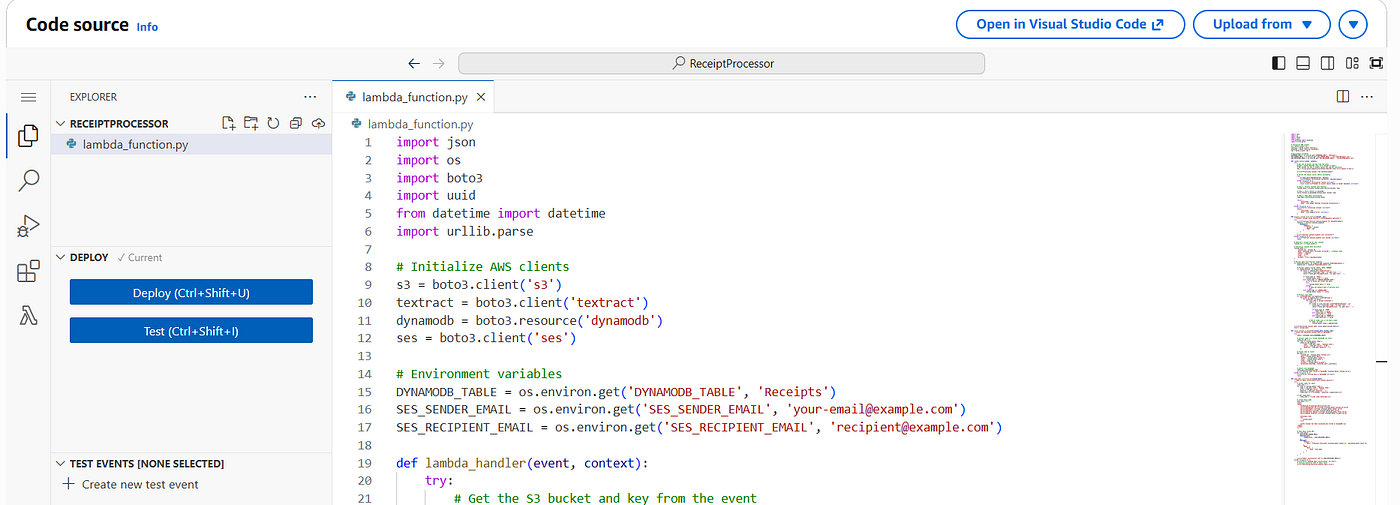
- Click Deploy on the left , which will save code and get ready for execution
Step 6 (Final step before testing)
Navigate back to S3
- Select bucket for this project
- Click on properties tab so we can create event notifications
- Scroll down to Event Notifications and click create
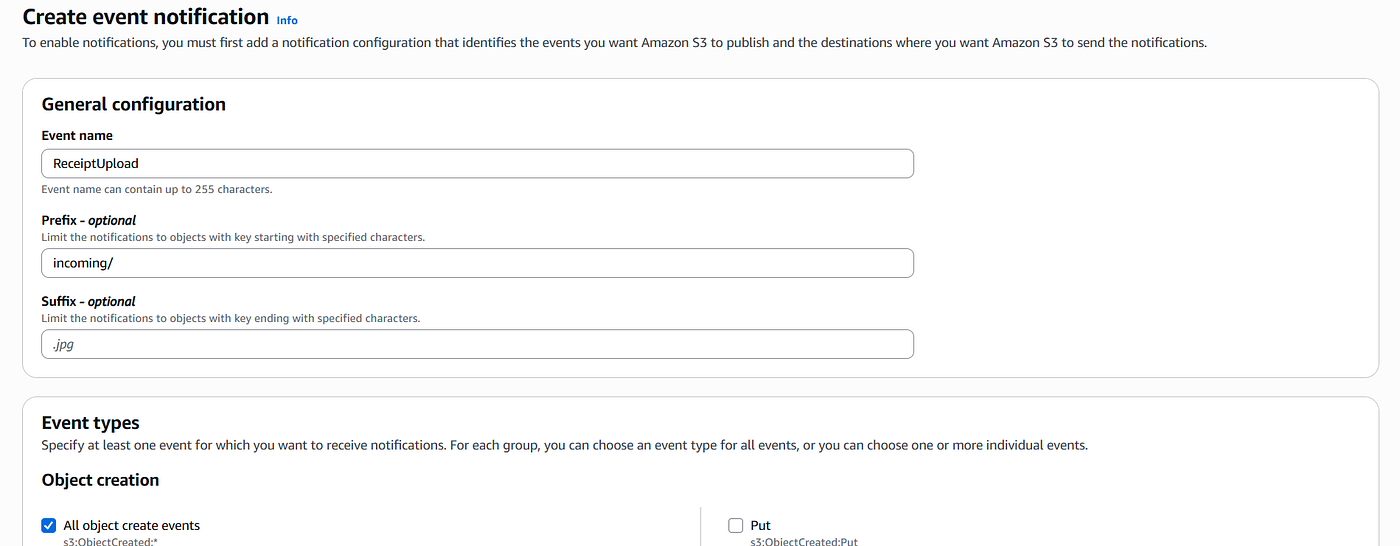
- Enter event name and a prefix (optional)
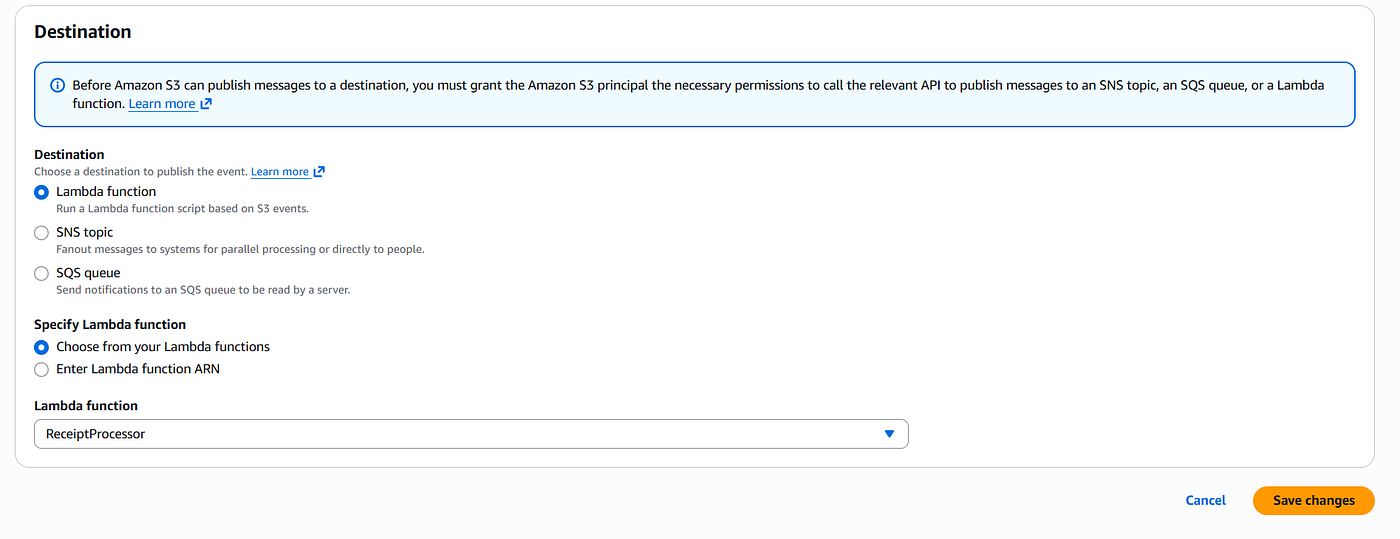
- Click Lambda function (from pic above)
- andChoose from your lambda functions
- Choose from drop down menu
This connects the S3 event to your event processing function, then click save
Now the whole system is built, now the fun part….
Test
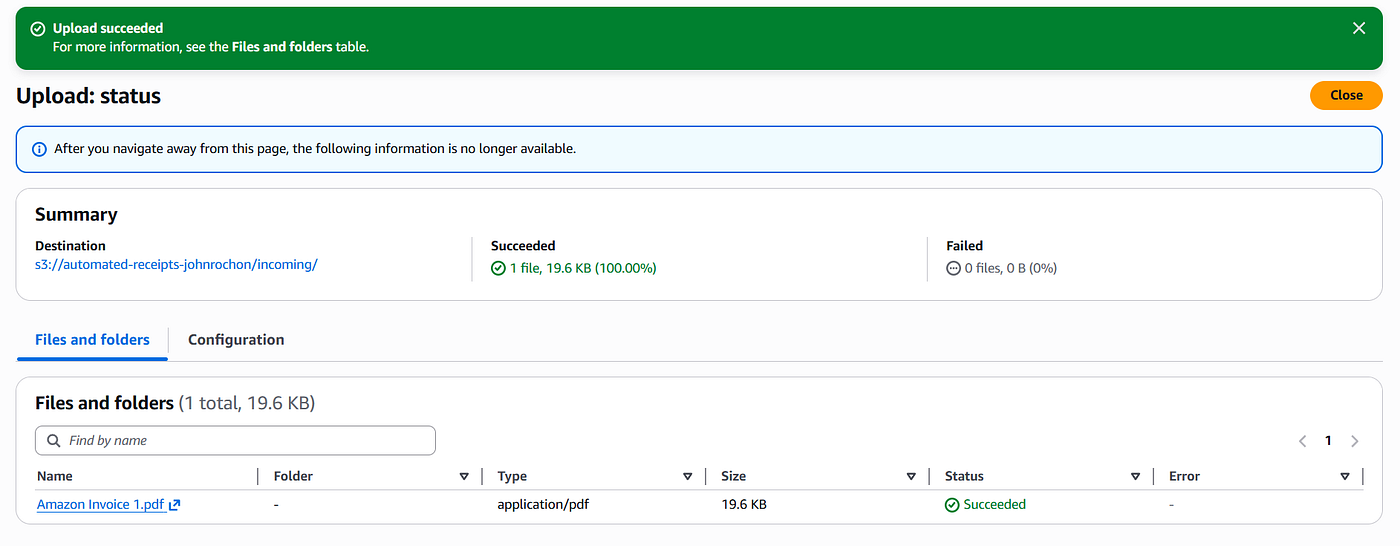
- Navigate back to your S3 bucket and click on your folder (incoming/)
- Click add files and upload receipts
- Navigate to Lambda then functions
- Click on function name
- Select monitor tab where you will be able to see invocations, you should see how many receipts you uploaded
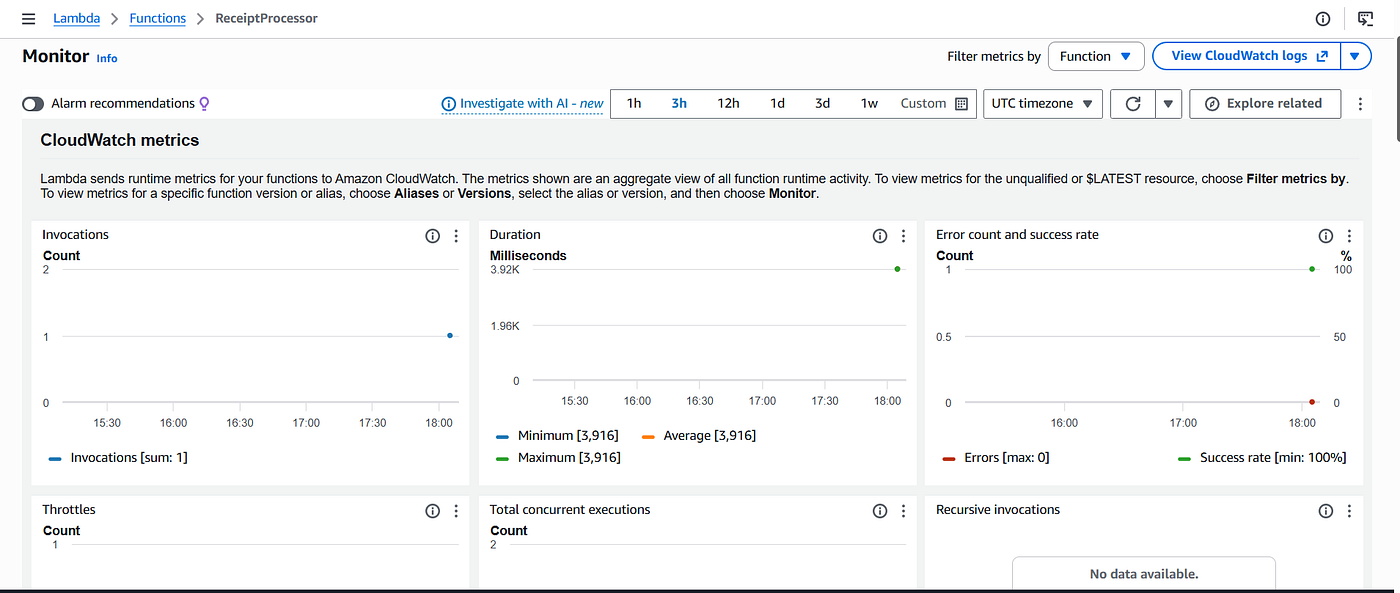
You can also check under DynamoDB or your email address you provided to see if its working correctly.
메타데이터
- post_id
- 8a2d4e0033e1
- slug
- automated-receipt-processor-using-the-cloud-ai-8a2d4e0033e1
- url
- https://medium.com/@johnasrochon/automated-receipt-processor-using-the-cloud-ai-8a2d4e0033e1
- canonical_url
- https://medium.com/@johnasrochon/automated-receipt-processor-using-the-cloud-ai-8a2d4e0033e1
- author_url
- https://medium.com/@johnasrochon
- status
- ok
- fetched_at
- 2026-06-09 15:37:30




