How to Create a ZUGFeRD Invoice in n8n — A Dropbox + JSON Workflow, Step by Step
Wire four n8n nodes to upload invoice JSON to PDF4me, generate a ZUGFeRD/Factur-X hybrid invoice, and push the output PDF directly to…
How to Create a ZUGFeRD Invoice in n8n — A Dropbox + JSON Workflow, Step by Step
Wire four n8n nodes to upload invoice JSON to PDF4me, generate a ZUGFeRD/Factur-X hybrid invoice, and push the output PDF directly to Dropbox — no code, no manual steps.
Most invoice pipelines break at the handoff. The PDF goes one way, the structured data another, and someone on the receiving end types the numbers in by hand. ZUGFeRD solves this by embedding machine-readable XML inside the PDF itself — one file that both humans and ERP systems can consume. This guide builds the n8n workflow that automates the whole thing.
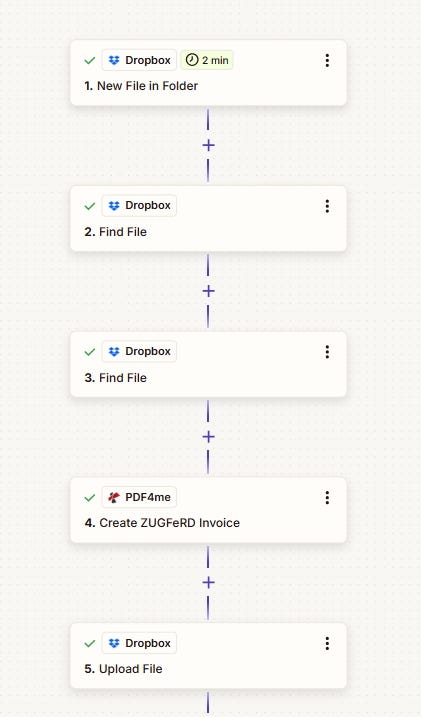
You’ll wire three core parts: push your invoice JSON into PDF4me to get a stable document URL, generate the ZUGFeRD invoice from that URL, and upload the output PDF to Dropbox as a binary file. Four nodes total.
What You’ll Need
- n8n (cloud or self-hosted) with permission to create workflows
- PDF4me credentials (API key) configured in n8n — see Connect PDF4me to n8n
- Dropbox OAuth2 credential in n8n with write access to your output folder
- A valid invoice JSON payload (start with a known-good sample, then swap in your own fields gradually)
The Workflow at a Glance
Four nodes, linear sequence:
- Trigger —
When clicking "Execute workflow"(swap to Cron or Webhook once stable) - Upload JSON file to PDF4me — turns your JSON into a hosted document URL
- Create Zugferd Invoice (PDF4me) — generates the ZUGFeRD hybrid PDF from that URL
- Upload a file (Dropbox) — saves the binary PDF to your output path

Four nodes in sequence: trigger → upload JSON → generate ZUGFeRD invoice → upload PDF to Dropbox.
One thing to keep consistent end-to-end: the binary field name. This walkthrough uses data in both the generation node and the Dropbox upload node. Change it in one place, change it in the other.
Step 1 — Trigger
Create a new workflow in n8n and add the When clicking "Execute workflow" trigger. This lets you run the workflow manually while you're building and testing. Once everything is working, swap it for a Cron schedule, a Webhook, or a "new file" trigger that fires when invoice data arrives.
Step 2 — Upload JSON file to PDF4me
This node uploads your invoice JSON to PDF4me’s temporary storage and returns a document URL. You need that URL because the invoice generation node in step 3 can accept a URL as input — which is more reliable than passing raw binary data between nodes.
Add a PDF4me node and configure it:
Resource:PDF4mePDF4me Operations:Upload File To PDF4meInput Data Type:Base64 String(match whatever format your JSON is in)Base64 File Content: your invoice JSON encoded as Base64File Retention Hours:2(or longer if your workflow takes time to reach step 3)
Execute the node once and confirm it returns a URL or token you can reference in the next node.

Step 2 screenshot: upload JSON so PDF4me returns a document URL for the next step.
Step 3 — Create Zugferd Invoice (PDF4me)
This is the main node. It takes the URL from step 2, fetches the JSON, builds the ZUGFeRD-compliant hybrid PDF, and outputs binary data into a named field.
Core profile settings:
Resource:InvoiceInvoice Operations:Create Zugferd InvoiceInput Data Type:Base64 StringDocument Name:invoice.pdfOutput Mode:XML With PDF— produces the hybrid PDF/A-3 with embedded XMLConformance Level:BASIC— minimum legal invoice with line items; useEN16931for full EU compliance orXRECHNUNGfor German public-sectorZugferd Version:1.0(use the version your trading partner expects; 2.0+ aligns with the German 2025 mandate)Language:English(or your buyer's language)Render Invoice On PDF: toggle on

Step 3 screenshot (part 1): invoice operation settings and core profile/version choices.
JSON URL mapping settings:
Input Format:JSONInvoice Data Input Type:URLInvoice Data URL: map{{ $json.documentUrl }}from step 2's outputOutput File Name:zugferd_invoice.pdfOutput Binary Field Name:data
The Output Binary Field Name value must match whatever field name you reference in the Dropbox upload node. Using data keeps it consistent.
Show Image

Step 3 screenshot (part 2): JSON + URL mapping and binary output field name.
Step 4 — Upload a file (Dropbox)
This node reads the binary PDF from step 3’s data field and writes it to your Dropbox output path.
Credential: your Dropbox OAuth2 API connectionResource:FileOperation:UploadFile Path: full destination path including filename — e.g.,/blog data/zugferd invoice/output/Zugferd_Result.pdfBinary File: toggle onInput Binary Field:data
Execute the node and confirm Dropbox returns file metadata (path, ID, etc.) indicating a successful write.

Step 4 screenshot: Dropbox upload publishes the generated invoice PDF.
What You Get
A ZUGFeRD-compliant hybrid PDF lands at your specified Dropbox path. Open it in any PDF reader — it looks like a normal invoice. Pass it to a ZUGFeRD-compatible AP platform and the embedded XML is there, structured and parseable, with no manual re-keying on either end.
Common Issues
- Dropbox upload fails with “binary field not found”: The
Output Binary Field Namein step 3 andInput Binary Fieldin step 4 don't match. Both must bedata(or whatever name you chose — just keep them identical). - URL mapping returns “not found”: The document URL from step 2 has expired before step 3 runs. Increase
File Retention Hoursin step 2, or restructure the workflow so step 3 runs immediately after step 2. - 401 / 402 / connection errors: API key issue or credit exhaustion. See the PDF4me troubleshooting guide.
Build This Today
The four-node workflow takes under 15 minutes to configure. Once it runs cleanly, swap the manual trigger for a schedule or webhook and you have a fully automated ZUGFeRD pipeline — JSON in, compliant hybrid PDF in Dropbox, nothing touched by hand.
Want to validate the output before archiving? Chain a Validate PDFA node after step 4 — see the Validate PDFA docs for reference. Prefer a Microsoft 365 stack? The same pattern runs in Power Automate with a Dropbox + JSON setup.
Get started with PDF4me on n8n and run your first ZUGFeRD workflow today.
If this saved your team the “can you send it in a parseable format” back-and-forth, share it with whoever handles invoice delivery.
메타데이터
- post_id
- a7eea89b74c5
- slug
- how-to-create-a-zugferd-invoice-in-n8n-a-dropbox-json-workflow-step-by-step-a7eea89b74c5
- url
- https://medium.com/@pdf4me.ani/how-to-create-a-zugferd-invoice-in-n8n-a-dropbox-json-workflow-step-by-step-a7eea89b74c5
- canonical_url
- https://medium.com/@pdf4me.ani/how-to-create-a-zugferd-invoice-in-n8n-a-dropbox-json-workflow-step-by-step-a7eea89b74c5
- author_url
- https://medium.com/@pdf4me.ani
- status
- ok
- fetched_at
- 2026-06-15 20:49:13