Building a Pagination System in Next.js using sadcn
This guide shows how to create a simple pagination system in Next.js using a dummy JSON dataset. It’s designed for users with no backend…
Building a Pagination System in Next.js using sadcn
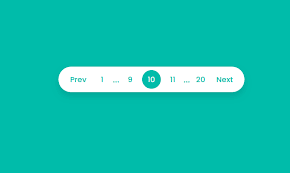
This guide shows how to create a simple pagination system in Next.js using a dummy JSON dataset. It’s designed for users with no backend experience, offering an easy setup for implementing pagination without complex server-side configurations.
Note: This demo assumes you already have a Next.js project set up and are looking to gain experience in implementing a pagination system.
Step 1: Setting Up the Backend API for Pagination
We will create a simple API endpoint in our Next.js project that fetches paginated data from the DummyJSON API.
File Structure
/app
  /api
    /pagination
      route.ts
API Implementation (api/pagination/route.ts)
import axios from "axios";
export async function GET(request: Request) {
  try {
    const { searchParams } = new URL(request.url);
    const page = parseInt(searchParams.get("page") || "1");
    const limit = parseInt(searchParams.get("limit") || "10");
// Fetch all data from DummyJSON API
    const response = await axios.get("https://dummyjson.com/products?limit=0");
    const products = response.data.products;
    // Calculate total pages
    const totalProducts = products.length;
    const totalPages = Math.ceil(totalProducts / limit);
    // Paginate the products
    const startIndex = (page - 1) * limit;
    const paginatedData = products.slice(startIndex, startIndex + limit);
    return new Response(
      JSON.stringify({
        data: paginatedData,
        current_data_length: paginatedData.length,
        current_page: page,
        total_page: totalPages,
      }),
      { status: 200, headers: { "Content-Type": "application/json" } }
    );
  } catch (error) {
    console.error("Error:", error);
    return new Response(
      JSON.stringify({ error: "Something went wrong" }),
      { status: 500, headers: { "Content-Type": "application/json" } }
    );
  }
}
This API fetches product data, calculates total pages, and returns paginated results based on query parameters.
Step 2: Creating the Pagination Wrapper Component
We will build a reusable **PaginationWrapper** component using Shadcn's pagination utilities.
note: you have to install the pagination, button ,skeleton and card from sadcn website
PaginationWrapper (components/PaginationWrapper.tsx)
import React from "react";
import {
  Pagination,
  PaginationContent,
  PaginationItem,
  PaginationLink,
  PaginationPrevious,
  PaginationNext,
  PaginationEllipsis,
} from "@/components/ui/pagination";
interface PaginationWrapperProps {
  totalPages: number;
  currentPage: number;
  onPageChange: (page: number) => void;
  disabled?: boolean;
}
const PaginationWrapper: React.FC<PaginationWrapperProps> = ({
  totalPages,
  currentPage,
  onPageChange,
  disabled = false,
}) => {
  const getPages = () => {
    const pages = [];
    for (let i = 1; i <= totalPages; i++) {
      pages.push(i);
    }
    return pages;
  };
  return (
    <Pagination>
      <PaginationContent>
        <PaginationPrevious
          onClick={() => {
            if (!disabled && currentPage > 1) onPageChange(currentPage - 1);
          }}
        />
        {getPages().map((page) =>
          Math.abs(page - currentPage) < 2 || page === 1 || page === totalPages ? (
            <PaginationItem key={page}>
              <PaginationLink
                isActive={page === currentPage}
                onClick={() => onPageChange(page)}
              >
                {page}
              </PaginationLink>
            </PaginationItem>
          ) : (
            page === currentPage + 2 && <PaginationEllipsis key={page} />
          )
        )}
        <PaginationNext
          onClick={() => {
            if (!disabled && currentPage < totalPages) onPageChange(currentPage + 1);
          }}
        />
      </PaginationContent>
    </Pagination>
  );
};
export default PaginationWrapper;
This component handles pagination logic and displays the appropriate page numbers, next, and previous buttons.
Step 3: Building the Product List Component with Pagination
Next, we will create a Product Pagination component that fetches paginated data from the backend API and displays it with a pagination control.
Product Pagination Component (components/ProductPagination.tsx)
"use client";
import { useState, useEffect } from "react";
import { useRouter, useSearchParams } from "next/navigation";
import { Card, CardContent, CardHeader, CardTitle } from "@/components/ui/card";
import { Skeleton } from "@/components/ui/skeleton";
import Image from "next/image";
import PaginationWrapper from "./PaginationWrapper";
interface Product {
  id: number;
  title: string;
  description: string;
  price: number;
  thumbnail: string;
}
interface ApiResponse {
  data: Product[];
  current_data_length: number;
  current_page: number;
  total_page: number;
}
export default function ProductPagination() {
  const [products, setProducts] = useState<Product[]>([]);
  const [currentPage, setCurrentPage] = useState(1);
  const [totalPages, setTotalPages] = useState(0);
  const [isLoading, setIsLoading] = useState(true);
  const searchParams = useSearchParams();
  const router = useRouter();
  const fetchProducts = async (page: number) => {
    setIsLoading(true);
    try {
      const response = await fetch(`/api/pagination?page=${page}&limit=10`);
      const data: ApiResponse = await response.json();
      setProducts(data.data);
      setCurrentPage(data.current_page);
      setTotalPages(data.total_page);
    } catch (error) {
      console.error("Error fetching products:", error);
    } finally {
      setIsLoading(false);
    }
  };
  useEffect(() => {
    const page = Number(searchParams.get("page")) || 1;
    fetchProducts(page);
  }, [searchParams]);
  const handlePageChange = (page: number) => {
    router.push(`?page=${page}`);
  }; // for simple i have just push you can optimize as you want
  return (
    <div className="container mx-auto p-4">
      <h1 className="text-2xl font-bold mb-4">Product List</h1>
      <div className="grid grid-cols-1 md:grid-cols-2 lg:grid-cols-3 gap-4 mb-4">
        {isLoading
          ? Array(10)
              .fill(0)
              .map((_, index) => (
                <Card key={index} className="w-full">
                  <CardHeader>
                    <Skeleton className="h-4 w-[250px]" />
                  </CardHeader>
                  <CardContent>
                    <Skeleton className="h-4 w-[200px] mb-2" />
                    <Skeleton className="h-4 w-[150px]" />
                  </CardContent>
                </Card>
              ))
          : products.map((product) => (
              <Card key={product.id} className="w-full">
                <CardHeader>
                  <CardTitle>{product.title}</CardTitle>
                </CardHeader>
                <CardContent>
                  <p className="text-sm text-gray-500 mb-2">{product.description}</p>
                  <p className="font-bold">${product.price.toFixed(2)}</p>
                  <Image
                    src={product.thumbnail || "/placeholder.svg"}
                    alt={product.title}
                    width={250}
                    height={160}
                    className="mt-2 w-full h-40 object-cover rounded-md"
                  />
                </CardContent>
              </Card>
            ))}
      </div>
      <div className="flex justify-center mt-4">
        <PaginationWrapper
          totalPages={totalPages}
          currentPage={currentPage}
          onPageChange={handlePageChange}
          disabled={isLoading}
        />
      </div>
    </div>
  );
}
Step 4: Rendering the Product Pagination Component
Finally, integrate the ProductPagination component in your Next.js page.
import ProductPagination from "./components/ProductPagination";
export default function Home() {
  return (
    <main className="min-h-screen bg-background">
      <ProductPagination />
    </main>
  );
}
Conclusion
In this tutorial, we built a full-fledged pagination system in Next.js. We used Shadcn’s Pagination component for the UI and created a custom backend API for fetching paginated data. This approach ensures a seamless and scalable user experience.
Feel free to customize the styles and pagination logic according to your needs. Happy coding!
In short I have write a raw code here
메타데이터
- post_id
- b7a3e79cf1e2
- slug
- building-a-pagination-system-in-next-js-using-sadcn-b7a3e79cf1e2
- url
- https://medium.com/@shahbishwa21/building-a-pagination-system-in-next-js-using-sadcn-b7a3e79cf1e2
- canonical_url
- https://medium.com/@shahbishwa21/building-a-pagination-system-in-next-js-using-sadcn-b7a3e79cf1e2
- author_url
- https://medium.com/@shahbishwa21
- status
- ok
- fetched_at
- 2026-06-09 15:37:30




