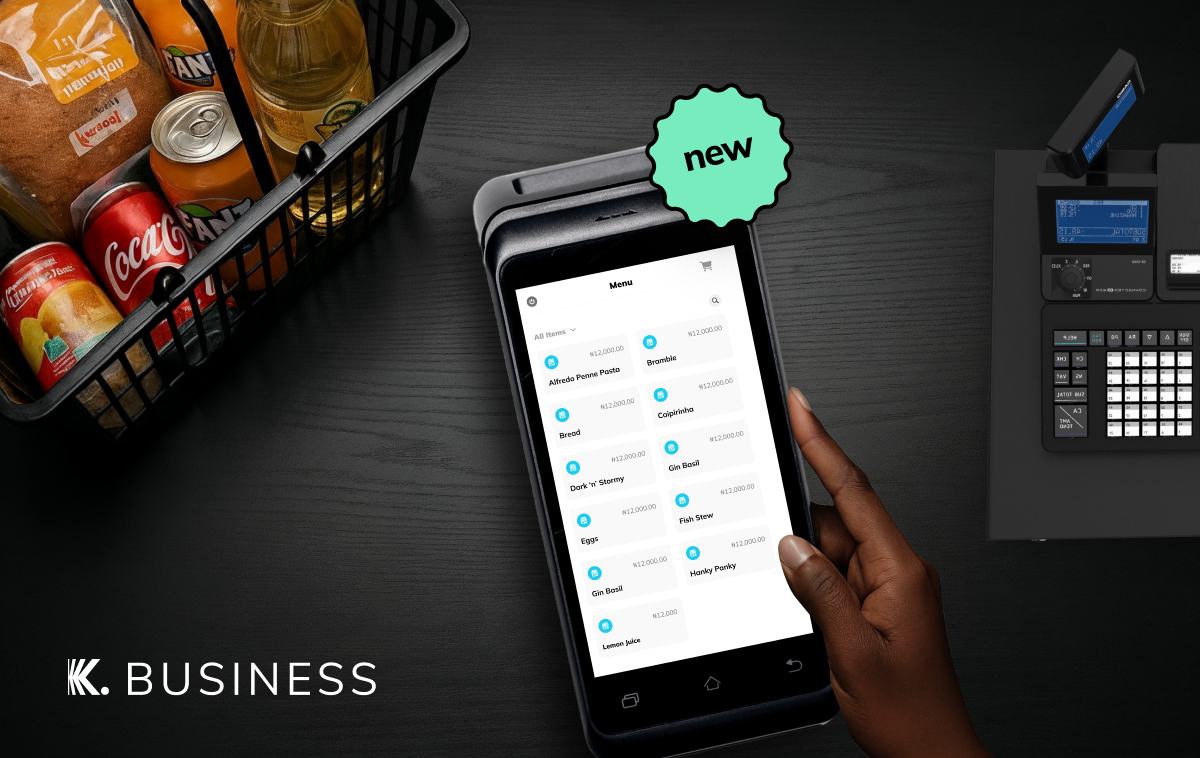
Do Less Work With Teams On Kuda Business
The latest update to your Kuda Business app lets you share your workload with your team without giving up control.
Do Less Work With Teams On Kuda Business
The latest update to your Kuda Business app lets you share your workload with your team without giving up control.

Running a business means wearing multiple hats. One minute you’re paying suppliers, the next you’re balancing the books and restocking inventory.
It’s a lot, and you shouldn’t have to do it all alone.
That’s why we added the brand-new Teams feature to your Kuda Business app. It helps you share your workload without giving up control.
What’s Teams?
Teams is a simple and secure way to give the people you work with controlled access to your Kuda Business account.
You can give your staff specific roles, decide what each person can see and do on your account, including approving transactions, all while keeping your main account balance and transaction history to yourself if you want to. It’s the secure way to share your workload.
What roles can you assign on Teams?

1. Super Admin
A Super Admin has total control and can do everything, including manage accounts, send money, approve payments, and add other team members.
2. Admin
An Admin has the same level of control as a Super Admin with one major difference: they can’t add or remove other Admins.
3. Accountant
An Accountant can see your balances and transaction history, make payments, and approve transaction requests.
4. Employee
This role has limited access. Depending on what you need an Employee to do, you can give them permission to view, create, or approve transactions.
A few things to remember

✅ Only Super Admins and Admins can assign roles to team members.
✅ You need to complete our KYC process to use Teams.
✅ Managing and leasing a POS is limited to Super Admins and Admins.
✅ If you give someone ‘View Only’ access, they’ll always be able to see both your account balance and your transaction history.
How do you invite a team member?

-
Sign in to your Kuda Business account.
-
Tap Teams.
-
Add the team member’s name, email address, and job title.
-
Give the team member a role and review their permissions.
-
Tap Send Invite and wait for the team member to accept your invitation.
When you don’t have to do everything yourself, you can focus on what really matters: winning over new customers, improving your products or services, and scaling your business. Teams gives you the confidence to share the workload.
Sign in to your Kuda Business account now, invite your staff, and assign roles.
메타데이터
- post_id
- 0139b6399bd2
- slug
- do-less-work-with-teams-on-kuda-business-0139b6399bd2
- url
- https://medium.com/kuda-business/do-less-work-with-teams-on-kuda-business-0139b6399bd2
- canonical_url
- https://medium.com/kuda-business/do-less-work-with-teams-on-kuda-business-0139b6399bd2
- author_url
- https://medium.com/@joinkuda
- status
- ok
- fetched_at
- 2026-06-12 07:40:50