Building Powerful Cross-Platform GUIs with PySide6
Creating polished, professional-grade applications has never been easier, thanks to PySide6, the official Python binding of the Qt 6…
Building Powerful Cross-Platform GUIs with PySide6
Creating polished, professional-grade applications has never been easier, thanks to PySide6, the official Python binding of the Qt 6 framework. PySide6 offers an intuitive way to build cross-platform graphical user interfaces (GUIs) with the power of Python and the robust feature set of Qt.
Whether you’re a beginner exploring GUI development or an experienced developer crafting complex software, PySide6 provides the tools you need to bring your ideas to life.
Why Choose PySide6?
Cross-Platform Compatibility
One of the standout features of PySide6 is its ability to create applications that run seamlessly on multiple platforms, including:
- Windows
- macOS
- Linux
- Mobile Platforms (Android and iOS)
With PySide6, you can write your code once and deploy it anywhere without worrying about platform-specific quirks.
Rich Feature Set
PySide6 offers an extensive library of widgets and APIs to design interactive applications. Whether you’re working with basic UI elements like buttons and labels or delving into advanced features like multimedia and 3D rendering, PySide6 has you covered.
Integration with Python
Python’s simplicity and popularity make it an excellent choice for rapid application development. By leveraging Python, PySide6 makes GUI development accessible to beginners while providing advanced tools for experienced developers.
Scalability
From small desktop tools to enterprise-grade applications, PySide6 is designed to handle projects of all sizes. Its scalability ensures you won’t outgrow the framework as your application grows in complexity.
How I Used PySide6: Scan2Connect
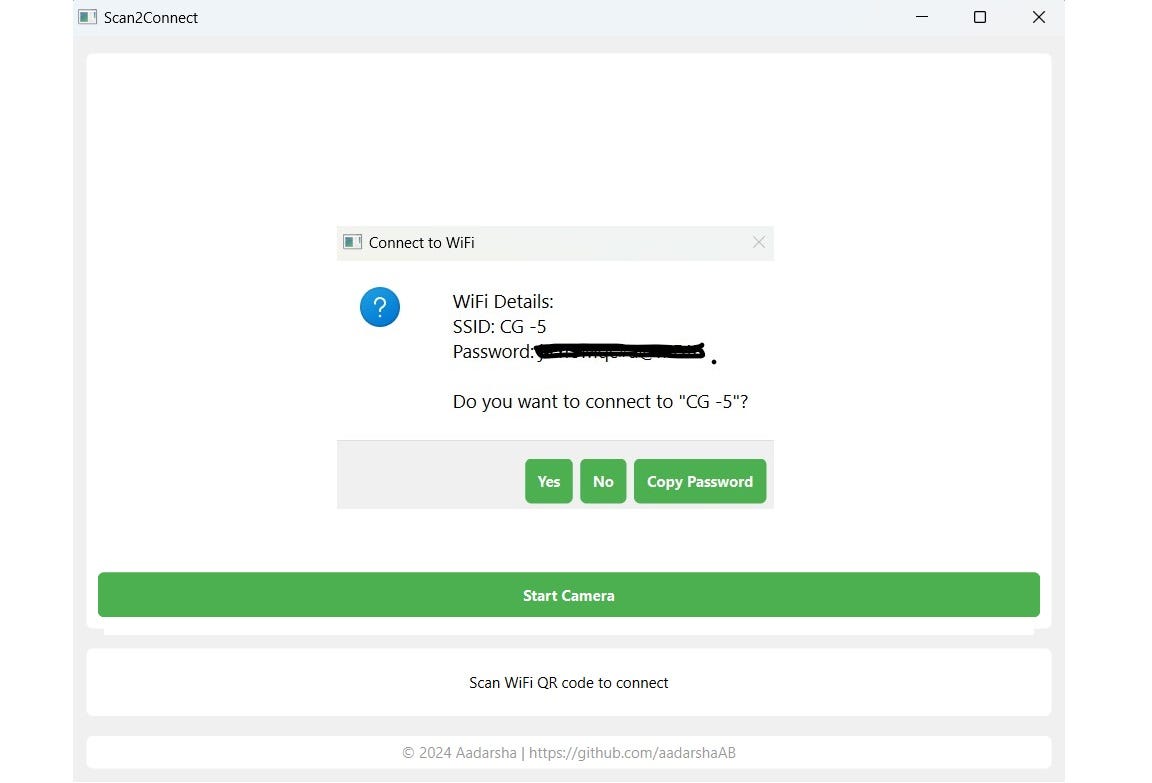
I recently built a desktop app called Scan2Connect, a QR code scanner that reads WiFi QR codes and connects users to WiFi networks seamlessly.
Key Features:
- Live Camera Scanning: The app uses OpenCV for real-time QR code detection.
- Dynamic UI: Built entirely with PySide6, the interface adapts beautifully to user interactions.
- WiFi Integration: With the help of the
pywifilibrary, users can connect to networks with just a click.
import sys
import cv2
import re
import pywifi
import time
from pywifi import const
from PySide6.QtWidgets import (QApplication, QMainWindow, QWidget, QVBoxLayout,
                               QPushButton, QLabel, QMessageBox, QProgressDialog,
                               QHBoxLayout, QFrame, QDialogButtonBox)
from PySide6.QtCore import Qt, QTimer, Slot, QThread, Signal
from PySide6.QtGui import QImage, QPixmap, QIcon, QClipboard
from pyzbar.pyzbar import decode

class CustomMessageBox(QMessageBox):
    def __init__(self, parent=None):
        super().__init__(parent)
        self.clipboard = QApplication.clipboard()

    def setup_ui(self, ssid, password):
        self.setIcon(QMessageBox.Question)
        self.setWindowTitle("Connect to WiFi")
        self.setText(f"WiFi Details:\nSSID: {ssid}\nPassword: {password}\n\nDo you want to connect to \"{ssid}\"?")

        layout = self.layout()

        self.setStandardButtons(QMessageBox.NoButton)

        button_box = QDialogButtonBox()

        yes_button = QPushButton("Yes")
        no_button = QPushButton("No")
        copy_button = QPushButton("Copy Password")

        button_box.addButton(yes_button, QDialogButtonBox.YesRole)
        button_box.addButton(no_button, QDialogButtonBox.NoRole)
        button_box.addButton(copy_button, QDialogButtonBox.ActionRole)

        yes_button.clicked.connect(lambda: self.done(QMessageBox.Yes))
        no_button.clicked.connect(lambda: self.done(QMessageBox.No))
        copy_button.clicked.connect(lambda: self.copy_password(password))

        layout.addWidget(button_box, 3, 0, 1, layout.columnCount())

    def copy_password(self, password):
        self.clipboard.setText(password)
        QMessageBox.information(self, "Copied", "Password copied to clipboard!")

class WifiConnector(QThread):
    status_updated = Signal(str)
    connection_completed = Signal(bool, str)

    def __init__(self, ssid, password):
        super().__init__()
        self.ssid = ssid
        self.password = password
        self.wifi = pywifi.PyWiFi()
        self.iface = self.wifi.interfaces()[0]

    def run(self):
        try:
            self.iface.disconnect()
            time.sleep(1)

            profile = pywifi.Profile()
            profile.ssid = self.ssid
            profile.auth = const.AUTH_ALG_OPEN
            profile.akm.append(const.AKM_TYPE_WPA2PSK)
            profile.cipher = const.CIPHER_TYPE_CCMP
            profile.key = self.password

            self.status_updated.emit("Removing existing profiles...")
            self.iface.remove_all_network_profiles()

            self.status_updated.emit("Adding new network profile...")
            profile = self.iface.add_network_profile(profile)

            self.status_updated.emit(f"Connecting to {self.ssid}...")
            self.iface.connect(profile)

            for _ in range(10):
                time.sleep(1)
                if self.iface.status() == const.IFACE_CONNECTED:
                    self.connection_completed.emit(True, f"Connected to {self.ssid}")
                    return
                self.status_updated.emit("Connecting...")
            self.connection_completed.emit(False, "Connection Timeout")

        except Exception as exp:
            self.connection_completed.emit(False, f"Connection failed: {str(exp)}")

class WifiQRScanner(QMainWindow):
    def __init__(self):
        super().__init__()
        self.setWindowTitle("Scan2Connect")
        self.setMinimumSize(800, 600)
        icon = QIcon("app_icon.ico")
        self.setWindowIcon(icon)

        self.camera = None
        self.capture_timer = None
        self.is_scanning = False

        self.central_widget = QWidget()
        self.setCentralWidget(self.central_widget)
        self.layout = QVBoxLayout(self.central_widget)

        self.setup_ui()

    def setup_ui(self):
        camera_frame = QFrame()
        camera_frame.setFrameStyle(QFrame.Panel | QFrame.Sunken)
        camera_layout = QVBoxLayout(camera_frame)

        self.camera_label = QLabel()
        self.camera_label.setAlignment(Qt.AlignCenter)
        self.camera_label.setMinimumSize(640, 480)
        camera_layout.addWidget(self.camera_label)

        button_layout = QHBoxLayout()
        self.scan_button = QPushButton("Start Scanning")
        self.scan_button.clicked.connect(self.toggle_scanning)
        button_layout.addWidget(self.scan_button)

        camera_layout.addLayout(button_layout)
        self.layout.addWidget(camera_frame)

        status_frame = QFrame()
        status_frame.setFrameStyle(QFrame.Panel | QFrame.Sunken)
        status_layout = QVBoxLayout(status_frame)

        self.status_label = QLabel("Scan QR code")
        self.status_label.setAlignment(Qt.AlignCenter)
        status_layout.addWidget(self.status_label)

        self.layout.addWidget(status_frame)

        watermark_label = QLabel("© 2024 Aadarsha | https://github.com/aadarshaAB")
        watermark_label.setAlignment(Qt.AlignCenter)
        watermark_label.setStyleSheet("color: #999; padding: 5px;")
        self.layout.addWidget(watermark_label)

    def toggle_scanning(self):
        if not self.is_scanning:
            self.start_camera()
        else:
            self.stop_camera()

    def start_camera(self):
        try:
            self.camera = cv2.VideoCapture(0)
            if not self.camera.isOpened():
                raise Exception("Cannot access camera")

            self.is_scanning = True
            self.scan_button.setText("Stop Camera")
            self.scan_button.setStyleSheet("background-color: #f44336;")

            self.capture_timer = QTimer()
            self.capture_timer.timeout.connect(self.update_frame)
            self.capture_timer.start(30)

        except Exception as exp:
            QMessageBox.critical(self, "Error", f"Could not start camera: {str(exp)}")

    def stop_camera(self):
        self.is_scanning = False
        if self.capture_timer:
            self.capture_timer.stop()
        if self.camera:
            self.camera.release()

        self.scan_button.setText("Start Camera")
        self.scan_button.setStyleSheet("background-color: #4CAF50;")
        self.camera_label.clear()
        self.status_label.setText("Scan WiFi QR code to connect")

    def parse_wifi_qr(self, data):
        try:
            ssid_match = re.search(r"WIFI:S:(.*?);", data)
            pass_match = re.search(r"P:(.*?);", data)
            if ssid_match and pass_match:
                return ssid_match.group(1), pass_match.group(1)
        except Exception:
            pass
        return None, None

    def connect_to_wifi(self, ssid, password):
        progress = QProgressDialog("Connecting to WiFi...", "Cancel", 0, 0, self)
        progress.setWindowTitle("Connecting")
        progress.setWindowModality(Qt.WindowModal)
        progress.setCancelButton(None)
        progress.setAutoClose(True)
        progress.setMinimumDuration(0)

        self.connector = WifiConnector(ssid, password)
        self.connector.status_updated.connect(progress.setLabelText)
        self.connector.connection_completed.connect(self.handle_connection_result)
        self.connector.connection_completed.connect(progress.close)
        self.connector.start()

    def handle_connection_result(self, success, message):
        if success:
            QMessageBox.information(self, "Success", message)
            self.status_label.setText("Connected to WiFi")
        else:
            QMessageBox.critical(self, "Error", message)
            self.status_label.setText("Connection failed")

    def show_wifi_details_dialog(self, ssid, password):
        dialog = CustomMessageBox(self)
        dialog.setup_ui(ssid, password)
        return dialog.exec_()

    @Slot()
    def update_frame(self):
        ret, frame = self.camera.read()
        if ret:
            decoded_objects = decode(frame)

            for obj in decoded_objects:
                data = obj.data.decode("utf-8")
                if data.startswith("WIFI:"):
                    ssid, password = self.parse_wifi_qr(data)
                    if ssid and password:
                        rect_points = obj.rect
                        cv2.rectangle(
                            frame, (rect_points.left, rect_points.top),
                            (rect_points.left + rect_points.width,
                             rect_points.top + rect_points.height),
                            (0, 255, 0), 2
                        )
                        reply = self.show_wifi_details_dialog(ssid, password)
                        if reply == QMessageBox.Yes:
                            self.connect_to_wifi(ssid, password)

            rgb_image = cv2.cvtColor(frame, cv2.COLOR_BGR2RGB)
            h, w, ch = rgb_image.shape
            bytes_per_line = ch * w
            qt_image = QImage(rgb_image.data, w, h, bytes_per_line,
                              QImage.Format.Format_RGB888)
            scaled_pixmap = QPixmap.fromImage(qt_image).scaled(
                self.camera_label.size(), Qt.KeepAspectRatio
            )
            self.camera_label.setPixmap(scaled_pixmap)

    def closeEvent(self, event):
        self.stop_camera()
        event.accept()

if __name__ == "__main__":
    app = QApplication(sys.argv)
    app_icon = QIcon("app_icon.ico")
    app.setWindowIcon(app_icon)
    app.setStyleSheet("""
        QMainWindow {
            background-color: #f0f0f0;
        }
        QFrame {
            background-color: white;
            border-radius: 5px;
            margin: 5px;
        }
        QLabel {
            padding: 5px;
        }
        QPushButton {
            background-color: #4CAF50;
            color: white;
            font-weight: bold;
            padding: 10px;
            border-radius: 5px;
        }
        QPushButton:hover {
            background-color: #45a049;
        }
    """)

    window = WifiQRScanner()
    window.show()
    sys.exit(app.exec())
메타데이터
- post_id
- 1b337455252e
- slug
- building-powerful-cross-platform-guis-with-pyside6-1b337455252e
- url
- https://medium.com/@aadarshabhattarai873/building-powerful-cross-platform-guis-with-pyside6-1b337455252e
- canonical_url
- https://medium.com/@aadarshabhattarai873/building-powerful-cross-platform-guis-with-pyside6-1b337455252e
- author_url
- https://medium.com/@aadarshabhattarai873
- status
- ok
- fetched_at
- 2026-06-20 20:29:01