Database Backup and Restore from Amazon RDS SQL Server to Amazon S3
Database Backup and Restore from Amazon RDS SQL Server to Amazon S3
A Practical Walkthrough for Real Engineering Workflows
Backing up a production database and restoring it safely for internal testing is one of the most important tasks in any engineering workflow. In real companies you do not want your developers or data teams experimenting directly on production. Instead you give them a copy. This is exactly what I set out to do in this project using Amazon Web Services.
In this article I walk you through how I backed up a Microsoft SQL Server database from Amazon RDS into Amazon S3 and then restored the backup into a new database. It is a simple concept but it involves learning many AWS services and putting them together in a clean secure workflow.
- Building the Foundation:
Creating the RDS Instance in a Private Subnet
I started by launching an RDS instance using Microsoft SQL Server engine. The instance was placed inside a private subnet. This means it cannot be reached directly from the internet. This is the recommended best practice because databases should never be public facing.
- Secure Access
Connecting to the Database without Opening Any Ports
The next step was figuring out a secure way to access the SQL Server engine. Normally people open RDP ports to log into a Windows EC2 instance and then connect through SQL Server Management Studio. But opening ports is not ideal from a security perspective.
Instead I used Session Manager through AWS Systems Manager. When using this method you do not open any inbound ports. Only IAM permissions are required which makes the entire setup much safer.
To prepare for this I created an IAM role called ec2SessionManager role that gives the EC2 instance the right to communicate with Systems Manager.
- Provisioning the Windows EC2 Instance
Access through Fleet Manager instead of RDP
Since SQL Server Management Studio only works on Windows, I launched a Windows EC2 instance and attached the ec2SessionManager role during creation.
Instead of RDP, I used Fleet Manager, which is a feature inside Systems Manager. It allows you to open a secure, browser based remote session into the Windows machine without exposing the instance to the internet.
Screenshot placeholder: Windows EC2 instance and Fleet Manager access


- Connecting to SQL Server Management Studio
Once inside the Windows instance, I downloaded and installed SQL Server Management Studio.
Then I connected to the RDS SQL Server database using the RDS endpoint, my login credentials and the ARN of the database
- Creating the Database and Dummy Tables
With the connection established, I created a new database and multiple tables using SQL scripts.
I then seeded the tables with dummy data. This step helps to simulate a real world workload before performing the backup and restore process.
Screenshot placeholder: SQL code creating tables and inserting data
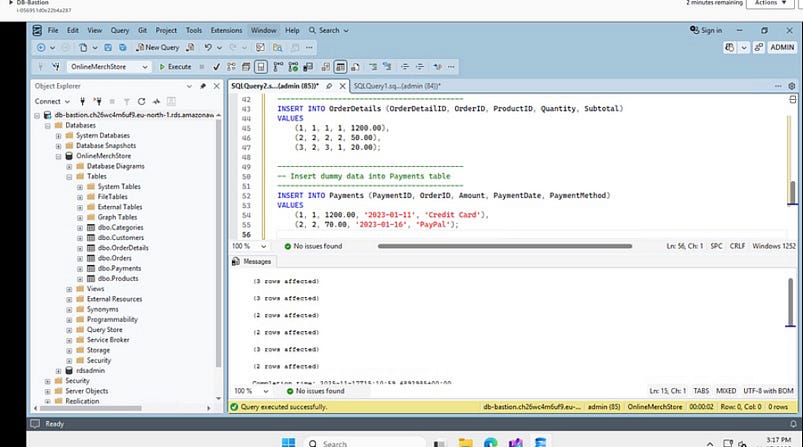

creating a dummy table
- Preparing RDS for Backup and Restore
Configuring the Option Group

SQL Server on RDS requires a feature called SQL Server Backup and Restore. This is only available when you configure an Option Group.
So I created a new Option Group that matched the same SQL engine and version as my RDS instance. Inside the Option Group I enabled
SQLSERVER BACKUP RESTORE
This option allows the database to interact with an S3 bucket during backup and restore operations.
Next I created a new IAM role for RDS and attached a policy that gives the role full access to S3. The RDS instance needs this permission so it can write backups to my bucket.
After setting all this up, I applied the Option Group to the RDS instance
Screenshot placeholder: Option Group with Backup and Restore enabled
- Performing the Backup to Amazon S3
Now everything was ready
Inside SSMS I ran the SQL command that sends the backup to my S3 bucket. The command specifies the bucket name and the database name. Once executed, a .bak file was successfully created in the S3 bucket.
Screenshot placeholder: SSMS backup query and S3 bucket result
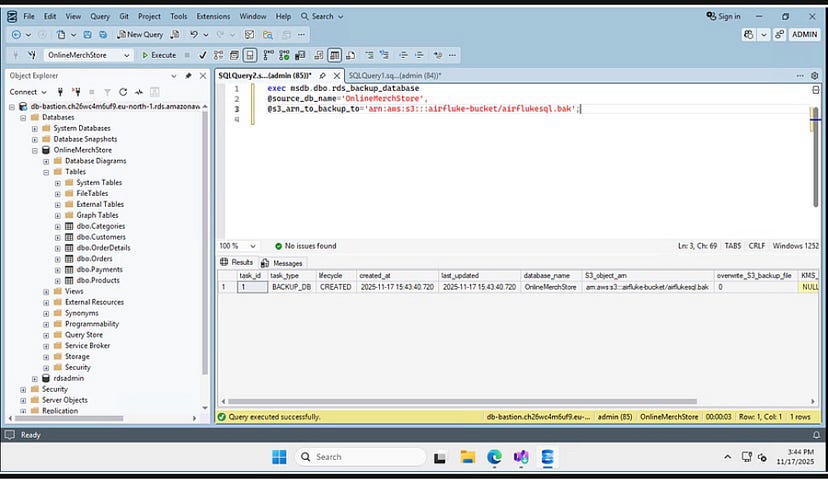
backup query screenshot

S3 bucket screenshot
- Restoring from S3 into a New Database
The restore process was just as simple.
I used a SQL query to restore the .bak file into a new database instance. After the restore completed I performed several queries on the restored database to verify that the data matched the original.
This final test confirmed the backup integrity and the overall success of the workflow.
Screenshot placeholder: restore query and restored database


- Why This Workflow Matters
This setup allows engineering teams to get fresh copies of production data without ever touching the production environment.
It also follows AWS best practices for security:
No public access
No exposed ports
IAM based authentication
Private subnets
Secure backups inside S3
This replicates what real production companies do when they want to safely give developers an environment to test new features without risk.
Conclusion:
This project connected multiple AWS services together in a real world use case.
I worked with RDS private networking, Amazon EC2, IAM roles, Systems Manager, Fleet Manager, Option Groups, SQL Server Management Studio and Amazon S3. All parts came together to produce a complete backup and restore solution.
If you want to explore this workflow further I can share my SQL scripts or the architectural diagram used in this setup.
Thank you for reading.
메타데이터
- post_id
- 5fe2c2b30eb8
- slug
- database-backup-and-restore-from-amazon-rds-sql-server-to-amazon-s3-5fe2c2b30eb8
- url
- https://medium.com/@komethompson2/database-backup-and-restore-from-amazon-rds-sql-server-to-amazon-s3-5fe2c2b30eb8
- canonical_url
- https://medium.com/@komethompson2/database-backup-and-restore-from-amazon-rds-sql-server-to-amazon-s3-5fe2c2b30eb8
- author_url
- https://medium.com/@komethompson2
- status
- ok
- fetched_at
- 2026-07-17 17:14:00