GCP Observability
Automate GCP Asset Metadata Exports: Leverage Cloud Functions, BigQuery, and Pub/Sub to Streamline Resource Management.
GCP Observability
GCP Asset Exporter Wiki
How to Automate GCP Asset Metadata Export to BigQuery ?
Introduction
Managing resources in Google Cloud Platform (GCP) often involves sifting through endless lists of compute instances, storage buckets, IAM policies, and more. Wouldn’t it be great to have an automated workflow that gathers this information and stores it in a way that’s easy to query and visualize?
In this article, I’ll outline a Cloud Asset Exporter setup that uses Cloud Asset Inventory, BigQuery, Cloud Functions, Pub/Sub, and Cloud Scheduler. While a public repo exists, I’m opting not to share my own code directly for security reasons — yet this guide should help you build a similar solution on your own.
High-Level Architecture 🏗️
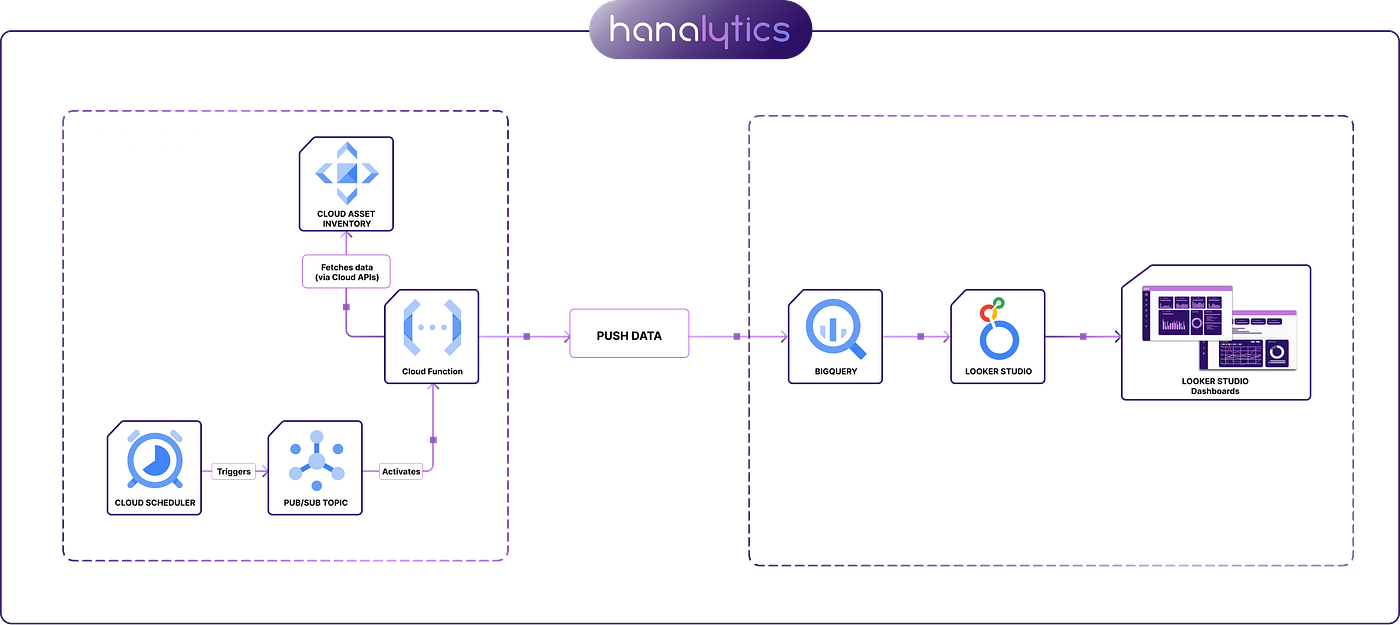
Cloud Asset Exporter
- The function writes this data to BigQuery tables.
- Looker Studio can be used to visualize and analyze the results.
1. GCP Services & Workflow 🚀
- Cloud Asset Inventory : Retrieves metadata about GCP resources (Compute Engine, Cloud Storage, Pub/Sub, etc.).
- Cloud Functions : Runs a Python script in a serverless environment to fetch, transform, and load data via Cloud Asset API Calls .
- Pub/Sub + Cloud Scheduler : Cloud Scheduler sends scheduled triggers via Pub/Sub to invoke the Cloud Function regularly.
- BigQuery : Stores, organizes, and partitions the data for efficient querying and low cost.
Terraform (Optional): You can utilize Infrastructure as Code to automate the setup of the different resources(roles, service accounts, Cloud Functions, and more).
2. Requirements & IAM Roles 🔑
Google Cloud SDK: For local development (optional if deploying everything in the cloud).
Terraform: If you want to provision everything as code.
IAM Permissions (for whoever sets this up):
roles/resourcemanager.organizationIamAdminroles/resourcemanager.projectIamAdminroles/iam.serviceAccountAdminroles/bigquery.adminroles/pubsub.adminroles/cloudfunctions.adminroles/cloudscheduler.admin
APIs to enable:
- Cloud Asset API
- Resource Manager API
- BigQuery API
- Cloud Functions API
- Cloud Scheduler API
- Pub/Sub API
These roles and APIs ensure you can manage project settings, deploy Cloud Functions, schedule tasks, and write to BigQuery.
3. How the Automation Works 🤖
- Cloud Scheduler & Pub/Sub
- At a specified time (e.g., 3:00 AM UTC), Cloud Scheduler publishes a message to a Pub/Sub topic.
2. Cloud Function (Python)
- The Pub/Sub message triggers the function.
- The function calls Cloud Asset Inventory, retrieving resource metadata (e.g., from your entire organization or specific projects).
- Processes (filters/transforms) the data, then inserts it into BigQuery.
3. BigQuery
- Stores the data in a partitioned table.
- This allows easy querying for specific days or months and keeps costs down for large datasets.
project_mapping Dataset: Why?
Because Cloud Asset data typically references the project number, it’s helpful to maintain a project_mapping table that pairs numeric project IDs with their human-friendly counterparts. This makes dashboards and queries more readable.
Your cloud function code can look something similar to this , u can customize it further :
from google.cloud import asset_v1, bigquery
from google.cloud import resourcemanager_v3

# =============================================================================
# Global Configuration
# =============================================================================

# Adjust these values for your environment
ORG_ID = ""                        # Your GCP Organization ID
PROJECT_ID = ""  # The GCP project where BigQuery tables/datasets reside
BQ_LOCATION = ""                             # BigQuery dataset location (e.g., "US" or "EU")

# Single dataset to hold both assets and project mappings
DATASET_ID = "gcp_asset_export"

# Table names within the single dataset
ASSET_TABLE_ID = "asset_inventory"      # For Cloud Asset Inventory exports
PROJECTS_TABLE_ID = "project_mapping"   # For storing (project_number, project_id) pairs

# =============================================================================
# Main Functions
# =============================================================================

def export_assets_to_bigquery():
    """
    Exports Cloud Asset Inventory data from your organization into the
    `asset_inventory` table in the `gcp_asset_export` dataset.
    The table is partitioned by ingestion time.
    """
    # Initialize the BigQuery client (ensure it uses the correct project & location)
    bq_client = bigquery.Client(project=PROJECT_ID, location=BQ_LOCATION)

    # Initialize the Cloud Asset service client
    asset_client = asset_v1.AssetServiceClient()

    # Fully qualified references for BigQuery
    fully_qualified_table_id = f"{PROJECT_ID}.{DATASET_ID}.{ASSET_TABLE_ID}"
    bigquery_destination = f"projects/{PROJECT_ID}/datasets/{DATASET_ID}"

    # Ensure dataset & table exist (partitioned for asset data)
    ensure_dataset_exists(bq_client, PROJECT_ID, DATASET_ID)
    ensure_partitioned_table_exists(bq_client, PROJECT_ID, DATASET_ID, ASSET_TABLE_ID)

    # Prepare output configuration to export assets to BigQuery
    output_config = asset_v1.OutputConfig(
        bigquery_destination=asset_v1.BigQueryDestination(
            dataset=bigquery_destination,
            table=ASSET_TABLE_ID,
            force=True  # Overwrite/append data if the table exists
        )
    )

    # Create the request to export assets
    request = asset_v1.ExportAssetsRequest(
        parent=f"organizations/{ORG_ID}",
        content_type=asset_v1.ContentType.RESOURCE,
        output_config=output_config
    )

    # Execute the export operation
    try:
        operation = asset_client.export_assets(request=request)
        operation.result()  # Wait for the export to complete
        print(f"Successfully exported assets to BigQuery table: {fully_qualified_table_id}")
    except Exception as e:
        print(f"Failed to export assets: {e}")

def export_projects_to_bigquery():
    """
    Fetches all projects from your GCP Organization using the Resource Manager API
    and saves (project_number, project_id) into the `project_mapping` table,
    located in the same `gcp_asset_export` dataset.
    """
    # Initialize the BigQuery and Resource Manager clients
    bq_client = bigquery.Client(project=PROJECT_ID, location=BQ_LOCATION)
    resource_client = resourcemanager_v3.ProjectsClient()

    # Construct the full table ID for project_mapping
    full_table_id = f"{PROJECT_ID}.{DATASET_ID}.{PROJECTS_TABLE_ID}"

    # Ensure the dataset & project-mapping table exist
    ensure_dataset_exists(bq_client, PROJECT_ID, DATASET_ID)
    ensure_project_table_exists(bq_client, PROJECT_ID, DATASET_ID, PROJECTS_TABLE_ID)

    # Gather project data
    rows_to_insert = []
    request = resourcemanager_v3.ListProjectsRequest(parent=f"organizations/{ORG_ID}")
    for project in resource_client.list_projects(request=request):
        # Remove the "projects/" prefix to keep just the numeric part
        project_number = project.name.replace("projects/", "")
        rows_to_insert.append({
            "project_number": project_number,
            "project_id": project.project_id,
        })

    # Insert the collected rows into BigQuery
    errors = bq_client.insert_rows_json(full_table_id, rows_to_insert)
    if errors:
        print(f"Failed to insert rows into {full_table_id}: {errors}")
    else:
        print(f"Successfully inserted {len(rows_to_insert)} rows into {full_table_id}.")

# =============================================================================
# Helper Functions
# =============================================================================

def ensure_dataset_exists(bq_client, project_id, dataset_id):
    """
    Ensures the specified BigQuery dataset exists.
    If not found, creates a new dataset in the configured location.
    """
    dataset_ref = f"{project_id}.{dataset_id}"
    try:
        bq_client.get_dataset(dataset_ref)
        print(f"Dataset {dataset_ref} already exists.")
    except Exception:
        print(f"Dataset {dataset_ref} does not exist. Creating it...")
        dataset = bigquery.Dataset(dataset_ref)
        dataset.location = BQ_LOCATION  # Use our global BQ_LOCATION
        bq_client.create_dataset(dataset)
        print(f"Dataset {dataset_ref} created successfully.")

def ensure_partitioned_table_exists(bq_client, project_id, dataset_id, table_id):
    """
    Ensures a partitioned BigQuery table exists for storing asset data.
    If not found, creates a table partitioned by ingestion time (DAY).
    """
    table_ref = f"{project_id}.{dataset_id}.{table_id}"
    try:
        bq_client.get_table(table_ref)
        print(f"Table {table_ref} already exists.")
    except Exception:
        print(f"Table {table_ref} does not exist. Creating it with partitioning...")
        table = bigquery.Table(table_ref)
        table.time_partitioning = bigquery.TimePartitioning(type_=bigquery.TimePartitioningType.DAY)
        bq_client.create_table(table)
        print(f"Table {table_ref} created with time-based partitioning.")

def ensure_project_table_exists(bq_client, project_id, dataset_id, table_id):
    """
    Ensures a table exists for storing project mapping data.
    If not found, creates a table with schema fields: (project_number, project_id).
    """
    table_ref = f"{project_id}.{dataset_id}.{table_id}"
    try:
        bq_client.get_table(table_ref)
        print(f"Table {table_ref} already exists.")
    except Exception:
        print(f"Table {table_ref} does not exist. Creating it...")
        schema = [
            bigquery.SchemaField("project_number", "STRING", mode="REQUIRED"),
            bigquery.SchemaField("project_id", "STRING", mode="REQUIRED"),
        ]
        table = bigquery.Table(table_ref, schema=schema)
        bq_client.create_table(table)
        print(f"Table {table_ref} created successfully.")
4. Data Model & Table Structures 📊
4.1 asset_inventory
- Table:
YOUR_PROJECT_ID.gcp_asset_export.asset_inventory - Partition: By ingestion time (
_PARTITIONTIME) - Includes:
- resource_name (the fully qualified name of the asset)
- asset_type (e.g.,
compute.googleapis.com/Instance) - location
- parent / ancestors
- data (JSON blob with resource-specific details)
- project_number / project_id
4.2 project_mapping (Non-partitioned)
- Table:
YOUR_PROJECT_ID.gcp_asset_export.project_mapping - Fields: project_number (
STRING) / project_id (STRING)
These two tables link numeric project references to their names, greatly improving clarity in dashboards.
5. Example Fields Extracted 🔎
- resource_name: A global identifier like
//compute.googleapis.com/projects/my-project/zones/us-central1-a/instances/instance-1. - asset_type: Such as
compute.googleapis.com/Instanceorstorage.googleapis.com/Bucket. - data: JSON containing resource specifics.
- ancestors: The chain of folders/organization under which the resource falls (e.g.,
organizations/123/folders/456/projects/789). - update_time: Timestamp of the last update.
6. Visualization in Looker Studio 🌈
Once you’ve exported your asset data, you can connect BigQuery to Looker Studio to create dynamic dashboards and reports:
- Resource by Project : A bar chart showing how many resources each project contains.
- Location & Regions : Pie charts or global maps illustrating resource distribution across different GCP regions.
- Project Activity Timeline : A time-series graph (spikes or dips show when new assets were created or old ones removed).
- Detailed Tables : Lists storage resources or compute instances with columns like
asset_type,update_time,project_id, etc.
Ready to Automate Your GCP Asset Inventory?
Follow these steps, tweak them to fit your organization’s needs, and you’ll have a robust, automated system for collecting, storing, and visualizing all your GCP asset metadata.
Need a help on this? Feel free to email us at hello@data-hanalytics.io or contact us!
Happy building! ✨
메타데이터
- post_id
- 79700a84c00a
- slug
- gcp-observability-79700a84c00a
- url
- https://medium.com/data-hanalytics/gcp-observability-79700a84c00a
- canonical_url
- https://medium.com/data-hanalytics/gcp-observability-79700a84c00a
- author_url
- https://medium.com/@data-service
- status
- ok
- fetched_at
- 2026-06-09 15:37:30