⚡ From SKILL.md to Superpower: Deploying a Claude Skill
Build your first custom Skill and turn Claude into a specialized tool for Ruby security audits
⚡ From SKILL.md to Superpower: Deploying a Claude Skill
Build your first custom Skill and turn Claude into a specialized tool for Ruby security audits
Introduction
In this tutorial, we will create a Claude Skill capable of performing security audits on Ruby projects using bundler-audit.
Once configured, simply ask:
Audit this project’s gems using bundler-audit.
The Skill will analyze the project’s root directory and generate a report containing potential vulnerabilities and recommended updates for affected gems.
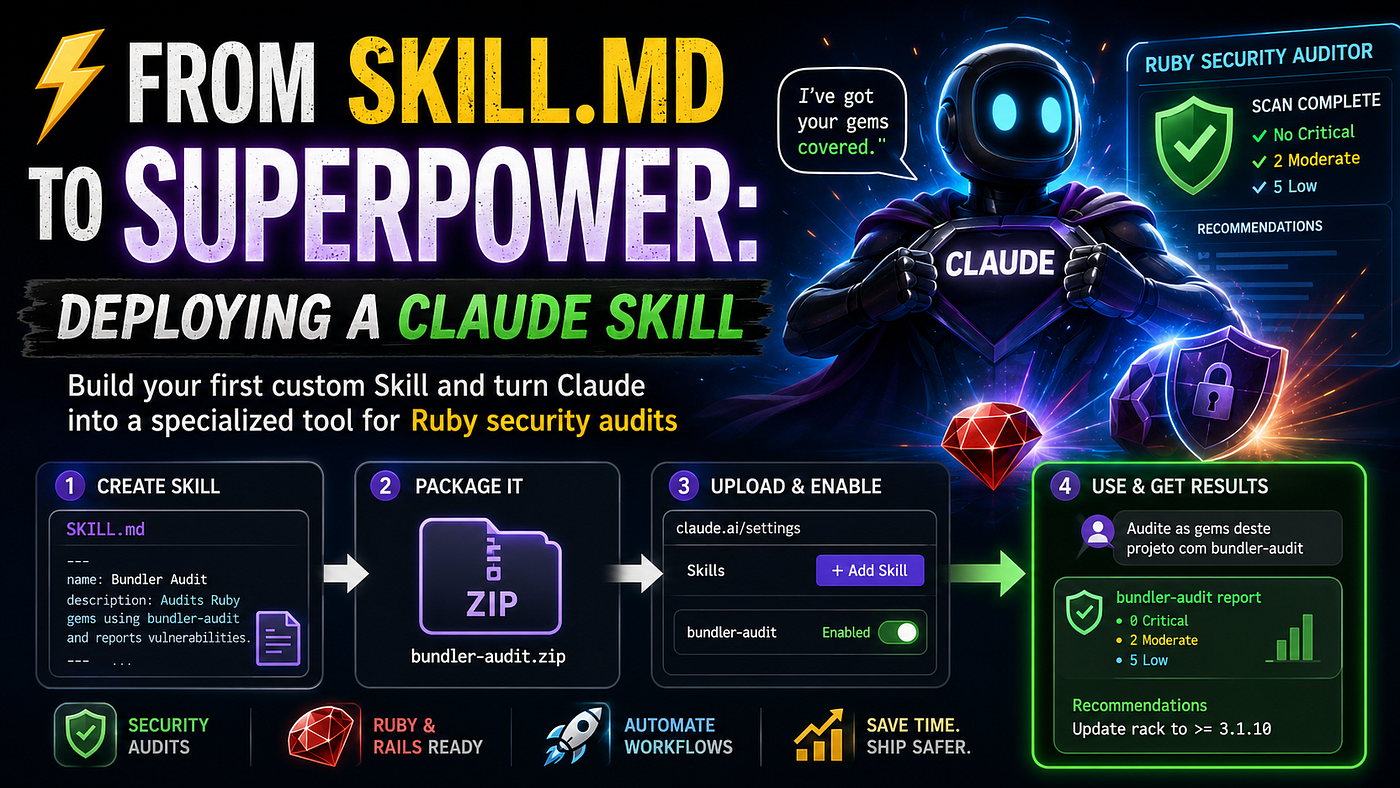
What We Are Going to Do
We will take the SKILL.md file you created and saved in VS Code and install it into Claude as a real Skill, running directly on claude.ai (web or desktop).
Prerequisites
Before starting, make sure you have:
- A Claude account (Free, Pro, Max, Team, or Enterprise — all support Skills)
- Code Execution enabled (required for Skills to work)
- The
claude/SKILL.mdfile already saved in VS Code
Step 1 — Verify That Code Execution Is Enabled
In **claude.ai, open Settings and confirm that [Code Execution and File Creation](https://claude.ai/new#settings/capabilities)** is enabled.
If it is disabled, enable it before continuing.
Step 2 — Create the Correct Folder Structure
Each Skill requires a directory containing at least one SKILL.md file.
The correct structure is:
claude/
├── RAILS_PROJECT/      ← Project to be audited
└── SKILL.md            ← Your Skill definition
If you followed the previous tutorial, you already have this structure configured in VS Code.
Nothing to do here.
Step 3 — Create the ZIP File
The ZIP archive must contain the Skill folder as its root.
From the parent directory of claude/, run:
### Linux / WSL2 / macOS

zip -r bundler-audit.zip bundler-audit/
Windows PowerShell
Compress-Archive -Path bundler-audit -DestinationPath bundler-audit.zip⚠️ Important: Do not place the files directly at the root of the ZIP archive. Claude will not recognize the Skill structure correctly.
Step 4 — Upload the Skill to Claude
- Open claude.ai
- Go to Settings
- Navigate to **Customize → Skills**
- Click Add Skill or Upload Skill
- Select
bundler-audit.zip - Wait for the upload to complete
- Verify that the Skill appears in the Skills list
Step 5 — Enable the Skill
After uploading, enable the Skill under:
Customize → Skills
Then try a few prompts that should trigger it.
Review Claude’s reasoning process to confirm that the Skill is being loaded.
Step 6 — Test the POC
Start a new conversation in Claude and try prompts such as:
- How do I audit vulnerabilities in my Rails project’s gems?
- I want to install bundler-audit in my project. How do I get started?
- bundler-audit found CVE-2025–27610 in rack. What should I do?
If the Skill is working correctly, Claude will respond according to the instructions defined in your SKILL.md, including:
- Installation workflow
- Vulnerable gem reporting
- CVE and GHSA analysis
- Safe upgrade strategies for production environments
Let’s take a look at the response generated by Claude:
Workflow Summary
VS Code (SKILL.md)
        ↓
      ZIP File
        ↓
Claude.ai
Settings → Customize → Skills → Upload
        ↓
     New Chat
        ↓
Prompt related to bundler-audit
        ↓
Claude automatically loads the Skill ✓
Tip
If Claude does not automatically activate the Skill, the issue is usually related to the description field in the Skill frontmatter ¹.
The description is one of the primary signals Claude uses to determine when a Skill should be loaded.
If necessary:
- Edit the
SKILL.md - Update the description
- Recreate the ZIP file
- Re-upload the Skill
Note ¹
What Is Frontmatter?
Frontmatter is the metadata block located at the beginning of a SKILL.md file, usually enclosed between --- lines.
Example:
---
name: Bundler Audit
description: Audits Ruby gems using bundler-audit and generates vulnerability reports.
---
Bundler Audit SkillIn this example:
name→ Skill namedescription→ Skill description
Additional fields may exist depending on the platform.
The description field is especially important because Claude uses it to determine when the Skill should be loaded automatically.
For example:
description: Performs security audits on Ruby projects using bundler-audit.Claude is more likely to activate the Skill when you ask:
- Audit this project’s gems using bundler-audit
- Check my gems for vulnerabilities
By contrast, a generic description such as:
description: Ruby tools.makes it much harder for Claude to determine when the Skill is relevant.
In Summary
The frontmatter is the metadata header of the SKILL.md file, and the description field acts as the primary trigger that helps Claude decide when to automatically load the Skill.
Claude Code Skills Journey
Mission 01
🚀 From SKILL.md to Superpower: Deploying a Claude Skill
Building and deploying a real Claude Skill for Ruby dependency security auditing using bundler-audit.
Status: Complete ✓
Mission 02
🛰️ Classified… For Now
The next step in exploring AI-powered development workflows.
Status: In Development
Mission 03+
🌌 Future Missions
- Brakeman
- RuboCop
- Rails Automation
- Custom AI Workflows
- More to be announced…
메타데이터
- post_id
- 7b75982e93ba
- slug
- from-skill-md-to-superpower-deploying-a-claude-skill-7b75982e93ba
- url
- https://medium.com/jungletronics/from-skill-md-to-superpower-deploying-a-claude-skill-7b75982e93ba
- canonical_url
- https://medium.com/jungletronics/from-skill-md-to-superpower-deploying-a-claude-skill-7b75982e93ba
- author_url
- https://medium.com/@jaythree
- status
- ok
- fetched_at
- 2026-06-13 16:00:06