Windows UI 3: Controls in WinUI 3 | Basic Inputs -Rating & Slider | WinUI 3 Gallery
Basic Inputs -Rating & Slider controls in WinUI 3

➡️ Watch the full comparison, visual demos, and deep-dive analysis in the VectoArt video: https://youtu.be/vl4CCh3qUbw
The rating control allows users to view and set ratings that reflect degrees of satisfaction with content and services. Users can interact with the rating control with touch, pen, mouse, gamepad, or keyboard. The follow guidance shows how to use the rating control’s features to provide flexibility and customization.

Overview
The rating control can be used to enter a rating or made read-only to display a rating.
Editable rating with placeholder value
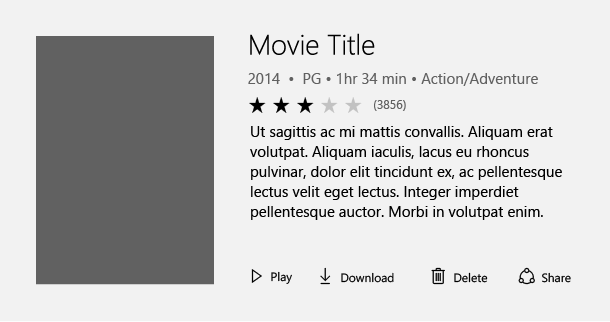
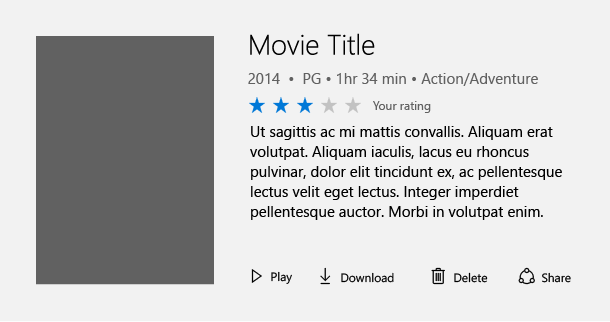
Perhaps the most common way to use the rating control is to display an average rating while still allowing the user to enter their own rating value. In this scenario, the rating control is initially set to reflect the average satisfaction rating of all users of a particular service or type of content (such as a music, videos, books, etc.). It remains in this state until a user interacts with the control with the goal of individually rating an item. This interaction changes the state of the ratings control to reflect the user’s personal satisfaction rating.
Initial average rating state
Representation of user rating once set
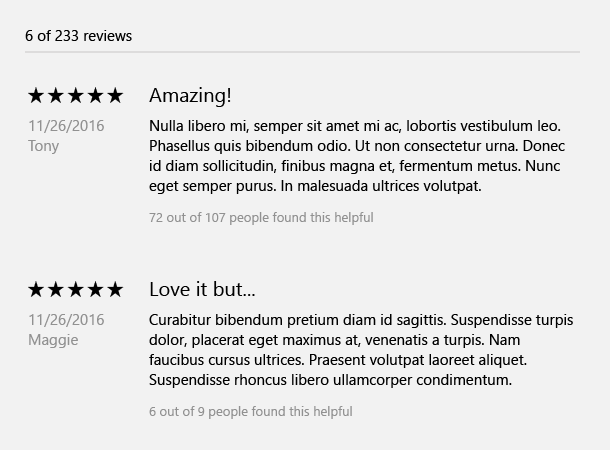
Read-only rating mode
Sometimes you need to show ratings of secondary content, such as that displayed in recommended content or when displaying a list of comments and their corresponding ratings. In this case, the user shouldn’t be able to edit the rating, so you can make the control read-only. The read only mode is also the recommended way of using the rating control when it is used in very large virtualized lists of content, for both UI design and performance reasons.
Create a rating control
The WinUI 3 Gallery app includes interactive examples of most WinUI 3 controls, features, and functionality. Get the app from the Microsoft Store or get the source code on GitHub
Editable rating control
This code shows how to create an editable rating control with a placeholder value.
<RatingControl x:Name="MyRating" ValueChanged="RatingChanged"/>private void RatingChanged(RatingControl sender, object args)
{
if (sender.Value == null)
{
MyRating.Caption = "(" + SomeWebService.HowManyPreviousRatings() + ")";
}
else
{
MyRating.Caption = "Your rating";
}
}Read-only rating control
This code shows how to create a read-only rating control.
<RatingControl IsReadOnly="True"/>Sliders
A slider is a control that lets the user select from a range of values by moving a thumb control along a track.

Examples
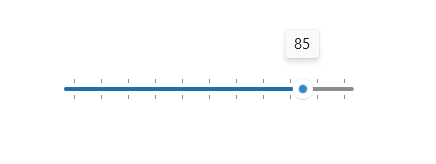
A slider with tick marks at 10 point intervals from 0 to 100.
Create a slider
The WinUI 3 Gallery app includes interactive examples of most WinUI 3 controls, features, and functionality. Get the app from the Microsoft Store or get the source code on GitHub
Here’s how to create a slider in XAML.
<Slider x:Name="volumeSlider" Header="Volume" Width="200"
        ValueChanged="Slider_ValueChanged"/>
Here’s how to create a slider in code.
Slider volumeSlider = new Slider();
volumeSlider.Header = "Volume";
volumeSlider.Width = 200;
volumeSlider.ValueChanged += Slider_ValueChanged;

// Add the slider to a parent container in the visual tree.
stackPanel1.Children.Add(volumeSlider);
You get and set the value of the slider from the Value property. To respond to value changes, you can use data binding to bind to the Value property, or handle the ValueChanged event.
private void Slider_ValueChanged(object sender, RangeBaseValueChangedEventArgs e)
{
    Slider slider = sender as Slider;
    if (slider != null)
    {
        media.Volume = slider.Value;
    }
}
메타데이터
- post_id
- 8bfa8a90cccd
- slug
- windows-ui-3-controls-in-winui-3-basic-inputs-rating-slider-winui-3-gallery-8bfa8a90cccd
- url
- https://medium.com/@artillustration391/windows-ui-3-controls-in-winui-3-basic-inputs-rating-slider-winui-3-gallery-8bfa8a90cccd
- canonical_url
- https://medium.com/@artillustration391/windows-ui-3-controls-in-winui-3-basic-inputs-rating-slider-winui-3-gallery-8bfa8a90cccd
- author_url
- https://medium.com/@artillustration391
- status
- ok
- fetched_at
- 2026-07-20 19:09:02