Build your own Flutter GenUI solution with Gemini structured outputs
This is the second post in the series: Building Image Assisted Language Learning Practice with Flutter, Firebase and Gemini.
Build your own Flutter GenUI solution with Gemini structured outputs
This is the second post in the series: Building Image Assisted Language Learning Practice with Flutter, Firebase and Gemini.
In Part 1, I built the first image description practice pipeline for my Flutter app. A user chooses a topic, Firebase and Gemini generate a practice image for the selected topic, and Gemini 3 adds visual annotations on top of the image.
That pipeline worked.
But after generating enough practices, a different problem became clear. The system could produce valid images, but the variation was limited. For some topics, Gemini kept returning to the same kind of scene, even when the prompt asked for ramdomness explicitly.
This post starts one step before image generation. Instead of making the final prompt longer and hoping for more variety, I changed the input flow: what if the user could shape the scene through a guided UI before the image was generated?
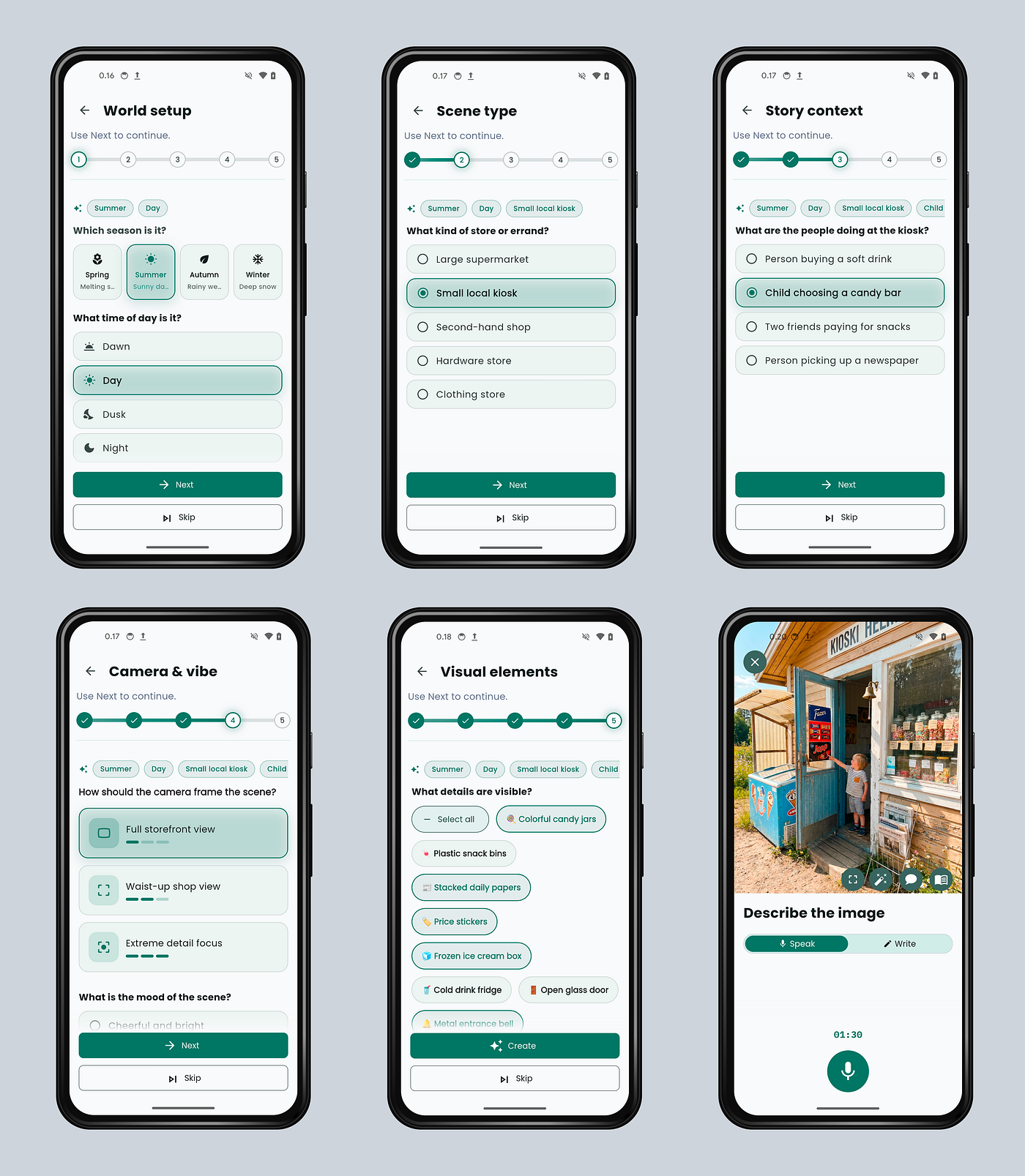
That led to a five step refinement flow. For each step, Gemini generates topic aware options, such as season, setting, action, framing, mood, and visual details. Flutter renders those options as normal UI controls. The user chooses what they want, and the app stores those choices as structured data before turning them into a more specific image prompt.
I did not begin by trying to build a GenUI framework. I was just trying to stop my image generator from repeating itself. But by the end, the system had schemas, widget catalogs, state transitions, and LLM planned screens.
So let’s start with the original problem.
Selected topic: Shopping and errands in Finnish everyday life
1. A quick recap
My app helps people practice 🇫🇮 Finnish. One of the core exercises is showing the learners a picture and ask them to describe it out loud, then give feedback.
The user experience is simple. The content problem behind it is not.
The images cannot be completely random, because they need to follow a curriculum. But I also do not want to handwrite hundreds of picture based exercises and maintain them forever.
The first version used a small topic catalog. Each topic had a description field. I treated that description as a seed: not a final image caption, but a broad scene brief that Gemini could expand into a practice image.
[
  {
    "id": "finnishWildlife",
    "title": "Suomen luonnoneläimet",
    "description": "A candid, high-quality nature photograph featuring a randomly
      selected native Finnish animal in its habitat. Rotate between large mammals
      (Brown Bear, Moose, Lynx), birds (Whooper Swan, Golden Eagle, Great Grey Owl),
      and smaller creatures (Flying Squirrel, Mountain Hare, Stoat). The environment
      must reflect a specific Finnish season and distinct lighting: Midnight Sun in
      Lapland, a foggy autumn mire, a snowy taiga in deep winter, or a bright lakeside
      in midsummer..."
  }
]
That felt like the right and simple strategy. The topic stayed on curriculum, and the model still had room to create variations. One topic, many possible images.
That was the idea. Then I started generating images.
2. Why do I keep seeing the same seal?
The first finnishWildlife image was excellent: a Saimaa ringed seal resting on a rock in a calm Finnish lake. If you do not know the species, it is one of the most endangered seals in the world, and it lives only in Lake Saimaa. As a Finnish language practice image, it was almost perfect.
Then I generated another one.
Same seal. Different rock. Slightly different pose. Same flat water. Same forest line in the background.
Then another run produced a swan. Again, a good image by itself: a white swan on a still lake, reeds nearby, forest in the distance. But the next swan was basically the same scene with the head tilted differently.


For image description use case, this is a fatal mistake. If the images keep repeating the same setup, the learner keeps rehearsing the same sentence patterns.
Kuvassa on järvi. Vesi on tyyni. Lintu ui vedessä.
Those are useful sentences once. Maybe twice. Not forever.
So I did the obvious thing and checked the generation config.
GenerationConfig(
  temperature: 1.0,
  topP: 0.95,
  topK: 40,
);
The creativity config was already high (see model configuration to control responses). However, the problem was not that the model was sampling too safely. It was because I had not given it enough structure to sample from.
3. Root cause
This is the part that took me a few batches of images to understand.
temperature, topP, and topK influence how the model samples. They do not magically invent missing context. My seed said “native Finnish animal in its habitat,” which sounds rich to a human, but still leaves many visual decisions open.
Which animal? What exact habitat? What season? What camera distance? What is happening in the scene? What objects are visible? Is the mood quiet, busy, playful, tense, warm?
Asking an AI model to ‘be random’ inside a prompt is a bit like ending it with ‘do not make mistakes.’ To avoid ambiguity, we must provide clear, well-structured context. An LLM doesn’t make mistakes on purpose or consciously choose whether or not to be random. Its output is ultimately the combined result of its sampling configuration and the quality of the prompt it receives.
When too many of those answers are missing, the model reaches for familiar defaults. For Finnish wildlife, the peak was around calm water, forest, a single animal, and a clean postcard composition. Increasing temperature made the output vary around that default. A different rock. A different pose. Unfortunately, it did not reliably move the whole scene somewhere else.
There was another issue too. Each generation was stateless. The app sent the same topic seed each time. Gemini did not know that it had already created three lake scenes this morning, so nothing pushed it away from the same visual comfort zone.
4. Turning a topic into scene choices
A scene is not one decision. It is a stack of smaller decisions. When is it? Where is it? Who or what is there? What is happening? How close is the camera? What details can the learner talk about?
Once I started thinking that way, the seed stopped being the final input. It became the starting point for a refinement flow.
In code, this lives in domain layer. The core of it is a small finite state machine (FSM):
enum _GuidanceRefinementState {
  idle,
  macroEnvironment,
  microSetting,
  narrativeContext,
  composition,
  environmentElements,
  completed,
}
Those five middle states became the five steps of the wizard.
- Macro environment: season and time of day
- Micro setting: indoor or outdoor, or a more specific subtype
- Narrative context: who is present and what is happening
- Composition: framing and mood
- Environment elements: concrete objects and sensory details
The important change is that variety now comes from explicit choices, not from hoping the sampler will be creative.
The number of possible combinations also grows very quickly. Four seasons, four times of day, a setting choice, several context choices, three framing choices, several moods, then a handful of environment details from a larger set. Even with conservative numbers, the app gets thousands of coherent prompts before the final image model has done anything clever.
5. The coding shape of the flow
Before getting into prompts and schemas, it helps to see the full path.
When the user taps a topic, the listing view model does not generate an image immediately. It opens the refinement screen.
The refinement wizard is not the image generator. It is the prompt builder before the image generator. The system has two AI stages:
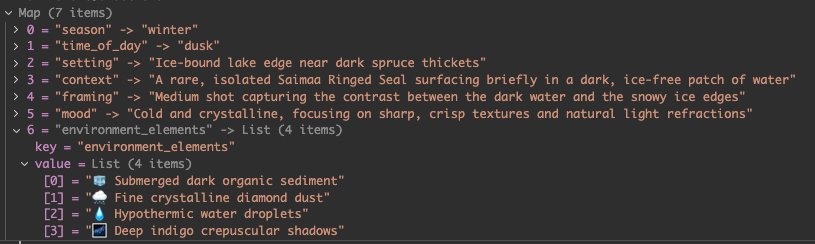
1. A light structured guidance call that asks: “What should the user choose next?” A learner might end up with:
season: winter
time_of_day: dusk
setting: Icy lake surface
context: Saimaa Ringed Seal swimming
framing: Medium shot
mood: Mysterious and cold
environment_elements: 🕳️ Air hole, 🌫️ Lingering fog, 🧊 Cracking ice, 🌬️ Freezing mist, 🧊 Jagged ice edges, ❄️ Falling snowflakes
2. A practice generation call that turns the final topic brief into a detailed image prompt, vocabulary, sample answer, and image bytes
Image prompt: A photorealistic, medium shot of a Saimaa Ringed Seal (saimaannorppa) surfacing from an icy lake in Finland during winter dusk. Only the dark, spotted head of the seal is visible, peeking through a breathing air hole (avanto) with jagged ice edges on a thick, dark, and cracking icy lake surface. A layer of lingering fog and freezing mist floats just above the water and ice. Tiny falling snowflakes drift through the air under a dim, cold, mysterious dusk light. The composition is a vertical 3:4 frame, focusing closely on the seal’s wet face and long whiskers in the freezing landscape. No people are in the frame, creating a sense of serene isolation in the wilderness.
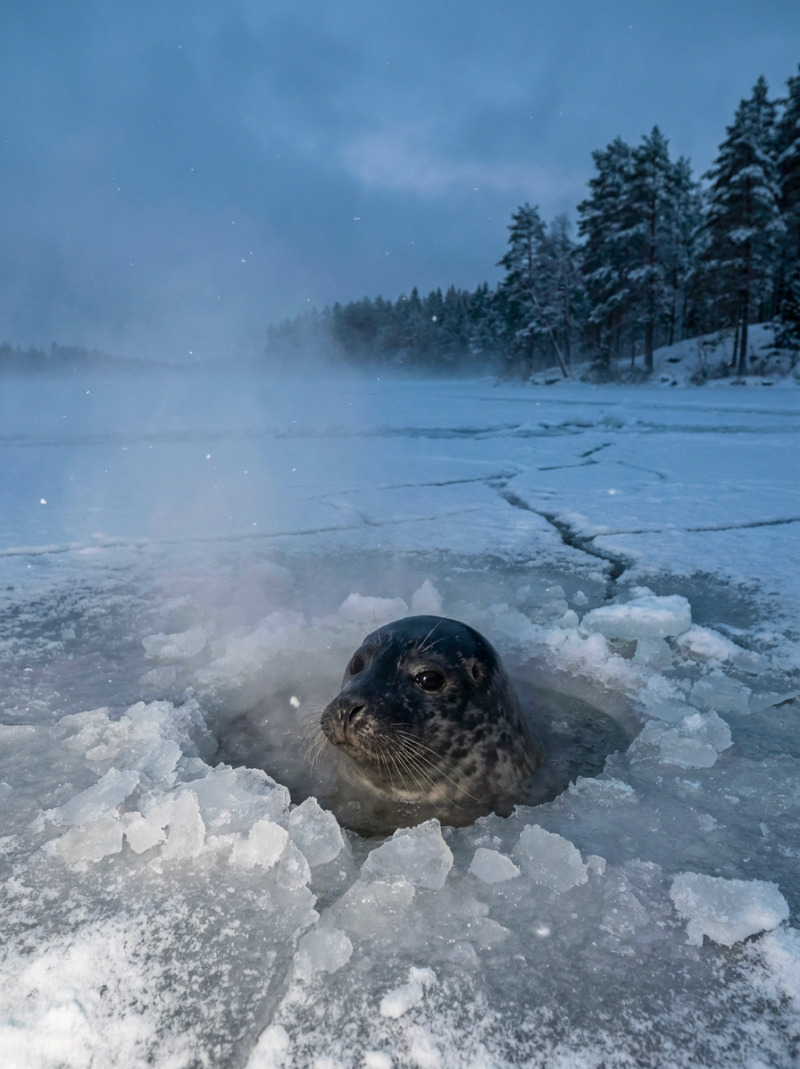
Final image of Saimaa Ringed Seal
Keeping those two stages separate made the code easier to reason about. One model call designs the UI steps. Another model call generates the final learning content.
6. Teaching the model its “refinement” job
The refinement code uses Firebase AI structured output. When a session starts, it creates a lightweight model with a stable system instruction.
_model = GenerativeAiUtils.firebaseAI.generativeModel(
  model: 'gemini-3.1-flash-lite',
  generationConfig: GenerationConfig(
    thinkingConfig: ThinkingConfig.withThinkingLevel(ThinkingLevel.low),
  ),
  systemInstruction: Content.system(_systemPrompt()), // see below
  safetySettings: GenerativeAiUtils.safetySettings,
);
I use the lite model because this part of the flow is deliberately small. Gemini is not generating the final image. It is not writing the final prompt either. Its job is to return one compact JSON object that describes the next refinement step.
Think of it as a UI planner.
The system instruction gives the model a narrow job:
## Role

You are the Image Description Coach AI. Generate compact, structured JSON for a multi-step image refinement UI used in language learning.

## Operating Rules

- One state at a time. Return only the schema fields for the requested state.
- One semantic axis per state. Do not repeat choices already present in SELECTED SO FAR.
- Use previous selections as constraints, not as text to copy into new options.
- Keep UI text short. Questions should be direct. Options should be labels, not image prompts.
- Prefer concrete, visible, CEFR B1-friendly details over poetic or technical wording.
- Use the requested UI language for questions, labels, and tags.
- Apply constraint pruning: skip broad selectors when the topic or previous choices already fix that axis.
- Apply taxonomic diversity: when an axis is fixed, offer specific subtypes instead of generic repeats.

## Hard Rules

- Output: valid JSON matching the provided schema. No conversational text.
Each state owns one axis:
State 1: season and time of day
State 2: broad setting or setting subtype
State 3: visible subject and action
State 4: camera framing and mood
State 5: supporting visual details
Two rules do most of the work.
The first is constraint pruning. If the topic is “spending time at home,” asking “indoor or outdoor?” is just noise. The answer is already in the topic. But the same logic applies in the other direction too. If the topic is Finnish wildlife, asking “indoor or outdoor?” is also a bad question. The topic already points to an outdoor nature scene.
The model reads the topic title and topic description before designing the micro setting step. If indoor versus outdoor is a real choice, it returns that selector. If the broad setting is already obvious, it skips the broad selector and asks for a more useful subtype instead.
For a home topic, that might be apartment kitchen, cottage living room, or shared laundry room.
For Finnish wildlife, it might be lakeside reeds, snowy taiga, autumn mire, or rocky shore.
Taxonomic Diversity is the line that actually fights the seal problem. The model should not stop at generic labels like “a room,” “a forest,” or “a lake.” It should move one level deeper: cottage kitchen, snowy taiga, tram platform, pharmacy counter, library reading nook.
That is the whole refinement job: expose the next meaningful choice, keep it short, and make sure every option adds visual variety without turning the UI into a prompt editor.
7. Every turn carries the current state
The system instruction tells the model how to behave. The prompts for per turn request tell it what to do right now. Each request includes the topic, the UI language, the current Finite State Machine state, existing selections, and state specific rules.
A simplified version of the prompt for the State 2 looks like this:
ACTION:
Generate structured JSON defining broad location or subtype options for the current state.

TOPIC CONTEXT:
Topic: "Finnish wildlife"
Description: "A candid nature photograph featuring a native Finnish animal..."
UI Language: English

FSM CONTROL:
Return only valid JSON for this state.
Do not include Markdown or commentary.
Never return both `setting` and `subTypes`.
Use bindingKey "setting" for subtype questions.

EXISTING USER SELECTIONS:
{
"season": "winter",
"time_of_day": "dusk"
}

STATE RULES:
Evaluate the axis for broad location or location subtype.
If indoor/outdoor is open, return only `setting` (indoor/outdoor).
If the broad setting is already fixed by the topic (e.g., home, nature, wildlife, street), return only `subTypes`.
For `subTypes`, provide 3-5 concise labels consisting of 2-5 words each (e.g., "Snowy taiga", "Lakeside reeds").
Exclude full sentences, rare claims, mood, time, weather, camera framing, or animal behavior from labels.
The selections are stored in a plain map:
final Map<String, Object?> _userSelections = {};Whenever the user taps an option, the UI calls:
void updateSelection(String key, Object? value) {
 _userSelections[key] = value;
}
Before the next step, the map is serialized into JSON and included in the next request.
That means step 3 knows what happened in step 1 and step 2. If the user picked winter and dusk, the model should not offer a summer picnic context. If the topic is wildlife and the setting subtype is snowy taiga, the environment elements should not suddenly become kitchen objects.
This is where the flow starts to feel coherent. Each screen is generated separately, but it is not generated blindly.
8. The schema is the UI contract
Free text is a weak interface between an LLM and a Flutter screen.
If Gemini returns something like “maybe winter or dusk would be nice,” the app now has to interpret it. That is fragile. It also becomes harder when the UI language changes.
So I made every refinement step use structured output. The schema is the contract. Gemini can make useful choices, but only inside a shape the app already knows how to render.
For the micro setting step (Step 2), the model has two legal response shapes:
- If the topic can happen both indoors and outdoors, it returns a broad setting selector:
- If the topic can happen both indoors and outdoors, it returns a broad setting selector:
{
  "setting": {
    "question": "Where should the scene happen?",
    "options": [
      { "id": "indoor", "label": "Inside", "sublabel": "Building or home" },
      { "id": "outdoor", "label": "Outdoor", "sublabel": "Nature or public space" }
    ]
  }
}
If the topic already fixes the broad setting, it skips that question and returns more useful subtypes:
{
  "subTypes": [
    {
      "question": "What kind of Finnish nature setting should the animal be in?",
      "bindingKey": "setting",
      "options": [
        "Snowy taiga",
        "Autumn mire",
        "Lakeside reeds",
        "Rocky island shore"
      ]
    }
  ]
}
The schema does not decide whether indoor or outdoor is meaningful. The prompt does that by looking at the topic title and topic description. The schema only says: whichever path you choose, return JSON that the app can safely parse.
 static Schema schema = Schema.object(
    description:
        'Micro setting selector. Return either `setting` for variable indoor/outdoor topics, '
        'or `subTypes` for topics whose broad setting is fixed. Keep all labels concise.',
    properties: {
      'setting': Schema.object(
        description:
            'Indoor/outdoor selector. Omit when the topic description already fixes the broad setting.',
        nullable: true,
        properties: {
          'question': Schema.string(
            description: 'Header text shown above the setting tiles.',
          ),
          'options': Schema.array(
            description: 'Exactly 2 setting options: indoor and outdoor.',
            items: Schema.object(
              properties: {
                'id': Schema.enumString(
                  description: 'Setting id.',
                  enumValues: ['indoor', 'outdoor'],
                ),
                'label': Schema.string(
                  description: 'Localized setting label. Keep to 1-2 words.',
                ),
                'sublabel': Schema.string(
                  description:
                      'Optional localized supporting label. Keep to 1-2 words.',
                  nullable: true,
                ),
              },
              optionalProperties: ['sublabel'],
            ),
            minItems: 2,
            maxItems: 2,
          ),
        },
      ),
      'subTypes': Schema.array(
        description:
            'Exactly one single-choice question defining the specific setting sub-type/style. '
            'Options must be concise setting labels, not full scene descriptions.',
        nullable: true,
        items: Schema.object(
          properties: {
            'question': Schema.string(description: 'The question text.'),
            'options': Schema.array(
              description:
                  '3-5 distinct setting labels, each 2-5 words. No mood, action, season, time, or camera wording.',
              items: Schema.string(),
              minItems: 3,
              maxItems: 5,
            ),
            'bindingKey': Schema.string(
              description: 'Key for storing the selection.',
            ),
          },
        ),
        minItems: 1,
        maxItems: 1,
      ),
    },
    optionalProperties: ['setting', 'subTypes'],
  );
}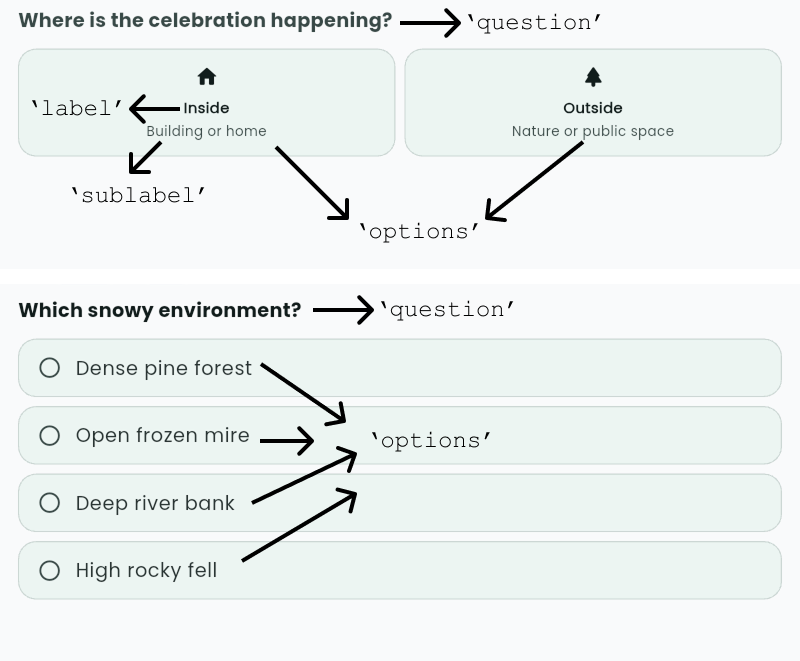
The structured output fields used in UI widgets
The other states follow the same pattern. Macro environment can return season and time of day. Narrative context returns a subject and action question. Composition returns framing and mood. Environment elements returns selectable visual tags.
Once the response comes back, the app parses it into a typed Dart object:
Object parseGuidanceStateResponse(
  String stateCode,
  String responseText,
) {
  final json = jsonDecode(responseText) as Map<String, dynamic>;

  return switch (stateCode) {
    'state_1_macro' => MacroEnvironmentResponse.fromJson(json),
    'state_2_setting' => MicroSettingResponse.fromJson(json),
    'state_3_context' => NarrativeContextResponse.fromJson(json),
    'state_4_composition' => CompositionResponse.fromJson(json),
    'state_5_elements' => EnvironmentElementsResponse.fromJson(json),
    _ => throw ArgumentError('Unknown state code: $stateCode'),
  };
}
9. From JSON to typed UI state
After Gemini returns JSON, the domain layer parses it and the expose the structured response via ValueListenable. That is the handoff point.
The UI does not call Gemini. It does not build prompts. It does not know which schema was used. It only listens for the current refinement state and renders the matching widget.
The feature is split into clear responsibilities:
- The domain layer own sthe refinement state machine. It knows the current step, builds the prompt for that step, sends the structured output request, parses the JSON, and stores the user selections.
- The view model owns screen behavior. It starts refinement, records selections, handles submit and skip, logs analytics, and navigates to the practice screen when the practice is ready.
- The screen owns presentation. It renders selectors, choices, tags, loading states, progress, and the “scene so far” row.
That separation keeps the AI part contained. Prompting and parsing stay in the domain layer. Flutter widgets only receive typed data.
This matters because AI features become difficult to maintain when everything is mixed together. If the same widget builds prompts, parses model output, stores selections, handles navigation, and logs analytics, every small prompt change becomes a UI risk.
Here, the model response is normalized before the UI touches it.
10. Widgets, not wall of text
At this point, the AI part leaves the screen.
The LLM does not render UI. It does not decide colors, icons, spacing, animations, or interaction behavior. Its job is smaller: return a typed response that describes the next useful choice.
The Flutter screen then turns that typed response into normal app UI.
Widget _buildForState(BuildContext context, Object stateData) {
  return switch (stateData) {
    MacroEnvironmentResponse r => _MacroStep(data: r, onChanged: ...),
    MicroSettingResponse r => _MicroStep(data: r, onChanged: ...),
    NarrativeContextResponse r => _NarrativeStep(data: r, onChanged: ...),
    CompositionResponse r => _CompositionStep(data: r, onChanged: ...),
    EnvironmentElementsResponse r => _ElementsStep(data: r, onChanged: ...),
    _ => const SizedBox.shrink(),
  };
}
This is the main difference from a chatbot. The user is not reading generated paragraphs and replying with text. They are moving through a guided interface made from buttons, tiles, and chips.
The step widgets are built from a small selection catalog.
TileSelectorWidgetis used when the choice benefits from icons and stable IDs. It renders season and indoor or outdoor choices with icons.
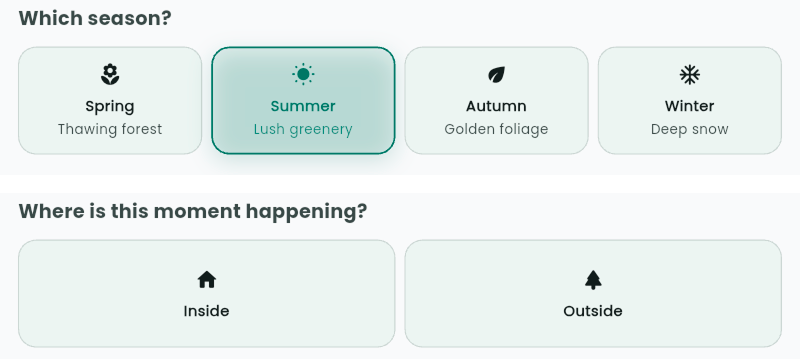
Tile selector widgets from the catalog
SingleChoiceQuestionWidgetis used for compact text choices. It renders time of day, narrative context, mood, and setting subtypes.
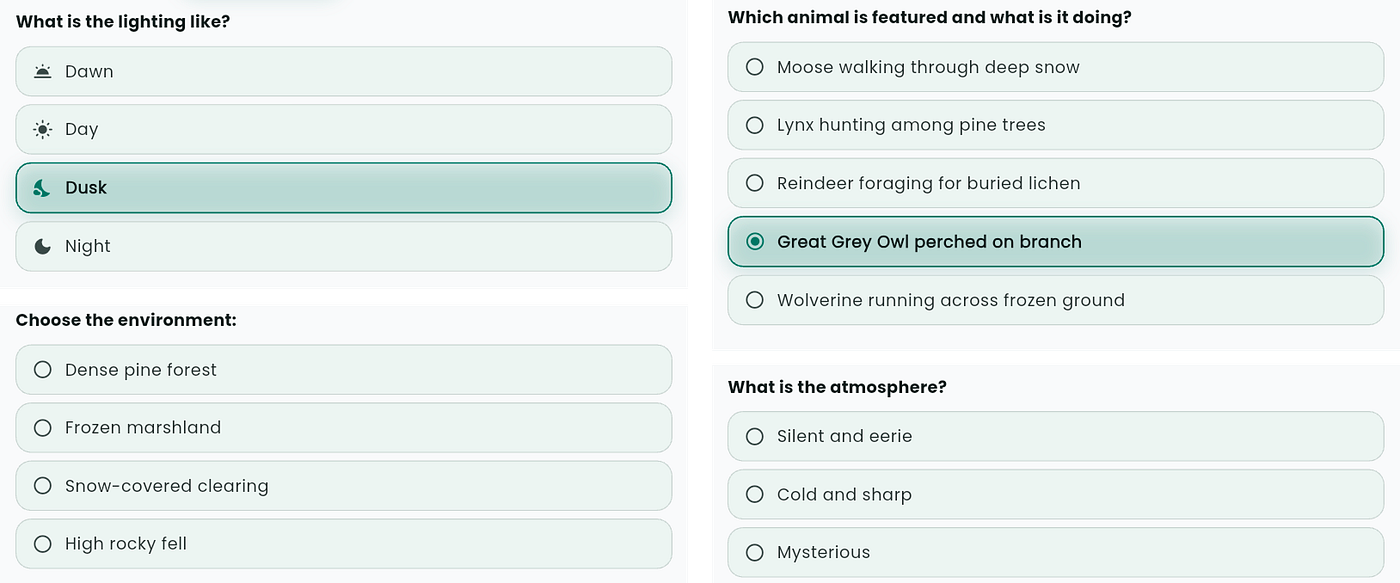
SingleChoiceQuestionWidget
ThreeOptionMeterQuestionis used for camera framing, because wide, medium, and close up feel clearer as visual levels than as a normal list.
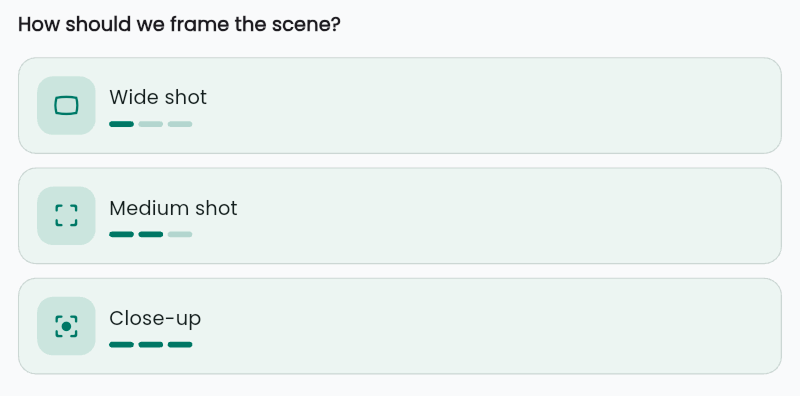
Three option meter
TagCloudQuestionWidgetis used for environment elements, where the user may want to select several visible details or props at once.
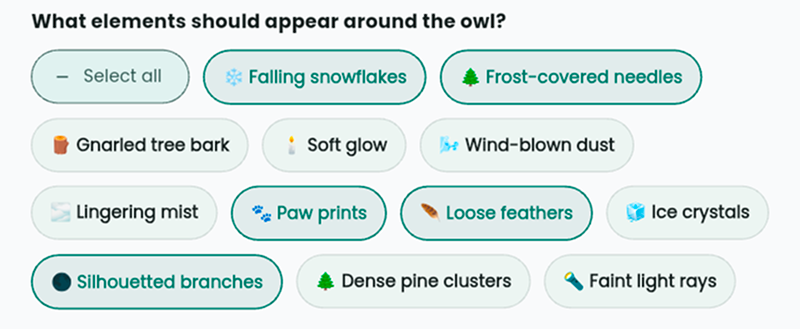
Tag Cloud Questions Widget
This keeps the AI output flexible, but the product experience consistent. Gemini can decide what question to ask. Flutter decides how that question behaves.
Step 2 as an example
The micro setting step shows the pattern well because its schema has two possible shapes.
Sometimes the model returns the setting, which means the user should choose between indoor and outdoor. Other times it returns subTypes, which means the broad setting is already obvious and the user should choose a more specific place.
The widget tree mirrors that contract directly:
// ---------------------------------------------------------------------------
// Step 2: Micro Setting
// ---------------------------------------------------------------------------

class _MicroStep extends StatefulWidget {
  const _MicroStep({
    required this.data,
    required this.onChanged,
    required this.onSummary,
  });

  final MicroSettingResponse data;
  final void Function(String key, Object? value) onChanged;
  final void Function(String axis, String? value) onSummary;

  @override
  State<_MicroStep> createState() => _MicroStepState();
}

class _MicroStepState extends State<_MicroStep> {
  String? _selectedSetting;
  final Map<String, String?> _subTypeSelections = {};

  @override
  Widget build(BuildContext context) {
    return Column(
      crossAxisAlignment: CrossAxisAlignment.start,
      children: [
        if (widget.data.setting != null) ...[
          TileSelectorWidget(
            question: widget.data.setting!.question,
            entries: _settingEntries(widget.data.setting!.options),
            selectedId: _selectedSetting,
            onSelected: (id) {
              final option = widget.data.setting!.options.firstWhere(
                (o) => o.id == id,
              );
              setState(() => _selectedSetting = id);
              widget.onChanged('setting', id);
              widget.onSummary('setting', option.label);
            },
          ),
        ],
        if (widget.data.subTypes != null)
          ...widget.data.subTypes!.map((q) {
            return Padding(
              padding: const EdgeInsets.only(bottom: sp20),
              child: SingleChoiceQuestionWidget(
                question: q.question,
                options: q.options
                    .map((o) => SingleChoiceQuestionOption(label: o))
                    .toList(),
                selectedValue: _subTypeSelections[q.bindingKey],
                onSelected: (value) {
                  setState(() => _subTypeSelections[q.bindingKey] = value);
                  widget.onChanged(q.bindingKey, value);
                  widget.onSummary('setting', value);
                },
              ),
            );
          }),
        const SizedBox(height: 120),
      ],
    );
  }
}
There is no prompt parsing inside this widget.
If setting exists, the screen renders a tile selector and stores the selected ID under setting. That gives the image pipeline a clean value like indoor or outdoor.
If subTypes exists, the screen renders the model’s subtype question as a normal single choice widget.
So the model controls the content of the choice, but not the mechanics of the UI.
The surrounding screen still matters
The wrapper around these widgets is not generated either. It is normal Flutter UI.
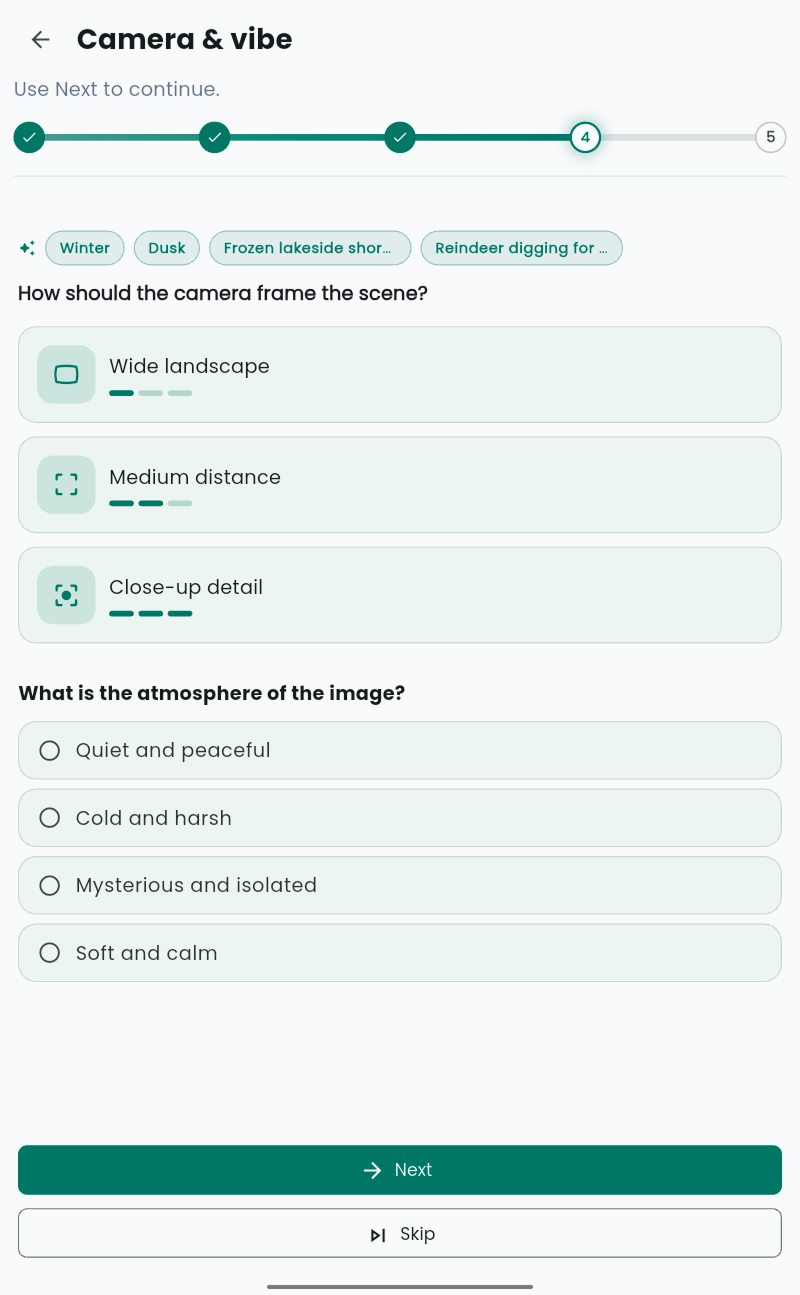
The refinement screen has a pinned progress header, loading skeletons while a step is being prepared, an AnimatedSwitcher between states, and a small “scene so far” row that fills as the user makes choices.
That surrounding structure is important. Without it, the feature would still feel like a sequence of disconnected AI outputs. With it, the user experiences one continuous flow: choose the world, choose the setting, choose the action, choose the camera feel, then add visual details.
This is where the feature stops feeling like chat and starts feeling like a guided image builder.
Now the full flow can be shown in motion.
[embed]
11. How selections become the final image prompt
This is where the refinement work enters the image pipeline.
Until this point, the user has only been making small UI choices. Those choices are stored as plain key value data. The practice data source class takes the base topic description and appends the user’s choices:
A candid nature photograph featuring a native Finnish animal in its habitat...

User refinement selections:
season: winter
time_of_day: night
setting: Remote wilderness cottage
context: Person standing observing the sky
framing: Wide landscape view
mood: Majestic and vast
environment_elements: ✨ Shimmering light curtains, 🪵 Weathered log walls, 🧣 Thick wool scarf, 👣 Deep boot prints, 🌌 Countless bright stars
From there, as mentioned in section 5, the image description generator takes over and writes the English image prompt that will be sent to the image model.
String _imagePrompt(String description) =>
      '''
# TASK
Generate exactly one JSON object for a $appSourceLanguage Image Description speaking practice. The `description` field must be an English image-generation prompt that can be sent directly to Google's image model.

# TOPIC BRIEF
$description

# PRIORITY ORDER
1. Preserve the topic brief and user refinement selections unless a detail is unsafe.
2. Make the scene useful for a CEFR B1 learner: concrete, describable, easy to interpret, with enough visible detail for comparison and simple inference.
3. Optimize the generated image prompt for a mobile vertical 3:4 image.
4. Keep the scene safe, inclusive, privacy-preserving, and visually unambiguous.

# IMAGE PROMPT RULES
- Use a vertical 3:4 composition with the main subject and action comfortably inside the frame.
- Preserve requested framing from the topic brief or refinement selections. Wide shots, close-ups, low angles, and telephoto views are allowed when requested; adapt them to a vertical crop instead of replacing them with a medium shot.
- Do not add people when the topic is mainly wildlife, landscape, architecture, objects, or interiors unless the topic brief clearly asks for them.
- If people are appropriate, show 1-4 generic, non-identifiable people in everyday clothing, described by role and action rather than fixed identity traits. Interactions must be neutral, friendly, familial, or professional.
- Avoid readable personal data, brand logos, license plates, badges, documents, screens, violence, accidents, injuries, emergencies, romantic intimacy, suggestive poses, and distressing scenes.
- For wildlife or nature scenes, natural behavior is fine, but avoid blood, injury, prey capture, or graphic hunting.
- If a requested detail conflicts with safety or clarity, simplify only that detail and keep the rest of the brief intact.

# ONE-SHOT EXAMPLE
Use this as a JSON format example, not as a scene to copy.
$imageOneShotExample
''';

  static String get imageOneShotExample => '''
## Aihe: vapaaAikaJaHarrastukset
{
  "id": "imageDescription_05",
  "title": "Retkellä luonnossa",
  "isFree": false,
  "description": "A photorealistic, medium shot of two friends, a man and a woman, hiking in a Finnish national park during autumn. They have stopped on a well-marked trail to look at a map. The man is holding the map, and the woman is pointing towards the trail ahead, both smiling and engaged in a friendly discussion. They are wearing practical outdoor clothing like hiking jackets and carrying backpacks. The forest around them is full of birch and pine trees with golden autumn leaves on the ground. In the background, a wooden trail signpost with illegible text is visible. The atmosphere is peaceful, friendly, and adventurous.",
  "sample": "Kuvassa on kaksi ystävystä, mies ja nainen, jotka ovat retkellä luonnossa. On syksy, koska puissa on keltaisia lehtiä ja ihmisillä on lämpimät takit. He seisovat metsäpolulla ja katsovat karttaa. Nainen osoittaa eteenpäin ja hymyilee. Luulen, että he suunnittelevat, mihin suuntaan heidän pitäisi mennä. He näyttävät iloisilta ja innostuneilta. Mielestäni luonnossa liikkuminen on todella hyvä harrastus. Se on rentouttavaa ja ilmaista. Suomessa on hienot mahdollisuudet retkeilyyn.",
  "ykiTopic": "leisureAndHobbies",
  "vocabulary": ["retki", "luonto", "ystävä", "syksy", "kartta", "suunnitella", "polku", "metsä", "harrastus", "rentouttava", "vaellus"],
  "annotatedWords": ["kartta", "reppu", "takki", "polku", "puu", "opaste", "suunnitella", "syksy"]
}
''';
}
A vertical 3:4 photorealistic wide-angle shot of a remote wilderness wooden cottage in Northern Finland under a majestic winter night sky. In the sky, glowing shimmering light curtains of green and purple northern lights (Aurora Borealis) dance amidst countless bright stars. Deep white snow covers the ground, with distinct deep boot prints leading from a weathered log cottage to the foreground. A single person stands outside near the weathered log walls of the cottage, wearing warm winter clothing including a red and gray thick wool scarf, looking up in awe to observe the night sky. Warm yellow light shines softly from a small window of the cottage. The mood is vast and peaceful.

12. What we accidentally built
When I step back, the pieces look familiar.
There is a schema for each state. There is a catalog of widgets. There is a finite state machine that asks for one screen at a time. There is a store for user selections. There is a parser that turns model output into typed UI state.
That is a small generative UI engine. But it is also a lot of custom work for one use case.
Every part is hand wired. The schema has to match the Dart response object. The parser has to know every state. The screen has to switch on every response type. Each widget has its own selection logic. The view model has to collect those selections and pass them into the next pipeline.
The problem is what happens when I want to use the same idea elsewhere.
I do not want this pattern to exist only on the image description screen. I want to go much further with GenUI inside the app: guided writing flows, speaking practice setup, vocabulary deck creation, feedback screens, onboarding, maybe even adaptive practice plans. The moment I start doing that, building a custom mini framework for each screen becomes expensive.
For one screen, custom wiring is fine. For many screens, it becomes the product.
That is the real lesson from this implementation. The hard part was not asking Gemini for JSON. The hard part was everything around it: schemas, widget catalogs, data binding, state transitions, selection storage, loading behavior, and safe handoff back into the app.
This is why GenUI SDK for Flutter starts to matter.
If I want LLM planned UI across the app, I need a more reusable way to describe components, bind user input, validate output, and render screens without rebuilding the same infrastructure every time.
So Part 3 of this article series will not be just a comparison with Flutter’s GenUI work. It is the next logical step from this experiment.
메타데이터
- post_id
- a6db3653b9b6
- slug
- build-your-own-flutter-genui-framework-with-gemini-structured-outputs-a6db3653b9b6
- url
- https://medium.com/@ulusoyca/build-your-own-flutter-genui-framework-with-gemini-structured-outputs-a6db3653b9b6
- canonical_url
- https://medium.com/@ulusoyca/build-your-own-flutter-genui-framework-with-gemini-structured-outputs-a6db3653b9b6
- author_url
- https://medium.com/@ulusoyca
- status
- ok
- fetched_at
- 2026-06-09 15:37:30