Windows Update Download Stuck at 0% to 100 — Easy Solutions
Windows updates are important because they improve security, fix bugs, and add new features. But sometimes the update process stops…
Windows Update Download Stuck at 0% to 100 — Easy Solutions
Windows updates are important because they improve security, fix bugs, and add new features. But sometimes the update process stops, leaving users frustrated. If you’re facing the **Windows Update Download Stuck at 0% to 100** issue, don’t worry. In most cases, the problem can be fixed with a few simple steps.
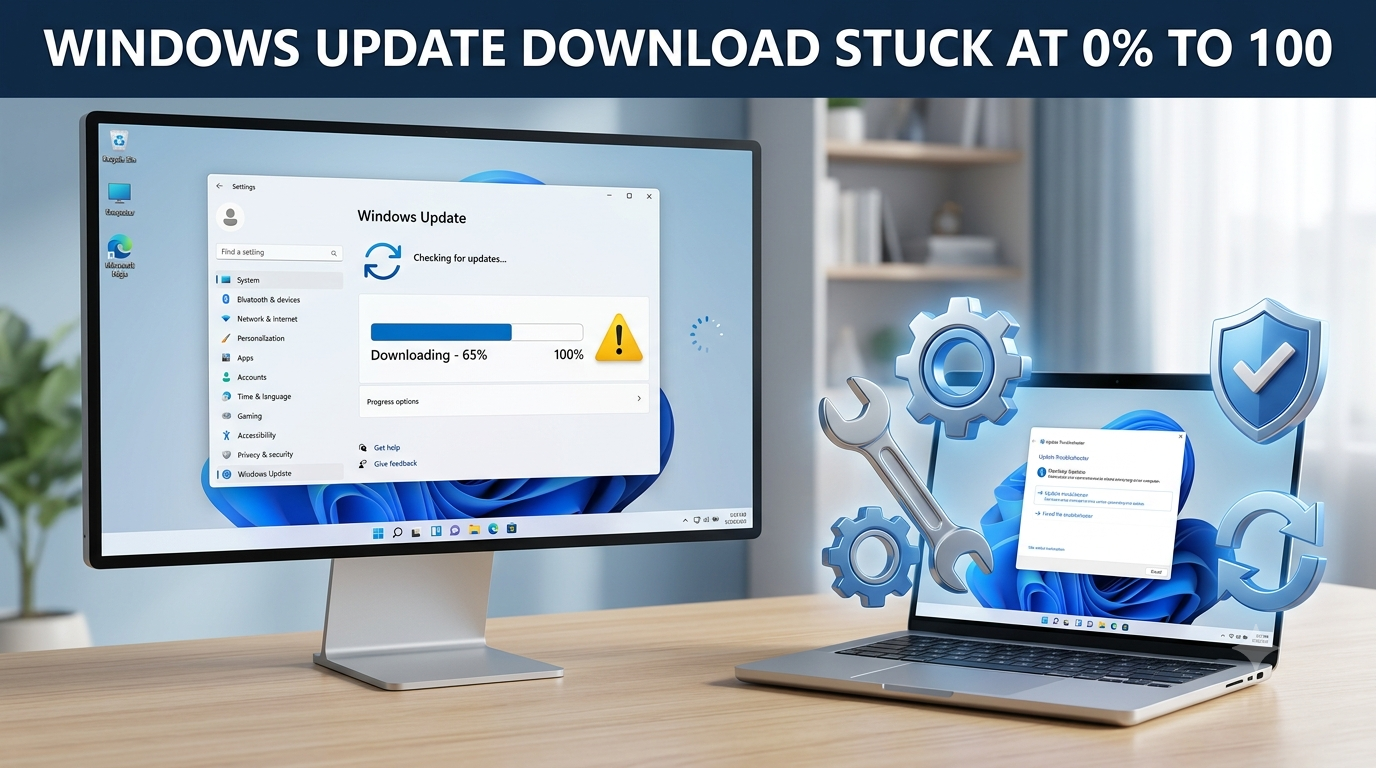
This guide explains the most common causes and the easiest solutions in simple English so anyone can follow them.
Why Does Windows Update Get Stuck?
The Windows Update Download Stuck at 0% to 100 problem can happen for several reasons, including:
- Slow or unstable internet connection
- Corrupted update files
- Low disk storage
- Windows Update service errors
- Antivirus software blocking the update
- Temporary system glitches
Knowing the reason makes it easier to solve the issue.
Check Your Internet Connection
A weak internet connection is one of the most common reasons for Windows Update stuck downloading.
Try these steps:
- Restart your Wi-Fi router.
- Switch to a stable network if possible.
- Avoid downloading large files while Windows is updating.
- Run an internet speed test to check your connection.
After improving the connection, try the update again.
Restart Your Computer to Refresh Windows Update
Sometimes the easiest solution works best.
A simple restart can clear temporary system errors that may cause the Windows Update Download Stuck at 0% to 100 issue.
After restarting:
- Open Settings
- Go to Windows Update
- Click Check for updates
Free Up Disk Space Before Installing Updates
Windows updates need enough free storage to download and install properly.
Delete unnecessary files such as:
- Temporary files
- Recycle Bin contents
- Old downloads
- Unused applications
Using Disk Cleanup is also a quick way to create more free space.
Run the Windows Update Troubleshooter
Microsoft includes a built-in troubleshooter that automatically detects update problems.
Steps:
- Open Settings
- Go to System > Troubleshoot
- Select Other troubleshooters
- Click Run next to Windows Update
This tool often fixes common update errors without requiring advanced knowledge.
Restart Windows Update Services
If update services stop working correctly, Windows updates may freeze.
Follow these steps:
- Press Windows + R
- Type services.msc
- Press Enter
- Find Windows Update
- Right-click and choose Restart
Now check whether the update continues normally.
Delete the SoftwareDistribution Folder
Corrupted update files can also cause Windows Update Download Stuck at 0% to 100.
To refresh Windows Update files:
- Stop the Windows Update service.
- Open C:\Windows\SoftwareDistribution
- Delete all files inside the folder.
- Restart the Windows Update service.
- Check for updates again.
Windows will automatically download fresh update files.
Repair Corrupted System Files with SFC and DISM
If damaged system files are preventing Windows Update from working properly, use the built-in SFC and DISM tools to repair them.
Step 1: Open Command Prompt as Administrator.
Step 2: Run the following command and wait until the scan is complete:
sfc /scannow
Step 3: After the SFC scan finishes, run this command:
DISM /Online /Cleanup-Image /RestoreHealth
Step 4: Once both scans are complete, restart your computer and check if Windows Update works normally.
What If the Update Stops at 100%?
Sometimes users experience Windows Update stuck at 100 percent even after the download finishes.
In this case:
- Wait at least 30–60 minutes.
- Restart the computer if nothing changes.
- Run the Windows Update Troubleshooter.
- Check if enough disk space is available.
Many updates require extra time to complete installation.
Windows 10 and Windows 11 Update Issues
The solutions above work for both operating systems.
Whether you have Windows 11 Update stuck downloading or Windows 10 Update stuck at 0 percent, the troubleshooting methods are almost the same.
Keeping Windows updated helps improve performance, security, and overall stability.
FAQs
1. Why is Windows Update Download Stuck at 0% to 100?
This usually happens because of internet problems, damaged update files, insufficient storage, or Windows Update service errors.
2. How to fix Windows Update stuck quickly?
Restart your PC, check your internet connection, run the Windows Update Troubleshooter, clear the SoftwareDistribution folder, and repair system files using SFC and DISM.
3. Why is Windows Update stuck downloading for hours?
Large updates, slow internet, corrupted files, or background software can delay the download process.
4. What should I do if Windows Update is stuck at 100 percent?
Wait for at least an hour, restart your computer if needed, and run the Windows Update Troubleshooter if the installation does not continue.
5. Can antivirus software stop Windows Update?
Yes. Some antivirus programs can interfere with Windows Update. Temporarily disabling them may help complete the update successfully.
Final Thoughts
The Windows Update Download Stuck at 0% to 100 problem is common, but it is usually easy to fix. Simple steps like restarting the computer, checking your internet connection, clearing update files, and running the built-in troubleshooter solve the issue in most cases. If the problem continues, repairing Windows system files is often the next best solution.
Call to action
If you regularly face Windows errors, update problems, or PC performance issues, visit **Technofy** for easy-to-follow troubleshooting guides, practical solutions, and the latest Windows tips to keep your computer running smoothly.
Website: https://technofy.co.nz
Phone: +(64) 22 187 3040
메타데이터
- post_id
- e6dedccb2db8
- slug
- windows-update-download-stuck-at-0-to-100-easy-solutions-e6dedccb2db8
- url
- https://medium.com/@ajitsah650/windows-update-download-stuck-at-0-to-100-easy-solutions-e6dedccb2db8
- canonical_url
- https://medium.com/@ajitsah650/windows-update-download-stuck-at-0-to-100-easy-solutions-e6dedccb2db8
- author_url
- https://medium.com/@ajitsah650
- status
- ok
- fetched_at
- 2026-08-01 10:40:43