QUERIES ON MULTI-TABLES WITH JOIN
In database design, it’s often necessary to break a large table into several smaller ones. This process, known as normalization, is done to…
QUERIES ON MULTI-TABLES WITH JOIN

In database design, it’s often necessary to break a large table into several smaller ones. This process, known as normalization, is done to eliminate data repetition, prevent data anomalies, and make data management easier.
In short, normalization is the foundation for building a healthy, reliable, and maintainable database, even if it sacrifices a little data reading speed.
Next, we will learn how to combine two normalized data tables to search for or process certain data with the JOIN or INNER JOIN clause.
JOIN or INNER JOIN is useful for combining 2 separate tables that have the same key so that 2 data tables can be combined and mapped based on the same common key reference for the data in both tables.
Basically, INNER JOIN clause will yield data that is present in both tables involved in the join.
Below we will learn more about what queries can be processed with the JOIN or INNER JOIN clause.
Here we have 2 separate data tables where we have product data with the table name product_table and sales table data with the table name sales_table. Here are the table details :
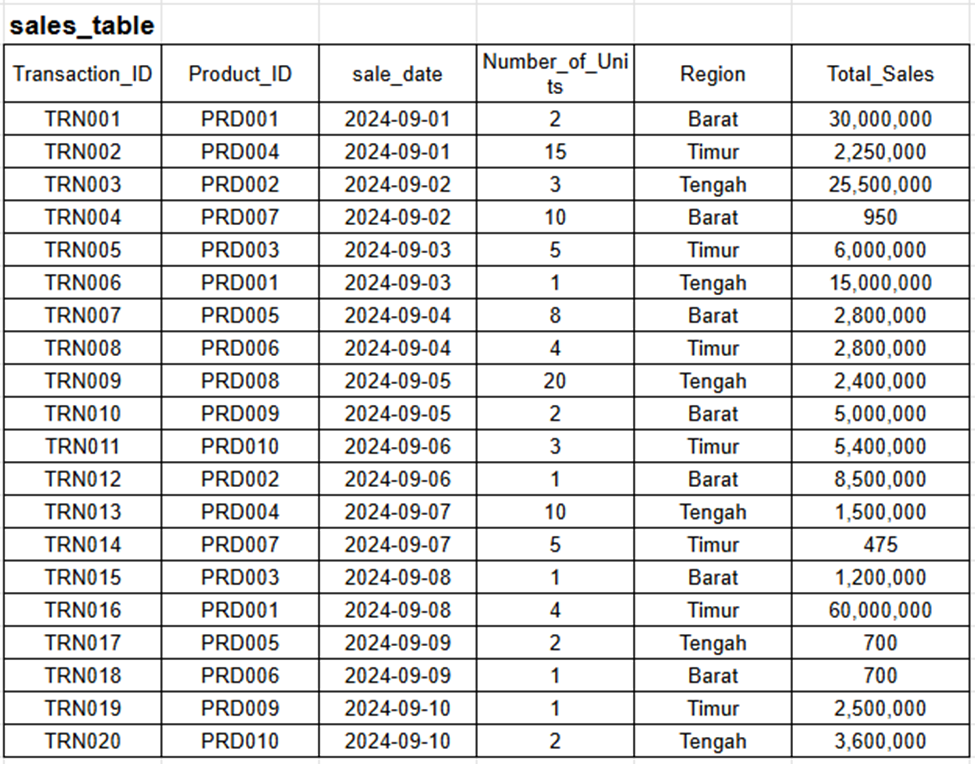
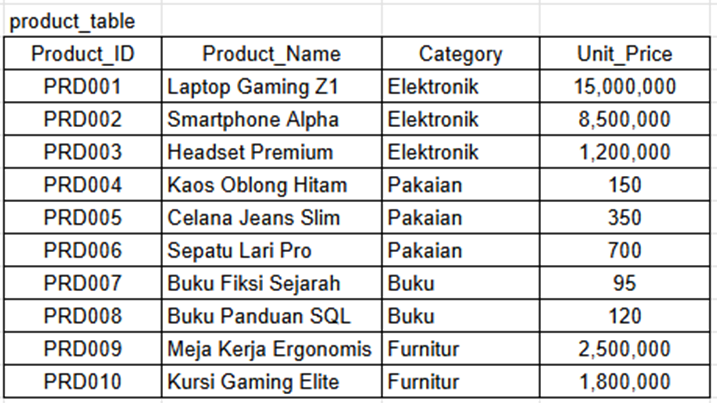
Query Practice :
1. Find the unit price and total sales of each product
SELECT product_name, unit_price, total_sales
FROM product_table
  JOIN sales_table
    ON product_table.product_id = sales_table.product_id;
2. Display products that sold more than 10 units
SELECT product_name, number_of_units
FROM product_table
JOIN sales_table
ON product_table.product_id = sales_table.product_id
WHERE number_of_units > 10;3. Display all products ordered by number of units sold (descending)
SELECT product_name, number_of_units
FROM product_table
JOIN sales_table
ON product_table.product_id = sales_table.product_id
ORDER BY number_of_units DESC;4. Show total sales per product category
SELECT category, SUM(total_sales) AS total_sales_amount
FROM product_table
JOIN sales_table
ON product_table.product_id = sales_table.product_id
GROUP BY category
ORDER BY total_sales_amount DESC;5. Display the average number of units sold per category
SELECT category, AVG(number_of_units) AS average_units_sold
FROM product_table
JOIN sales_table
ON product_table.product_id = sales_table.product_id
GROUP BY category
ORDER BY average_units_sold DESC;6. Show the product with the highest total sales
SELECT product_name, total_sales
FROM product_table
JOIN sales_table
ON product_table.product_id = sales_table.product_id
ORDER BY total_sales DESC
LIMIT 1;7. Calculate the total revenue from all products
SELECT SUM(total_sales) AS total_revenue
FROM product_table
JOIN sales_table
ON product_table.product_id = sales_table.product_id8. Show each product’s contribution percentage to total sales
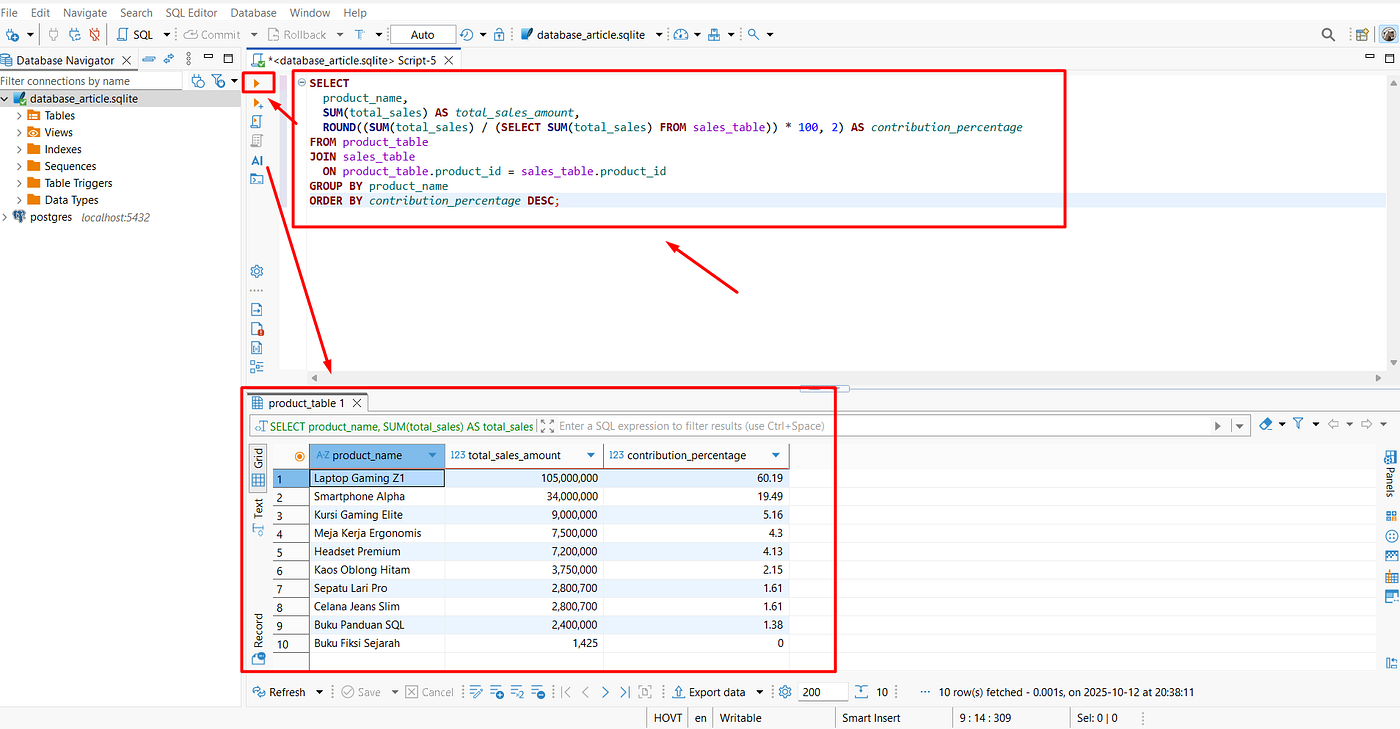
SELECT
product_name,
SUM(total_sales) AS total_sales_amount,
ROUND((SUM(total_sales) / (SELECT SUM(total_sales) FROM sales_table)) * 100, 2) AS contribution_percentage
FROM product_table
JOIN sales_table
ON product_table.product_id = sales_table.product_id
GROUP BY product_name
ORDER BY contribution_percentage DESC;Below are the files and instructions you’ll need to try these queries yourself:
- Database File :
- DBeaver universal database tool download link :
https://dbeaver.io/files/dbeaver-ce-latest-x86_64-setup.exe
Steps to Set Up DBeaver and Run Queries :
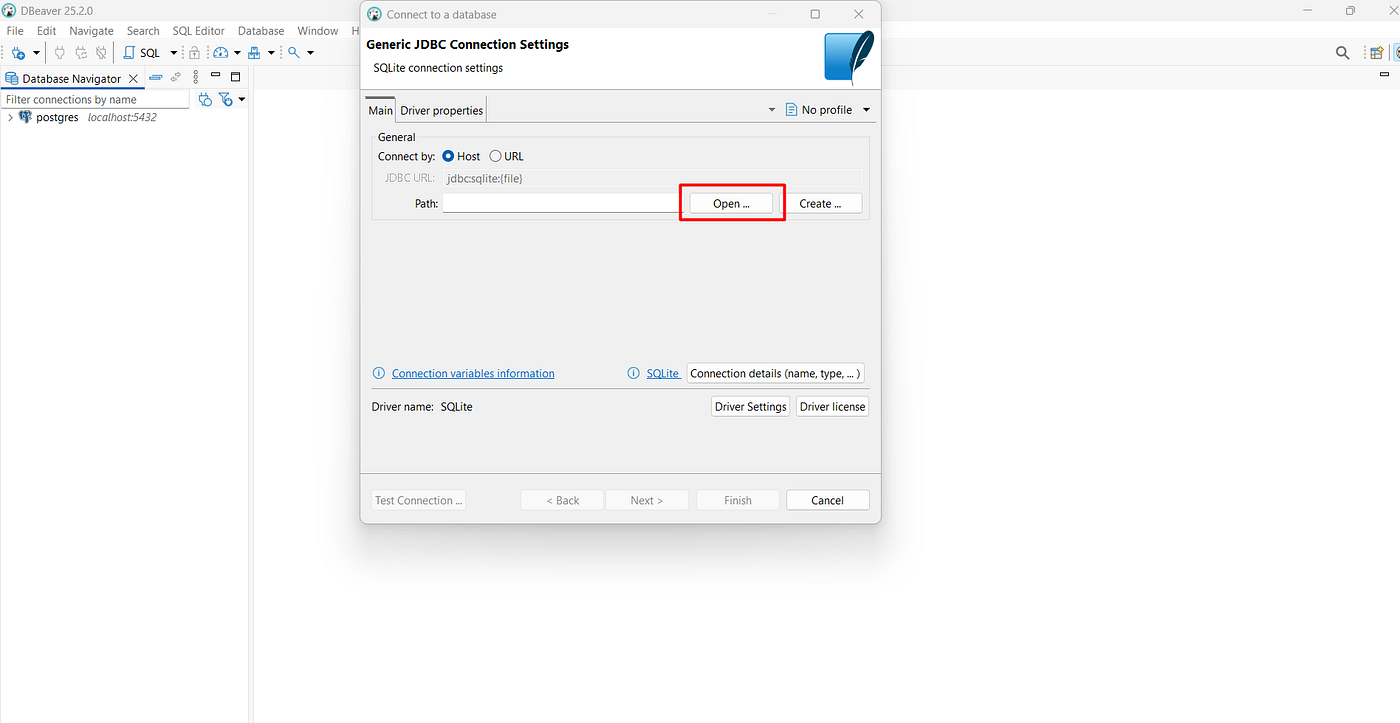
- Open DBeaver > Click New Database Connection > Select SQLite
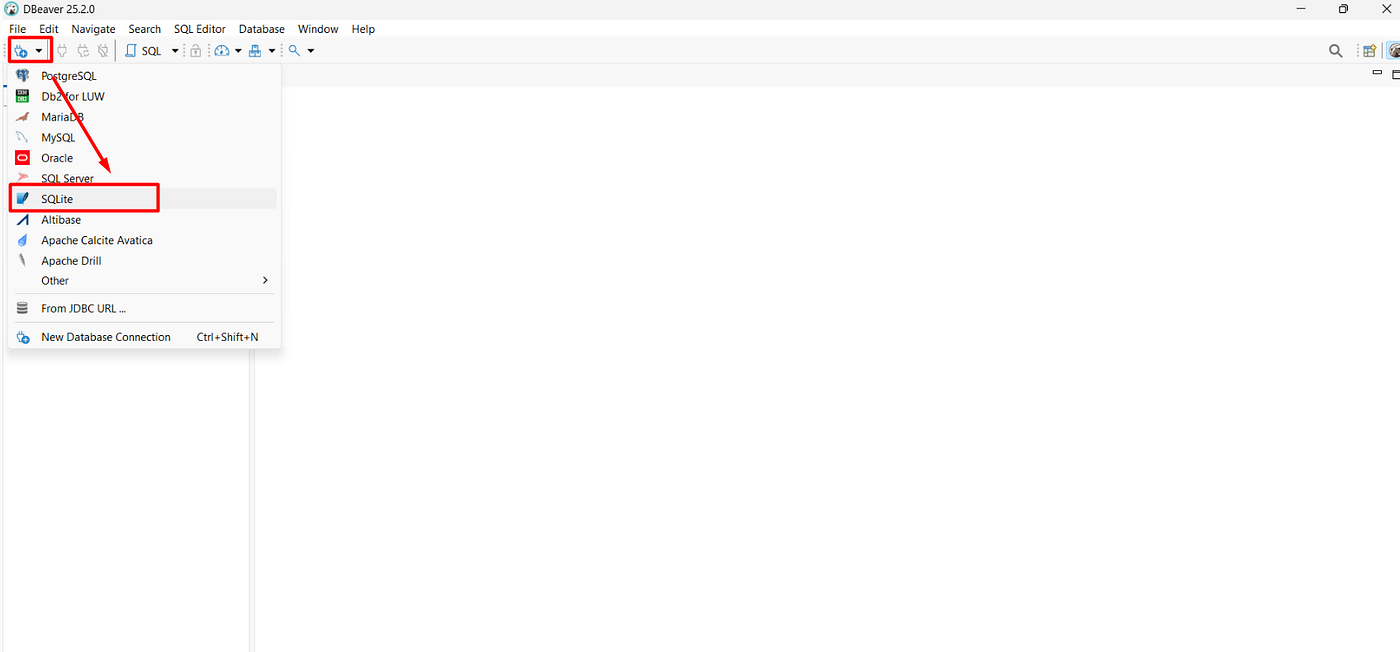
- In the “Path” field, click “Open” and locate the database file you downloaded from GitHub.
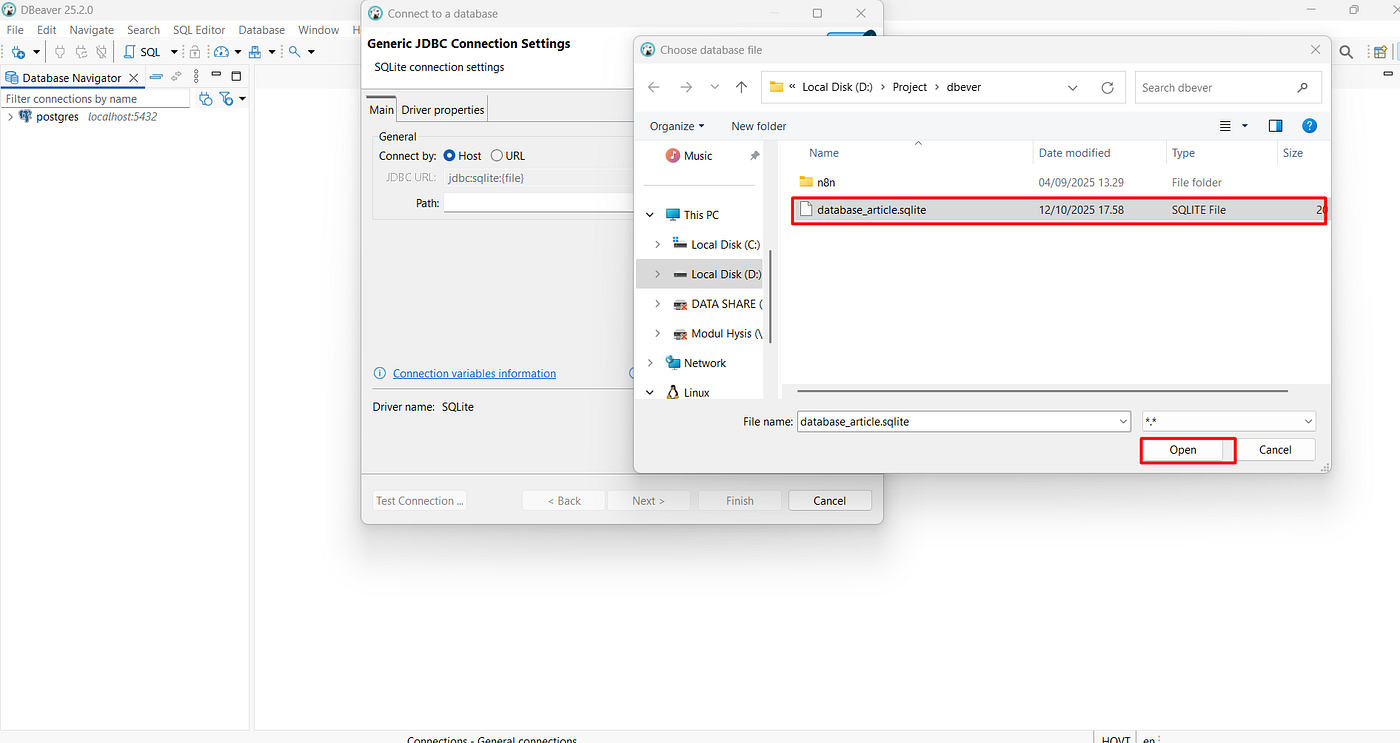
- Select the database file and click open
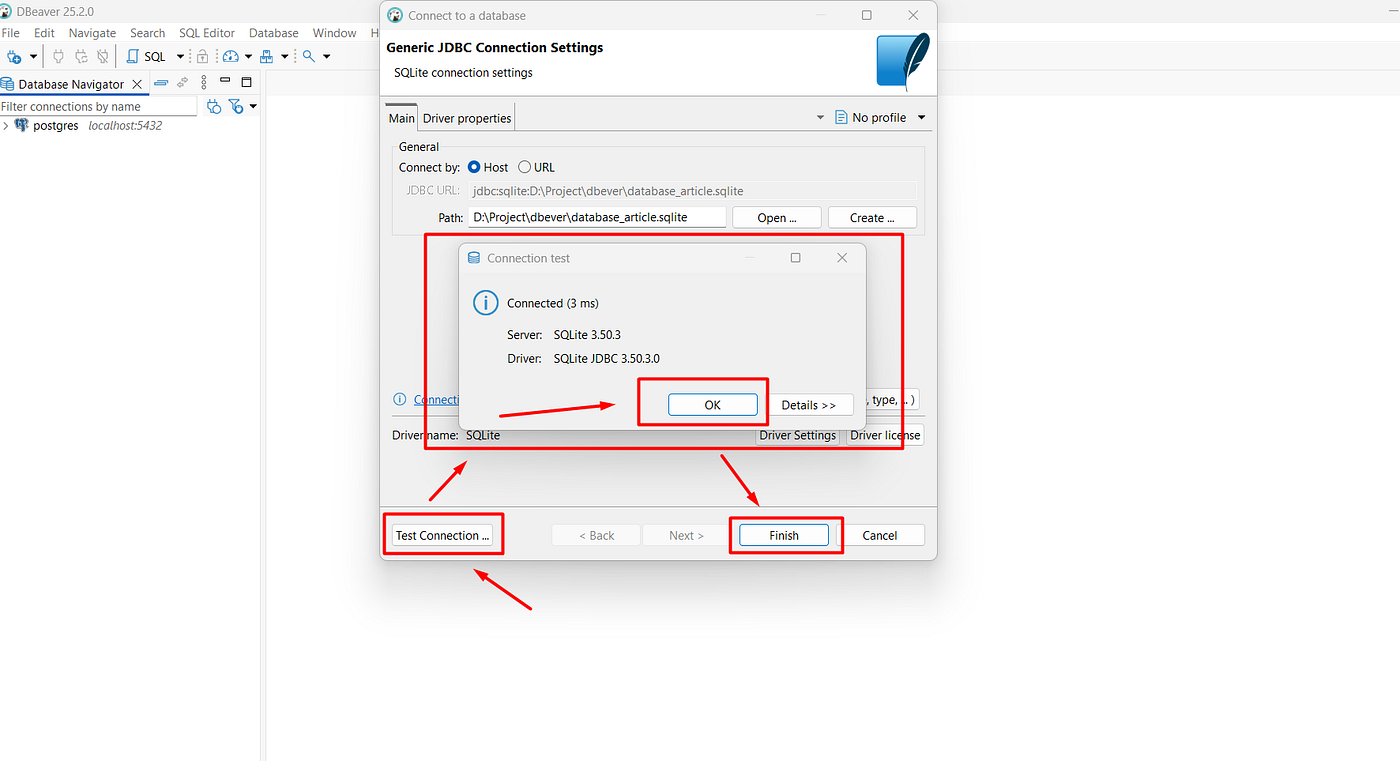
- Click “Test Connection” until the Connected popup appears, then click ok and finish.
- On the newly added database, right-click and select SQL Editor > Open SQL script.

- Type or copy-paste the example SQL query above into the SQL Editor > Then click the Execute SQL query icon (The results will display data according to the query requested/typed)
Date Created : October 9, 2025 Author : Satria Bagaskara
메타데이터
- post_id
- ee5fae417a78
- slug
- queries-on-multi-tables-with-join-ee5fae417a78
- url
- https://medium.com/@satriadevopsindonesia/queries-on-multi-tables-with-join-ee5fae417a78
- canonical_url
- https://medium.com/@satriadevopsindonesia/queries-on-multi-tables-with-join-ee5fae417a78
- author_url
- https://medium.com/@satriadevopsindonesia
- status
- ok
- fetched_at
- 2026-07-15 20:50:45