TryHackMe | Windows Logging for SOC — Walkthrough
Start your Windows monitoring journey by learning how to use system logs to detect threats.
TryHackMe | Windows Logging for SOC — Walkthrough
Start your Windows monitoring journey by learning how to use system logs to detect threats.
Room Link: https://tryhackme.com/room/windowsloggingforsoc
Task 1: Introduction
To complete task 1, simply read and understand the room’s objectives. Then, start the Lab Machine and join the room.
Task 2: What is Logged
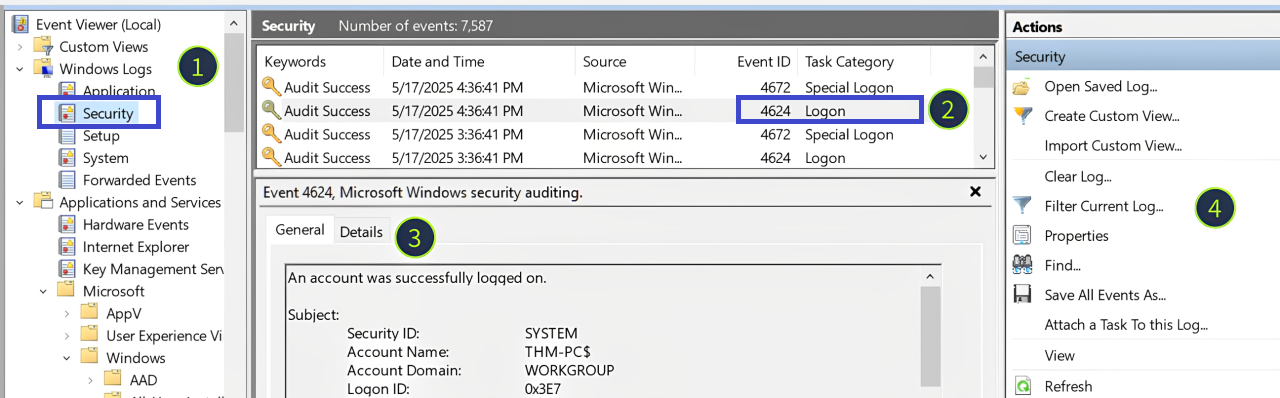
Q: Looking at the last screenshot, which event ID describes a successful login? (Answer format: LogSource / ID, e.g. Application / 8194)
A: In the screenshot, a Logon event has an Event ID 4624 and is found in the Security logs.

Task 3: Security Log: Authentication
Q: Open the “Practice-Security.evtx” file on the VM’s Desktop. Which IP performed a brute force of the THM-PC?
A: First open the file on the Desktop. This will open the event logs in Event Viewer.

Next, click “Filter Current Log” under Actions. This will open the Filter Dialogue. Since we are looking for a logon bruteforce attempt, we will look for failed logon events with the Event ID 4625.

After clicking OK, we click on the most recent Event then we navigate to the Details Tab.

Here, we find that the IP Address is 10.10.53.248, which is the correct answer.
Q: Which user has been breached as a result of the attack?
A: To find the breach event, we will filter the events for Successful Logon events with the ID 4624.


Under Details, we find the username of the account, which is Administrator.
Q: What was the Logon ID of the malicious RDP login? Note: The login you are looking for has a Logon Type 10.
A: For this question, using the filtered events with Event ID 4624, we scroll down to check which event has Logon Type 10.

We find the event with Logon Type 10. The Logon ID is 0x183C36D.
Task 4: Security Log: User Management
Q: Continue with the “Practice-Security.evtx” file on the VM’s Desktop. Which user was created by the attacker soon after the RDP login?
A: We will filter by Event ID 4720 which corresponds to User Account Creation events.

Under Details of the event, we find the username of the account: svc_sysrestore.
Q: Which two privileged groups was the backdoor user added to? (Answer in alphabetical order, e.g. “Administrators, Power Users”)
A: We will filter by Event ID 4732 which corresponds to User Added to Group events.

We then inspect the details of the results to see which groups the user was added to.

The two groups are Backup Operators and Remote Desktop Users.
Q: Does the Logon ID field match what you saw in the previous task (Yea/Nay)?
A: Yes, the Logon ID is the same as what we found in the previous task:

Task 5: Sysmon: Process Monitoring
Q: Open the “Practice-Sysmon.evtx” file on the VM’s Desktop. Which web browser does Sarah use to browse the web?
A: First, we open the file in Event Viewer.

We scroll down to the first event which has Event ID 1. Under Details, it tells that the browser used was Google Chrome.

Q: Which file did Sarah download from the browser?
A: We scroll up the events until we found the event with Event ID 1 which shows a file in the Downloads folder. The file path is C:\Users\sarah.miller\Downloads\ckjg.exe.

Q: Which URL was the file downloaded from? Note: Use other Sysmon events to find out!
A: We inspect the events before the one that starts the process of the downloaded file. We find a File Stream event with the target file. Under Details in Contents, we find the Host URL of the downloaded file.

Task 6: Sysmon: Files and Network
Q: Continue with the “Practice-Sysmon.evtx” file on the VM’s Desktop. Which file was created by the downloaded malware to persist on the host?
A: We look for an event with ID 11 that corresponds to a file creation event.

Under Details, we find the Target Filename of the created file.
Q: What is the Command & Control server malware connected to? (Answer in format IP:Port, e.g. 1.1.1.1:80)
A: We look for an event with ID 3 that corresponds to a network connection event.

Under Details, we find the Destination IP Address and Port.
Q: Finally, which domain does the malicious IP correspond to?
A: We look for an event with ID 22 that corresponds to a DNS Query event. Under Details, we find the domain name given in the QueryName property.

Task 7: PowerShell: Logging Commands
Q: Review the Administrator’s PS history on the attached VM. Which PowerShell command was executed first?
A: First, we open the PowerShell History File at the following path:
C:\Users\Administrator\AppData\Roaming\Microsoft\Windows\PowerShell\PSReadline\ConsoleHost_history.txt


This opens the history text file. The first line shows the first command executed, which is Get-ComputerInfo.
Q: When did the Administrator run the first PS command? (Format: April 18, 2025) Note: You might need to right-click the history file and open “Properties” to get the answer!
A: First we navigate to the folder that contains the history file by typing the following path (same path without the file name):
C:\Users\Administrator\AppData\Roaming\Microsoft\Windows\PowerShell\PSReadline

Then we open the File Properties.

In the Properties, we find the date the file was created.

Q: Can you find the flag stored in the PowerShell history? (Format: THM{…}) Note: You might want to check the PS history of other local users!
A: First, we need to check the local users on the device. We do so by navigating to the Users folder in the C drive.

We find two users: thm.alex and thm.bob. To check their command history, we will use the same path but after replacing “Administrator” with “thm.alex” or “thm.bob”. To check thm.alex, we navigate to the following path:
C:\Users\thm.alex\AppData\Roaming\Microsoft\Windows\PowerShell\PSReadline\ConsoleHost_history.txt

When we open the file, we can’t find the flag. Let’s check thm.bob’s console history next using the following path:
C:\Users\thm.bob\AppData\Roaming\Microsoft\Windows\PowerShell\PSReadline\ConsoleHost_history.txt

Here, we find the flag: THM{it_was_me!}
Task 8: Conclusion

메타데이터
- post_id
- 00caa056c95b
- slug
- tryhackme-windows-logging-for-soc-walkthrough-00caa056c95b
- url
- https://medium.com/@omardiab25213/tryhackme-windows-logging-for-soc-walkthrough-00caa056c95b
- canonical_url
- https://medium.com/@omardiab25213/tryhackme-windows-logging-for-soc-walkthrough-00caa056c95b
- author_url
- https://medium.com/@omardiab25213
- status
- ok
- fetched_at
- 2026-07-22 18:42:11



