How to Manually Patch Windows EC2 Instances on AWS — Step-by-Step Guide [24/100]
Did you know you can fully patch a Windows Server in EC2 without ever touching Windows Update? All you need is AWS run command— and I’ll…
How to Manually Patch Windows EC2 Instances on AWS — Step-by-Step Guide [24/100]
Did you know you can fully patch a Windows Server in EC2 without ever touching Windows Update? All you need is AWS run command— and I’ll show you how.
Fun fact.
The file that represents the actual update for a Knowledge Base (KB) article is typically called a CAB file (short for Cabinet file) when you unpack an MSU file. Here’s how it works:
- The MSU file (Microsoft Update Standalone Package) is the container you download, which includes metadata, an XML descriptor, a properties file, and one or more CAB files.
- When you extract or unpack the MSU, you will find one or more .cab files inside. Each CAB file holds the compressed update payload that can be applied to Windows using tools like DISM.
Prerequisite:
- The KB number. (e.g. KB5055175)
- The MSU file. (e.g. windows10.0-kb5055175-x64-ndp48_df5de1b5f2a6394b4d40391d6ea8fed4415f806f.msu)
Skip This If Missing #2
Check the Windows version with the following command
get-computerinfo | select-object WindowsProductName, WindowsBuildLabEx

WindowsProductName             WindowsBuildLabEx
------------------             -----------------
Windows Server 2019 Datacenter 17763.1.amd64fre.rs5_release.180914-1434
Visit Microsoft Update Catalog [1] and download the msu file. Click on the Download button and you’ll be presented with a popup box. Copy the link of the msu file. You need this for the next step.
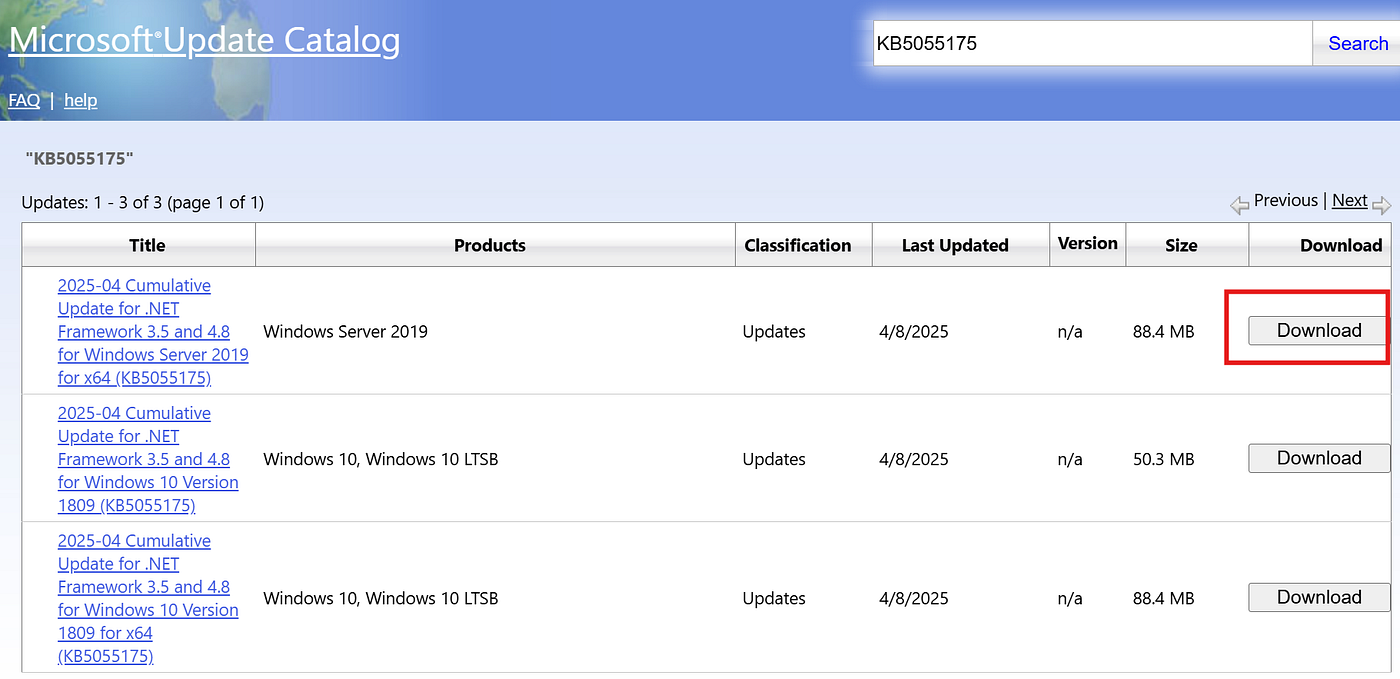
Fig 1 Microsoft Update Catalog

Fig 1.2 Copy the URL of the MSU file
[1] https://catalog.update.microsoft.com/Search.aspx?q=KB5055175
Run the following in the background to download the file immediately into the instance with no progress bar.
Rename KB5055175.msu if required.
$ProgressPreference = 'SilentlyContinue'
wget -O KB5055175.msu https://catalog.s.download.windowsupdate.com/c/msdownload/update/software/updt/2025/03/windows10.0-kb5055175-x64-ndp48_df5de1b5f2a6394b4
d40391d6ea8fed4415f806f.msu
Unpack and install CAB
Run the following to unpack the file and install the CAB. Ensure service stack are install first if it applies.
expand -F:*.cab .\KB5055175.msu .
Microsoft (R) File Expansion Utility
Copyright (c) Microsoft Corporation. All rights reserved.

Adding .\WSUSSCAN.cab to Extraction Queue
Adding .\Windows10.0-KB5055175-x64-NDP48.cab to Extraction Queue

Expanding Files ....

Expanding Files Complete ...
2 files total.
The start-job -scriptblock command runs it as a background.
Remove /norestart only if you want to restart immediately after installing.
start-job -scriptblock { DISM.exe /Online /Add-Package /PackagePath:Windows10.0-KB5055175-x64-NDP48.cab /quiet /norestart }Don’t bother running wusa if its not done in the Windows desktop. You might encounter this if you do.
get-winevent -logname setup | select-object -first 5 | format-list

TimeCreated  : 5/31/2025 2:19:55 PM
ProviderName : Microsoft-Windows-WUSA
Id           : 3
Message      : Windows update "Update for Windows (KB5055175)" could not be installed because of error 2147942405 "Access is denied." (Command line:
               ""C:\Windows\system32\wusa.exe" .\KB5055175.msu /quiet /norestart")
If all goes well. You should be able to see KB5055157 is installed.
Get-HotFix | Sort-Object InstalledOn -Descending | select-object -first 5

Source        Description      HotFixID      InstalledBy          InstalledOn
------        -----------      --------      -----------          -----------
EC2AMAZ-L7... Update           KB5055175     EC2AMAZ-L74F876\s... 5/31/2025 12:00:00 AM
EC2AMAZ-L7... Security Update  KB5058392     EC2AMAZ-L74F876\s... 5/30/2025 12:00:00 AM
EC2AMAZ-L7... Security Update  KB5058525     NT AUTHORITY\SYSTEM  5/15/2025 12:00:00 AM
EC2AMAZ-L7... Security Update  KB5050110     NT AUTHORITY\SYSTEM  1/15/2025 12:00:00 AM
EC2AMAZ-L7... Security Update  KB5043126     NT AUTHORITY\SYSTEM  9/11/2024 12:00:00 AM
Troubleshooting
Run the following to check for any error.
get-winevent -logname setup | select-object -first 5 | format-list

TimeCreated  : 5/31/2025 3:40:54 PM
ProviderName : Microsoft-Windows-Servicing
Id           : 2
Message      : Package KB5055175 was successfully changed to the Installed state.

TimeCreated  : 5/31/2025 3:40:27 PM
ProviderName : Microsoft-Windows-Servicing
Id           : 4
Message      : A reboot is necessary before package KB5055175 can be changed to the Installed state.

TimeCreated  : 5/31/2025 3:40:13 PM
ProviderName : Microsoft-Windows-Servicing
Id           : 1
Message      : Initiating changes for package KB5055175. Current state is Installed. Target state is Installed. Client id: DISM Package Manager Provider.
Run either one of the following to check the dism.log related to the KB or CAB
get-content C:\Windows\Logs\DISM\dism.log -tail 100 | findstr KB5055175
get-content C:\Windows\Logs\DISM\dism.log | findstr Windows10.0-KB5055175-x64-NDP48.cab
get-content c:\windows\logs\cbs\cbs.log | findstr KB5055175
get-content c:\windows\logs\cbs\cbs.log | findstr Windows10.0-KB5055175-x64-NDP48.cab
Putting it all together
wget -O KB5055175.msu https://catalog.s.download.windowsupdate.com/c/msdownload/update/software/updt/2025/03/windows10.0-kb5055175-x64-ndp48_df5de1b5f2a6394b4d40391d6ea8fed4415f806f.msu
expand -F:*.cab .\KB5055175.msu .
DISM.exe /Online /Add-Package /PackagePath:Windows10.0-KB5055175-x64-NDP48.cab /quiet
Behind the scene
Continue only if you wish to learn how to uninstall KB5055175 or PackageName using Session Manager.
Run the following command to ensure it is installed.
get-hotfix | where-object {$_.HotFixID -eq "KB5055175"}

Source        Description      HotFixID      InstalledBy          InstalledOn
------        -----------      --------      -----------          -----------
EC2AMAZ-L7... Update           KB5055175     NT AUTHORITY\SYSTEM  5/15/2025 12:00:00 AM
Visit support.microsoft.com [1] to get the package name. Notice there is no build number like Fig 3.2.
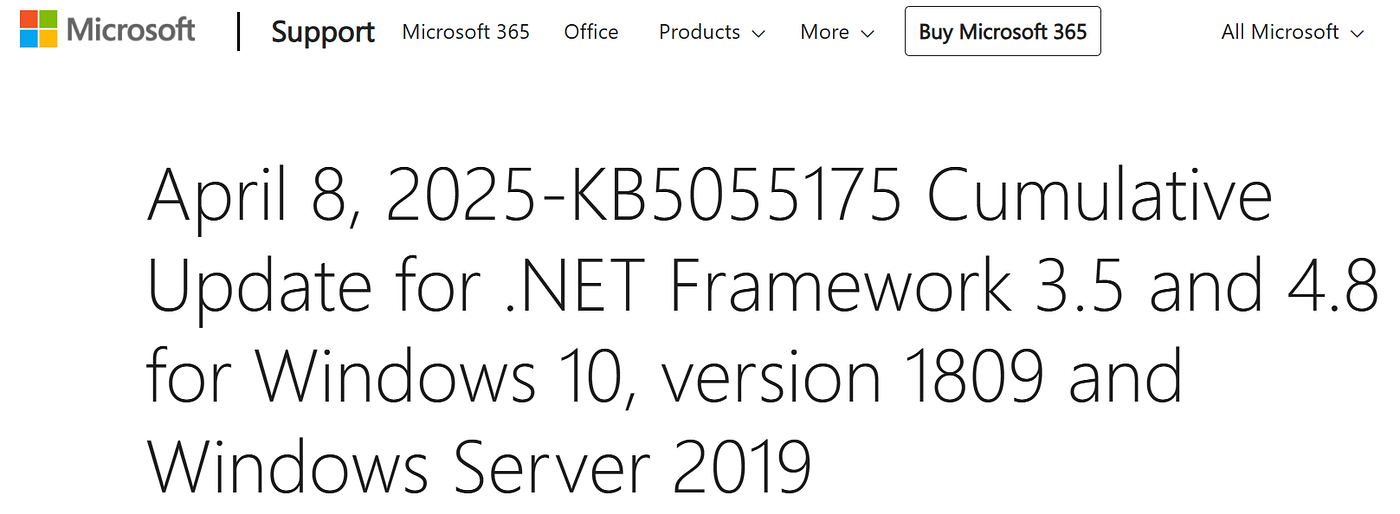
Fig 3.1 KB5055175
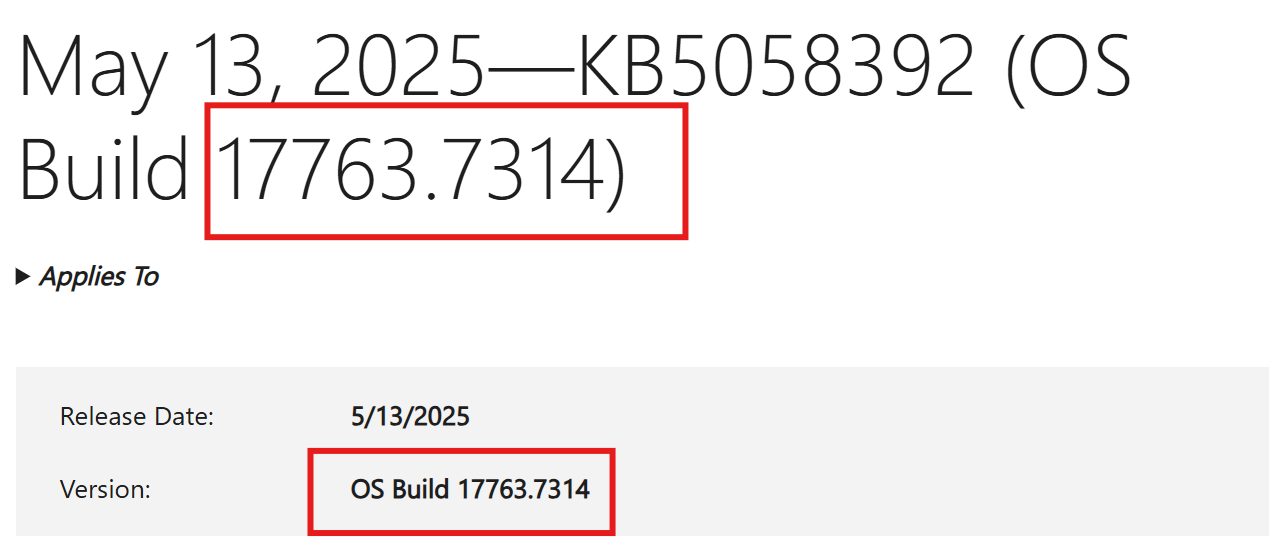
Fig 3.2 KB5058392, OS Build 17763.7314
The reason why we need the build number is to help us determine which package name is installed in the instance.
Determine the package name
KB5055175 was installed on the 5/15/2025. Run the following command to review which package name was installed on this date.
get-windowspackage -online | sort-object installtime | where-object {$_.installtime -like "*5/15/2025*"}

PackageName  : Package_for_ServicingStack_7313~31bf3856ad364e35~amd64~~17763.7313.1.3
PackageState : Installed
ReleaseType  : SecurityUpdate
InstallTime  : 5/15/2025 2:51:00 PM

PackageName  : Package_for_DotNetRollup~31bf3856ad364e35~amd64~~10.0.4785.1
PackageState : Installed
ReleaseType  : Update
InstallTime  : 5/15/2025 3:15:00 PM
Run this command to display more information to Package_for_DotNetRollup~31bf3856ad364e35~amd64~~10.0.4785.1 just because it looks related to .Net framework.
DISM /Online /Get-PackageInfo /PackageName:Package_for_DotNetRollup~31bf3856ad364e35~amd64~~10.0.4775.1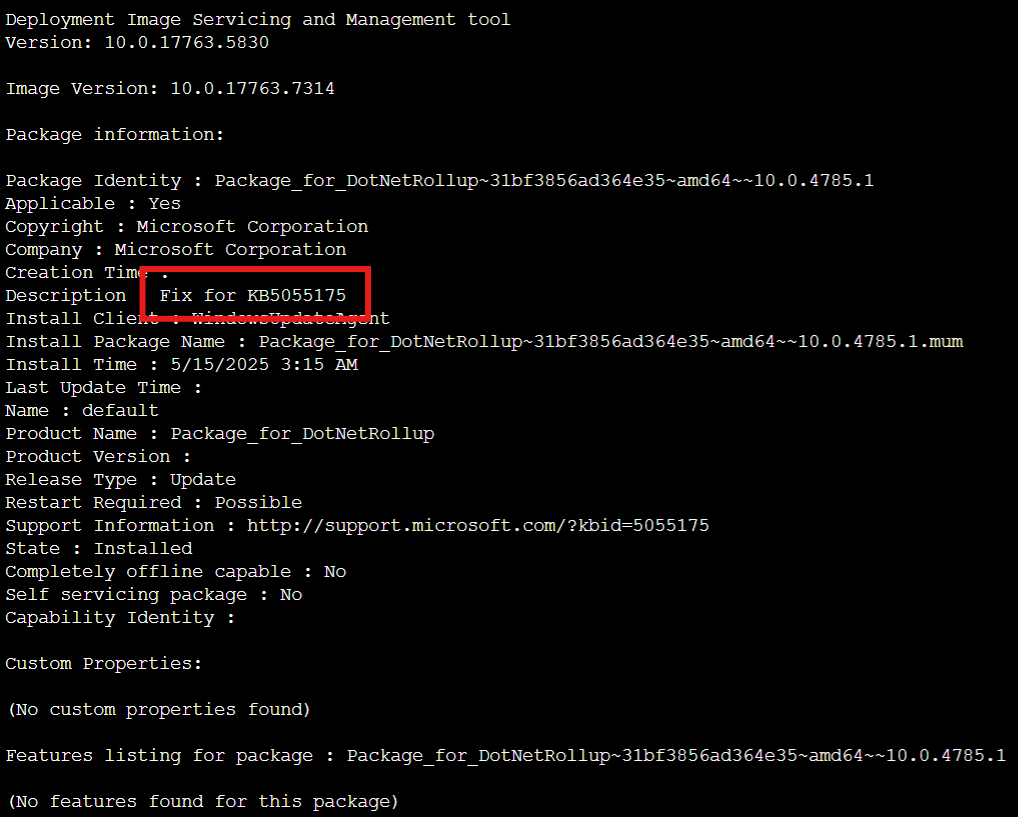
Fig 4.1 Description for KB5055175
Now that we’ve determined this is the package name for KB5055175. Run the following command to uninstall and restart after it is done.
start-job -scriptblock { DISM /Online /Remove-Package /PackageName:Package_for_DotNetRollup~31bf3856ad364e35~amd64~~10.0.4785.1 /quiet }After rebooting.
get-winevent -logname setup | select-object -first 5 | format-list

TimeCreated  : 5/31/2025 5:21:34 PM
ProviderName : Microsoft-Windows-Servicing
Id           : 2
Message      : Package KB5055175 was successfully changed to the Absent state.

TimeCreated  : 5/31/2025 5:21:03 PM
ProviderName : Microsoft-Windows-Servicing
Id           : 4
Message      : A reboot is necessary before package KB5055175 can be changed to the Absent state.

TimeCreated  : 5/31/2025 5:20:56 PM
ProviderName : Microsoft-Windows-Servicing
Id           : 1
Message      : Initiating changes for package KB5055175. Current state is Installed. Target state is Absent. Client id: DISM Package Manager
               Provider.
Conclusion
If the most current package name gets removed. AWS EC2 SSM agent will kick in to install the last working KB as the baseline. It also will remove or supersede the last working package or KB if the most current one gets installed.
get-windowspackage -online | sort-object installtime

PackageName  : Package_for_DotNetRollup~31bf3856ad364e35~amd64~~10.0.4775.1
PackageState : Superseded
ReleaseType  : Update
InstallTime  : 5/31/2025 9:50:00 PM

PackageName  : Package_for_DotNetRollup~31bf3856ad364e35~amd64~~10.0.4785.1
PackageState : Installed
ReleaseType  : Update
InstallTime  : 5/31/2025 9:53:00 PM

PackageName  : Package_for_RollupFix~31bf3856ad364e35~amd64~~17763.6775.1.10
PackageState : Superseded
ReleaseType  : SecurityUpdate
InstallTime  : 5/31/2025 10:42:00 PM

PackageName  : Package_for_RollupFix~31bf3856ad364e35~amd64~~17763.7314.1.18
PackageState : Installed
ReleaseType  : SecurityUpdate
InstallTime  : 5/31/2025 10:59:00 PM
I hope you get a kick out of this content.
❤️ Found this helpful? Share it with someone who could use it! A few claps 👏👏👏👏 would also be awesome — they help more people discover this content and are a sign of appreciation. And, of course, I’d love to hear your thoughts!
🎯 Thanks for reading! If you enjoyed it, please hit the **follow button to stay updated with my latest posts. You can also support me by ☕[buying me a coffee…](https://buymeacoffee.com/foabdavidl)**
🚀 Want to connect? Feel free to reach out to me on **LinkedIn**. All opinions expressed in the blog are mine alone
메타데이터
- post_id
- 01dd0c7e8a16
- slug
- how-to-patch-windows-ec2-instance-manually-24-100-01dd0c7e8a16
- url
- https://medium.com/@DavidAwCloudSecurity/how-to-patch-windows-ec2-instance-manually-24-100-01dd0c7e8a16
- canonical_url
- https://medium.com/@DavidAwCloudSecurity/how-to-patch-windows-ec2-instance-manually-24-100-01dd0c7e8a16
- author_url
- https://medium.com/@DavidAwCloudSecurity
- status
- ok
- fetched_at
- 2026-06-25 16:53:31