How to Transfer Apple Music to YouTube Music (Step-by-Step Guide)
Switching from Apple Music to YouTube Music sounds easy — until you realize all your playlists, liked songs, and carefully curated…
How to Transfer Apple Music to YouTube Music (Step-by-Step Guide)
Switching from Apple Music to YouTube Music sounds easy — until you realize all your playlists, liked songs, and carefully curated collections won’t move automatically.
If you’ve spent years building playlists on Apple Music, rebuilding everything manually on YouTube Music can be frustrating and time-consuming. The good news is: there’s a simple way to transfer your Apple Music playlists to YouTube Music without downloading songs or starting from scratch.
In this guide, I’ll walk you through a practical, step-by-step method to move your playlists smoothly while keeping the original order intact.
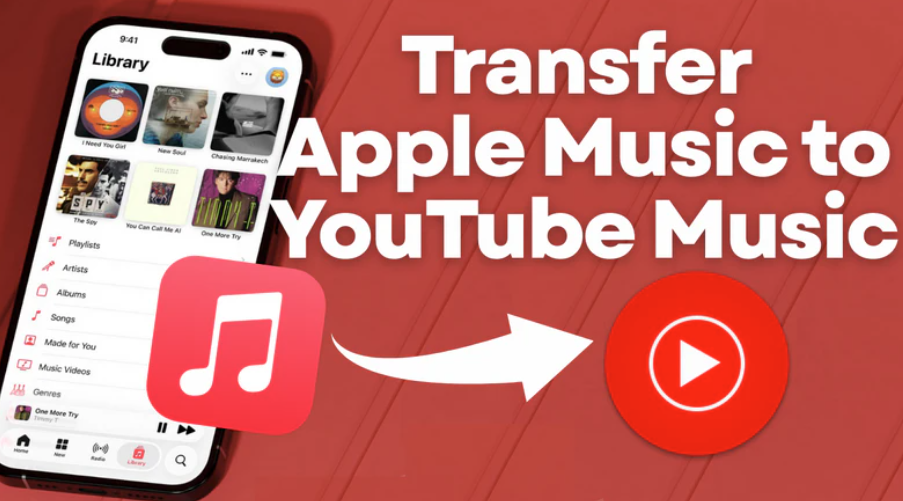
Why Transfer Apple Music to YouTube Music?
Many users decide to switch platforms for reasons like:
Better YouTube integration and recommendations
Access to official tracks, remixes, and live performances
More flexible device support
Bundled YouTube Premium benefits
The Easiest Way: Use PlaylistGo
PlaylistGo is a playlist transfer tool designed to move music libraries between streaming platforms.
With PlaylistGo, you can:
Transfer Apple Music playlists to YouTube Music in bulk
Keep the original song order
Move playlists, albums, and liked tracks
Complete the transfer in just a few minutes
Avoid downloading or converting audio files
Everything happens directly between platforms.
How to Transfer Apple Music to YouTube Music (Step-by-Step)
Step 1: Open PlaylistGo
Install and open PlaylistGo on your computer.
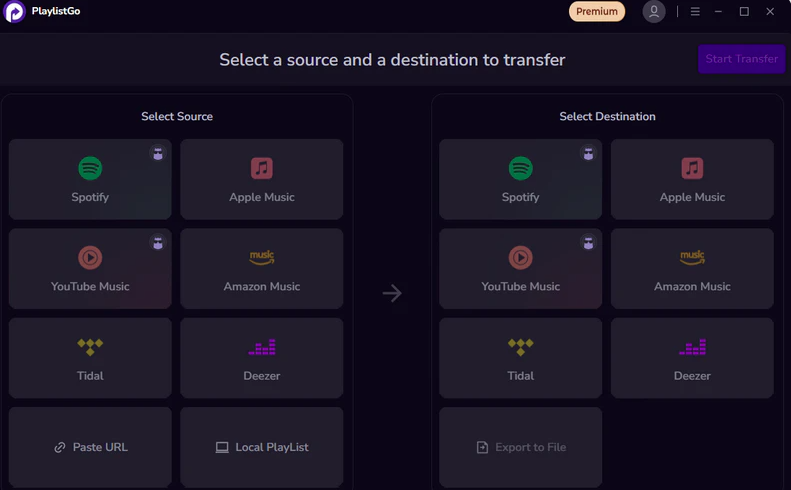
Step 2: Select Apple Music as Source platform
Select Apple Music and Sign in to your Apple Music. PlaylistGo only accesses your music library for the transfer process

Step 3: Select YouTube Music as Target platform
Select YouTube Music and sign in your YouTube Music account.
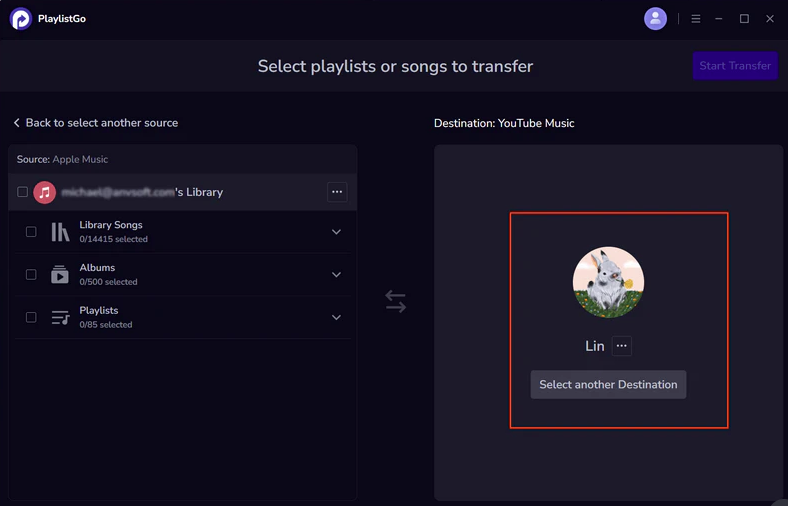
Step 4: Choose What to Transfer
Select playlists, albums, or liked songs you want to move. You can transfer multiple playlists at once.
Step 5: Start the Transfer
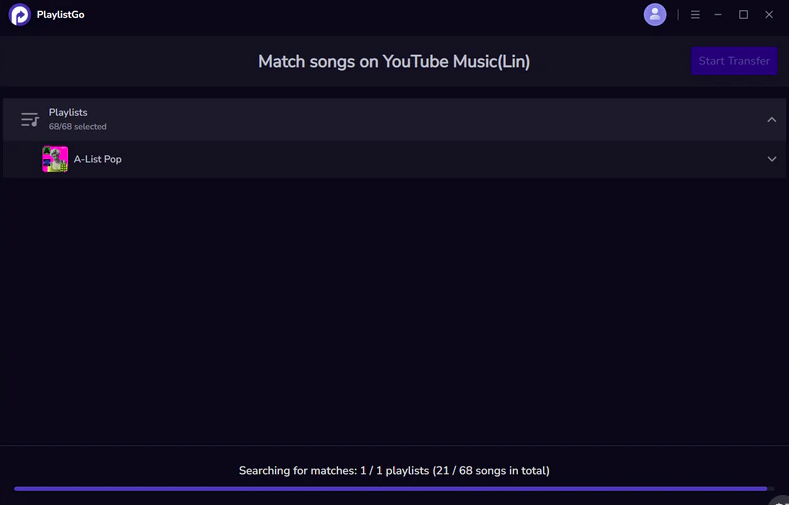
Click the transfer button and wait a few minutes. PlaylistGo will automatically match tracks and recreate playlists on YouTube Music.
Step 6: Check Your YouTube Music Library
Once finished, open YouTube Music to confirm your playlists are there — with the original order preserved.
What Gets Transferred (and What Doesn’t)
Transferred:
Playlist names
Song order
Most official tracks
Is PlaylistGo Safe to Use?
PlaylistGo works via official platform connections and does not download or store audio files. It only transfers playlist data, making it a safe and legal way to switch music platforms.
Final Thoughts
Switching from Apple Music to YouTube Music doesn’t have to mean starting over. With the right tool, you can move your playlists in minutes and continue enjoying your music without interruption.
If you’re planning to change platforms and want to keep your playlists exactly as they are, using a playlist transfer tool like PlaylistGo is the most efficient solution.
메타데이터
- post_id
- 021a28a7a129
- slug
- how-to-transfer-apple-music-to-youtube-music-step-by-step-guide-021a28a7a129
- url
- https://medium.com/@chern63/how-to-transfer-apple-music-to-youtube-music-step-by-step-guide-021a28a7a129
- canonical_url
- https://medium.com/@chern63/how-to-transfer-apple-music-to-youtube-music-step-by-step-guide-021a28a7a129
- author_url
- https://medium.com/@chern63
- status
- ok
- fetched_at
- 2026-06-17 08:20:12