AWS Finally Added an "Undo" Button for Amazon EKS Upgrades
No More One-Way Streets: A Deep Dive into Amazon EKS Kubernetes Version Rollback
AWS Amazon EKS Kubernetes DevOps Cloud Computing
AWS Finally Added an “Undo” Button for Amazon EKS Upgrades
Upgrading a Kubernetes cluster on AWS used to feel like jumping out of a plane and hoping your parachute opens. Once you started a minor version upgrade (say, moving from 1.32 to 1.33), you were completely locked in. If an app broke or a plugin stopped working right after the upgrade, you couldn’t just go back. Your only choices were to fix the issue on the fly under intense pressure or build a whole new cluster from scratch and migrate everything over. It was stressful, to say the least.
That stressful reality is now a thing of the past. AWS has officially introduced Kubernetes Version Rollback for Amazon EKS.
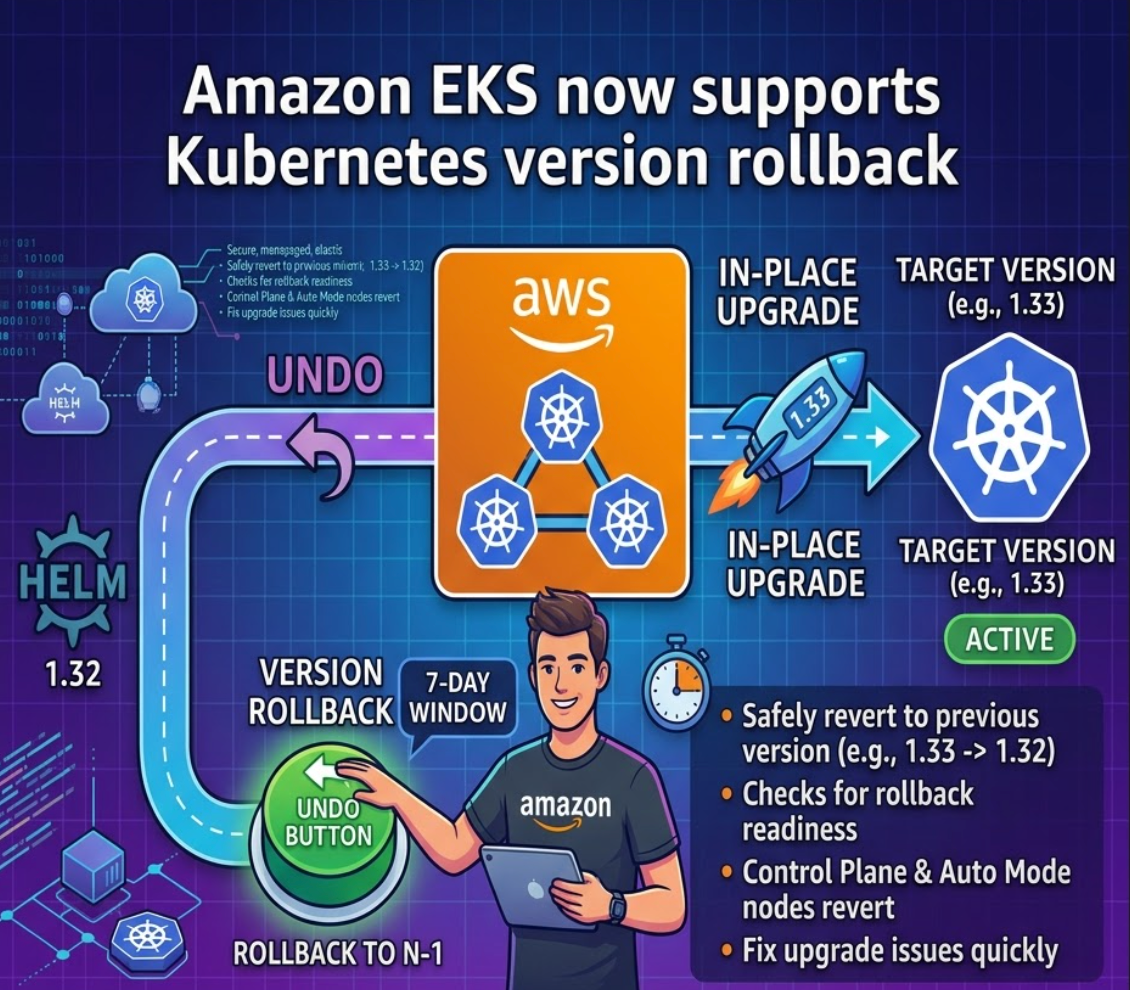
This feature allows you to safely revert your cluster’s control plane back to its previous minor version within a designated window after an in-place upgrade.
Here is a simple breakdown of how it works, the catch (because there is always a catch), and how to use it.
How It Works: What Moves and What Stays?
Before hitting the rollback button, it’s critical to understand the scope of what actually changes. A version rollback is primarily a control plane operation, though its behavior changes drastically depending on whether you are running a traditional cluster or using EKS Auto Mode.
🔎 What Gets Rolled Back:
- The Control Plane: The Kubernetes API server and control plane components are reverted to the previous minor version.
- The EKS Platform Version: The underlying AWS-managed platform version updates to match the targeted minor version.
- EKS Auto Mode Nodes: If you are using EKS Auto Mode, the managed data plane (nodes managed via built-in Karpenter) is rolled back automatically alongside the control plane.
🔴 What Does NOT Get Rolled Back:
- etcd Data & Workload State: Your actual application data, cluster state, running Pods, Deployments, and Persistent Volumes remain exactly as they are. Rollback only changes the control plane binaries. If you created a new Kubernetes resource using a 1.33-exclusive API feature during the upgrade window, that resource will persist but may become invalid or throw errors once the control plane reverts to 1.32.
- EKS Add-ons: Core add-ons (like VPC CNI, CoreDNS, or kube-proxy) are not automatically downgraded and must be handled separately.
- Managed Node Groups (MNGs), Self-Managed, or Hybrid Nodes: For standard clusters, your data plane must be managed and downgraded manually.
The Rules of Engagement: Key Constraints
To prevent catastrophic configuration skews, AWS enforces strict boundaries around when and how you can trigger a rollback:
- The 7-Day Window: You must initiate the rollback within 7 days of completing the upgrade. After 7 days, the rollback window closes permanently.
- Single Minor Version Only (N-1): You can only roll back by exactly one minor version (e.g., from 1.33 to 1.32). If you have upgraded through multiple versions, you cannot skip versions or roll back multiple steps at once.
- In-Place Upgrades Only: You can only roll back a cluster that arrived at its current version via an in-place upgrade. If a cluster was newly created at version 1.33, it cannot be rolled back.
- Active Status: The cluster must be in an
ACTIVEstate. You cannot trigger a rollback while another update or configuration change is actively processing.
Step-by-Step Guide to Rolling Back Your EKS Cluster
If you find yourself in a scenario where an upgrade has caused unexpected regressions, follow this sequence to revert safely.
Step 1: Review Rollback Readiness Insights
AWS automatically evaluates your cluster against point-in-time checks right after an upgrade completes. These are surfaced in EKS Cluster Insights under the ROLLBACK_READINESS category.
You can check these insights directly in the AWS Management Console under the Upgrade Insights tab, or via the AWS CLI:
aws eks list-insights \
  --cluster-name my-cluster \
  --region us-west-2 \
  --filter '{"categories": ["ROLLBACK_READINESS"]}'
To see the exact details of a blocking issue, grab the insight ID and describe it:
aws eks describe-insight \
  --cluster-name my-cluster \
  --region us-west-2 \
--id <insight-id>- PASSING / WARNING: Rollback is permitted (Warnings are advisory only).
- ERROR / UNKNOWN: Rollback is blocked. You must resolve the error first, or explicitly use the
--forceflag during the rollback command to bypass the block.
Step 2: Prepare Your Worker Nodes
To avoid unstable master-to-node version skews, your data plane needs attention:
- EKS Auto Mode: No action required! EKS gracefully coordinates node replacement using Karpenter behind the scenes before updating the control plane.
- Managed Node Groups (MNGs): You should downgrade your node groups to the previous Kubernetes version before kicking off the control plane rollback using
update-nodegroup-version. - Self-Managed or Hybrid Nodes: Manually rotate your instances using the previous version’s EKS-optimized AMIs.
Step 3: Trigger the Control Plane Rollback
Initiating a rollback uses the exact same API endpoint as an upgrade, but you explicitly target the lower version number.
Via the AWS Console:
- Go to your EKS cluster and click the Actions dropdown.
- Select Roll back Cluster version.
- Review the Insights, select your target version, and confirm.
Via the AWS CLI:
Run the following command to rollback from 1.33 back to 1.32:
aws eks update-cluster-version \
  --name my-cluster \
  --kubernetes-version 1.32 \
  --region us-west-2
(Note: If you have an ERROR insight that you are confident is a false positive, you can append the --force flag to bypass it).
Step 4: Monitor and Know Your Escape Hatch
The rollback will put your cluster into an UPDATING state. You can monitor the progress through the console or CLI.
The Safety Brake: If you are running an EKS Auto Mode cluster and realize midway through the node-drain phase that you made a mistake, AWS provides a cancellation mechanism. You can halt an in-progress rollback using the cancel-update API:
aws eks cancel-update \
  --name my-cluster \
  --update-id <update-id> \
  --region us-west-2
Once canceled, the cluster gracefully returns to an ACTIVE state at the higher version it started on.
Conclusion: A Game Changer for Platform Engineers
The introduction of EKS version rollback fundamentally changes how enterprise platform teams approach lifecycle management. By eliminating the “one-way street” risk of Kubernetes upgrades, teams can migrate production clusters with higher confidence and less operational hesitation.
While it shouldn’t replace rigorous staging environment testing, having a robust 7-day safety net drastically reduces the blast radius of unexpected Day-2 upgrade issues.
Have you tried out the new EKS rollback feature yet? Let me know your thoughts and experiences in the comments below!
메타데이터
- post_id
- 027bbe9b4d06
- slug
- aws-finally-added-an-undo-button-for-amazon-eks-upgrades-027bbe9b4d06
- url
- https://blog.devops.dev/aws-finally-added-an-undo-button-for-amazon-eks-upgrades-027bbe9b4d06
- canonical_url
- https://blog.devops.dev/aws-finally-added-an-undo-button-for-amazon-eks-upgrades-027bbe9b4d06
- author_url
- https://medium.com/@virajpatoliya
- status
- ok
- fetched_at
- 2026-07-13 06:23:13