How to Make Wavy Text in Photoshop
A step-by-step guide to dynamic typography effects
How to Make Wavy Text in Photoshop
A step-by-step guide to dynamic typography effects
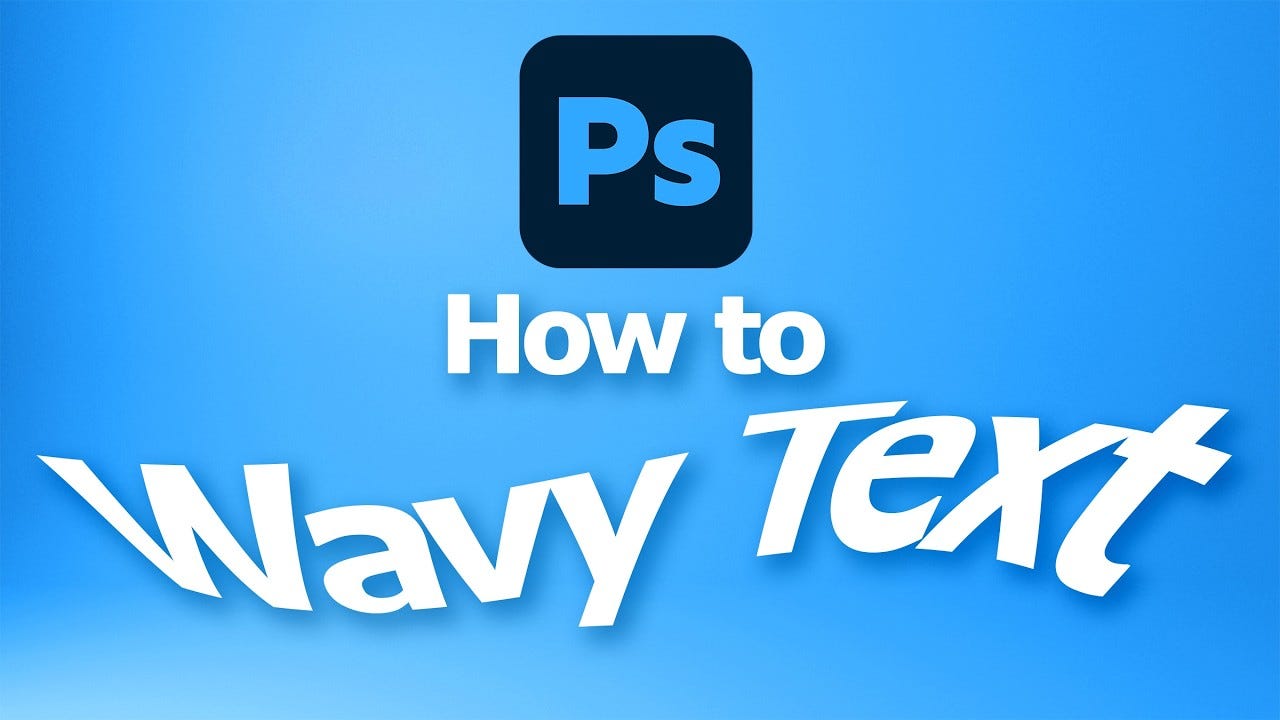
How to make wavy text in Photoshop is a question many graphic designers and beginners ask when they want to add movement and creativity to their projects.
The good news? It’s much simpler than you think — no complex filters or external tools required.
This tutorial walks you through a straightforward technique for creating wavy text effects in Photoshop. You’ll learn how to apply a wave warp effect to text, making it visually dynamic in just a few minutes.
Whether you’re a complete beginner or someone looking to sharpen your graphic design skills, this method is for you.
How to Make Wavy Text in Photoshop
Step 1: Set up your document and type your text
Open Photoshop and create a new document using your preferred presets.
Select the Horizontal Type Tool, click on the artboard, and type the text you want to transform (for example, “wavy text”).
Step 2: Adjust text size and access the warp tool
Use the Move Tool to scale the text bounding box as needed, then switch back to the Type Tool.
Look for the “Create Warp Text” button in the top options bar — it looks like a curved “T”. Click it to open the Warp Text dialog box.
Step 3: Apply and customize the wave effect
Inside the Warp Text dialog:
- Select “Wave” from the Style drop-down menu
- Choose “Horizontal” wave orientation (vertical is also an option)
- Adjust the Bend, Horizontal Distortion, and Vertical Distortion sliders to control the intensity of your wave
- Click OK to apply the effect
Step 4: Finalize your design
Your text will now have a dynamic wavy look.
Best of all — this effect is non-destructive. You can reopen the Warp Text dialog at any time to adjust or remove the effect without losing your original text.
Key customization options to explore
- Bend — controls overall curvature and wave amplitude
- Horizontal Distortion — stretches or compresses the wave pattern side to side
- Vertical Distortion — adds height variations to the wave peaks and valleys
- Style — while “Wave” is the focus, trying other styles can lead to unique results
Frequently asked questions
Can I make the wavy text effect more dramatic? Yes. Increase the bend and distortion sliders for more pronounced waves.
Is this method reversible if I want to change the text later? Absolutely. Because the warp effect works inside the type tool, you can re-open the dialog and edit or remove it anytime.
Can I use this effect on vertical text? Yes. The warp text window lets you select vertical wave orientation for a different visual style.
Does this work on older Photoshop versions? Most versions support the Warp Text feature, though interface details may vary slightly.
Can I use this on multiple lines of text? The effect applies best to single text layers. For multiple lines, warp each line separately or experiment with grouped layers.
Practical uses for wavy text
This technique works great for:
- Social media graphics and quote posts
- Album covers and music artwork
- Posters and flyers
- Playful logos
- YouTube thumbnails and channel art
Pro tips for better results
- Combine effects — add gradients, drop shadows, or outer glows to your wavy text
- Experiment freely — push the sliders beyond default settings to discover unique wave patterns
- Duplicate for depth — copy the layer, offset it slightly, and change the color for a 3D shadow effect
- Keep it short — the warp effect works best on short to medium-length single-line text
Final thoughts
Learning how to make wavy text in Photoshop opens up new creative possibilities for your typography projects.
With just a few clicks using the built-in Warp Text feature, you can transform ordinary flat text into dynamic, eye-catching waves that add movement and personality to any design.
It’s beginner-friendly, fully customizable, and completely non-destructive.
Want to see exactly how it’s done? Watch the full step-by-step video tutorial here 👇
How to Make Wavy Text in Photoshop — Full Tutorial
If you found this helpful, feel free to clap, follow, or share — and stay tuned for more Photoshop design tips.
by Graphician Art
original post, https://graphicianart.com/how-to-make-wavy-text-in-photoshop/
메타데이터
- post_id
- 02a6e69c488e
- slug
- how-to-make-wavy-text-in-photoshop-02a6e69c488e
- url
- https://medium.com/@graphician01/how-to-make-wavy-text-in-photoshop-02a6e69c488e
- canonical_url
- https://medium.com/@graphician01/how-to-make-wavy-text-in-photoshop-02a6e69c488e
- author_url
- https://medium.com/@graphician01
- status
- ok
- fetched_at
- 2026-06-09 15:37:30