What Is a Custom Log and How to Create a Custom Log File in Magento 2
Logging plays a critical role in Magento 2 development. Whether you’re troubleshooting a payment gateway, monitoring API responses, or…
What Is a Custom Log and How to Create a Custom Log File in Magento 2
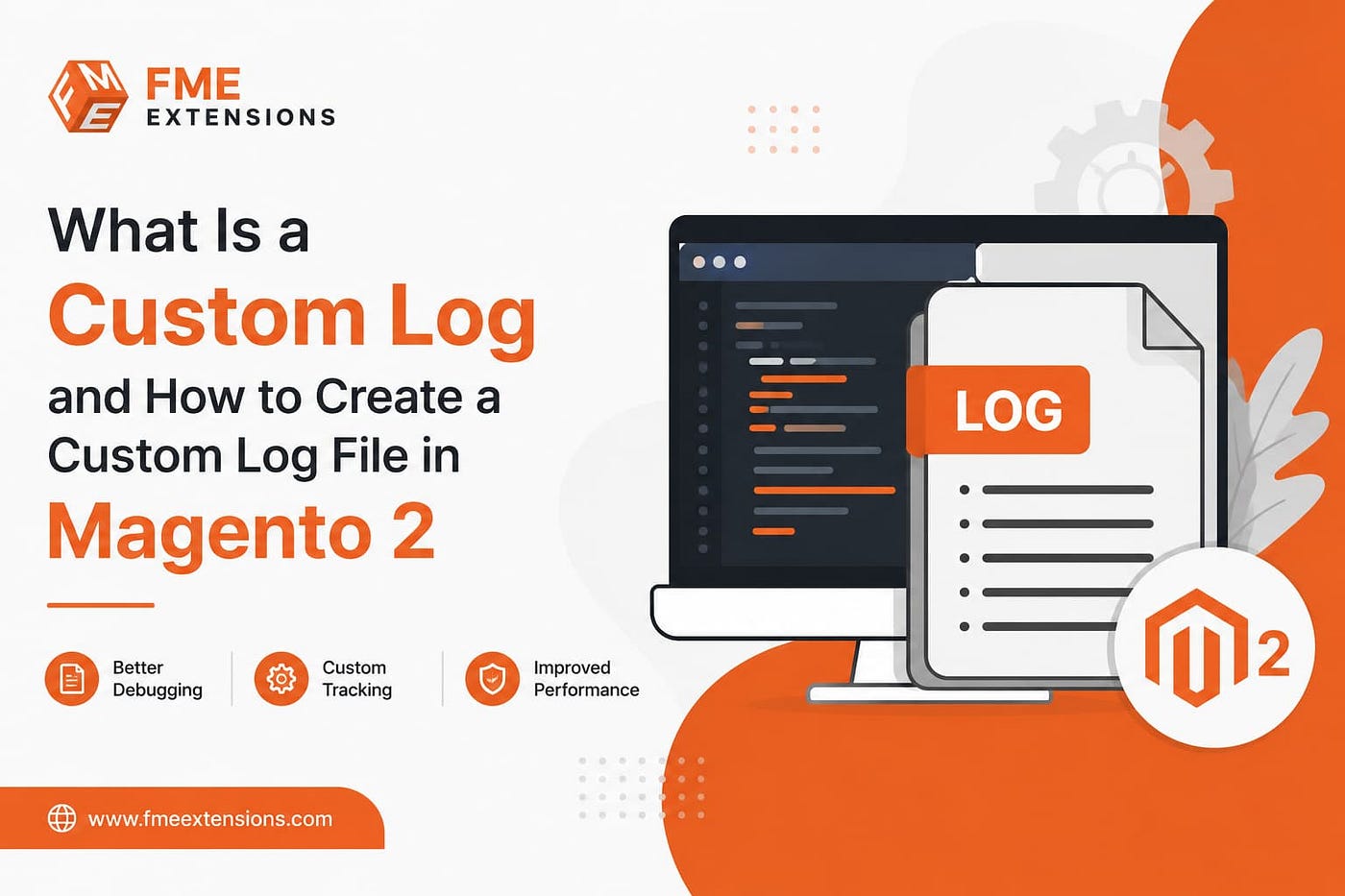
Logging plays a critical role in Magento 2 development. Whether you’re troubleshooting a payment gateway, monitoring API responses, or debugging a custom module, logs help you understand what is happening behind the scenes.
Magento 2 includes a built-in logging system that records errors and system events automatically. However, as a store grows and more modules are added, the default log files can quickly become difficult to manage.
This is where custom logging becomes useful.
By creating a custom log file in Magento 2, developers can separate module-specific information from general system logs, making debugging faster and maintenance much easier.
In this guide, you’ll learn what Magento 2 custom logs are, why they matter, and how to create a custom log file step by step.
What Is a Custom Log in Magento 2?
A custom log is a dedicated log file that records events, messages, and errors related to a specific module, feature, or integration.
By default, Magento stores system logs in files such as:
var/log/system.log
var/log/exception.log
These files contain information from many different parts of the application. While useful, they can become cluttered and difficult to navigate when you’re trying to troubleshoot a specific issue.
A custom logger allows you to create separate log files for individual functionalities.
For example, if you’re developing a payment integration, you might create a dedicated log file:
var/log/payment.logThis allows you to monitor payment-related events without filtering through thousands of unrelated log entries.
Common Uses of Custom Logs
Magento developers commonly use custom log files for:
- Custom Magento 2 modules
- Third-party extension debugging
- API integrations
- Payment gateway monitoring
- Checkout customizations
- Performance tracking
- Scheduled task monitoring
Magento 2 uses the Monolog library for logging, which supports multiple logging levels including debug, info, warning, error, and critical.
Using custom logs provides several benefits:
- Faster debugging
- Better log organization
- Easier monitoring of custom functionality
- More accurate error tracking
- Simplified maintenance and troubleshooting
Why Use a Custom Log File in Magento 2?
Magento’s default logging system is powerful, but it wasn’t designed to isolate activity from individual modules.
As your store grows, the amount of information written to system.log and exception.log increases significantly. Finding a specific issue can become time-consuming.
A custom log file helps solve this problem.
Track Module-Specific Activity
If you’ve developed a custom module or installed a complex third-party extension, a dedicated log file makes it easier to monitor its behavior independently.
Instead of searching through system-wide logs, you can focus on the data that actually matters.
Simplify Debugging
Custom functionality often introduces unique challenges and errors.
A dedicated log file allows developers to capture only the information relevant to that feature, reducing debugging time considerably.
Keep Logs Organized
Separating important information into dedicated files creates a cleaner logging structure.
This becomes especially valuable for large Magento projects that contain multiple custom modules and integrations.
Improve Long-Term Maintenance
Well-organized logs make future troubleshooting significantly easier.
When issues arise, developers can quickly locate the relevant data instead of manually filtering through massive log files.
By default, Magento custom logs are usually stored in:
var/log/custom.logHowever, you can use any file name that fits your project requirements.
How to Create a Custom Log File in Magento 2
Creating a custom log file requires three main components:
- A custom log handler
- A custom logger class
- Dependency Injection configuration
Let’s go through each step.
Step 1: Create a Custom Log Handler
Create the following file:
app/code/Vendor/Module/Logger/Handler.phpAdd the following code:
<?phpnamespace Vendor\Module\Logger;use Monolog\Logger;
use Magento\Framework\Logger\Handler\Base;class Handler extends Base
{
/**
* Custom log file path
*
* @var string
*/
protected $fileName = '/var/log/custom.log'; /**
* Logging level
*
* @var int
*/
protected $loggerType = Logger::INFO;
}This handler defines:
- The location of the custom log file
- The logging level used by the logger
Step 2: Create a Custom Logger Class
Create the following file:
app/code/Vendor/Module/Logger/Logger.phpAdd the code below:
<?phpnamespace Vendor\Module\Logger;class Logger extends \Monolog\Logger
{
}This class extends Magento’s default Monolog logger and enables Magento to use your custom logging configuration.
Step 3: Configure Dependency Injection
Create or edit the following file:
app/code/Vendor/Module/etc/di.xmlAdd the configuration below:
<?xml version="1.0"?><config xmlns:xsi="http://www.w3.org/2001/XMLSchema-instance"
xsi:noNamespaceSchemaLocation="urn:magento:framework:ObjectManager/etc/config.xsd"> <type name="Vendor\Module\Logger\Logger">
<arguments>
<argument name="name" xsi:type="string">customLogger</argument>
<argument name="handlers" xsi:type="array">
<item name="system" xsi:type="object">
Vendor\Module\Logger\Handler
</item>
</argument>
</arguments>
</type></config>This configuration instructs Magento to use your custom handler whenever the custom logger is called.
Step 4: Use the Custom Logger
You can now inject the custom logger into any Magento class.
protected $logger;public function __construct(
\Vendor\Module\Logger\Logger $logger
) {
$this->logger = $logger;
}To write information into the log file:
public function execute()
{
    $this->logger->info('This is a custom log message');
}
Magento will automatically write the message to:
var/log/custom.logMagento 2 Logging Levels
Magento 2 leverages Monolog’s logging system, allowing developers to categorize log messages based on severity.
Using the correct log level makes logs easier to understand and maintain.
Debug
Used for detailed development and troubleshooting information.
$this->logger->debug('Debug message');Info
Used for general application events and informational messages.
$this->logger->info('Order processed successfully');Warning
Used when something unexpected occurs but does not stop execution.
$this->logger->warning('API response took longer than expected');Error
Used when an operation fails or throws an exception.
$this->logger->error('Payment gateway connection failed');Critical
Used for severe system failures that require immediate attention.
$this->logger->critical('Database connection unavailable');Best Practices for Magento 2 Custom Logging
To keep your logging system efficient and maintainable, follow these best practices.
Avoid Excessive Logging
Writing unnecessary log entries can increase storage usage and make important information harder to identify.
Only log events that provide meaningful troubleshooting value.
Use Appropriate Log Levels
Choose the correct logging level based on the severity of the event.
For example:
- Use
info()for normal application events - Use
warning()for unusual situations - Use
error()for failures - Use
critical()for severe issues
Write Clear Log Messages
Log messages should provide enough context to understand what happened.
Instead of:
Something went wrongUse:
Stripe payment authorization failed for Order #100025Regularly Clean Old Logs
Large log files can affect storage and server performance, especially on stores with limited **Magento 2 hardware requirements**.
Implement log rotation or schedule periodic cleanup of outdated logs.
Never Log Sensitive Data
Avoid storing confidential information in log files, including:
- Passwords
- Payment details
- API credentials
- Authentication tokens
Sensitive data should never be exposed through logging.
Final Thoughts
Creating a custom log file in Magento 2 is a simple yet powerful way to improve debugging and system monitoring.
Instead of relying entirely on Magento’s default log files, custom logging allows developers to isolate module-specific information, identify issues faster, and maintain a cleaner development workflow.
Whether you’re building custom Magento functionality, integrating third-party services, or troubleshooting complex workflows, implementing custom logs can significantly reduce development time and simplify long-term maintenance..
메타데이터
- post_id
- 03467ac65007
- slug
- what-is-a-custom-log-and-how-to-create-a-custom-log-file-in-magento-2-03467ac65007
- url
- https://medium.com/@fme_extensions/what-is-a-custom-log-and-how-to-create-a-custom-log-file-in-magento-2-03467ac65007
- canonical_url
- https://medium.com/@fme_extensions/what-is-a-custom-log-and-how-to-create-a-custom-log-file-in-magento-2-03467ac65007
- author_url
- https://medium.com/@fme_extensions
- status
- ok
- fetched_at
- 2026-06-09 15:37:30