Gemini Enterprise Agent Platform Pipelines: Private & On-Premises Network Connectivity Guide
This article provides a comprehensive, step-by-step technical playbook for configuring Vertex AI Pipelines (now the Gemini Enterprise Agent…
Gemini Enterprise Agent Platform Pipelines: Private & On-Premises Network Connectivity Guide

Nano Banana generated visual which manages to capture the contents of this post!
This article provides a comprehensive, step-by-step technical playbook for configuring Vertex AI Pipelines (now the Gemini Enterprise Agent Platform Pipelines aka GEAP) to securely resolve and reach internal IP addresses on your private or on-premises networks.
Summary & Architecture Overview
GEAP Pipelines runs workloads in a secure, Google-managed tenant project and tenant VPC network. By default, these pipeline containers run in isolation, meaning they cannot reach resources in your Virtual Private Cloud (VPC) network or your on-premises datacenters.
Historically, organizations connected these networks using VPC Network Peering (Private Services Access / PSA). However, VPC Peering introduces significant constraints, notably the lack of transitive routing and heavy IP address consumption.
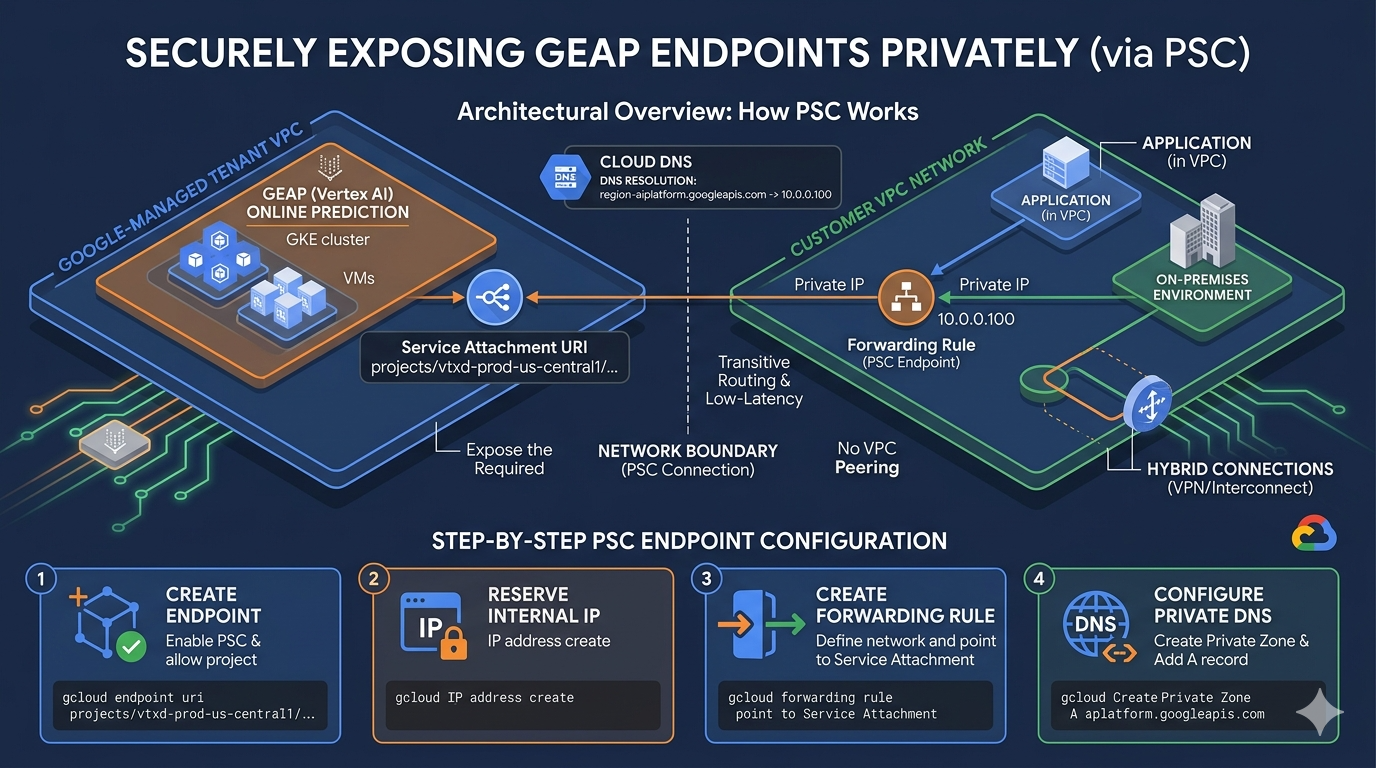
Google Cloud’s modern, recommended approach is Private Service Connect (PSC) Interfaces. Rather than peering entire VPCs, the Google-managed tenant VPC initiates a targeted connection to your VPC via a Network Attachment. This creates a multi-NIC interface directly on the pipeline container, allowing it to leverage your VPC’s native routing tables, resolve internal DNS, and transitively access hybrid networks (VPN/Interconnect) and internet egress.
Architectural Comparison: PSA vs. PSC Interface

Section 1: Foundations of Private Service Connect (PSC) Interfaces
- A Private Service Connect interface is a secondary virtual network interface (vNIC) deployed inside the producer GEAP-VM or GKE pod.
- A Network Attachment is created in the consumer (your) VPC network.
- When the pipeline runs, GEAP requests a connection to this Network Attachment.
- The pipeline container is provisioned with an IP address allocated directly from your designated consumer subnet.
- Because the interface resides inside your subnet, it inherits the routing, DNS, and firewall rules of your VPC.

Architectural representation of PSC Interfaces on GEAP Pipelines
Section 2: Step-by-Step Configuration: Basic Private Connectivity (RFC 1918)
This section details how to configure GEAP Pipelines to reach an RFC 1918 destination (e.g., an internal VM or database inside your VPC) using a PSC Interface.
Step 2.1: Enable Required APIs in your Project
Ensure the following APIs are enabled in your Google Cloud project:
gcloud services enable \
compute.googleapis.com \
aiplatform.googleapis.com \
servicenetworking.googleapis.com \
dns.googleapis.com
Step 2.2: Set Up the Consumer VPC and Subnets
Create your VPC network and define two subnets:
-
A subnet for your target resources (e.g., test-subnet-1).
-
A dedicated subnet reserved exclusively for the PSC Network Attachment (e.g., intf-subnet).
Create VPC
gcloud compute networks create consumer-vpc — subnet-mode=custom
Create Subnet for Target VM / Service
gcloud compute networks subnets create test-subnet-1 \
— network=consumer-vpc \
— range=192.168.20.0/28 \
— region=us-central1
Create Subnet for PSC Network Attachment
gcloud compute networks subnets create intf-subnet \
— network=consumer-vpc \
— range=192.168.10.0/28 \
— region=us-central1 \
— enable-private-ip-google-access
Step 2.3: Create the Private Service Connect Network Attachment
The Network Attachment acts as the landing point for the PSC interface.
gcloud compute network-attachments create psc-network-attachment \
— region=us-central1 \
— connection-preference=ACCEPT_MANUAL \
— subnets=intf-subnet
Note: Keep track of the Network Attachment URI. It will look like: “projects/[PROJECT_ID]/regions/us-central1/networkAttachments/psc-network-attachment”
Step 2.4: Configure Service Agent IAM Permissions
Vertex AI Pipelines operates on your behalf using a Service Agent. This Service Agent must have the Compute Network Admin role to dynamically provision network interfaces in your VPC.
- Retrieve your project number:
Bash PROJECT_NUMBER=$(gcloud projects describe $(gcloud config get-value project) — format=’value(projectNumber)’)
- Grant the role to the Vertex AI Service Agent:
Bash gcloud projects add-iam-policy-binding $PROJECT_ID \ — member=”serviceAccount:service-$PROJECT_NUMBER@gcp-sa-aiplatform.iam.gserviceaccount.com” \
— role=”roles/compute.networkAdmin”
Step 2.5: Configure Firewalls to Allow Ingress
Since the pipeline traffic enters your VPC originating from intf-subnet (192.168.10.0/28), you must allow this source range to reach your target resources.
Example: Allow ICMP and TCP traffic from the PSC subnet to your target VMs
gcloud compute firewall-rules create allow-ingress-from-vertex-pipelines \
— network=consumer-vpc \
— action=ALLOW \
— direction=INGRESS \
— priority=1000 \
— source-ranges=192.168.10.0/28 \
— rules=tcp:22,tcp:80,tcp:443,tcp:5432,icmp
Step 2.6: Configure the Pipeline Job in Python
When submitting your GEAP Pipeline run using the Google Cloud Pipeline Components (GCPC) SDK or the REST API, you must explicitly supply the psc_interface_config.
Below is an example of how to define and run a pipeline with this configuration:
from google.cloud import aiplatform
from kfp import dsl
from kfp import compiler
PROJECT_ID = “your-project-id”
REGION = “us-central1”
NETWORK_ATTACHMENT_URI = f”projects/{PROJECT_ID}/regions/{REGION}/networkAttachments/psc-network-attachment”
BUCKET_URI = “gs://your-pipeline-bucket”
Initialize SDK
aiplatform.init(project=PROJECT_ID, location=REGION, staging_bucket=BUCKET_URI)
Define a simple task that pings an internal database
@dsl.container_component
def ping_internal_db(db_ip: str):
return dsl.ContainerSpec(
image=”ubuntu:22.04",
command=[“bash”, “-c”],
args=[
f”apt-get update && apt-get install -y inetutils-ping && ping -c 3 {db_ip}”
]
)
@dsl.pipeline(name=”private-network-pipeline”)
def my_pipeline(db_ip: str):
ping_internal_db(db_ip=db_ip).set_caching_options(False)
Compile Pipeline
compiler.Compiler().compile(pipeline_func=my_pipeline, package_path=”private_pipeline.yaml”)
Run Pipeline with PSC Config
job = aiplatform.PipelineJob(
display_name=”private-pipeline-psc-run”,
template_path=”private_pipeline.yaml”,
parameter_values={“db_ip”: “192.168.20.2”}, # Target IP inside the VPC
pipeline_root=f”{BUCKET_URI}/pipeline_root”
)
Submit with the PSC Interface Configuration
job.submit(
psc_interface_config={
“network_attachment”: NETWORK_ATTACHMENT_URI
}
)
Section 3: Setting Up DNS Resolution
To allow your pipeline containers to resolve Fully Qualified Domain Names (FQDNs) hosted within your VPC (such as database.internal.demo.com or on-premises DNS names), you must configure DNS Peering between the Vertex AI tenant project and your consumer VPC.
Procedural flow of DNS Peering
- The pipeline container queries an internal domain (e.g., database.internal.demo.com).
- The Google-managed tenant DNS server forwards the query to your consumer VPC’s Cloud DNS.
- Your Cloud DNS resolves the IP address (or forwards it on-premises via Outbound DNS Forwarding).
Step 3.1: Grant DNS Peer Permission to GEAP Service Agent
The GEAP Service Agent needs permission to peer with your DNS zones:
gcloud projects add-iam-policy-binding $PROJECT_ID \
— member=”serviceAccount:service-$PROJECT_NUMBER@gcp-sa-aiplatform.iam.gserviceaccount.com” \
— role=”roles/dns.peer”
Step 3.2: Configure DNS Peering in the Pipeline Run
You must append the dns_peering_configs block to your psc_interface_config. This informs the tenant project’s DNS to forward queries for specific domains to your VPC.
Submit the job with both Network Attachment and DNS Peering configuration
job.submit(
psc_interface_config={
“network_attachment”: NETWORK_ATTACHMENT_URI,
“dns_peering_configs”: [
{
“domain”: “demo.com.”, # Note the trailing dot
“target_project”: PROJECT_ID,
“target_network”: “consumer-vpc”
}
]
}
)
Section 4: Secure Network Isolation, VPC Service Controls, and Proxy Configurations
The Non-RFC 1918 & VPC-SC Egress Challenge
While PSC Interfaces easily route RFC 1918 traffic (10.0.0.0/8, 172.16.0.0/12, 192.168.0.0/16), they face two major constraints:
-
Non-RFC 1918 IP Blocks: Standard PSC Interfaces cannot natively route to non-RFC 1918 addresses (e.g., Class E ranges like 240.0.0.0/4, or public IPs) without additional routing mechanisms.
-
VPC Service Controls (VPC-SC): If your project is inside a VPC-SC security perimeter, the tenant project’s default direct internet access is blocked to prevent data exfiltration. However, your pipeline may still need to fetch packages (pip, apt), download ML models, or access public APIs (like GitHub or HuggingFace).
The Solution: Egress via Explicit Proxy
To resolve these routing and security issues, you must deploy an Explicit Proxy inside your consumer VPC. All pipeline internet and non-RFC 1918 traffic is routed to this proxy VM (which has an RFC 1918 address), and the proxy routes the traffic out to the internet via your VPC’s Cloud NAT or on-premises gateways. There are 2 ways that I can think of for this;
- Google Cloud Secure Web Proxy (SWP)
- Self-managed Proxy (Squid et al)
I am going to limit the scope of this article to only GCP Secure Web Proxy as that’s my preferred poison and what I recommend.
Google Cloud Secure Web Proxy (SWP)
Secure Web Proxy is a fully managed, scalable service that acts as an explicit proxy, allowing you to define granular URL filtering policies.

Step A.1: Create a Proxy-Only Subnet
Secure Web Proxy requires a dedicated active proxy-only subnet in the region.
gcloud compute networks subnets create proxy-only-uscentral1 \
— purpose=REGIONAL_MANAGED_PROXY \
— role=ACTIVE \
— region=us-central1 \
— network=consumer-vpc \
— range=10.10.100.0/26
Step A.2: Configure Secure Web Proxy Policy and Rules
Define the security policies and URL rules. Below, we create a rule allowing access to a specific external domain (huggingface.co) or private domain.
- Create a security policy:
policy.yaml
description: “Secure Web Proxy policy for Vertex AI Pipelines”
name: “projects/[PROJECT_ID]/locations/us-central1/gatewaySecurityPolicies/vertex-swp-policy”
gcloud network-security gateway-security-policies import vertex-swp-policy \
— source=policy.yaml — location=us-central1
- Add an explicit allowance rule (e.g., allow pipelines to reach huggingface.co):
rule.yaml
name: “projects/[PROJECT_ID]/locations/us-central1/gatewaySecurityPolicies/vertex-swp-policy/rules/allow-huggingface”
description: “Allow HuggingFace access”
enabled: true
priority: 100
basicProfile: ALLOW
sessionMatcher: “host() == ‘huggingface.co’”
gcloud network-security gateway-security-policies rules import allow-huggingface \
— source=rule.yaml — location=us-central1 — gateway-security-policy=vertex-swp-policy
Step A.3: Deploy the Gateway
Create the Secure Web Proxy gateway. Assign it a static RFC 1918 IP address within your standard VPC subnet.
gateway.yaml
name: “projects/[PROJECT_ID]/locations/us-central1/gateways/vertex-swp-gateway”
type: “SECURE_WEB_GATEWAY”
addresses: [“10.10.10.5”] # The RFC 1918 Proxy IP
ports: [8080]
gatewaySecurityPolicy: “projects/[PROJECT_ID]/locations/us-central1/gatewaySecurityPolicies/vertex-swp-policy”
network: “projects/[PROJECT_ID]/global/networks/consumer-vpc”
subnetwork: “projects/[PROJECT_ID]/regions/us-central1/subnetworks/rfc1918-subnet1”
routingMode: “EXPLICIT_ROUTING_MODE”
gcloud network-services gateways import vertex-swp-gateway \
— source=gateway.yaml — location=us-central1
Step A.4: Configure Target Firewalls
Because Secure Web Proxy initiates egress connections using IP addresses from the proxy-only subnet (10.10.100.0/26), you must configure your firewall rules to allow ingress traffic from this proxy-only subnet to your target networks.
gcloud compute firewall-rules create allow-ingress-from-swp \
— network=consumer-vpc \
— action=ALLOW \
— direction=INGRESS \
— priority=1000 \
— source-ranges=10.10.100.0/26 \
— rules=tcp:80,tcp:443
Step 4.5: Configuring the Pipeline Code to Use the Proxy
To route outbound HTTP/HTTPS requests through your proxy (whether SWP or VM-based), your Python pipeline component must configure the standard proxy environment variables or pass them explicitly to your client library.
Here is an example KFP component utilizing the proxy configuration:
@dsl.container_component
def run_api_call_via_proxy():
return dsl.ContainerSpec(
image=”python:3.9-slim”,
command=[“python3”, “-c”],
args=[
“””
import requests
import os
Define the proxy URL pointing to the Secure Web Proxy (SWP) inside the VPC
We use the internal DNS address configured via DNS Peering
proxy_url = “http://explicit-swp.demo.com:8080"
proxies = {
“http”: proxy_url,
“https”: proxy_url,
}
The request is sent to the proxy, which then resolves and fetches the resource
try:
response = requests.get(“https://huggingface.co/api/models", proxies=proxies)
print(“Outbound Status:”, response.status_code)
print(“Data sample:”, response.text[:200])
except Exception as e:
print(“Egress failed:”, e)
raise e
“””
]
)
That’ll do it for now, I wanted to include more in this article particularly how to isolate your network and observability best practices but I’ll save them for another day as this is already dense.
Recommended Reading:
- GCP Documentation: Set up a Private Service Connect interface for Vertex AI resources
- GCP Documentation: About accessing Vertex AI services through Private Service Connect interfaces
- GCP Blog: Extending network reachability of Vertex AI Pipelines
메타데이터
- post_id
- 044496cb4bad
- slug
- gemini-enterprise-agent-platform-pipelines-private-on-premises-network-connectivity-guide-044496cb4bad
- url
- https://medium.com/google-cloud/gemini-enterprise-agent-platform-pipelines-private-on-premises-network-connectivity-guide-044496cb4bad
- canonical_url
- https://medium.com/google-cloud/gemini-enterprise-agent-platform-pipelines-private-on-premises-network-connectivity-guide-044496cb4bad
- author_url
- https://medium.com/@vipulraja
- status
- ok
- fetched_at
- 2026-07-11 04:44:24