Setting up a Build Pipeline with Google Cloud Build and GitHub
A practical walk-through of wiring up a Google Cloud Build CI pipeline that runs static checks and unit tests on a Go application, builds a…
Setting up a Build Pipeline with Google Cloud Build and GitHub
A practical walk-through of wiring up a Google Cloud Build CI pipeline that runs static checks and unit tests on a Go application, builds a Docker image, and pushes it to Artifact Registry — triggered automatically on every push to main
By the end you’ll have:
- A connected GitHub repository in Cloud Build
- An Artifact Registry repo holding SHA-tagged images
- A user-managed Cloud Build service account with the right IAM bindings
- A Cloud Build trigger that runs your
cloudbuild.yamlon every push tomain
What we’re building

CI Flow
A push to main on the app repoistory fires a webhook that Cloud Build receives. The build runs four steps — vet, test, docker build, docker push — and the resulting image lands in Artifact Registry tagged with the commit’s short SHA.
Prerequisites
- A GCP project with billing enabled
gcloudCLI installed and authenticated:
gcloud auth login
gcloud config set project <PROJECT_ID>
A GitHub repository containing the application source, a Dockerfile at the repo root, and the cloudbuild.yaml we’ll write below. (For this walkthrough I’m using msafwankarim/quotingo, a small Go web app.)
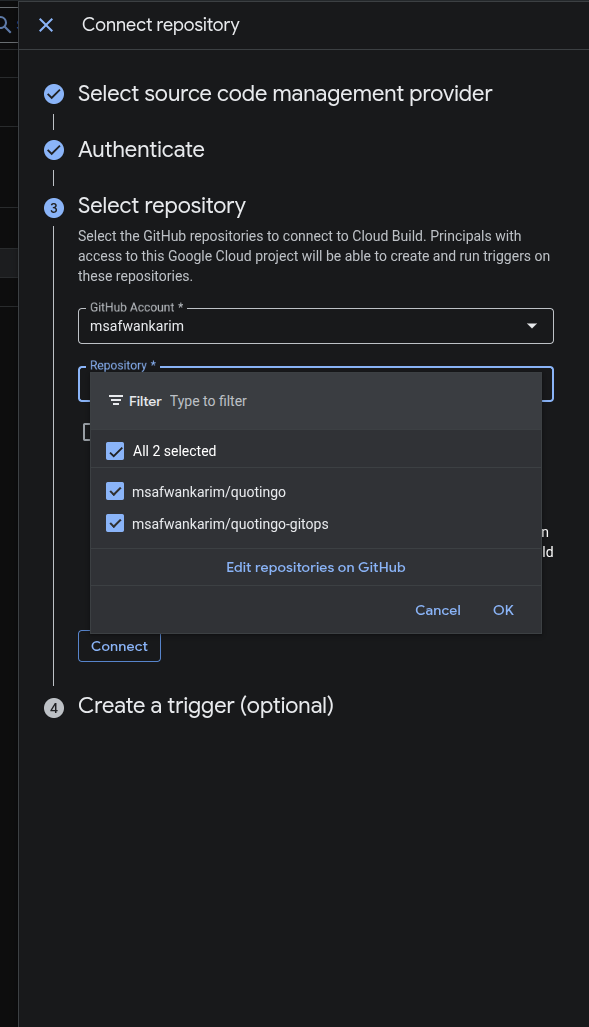
- Cloud Build’s GitHub App installed on the repository.** This is a one-time click-through in the Cloud Console: Cloud Build → Triggers → Connect Repository → choose GitHub (Cloud Build GitHub App) → authorize → install on the target repo. Without this, trigger creation fails with a “repository not connected” error.
The resources we’ll create
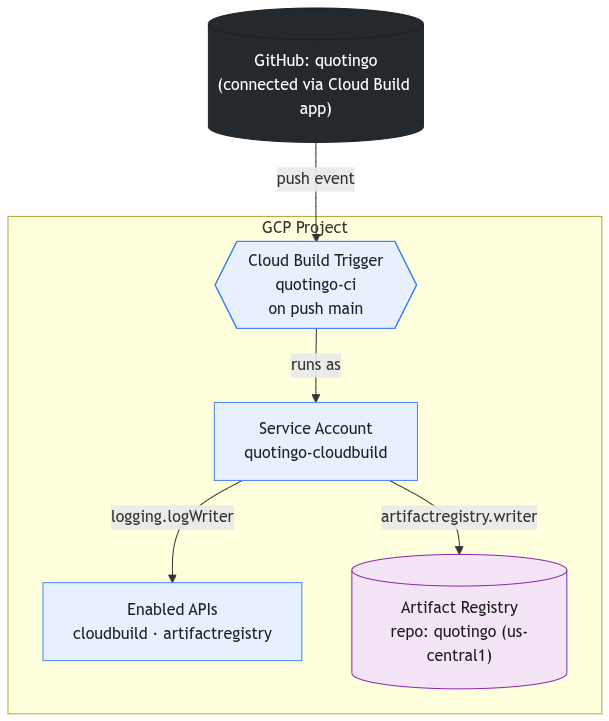
Enabled APIs: cloudbuild, artifactregistry
Artifact Registry repo: Where Docker images land, addressed by $SHORT_SHA
User-managed service account: Identity the trigger runs as
IAM bindings: Two role bindings on that SA
Cloud Build trigger: Fires on push to main, runs cloudbuild.yaml
The commands below correspond one-to-one with what a setup script would do.
Step 1 — Enable the APIs
export PROJECT_ID=your-project-id
export REGION=us-central1
export AR_REPO=quotingo
export GITHUB_OWNER=msafwankarim
gcloud services enable \
cloudbuild.googleapis.com \
artifactregistry.googleapis.com \
 - project="$PROJECT_ID"
On a fresh project this takes about a minute.
Step 2 — Create the Artifact Registry repository
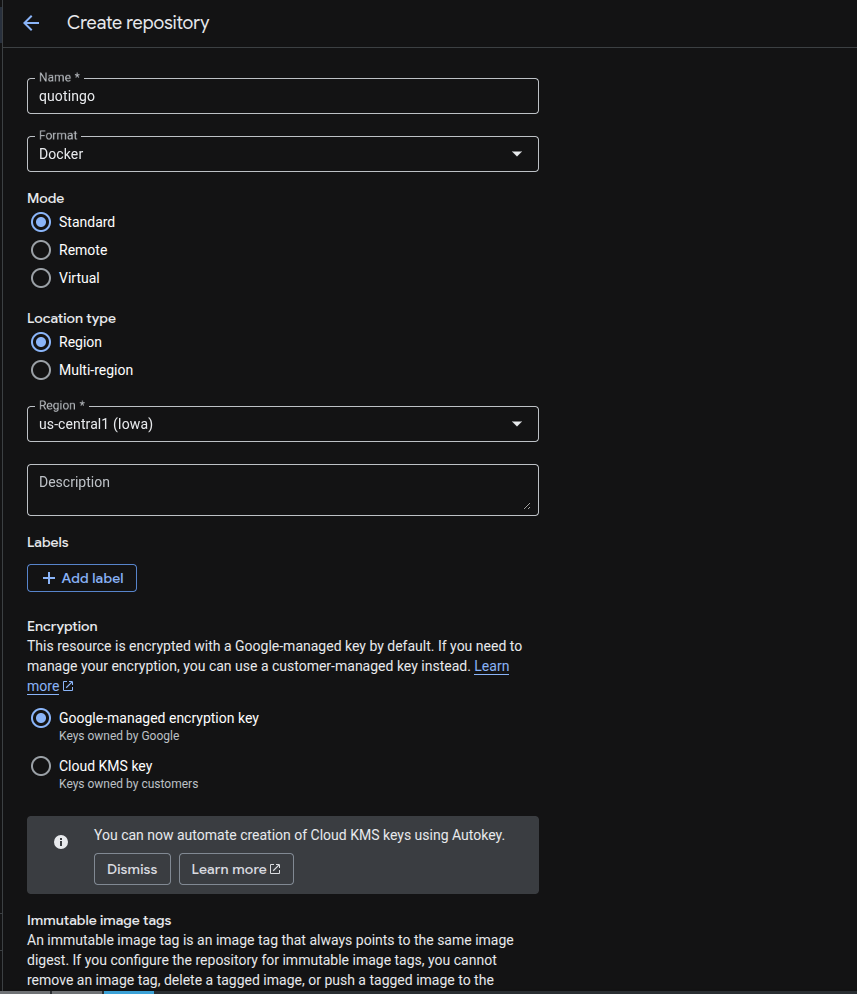
UI Wizard
gcloud artifacts repositories create "$AR_REPO" \
 - repository-format=docker \
 - location="$REGION" \
 - project="$PROJECT_ID"
This creates a Docker-format repo named quotingo in us-central1. Images will be addressed as:
us-central1-docker.pkg.dev/<PROJECT_ID>/quotingo/quotingo:<SHORT_SHA>Step 3 — Create a user-managed Cloud Build service account
The legacy default Cloud Build service account ( <PROJECT_NUMBER>@cloudbuild.gserviceaccount.com) used to be auto-attached to every trigger. As of recent Cloud Build changes, if your trigger explicitly specifies a service account, that SA must be user-managed — the legacy default is rejected. We’ll create one and use it.
SA_NAME=quotingo-cloudbuild
SA_EMAIL="${SA_NAME}@${PROJECT_ID}.iam.gserviceaccount.com"
gcloud iam service-accounts create "$SA_NAME" \
 - display-name="Cloud Build SA for quotingo pipelines" \
 - project="$PROJECT_ID"
Now the role bindings:

for ROLE in \
roles/logging.logWriter \
roles/artifactregistry.writer; do
gcloud projects add-iam-policy-binding "$PROJECT_ID" \
 - member="serviceAccount:${SA_EMAIL}" \
 - role="$ROLE" \
 - condition=None
done
What each one does:
-
**roles/logging.logWriter**: lets Cloud Build write build logs. The legacy default SA gets this implicitly; user-managed SAs don’t, and your build will fail immediately with a permission error on log writes if you skip it. -
**roles/artifactregistry.writer**: lets the build push images to the AR repo we just created.
Step 4 — Create the Cloud Build trigger
TRIGGER_REGION=global # 1st-gen GitHub triggers default to global
CB_SA_RESOURCE="projects/${PROJECT_ID}/serviceAccounts/${SA_EMAIL}"
gcloud builds triggers create github \
 - name=quotingo-ci \
 - repo-owner="$GITHUB_OWNER" \
 - repo-name=quotingo \
 - branch-pattern='^main$' \
 - build-config=cloudbuild.yaml \
 - region="$TRIGGER_REGION" \
 - service-account="$CB_SA_RESOURCE" \
 - include-logs-with-status \
 - project="$PROJECT_ID"
Key flags:
--branch-pattern=^main$: anchored regex; onlymain, notmain-feature.--build-config=cloudbuild.yaml: path within the repo, relative to the root.--service-account=…:wires this trigger to the user-managed SA we created.--include-logs-with-status: surfaces build logs in webhook payloads, useful when you wire up notifications later.
Step 5 — Write the cloudbuild.yaml
This file lives at the root of the app repo. Cloud Build picks it up because of the — build-config flag we just set.
substitutions:
  _REGION: us-central1
  _AR_REPO: quotingo

options:
  logging: CLOUD_LOGGING_ONLY

steps:
  # 1. Static analysis gate
  - id: vet
    name: golang:1.26
    entrypoint: bash
    args: ["-c", "go vet ./..."]

  # 2. Unit tests
  - id: test
    name: golang:1.26
    entrypoint: bash
    args: ["-c", "go test ./..."]

  # 3. Build the image
  - id: build
    name: gcr.io/cloud-builders/docker
    args:
      - build
      - -t
      - ${_REGION}-docker.pkg.dev/$PROJECT_ID/${_AR_REPO}/quotingo:$SHORT_SHA
      - .

  # 4. Push the image
  - id: push
    name: gcr.io/cloud-builders/docker
    args:
      - push
      - ${_REGION}-docker.pkg.dev/$PROJECT_ID/${_AR_REPO}/quotingo:$SHORT_SHA

images:
  - ${_REGION}-docker.pkg.dev/$PROJECT_ID/${_AR_REPO}/quotingo:$SHORT_SHA

timeout: 900s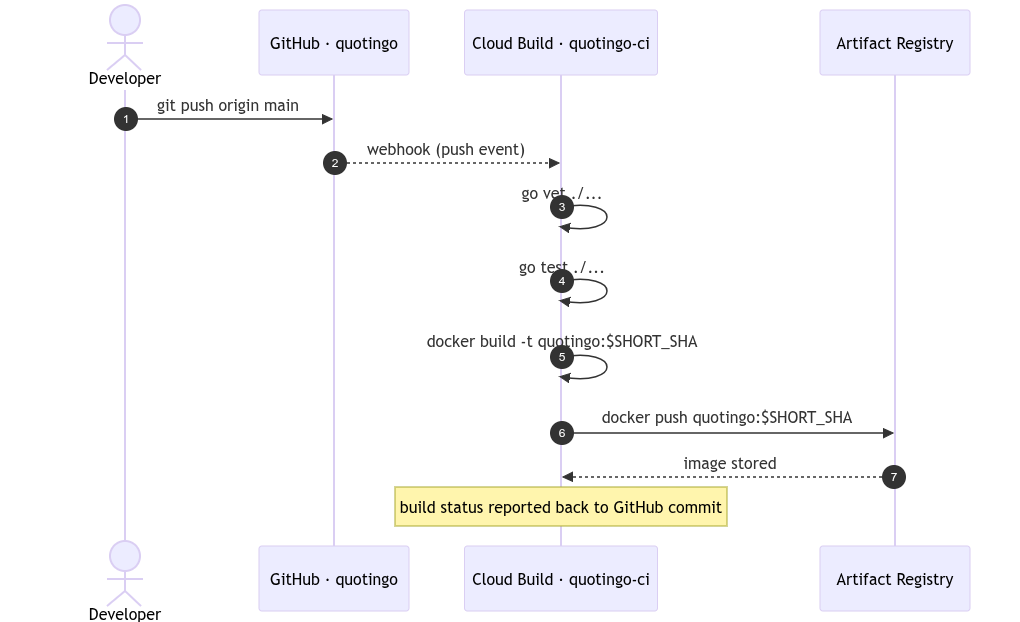
Sequence Diagram of CI
A breakdown of each step:
**vet**
Runs go vet ./... against the source. Catches a useful class of static issues (suspicious printf formats, unreachable code, lock copies) before the slower test step runs. Fails fast on bad pushes.
**test**
go test ./... runs unit tests. The pipeline gates on green; a red test stops the build before any image is built or pushed. This is where you’d add coverage thresholds, race detection (-race), or integration tests later.
**build**
docker build produces an image tagged with $SHORT_SHA— the seven-character commit SHA Cloud Build injects automatically as a built-in substitution. SHA tagging gives you two properties for free:
- Immutable. Each commit gets a unique tag forever. No more “is this
:latestthe one I think it is?” - Traceable. You can always
git show <SHA>to see exactly what code is in any given image.
**push**
docker push uploads to Artifact Registry. The IAM binding from Step 3 ( roles/artifactregistry.writer is what makes this succeed.
Other top-level keys
substitutions.yaml— user-defined variables (prefix_) you can reference as${_NAME}. Built-in ones like$PROJECTIDand$SHORT_SHAcome from Cloud Build itself.options.Logging: CLOUD_LOGGING_ONLY— sends logs only to Cloud Logging, not also to a GCS bucket. Required when using a user-managed SA without granting it bucket-write permissions.images:— declares which images the build is expected to produce. Cloud Build verifies and surfaces them in the build summary.timeout: 900s— overall ceiling. Default is 600s; 900s leaves headroom for slower test runs.
Trigger your first build
Once everything is provisioned, push a trivial change:
echo "// trigger" >> README.md
git add README.md
git commit -m "ci: trigger first build"
git push origin main
Within seconds the build appears in the Cloud Build console.
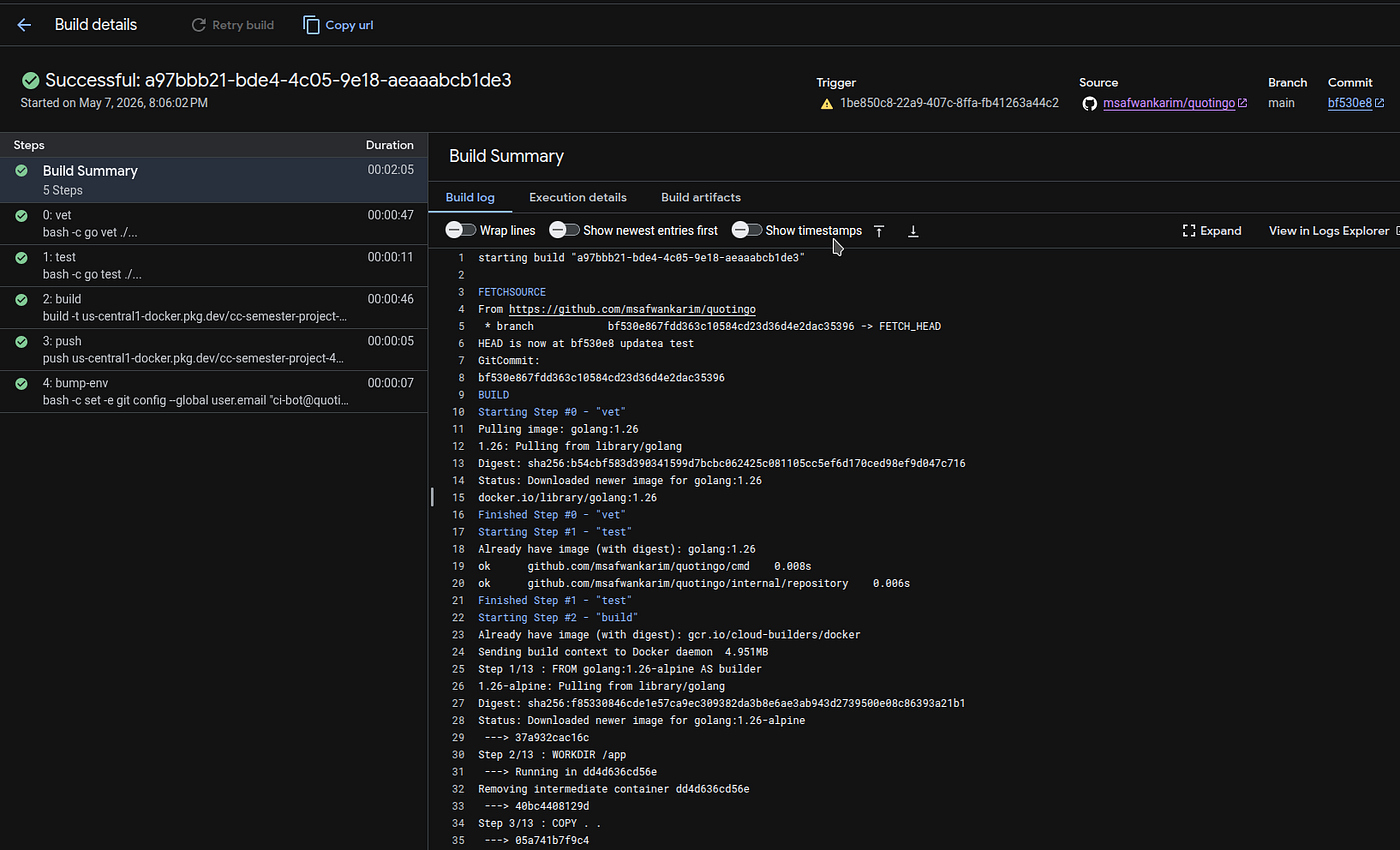
Pipeline Successfully Completed
Common gotchas
- Forgetting
roles/logging.logWriteron a user-managed SA: Build fails immediately with a permission error on log writes. The error message points at the wrong-looking line, and it’s easy to misdiagnose as a build-step problem. - Default vs user-managed SA: If you supply
--service-accounton a trigger, you must use a user-managed one. Trying to pass the legacy default explicitly errors out at trigger-create time. - GitHub App not installed on the repo: Trigger creation fails until the Cloud Build GitHub App is authorized on the target repository.
- Tagging
:latestalongside$SHORT_SHAIt defeats both immutability and traceability — skip it. - Forgetting
options.logging: CLOUD_LOGGING_ONLY: Without it, Cloud Build also tries to write logs to the default GCS bucket, which a fresh user-managed SA doesn’t have permission for. The build then fails on log-flush at the very end, which is confusing. - Branch pattern not anchored
mainmatchesmain,main-feature,feature-main— anchor it as^main$.
Where to go from here
- Add
-raceand a coverage gate to theteststep. - Add a container vulnerability scan (e.g. Trivy or
gcloud artifacts docker images scan) betweenbuildandpush. - Add a Slack or email notification on build failure via Pub/Sub on the
cloud-buildstopic. - Promote the built image to a deploy step against your runtime of choice — Cloud Run, GKE, or wherever the workload lives.
The repo for this walkthrough lives at https://github.com/msafwankarim/quotingo, including the full setup.sh and cloudbuild.yaml.
메타데이터
- post_id
- 048bf74fca83
- slug
- setting-up-a-build-pipeline-with-google-cloud-build-and-github-048bf74fca83
- url
- https://medium.com/@msafwankarim/setting-up-a-build-pipeline-with-google-cloud-build-and-github-048bf74fca83
- canonical_url
- https://medium.com/@msafwankarim/setting-up-a-build-pipeline-with-google-cloud-build-and-github-048bf74fca83
- author_url
- https://medium.com/@msafwankarim
- status
- ok
- fetched_at
- 2026-06-09 15:37:30


