Understanding Live2D Model Data Files for VTube Studio
Introduction
Understanding Live2D Model Data Files for VTube Studio
Introduction
Hello! I’m Vesper, an illustrator and Live2D creator.
As a creator, there’s nothing more rewarding than seeing a character you’ve drawn come to life, infused with the performer’s personality and energy.
This guide is for those who want to start VTubing or are already active VTubers. I’ll explain how to use the data you receive from your Live2D creator across multiple articles.
When you receive your commissioned model data, it’s crucial to first understand “what’s included” and “what each file does.”
In this article, I’ll explain the content and structure of the data files you need to know before using your Live2D model in VTube Studio. I hope this will be helpful for VTube Studio users and beginner Live2D modelers.
I’ll explain everything step by step so even first-timers can proceed with confidence. Let’s go through this together!
Data Structure Overview
Please refer to the accompanying images for visual guidance. Details are provided below.
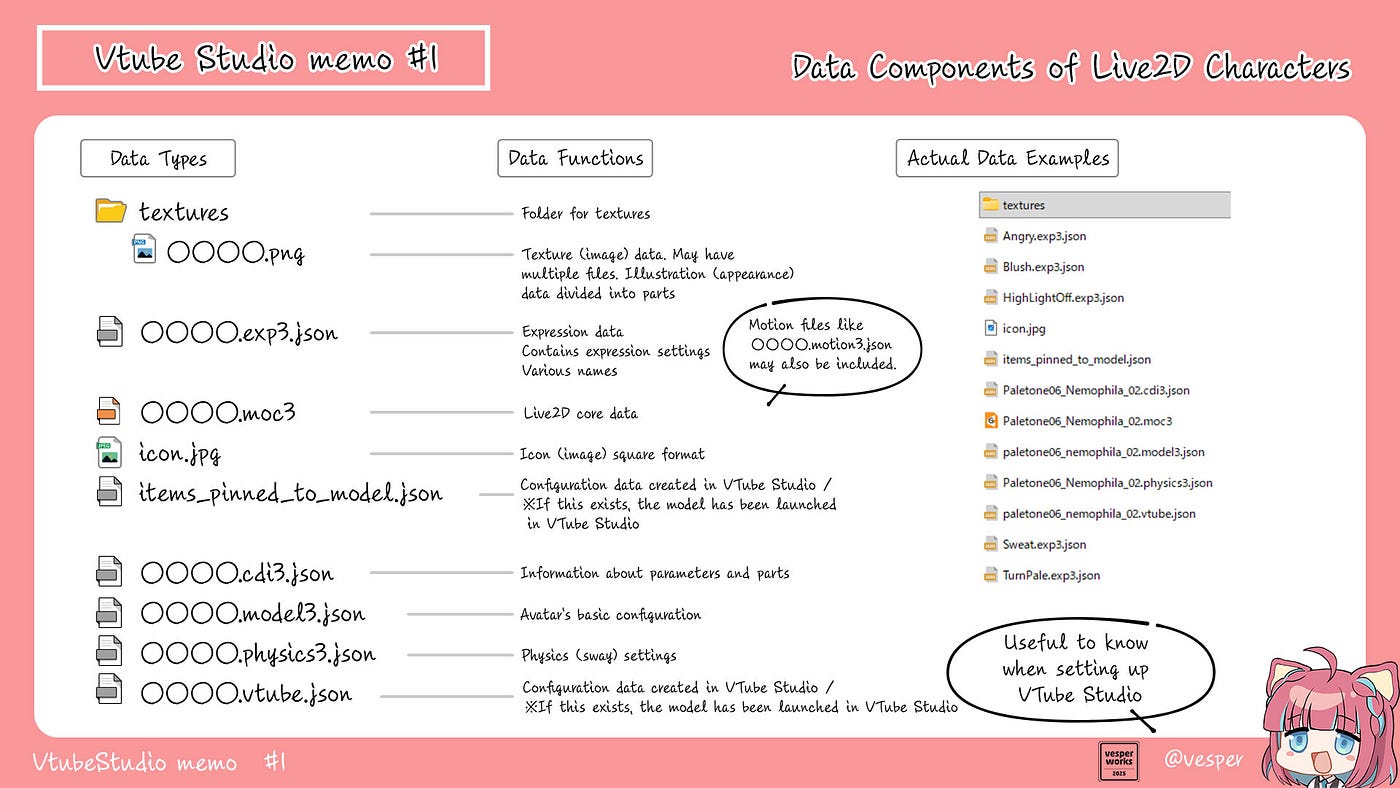
[embed]
(Note: Sample images show a Live2D model I created)

sample Files
About Live2D and VTube Studio
What is Live2D?
Live2D is a technology that brings 2D illustrations to life with three-dimensional movement. By dividing an illustration into individual parts (eyes, mouth, hair, etc.) and animating each piece separately, you can create expressions that appear truly lifelike.
What is VTube Studio?
VTube Studio is streaming software that enables VTuber activities using Live2D models. It tracks your facial movements through a webcam and applies them to your Live2D model, allowing you to stream or record videos as a character.
It’s available for PC (Windows/Mac) and smartphones (iOS/Android), supporting a wide range of environments.
VTube Studio is currently the most widely used tracking software for Live2D models because:
- It’s free to use
- It has a large user base with extensive documentation
- Many Live2D modelers use this software
Therefore, using VTube Studio will generally ensure compatibility. If you plan to use alternatives like nizima LIVE, make sure to inform your Live2D modeler before commissioning your model.
Understanding Your Delivered Data
When you open the delivered folder, you’ll find several files. You might think, “There are so many files — what do they all do?” Don’t worry — each file has a specific purpose.
Note that depending on the model, some files may not be included.
IMPORTANT: Do not edit any files. Editing them may cause the model to malfunction. If you encounter any issues, contact your modeler.
Main File Types and Their Functions
① .model3.json File (Model Configuration File)
Example: CharacterName.model3.json
This is the command center of your Live2D model.
It contains comprehensive information about:
- Position and movement of each model part
- Textures (illustration images) used
- Expression and physics settings
- Motion file references
When loading your model in VTube Studio, you’ll specify this file. The .json format is a type of programming code, and Live2D uses many json files.
② Texture Files (.png)
Example: texture_00.png, texture_01.png
These image files are the visual appearance of your model. They contain the character artwork created by the illustrator, with parts separated for animation.
When multiple texture files exist, different parts (body, face, hair, etc.) may be stored in separate files.
Typically, all texture files are stored in a folder named “texture.”
③ Expression Files (.exp3.json)
Example: smile.exp3.json, troubled.exp3.json Note: While Japanese names are shown in examples, alphanumeric (English) names are recommended as Japanese characters may cause errors.
These files contain the character’s facial expression patterns, such as:
- Smile
- Troubled expression
- Surprised expression
- Wink
Each expression is saved as a separate file created by your modeler. In VTube Studio, you can assign these expressions to hotkeys for instant switching.
④ Motion Files (.motion3.json)
Example: idle.motion3.json, wave.motion3.json
These files record predetermined movements of your character, such as:
- Idle swaying animation
- Waving hand
- Bowing
These are pre-made animation sequences that you can trigger during streams to add dynamic performances to your character.
⑤ Physics File (.physics3.json)
Example: CharacterName.physics3.json
This file contains physics simulation data that makes hair, clothing, and accessories move naturally.
It enables realistic movements like hair following behind when you turn your head, or clothing swaying when you move your body. This file makes your character’s movements more natural and lifelike.
⑥ User Data File (.userdata3.json)
Example: CharacterName.userdata3.json
This file adds additional information to model parts. For example, it records details like “this eye part can close” or “this mouth can transform into specific shapes.”
This file is primarily used in Live2D Cubism Editor (the creation software) and doesn’t require attention when using VTube Studio.
⑦ Other Files
Depending on the production, you may find additional files such as:
- .moc3 file: Model’s internal data (binary file)
- cdi3.json file: Live2D Cubism project file
- README.txt: Notes from the creator about usage instructions or important information
Example Folder Structure
Your delivered data is typically organized like this:
[Character Name] Folder
│
├── CharacterName.model3.json ← This is the main file!
│
├── CharacterName.moc3
├── CharacterName.physics3.json
├── CharacterName.userdata3.json
│
├── texture folder
│  ├── texture_00.png ← art image file
│  ├── texture_01.png
│
├── expressions (facial expressions) folder
│   ├── smile.exp3.json
│   ├── troubled.exp3.json
│   ├── surprised.exp3.json
│   └── wink.exp3.json
│
└── motions folder
    ├── idle.motion3.json
    ├── wave.motion3.json
    └── bow.motion3.json
Important: Folder structure may vary slightly depending on your creator, but generally follows this format. Do not rename folders or files.
Data Verification Checklist
Before using your model in VTube Studio, verify the following:
✅ Check 1: Is the .model3.json file present?
Without this file, VTube Studio cannot load the model. At least one should exist.
✅ Check 2: Are texture files (.png) present?
Without illustration images, your model will appear transparent.
✅ Check 3: Are expression files in the expressions folder?
The number of expression files determines how many facial expressions you can use during streaming.
Summary
This article explained the contents of delivered Live2D data.
Key Points:
- .model3.json is the model’s command center
- Texture files contain the character’s appearance
- Expression, motion, and physics files create movement
Next time, I’ll explain how to load your model into VTube Studio — the exciting moment when your character appears on screen!
Be sure to check out the next article!
If You Need Help
If you have any questions, please feel free to contact me. Let’s make the most of your Live2D model and start an enjoyable VTuber journey!
Contact: Message me through note or reach out via SNS or my website.
Please check my website and portfolio links for more information.
About Commission Inquiries
For illustration consultations and commissions, please visit my commission pages or check the following platforms:
- Website : https://vesper-works.net/
- VGen : https://vgen.co/vesper
- Kofi : https://ko-fi.com/vesper_illust
- https://vesper-illust.carrd.co/
See you in the next article!
메타데이터
- post_id
- 0ada080a35b2
- slug
- understanding-live2d-model-data-files-for-vtube-studio-0ada080a35b2
- url
- https://medium.com/@vesper_illust/understanding-live2d-model-data-files-for-vtube-studio-0ada080a35b2
- canonical_url
- https://medium.com/@vesper_illust/understanding-live2d-model-data-files-for-vtube-studio-0ada080a35b2
- author_url
- https://medium.com/@vesper_illust
- status
- ok
- fetched_at
- 2026-07-13 07:06:27