How I Download and Create a macOS Sonoma DMG (Step-by-Step)
I’ve needed a macOS Sonoma DMG more times than I expected — testing installs, setting up virtual machines, or creating a clean bootable…
How I Download and Create a macOS Sonoma DMG (Step-by-Step)
I’ve needed a macOS Sonoma DMG more times than I expected — testing installs, setting up virtual machines, or creating a clean bootable USB.
But Apple doesn’t make this easy anymore.
So I ended up trying multiple methods — some worked smoothly, others failed halfway — and learned what actually works (and what wastes time).
Here’s the exact process I now rely on.
Who this is for (and what you’ll get)
This guide is for anyone who needs a macOS Sonoma DMG file for:
- Clean installs
- Virtual machines (VMware, VirtualBox)
- Bootable USB installers
I’ll show you:
- What a DMG file actually is (in practical terms)
- How to download one safely
- How to create your own when you can’t find a reliable file
What a macOS Sonoma DMG file actually does
A DMG file is simply a packaged macOS installer.
When I open it, it mounts like a virtual disk on my desktop. From there, I can:
- Run the installer directly
- Copy it to another drive
- Turn it into a bootable installer
The key advantage is control — you’re not relying on the App Store every time.
How I download a macOS Sonoma DMG (what actually works)
Option 1: Use a tool (fastest, least friction)
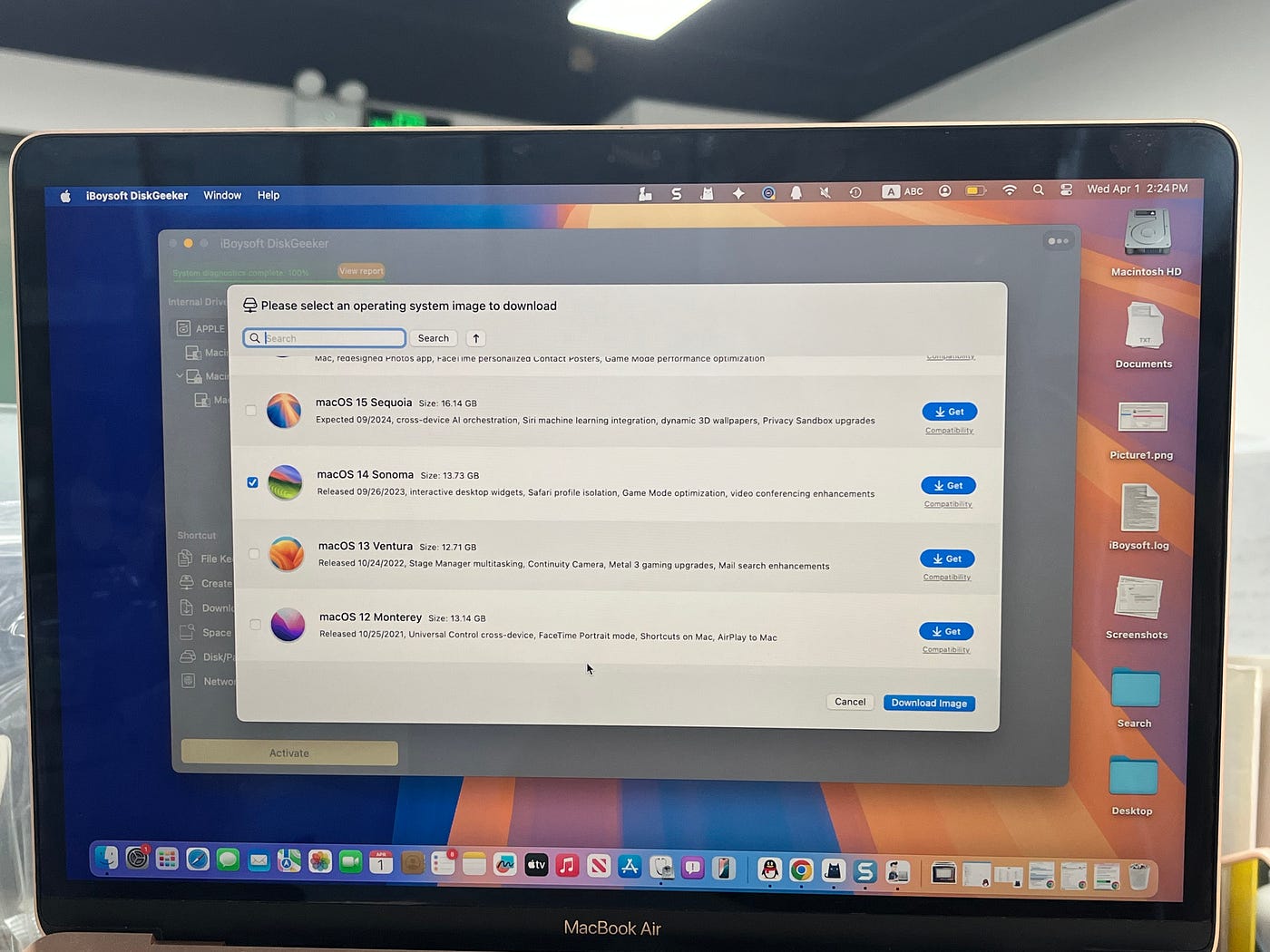
When I just need the file quickly, I use a tool that downloads the DMG directly and handles the formatting.
The process is straightforward:
- Install the tool
- Choose “Download Image”
- Select macOS Sonoma
- Save the DMG
This is the easiest route if:
- You’re on Windows
- You don’t want to deal with Terminal
- You need a ready-to-use DMG
Trade-off: You’re relying on a third-party tool, so only use sources you trust.
Option 2: Direct download (works, but be careful)
You can also download a DMG file directly.
I’ve done this when:
- I needed a specific version
- I didn’t want to install extra software
But this is where things get risky:
- Some files are outdated
- Some are incomplete
- Some simply don’t boot
If you go this route, make sure:
- The version matches your needs
- The file size looks correct (not suspiciously small)
How I create a macOS Sonoma DMG myself (most reliable)
This is the method I trust the most — because I control every step.
Step 1: Get the official installer
If your Mac supports Sonoma, download it from the App Store.

After it opens automatically:
- Quit the installer
- Keep the file in your Applications folder
This avoids corrupted or modified installers.
Step 2: Create a DMG using Disk Utility (simplest method)
This is what I use most of the time.
- Create a new folder (e.g., “Sonoma”)
- Copy the installer into that folder
- Open Disk Utility
- Go to File → New Image → Image from Folder
- Select the folder and save
That’s it — you’ll get a clean DMG file.
Why this works well:
- No command line
- Low chance of failure
- Easy to repeat
Step 3: Use Terminal (when Disk Utility fails)
I only use Terminal when Disk Utility doesn’t work.
The process is more technical:
- Create an empty disk image
- Mount it
- Use
createinstallmediato copy the installer
This method gives you more control, but also more room for mistakes:
- Wrong file system → installer fails
- Wrong path → command errors
So unless you’re comfortable with Terminal, stick with Disk Utility.
Common problem I’ve hit (and how I fix it)
“Download failed” or “Not enough space”
This happens more often than expected.
Before downloading Sonoma, I now always:
- Check available storage
- Remove large unused files
- Clear temporary clutter
The installer is large, and the process needs extra space to unpack.
When each method makes sense
From my experience:
- Use a tool → fastest and easiest
- Download directly → okay if you trust the source
- Create your own DMG → most reliable long-term
If I care about stability, I always choose the third option.
Experience-Based Takeaways
Here’s the simple framework I follow now:
- If I need speed → download
- If I need reliability → build it myself
- If something fails → switch methods, don’t debug forever
The biggest mistake I made early on was trying to fix a broken DMG instead of starting fresh.
Conclusion
If you’re working with macOS installers often, it’s worth learning how to create your own DMG — it saves time in the long run and avoids a lot of silent failures.
If you try one of these methods and something doesn’t work the way you expected, tell me what happened — I can help you troubleshoot it step by step.
메타데이터
- post_id
- 0b5dfcdd6f04
- slug
- how-i-download-and-create-a-macos-sonoma-dmg-step-by-step-0b5dfcdd6f04
- url
- https://medium.com/@zeng2483613716/how-i-download-and-create-a-macos-sonoma-dmg-step-by-step-0b5dfcdd6f04
- canonical_url
- https://medium.com/@zeng2483613716/how-i-download-and-create-a-macos-sonoma-dmg-step-by-step-0b5dfcdd6f04
- author_url
- https://medium.com/@zeng2483613716
- status
- ok
- fetched_at
- 2026-06-09 15:37:30