Understanding HTTP Caching in the Browser: Keep It Fast & Fresh 🚀
Ever noticed how some websites load instantly, while others take forever? That’s because of caching — a browser trick that saves copies of…
Understanding HTTP Caching in the Browser: Keep It Fast & Fresh 🚀
Ever noticed how some websites load instantly, while others take forever? That’s because of caching — a browser trick that saves copies of files so they don’t have to be downloaded again. Think of it like a fridge: instead of ordering pizza every time you’re hungry, you just grab leftovers. 🍕
But how does caching actually work in the browser? Where can you see cached files? And when does the browser decide to reuse files vs. fetch new ones?
There are many types of caching — like memory cache, disk cache, Service Workers, and more — but in this guide, we’ll focus on HTTP Caching, the backbone of browser caching.
Let’s break it all down
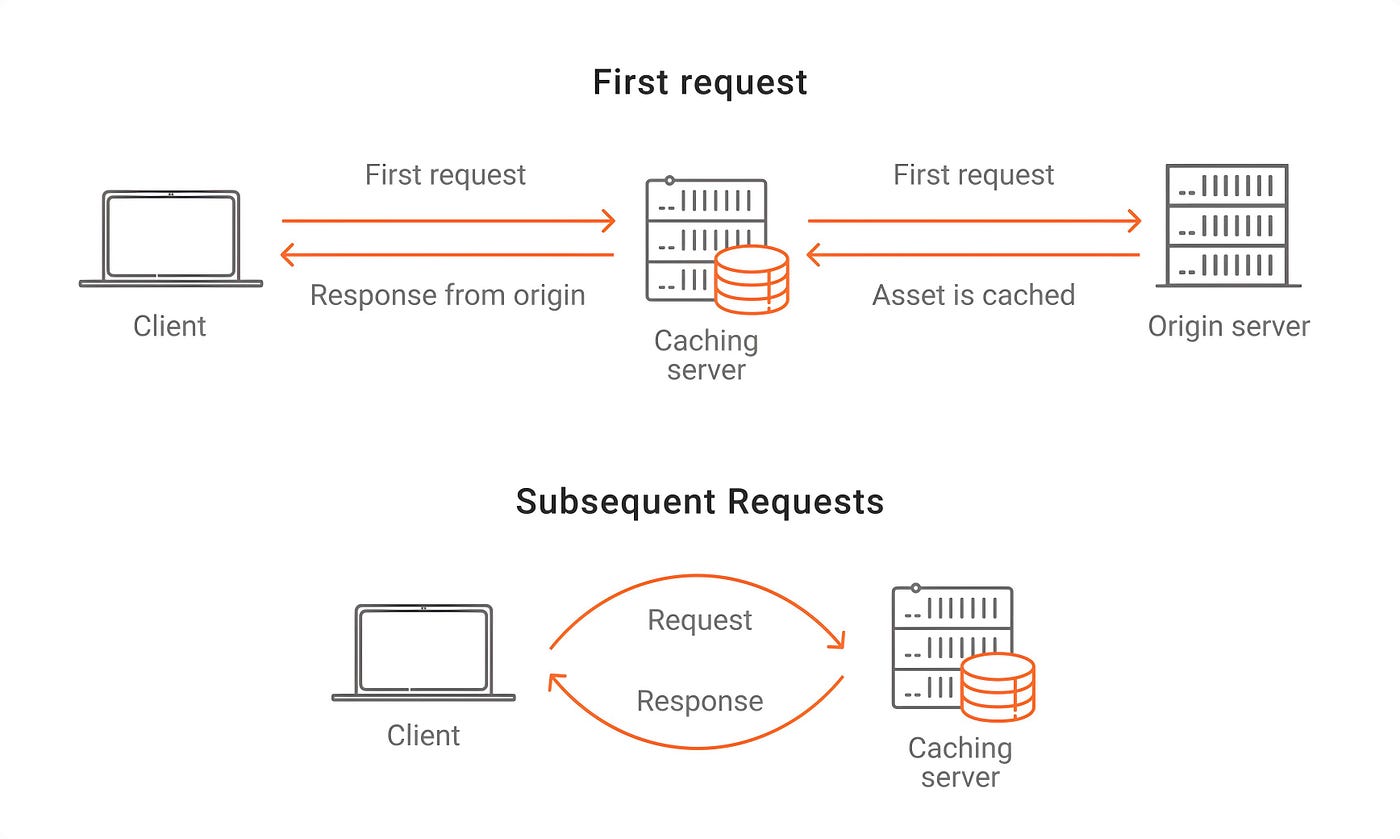
1. How HTTP Caching Works (The Browser’s Memory Game 🧠)
When you visit a website, the browser fetches files like HTML, CSS, JS, and images. If caching is enabled, the browser saves these files so it doesn’t have to download them again next time.
Here’s how it decides what to do:
- Check Cache Rules (HTTP Headers): Every file comes with caching instructions.
- Reuse or Refresh: If the cached version is still valid, it’s used. Otherwise, the browser gets a new one.
- Update Cache if Needed: If the file has changed, the cache gets updated.
Interactive Question: What happens if the cached file is expired but the server says it hasn’t changed? Answer: The browser uses the cached version and updates the expiration date!
2. Where to See Cached Files in the Browser 🔍
You can view and manage cached files in Chrome DevTools. Let’s walk through it step by step:
Step 1: Open DevTools
- Right-click anywhere on the page and select Inspect.
- Go to the Network tab.
Step 2: Reload the Page
- Keep the Network tab open and refresh the page.
- You’ll see all network requests.
Step 3: Check Cache Status
- Look for the Size and Time columns.
- Cached files show (disk cache) or (memory cache).
Step 4: View Cache Storage
- Go to the Application Tab → Storage → Cache Storage.
- Here, you’ll see all stored cache files.
Step 5: Clear Cache
- Method 1: Right-click the Reload button and select Empty Cache and Hard Reload.
- Method 2: Go to Settings > Privacy > Clear Browsing Data.
3. HTTP Caching Headers (How the Browser Decides 🧾)
Every file sent from a server has HTTP headers that tell the browser how to handle caching.
3.1 Cache-Control (How Long to Keep the File)
This header sets the caching rules:
Cache-Control: max-age=86400, public max-age=86400→ Cache this file for 24 hours.public→ This file can be cached by browsers and CDNs.
Other settings:
no-cache→ Always check if there’s a new version.no-store→ Never cache this file.

Interactive Question:
What happens if you set Cache-Control: no-store on an image?
Answer: The browser won’t cache it and will download it every time!
3.2 ETag & Last-Modified (Checking for Updates)
Even if a file is cached, the browser might check if it has changed before using it.
ETag (File’s Unique ID)
ETag: "abc123"- The server assigns a unique ID to the file.
- If the ID matches the cached version, no need to download it again.
Last-Modified (Checking Date)
Last-Modified: Mon, 12 Feb 2024 10:00:00 GMT - If the file hasn’t changed since this date, the cached version is used.
Other Useful HTTP Headers 🏷️
- Expires: Similar to
max-age, but uses a fixed date instead. - Vary: Controls how caching works based on request headers (e.g.,
Vary: Accept-Encoding).
4. Debugging HTTP Caching (When Things Go Wrong 🛠️)
4.1 Force a Fresh Reload
- Press Ctrl + Shift + R (Windows/Linux) or Cmd + Shift + R (Mac) to reload without cache.
4.2 Disable Cache in DevTools
- Open DevTools → Network tab → Check “Disable Cache” (works only when DevTools is open).
4.3 Cache Busting (Force New Files)
- Append version numbers to file URLs:
<script src="app.js?v=2.1"></script> - Use unique filenames (e.g.,
main.123abc.js).

5. Advanced Caching Strategies
5.1 Stale-While-Revalidate
Serve stale content while fetching updates in the background.
Cache-Control: max-age=3600, stale-while-revalidate=86400 5.2 Preloading Critical Resources
Use <link rel="preload"> to load critical assets early.
<link rel="preload" href="critical.css" as="style"> 6. Common Caching Pitfalls & Fixes
6.1 Watch Out for These Caching Mistakes! 🚨
- Stale Content Issues: If users see old files, use versioning (
app.v2.js) or cache-busting (?v=123). - Caching Sensitive Data: Never cache private info like authentication responses. Use
Cache-Control: no-store.
7. Best Practices for HTTP Caching
✅ Cache Static Assets Aggressively: Set long max-age values for CSS, JS, and images.
✅ Use Versioning or Hashing for Files: Add version numbers or unique hashes to file names to force updates.
✅ Validate Cached Files: Use ETag or Last-Modified to ensure users get the latest version.
✅ Avoid Caching Sensitive Data: Use no-store for private or sensitive information.
Conclusion
HTTP caching is like a smart assistant for your browser, deciding whether to reuse files or fetch fresh ones. By understanding Cache-Control, ETag, and Last-Modified, you can optimize your website’s performance and avoid unnecessary downloads.
So next time a page loads fast, thank caching for the speed boost! 🚀
Your Turn!
If you found this article helpful, don’t forget to follow me on Medium for more React tips and tricks. And if you’re feeling generous, give this article a clap or share it with your fellow developers. Happy coding!
메타데이터
- post_id
- 0bd8ea807d67
- slug
- understanding-http-caching-in-the-browser-keep-it-fast-fresh-0bd8ea807d67
- url
- https://medium.com/@mehmood-dev/understanding-http-caching-in-the-browser-keep-it-fast-fresh-0bd8ea807d67
- canonical_url
- https://medium.com/@mehmood-dev/understanding-http-caching-in-the-browser-keep-it-fast-fresh-0bd8ea807d67
- author_url
- https://medium.com/@mehmood-dev
- status
- ok
- fetched_at
- 2026-08-05 06:22:14




