Secure File Access on Google Cloud Storage Using Signed URLs
Exposing your Google Cloud Storage (GCS) bucket directly to frontend clients is a security trap. Embedding service account keys in a web or…
Secure File Access on Google Cloud Storage Using Signed URLs
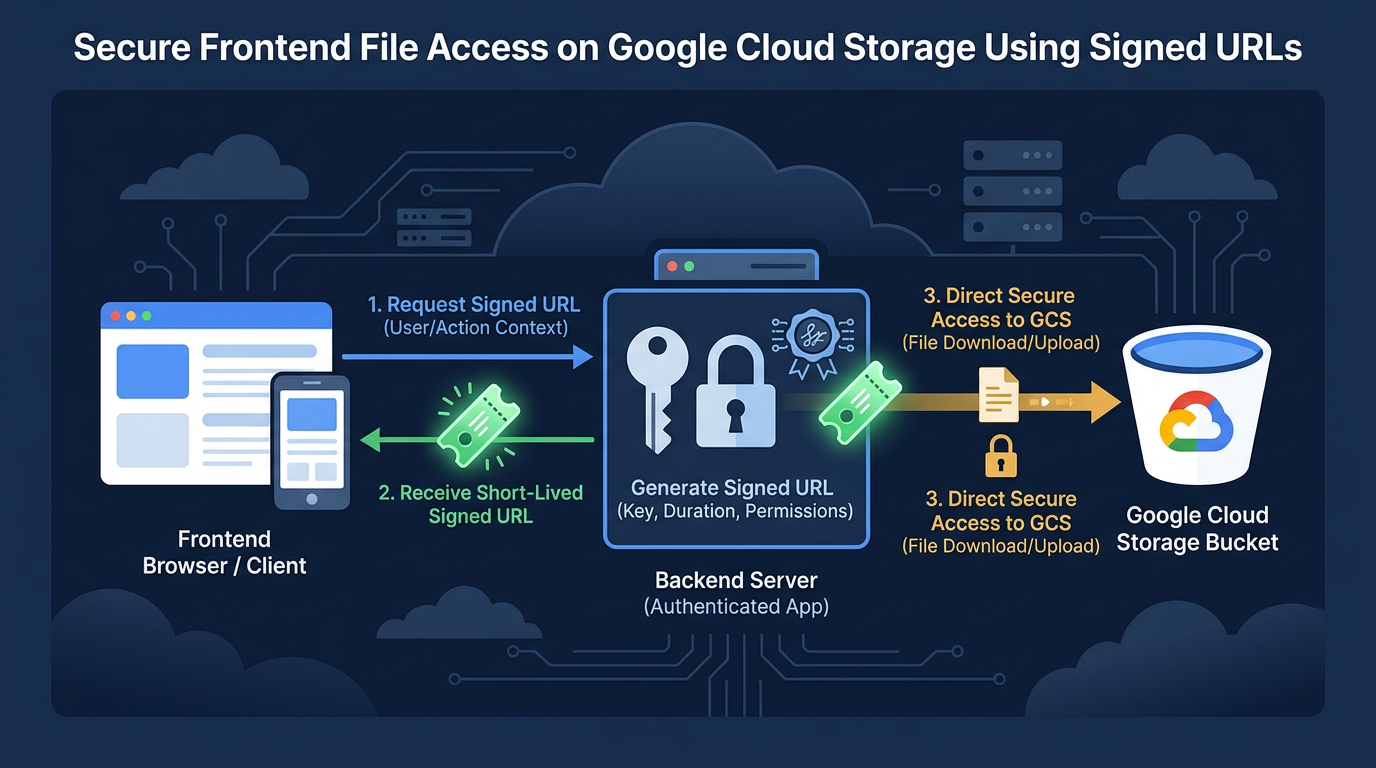
Exposing your Google Cloud Storage (GCS) bucket directly to frontend clients is a security trap. Embedding service account keys in a web or mobile app means any user — or attacker — who inspects your JavaScript bundle or network traffic can exfiltrate those credentials and gain unconstrained access to your storage. The correct pattern is to keep credentials on the server and issue short-lived, cryptographically signed URLs that grant a frontend client a narrow, time-bounded capability to upload or download a specific object — nothing more.
This post walks through the complete implementation using service account credentials: how GCS signed URLs work, how to generate them server-side with the Python google-cloud-storage SDK, how to test them with curl, and the operational considerations you need before shipping to production.
How GCS Signed URLs Work
A GCS signed URL is a regular HTTPS URL with an embedded cryptographic signature. The signature is computed from a canonical description of the HTTP request — method, bucket, object path, expiration time, and optionally specific headers. GCS verifies this signature on every request and rejects any URL that has been tampered with or has expired.
The critical security property is this: the client never sees your credentials — it only ever sees the pre-computed signature. Once issued, the signed URL is self-contained. The client makes a standard HTTP request directly to GCS; your server is not in the request path at signing time or object-transfer time.
Service Account Setup
A service account is a GCP identity (not a human) that your server uses to authorize signing. Here’s how to set one up:
1. Create a Service Account
gcloud iam service-accounts create gcs-signer \
  --display-name="Service account for GCS signed URL generation"
2. Grant Storage Permissions
gcloud storage buckets add-iam-policy-binding gs://your-bucket-name \
  --member="serviceAccount:gcs-signer@your-project.iam.gserviceaccount.com" \
  --role="roles/storage.objectAdmin"
This grants read/write permission on that specific bucket only.
3. Download the Key File
gcloud iam service-accounts keys create ~/gcs-key.json \
  --iam-account=gcs-signer@your-project.iam.gserviceaccount.com
This creates a JSON file containing the private key. Guard this file like a password. Never commit it to version control. In production, use a secrets manager (e.g., Google Secret Manager, HashiCorp Vault).
Server-Side Implementation
Install the SDK:
pip install google-cloud-storageGenerating a Download Signed URL
import datetime
from google.cloud import storage
from google.oauth2 import service_account

def generate_download_signed_url(
    bucket_name: str,
    object_name: str,
    credentials_path: str,
    expiration_minutes: int = 15,
) -> str:
    """
    Generate a V4 signed URL for downloading a GCS object.
    Args:
        bucket_name: Name of the GCS bucket.
        object_name: Full object path, e.g. "documents/report.pdf".
        credentials_path: Path to the service account JSON key file.
        expiration_minutes: How long the URL remains valid (max 7 days).
    Returns:
        A signed URL string that clients can use to download the object.
    """
    credentials = service_account.Credentials.from_service_account_file(
        credentials_path
    )
    client = storage.Client(credentials=credentials)
    bucket = client.bucket(bucket_name)
    blob = bucket.blob(object_name)
    url = blob.generate_signed_url(
        version="v4",
        expiration=datetime.timedelta(minutes=expiration_minutes),
        method="GET",
    )
    return url
Key parameters:
version="v4"— Always use V4. V2 is deprecated and uses a weaker signing scheme.expiration— Accepts atimedelta. V4 caps at 7 days; keep it as short as your UX tolerates (typically 15–60 minutes for downloads).method="GET"— Restricts the URL to read-only access. A client cannot use this URL to overwrite or delete the object.
Generating an Upload Signed URL
For uploads, restrict by Content-Type and upload size to prevent abuse:
def generate_upload_signed_url(
    bucket_name: str,
    object_name: str,
    credentials_path: str,
    content_type: str = "application/octet-stream",
    max_bytes: int = 10 * 1024 * 1024,  # 10 MB
    expiration_minutes: int = 15,
) -> str:
    """
    Generate a V4 signed URL for uploading a GCS object via HTTP PUT.
    Args:
        bucket_name: Name of the GCS bucket.
        object_name: Full object path for the new or replaced object.
        credentials_path: Path to the service account JSON key file.
        content_type: MIME type the client must declare when uploading.
        max_bytes: Maximum upload size in bytes.
        expiration_minutes: How long the URL remains valid.
    Returns:
        A signed URL string for uploading.
    """
    credentials = service_account.Credentials.from_service_account_file(
        credentials_path
    )
    client = storage.Client(credentials=credentials)
    bucket = client.bucket(bucket_name)
    blob = bucket.blob(object_name)
    url = blob.generate_signed_url(
        version="v4",
        expiration=datetime.timedelta(minutes=expiration_minutes),
        method="PUT",
        content_type=content_type,
        headers={
            "x-goog-content-length-range": f"0,{max_bytes}",
        },
    )
    return url
Security mechanisms locked into the signature:
The content_type parameter locks the Content-Type header into the signature. If the client sends a different content type, GCS rejects the request with a 403. This prevents arbitrary file uploads.
The x-goog-content-length-range header enforces a byte range. 0,10485760 means the client must upload between 0 and 10 MB. Any upload outside this range is rejected by GCS before any data is written. Both are cryptographically signed, so clients cannot modify them without invalidating the signature.
Exposing Signed URLs via a REST API
Your server exposes endpoints that authenticate users and issue signed URLs. Here’s a minimal FastAPI example:
from fastapi import FastAPI, HTTPException
from pydantic import BaseModel
import datetime
import os
from google.cloud import storage
from google.oauth2 import service_account

app = FastAPI()
# Configuration
BUCKET_NAME = os.environ["GCS_BUCKET_NAME"]
CREDENTIALS_PATH = os.environ["GCS_SA_KEY_PATH"]
MAX_UPLOAD_BYTES = 10 * 1024 * 1024  # 10 MB
DOWNLOAD_EXPIRATION_MINUTES = 30
UPLOAD_EXPIRATION_MINUTES = 15

def get_storage_client() -> storage.Client:
    """Initialize storage client with service account credentials."""
    credentials = service_account.Credentials.from_service_account_file(
        CREDENTIALS_PATH
    )
    return storage.Client(credentials=credentials)

class SignedUrlResponse(BaseModel):
    signed_url: str
    expires_at: str
    method: str

@app.get("/api/storage/download-url", response_model=SignedUrlResponse)
def get_download_url(object_path: str):
    """
    Returns a signed URL for downloading an object.
    Usage: GET /api/storage/download-url?object_path=documents/report.pdf
    """
    # Validate path (prevent traversal attacks)
    if ".." in object_path or object_path.startswith("/"):
        raise HTTPException(status_code=400, detail="Invalid object path")
    client = get_storage_client()
    blob = client.bucket(BUCKET_NAME).blob(object_path)
    # Check if object exists
    if not blob.exists():
        raise HTTPException(status_code=404, detail="Object not found")
    expiration = datetime.timedelta(minutes=DOWNLOAD_EXPIRATION_MINUTES)
    url = blob.generate_signed_url(
        version="v4",
        expiration=expiration,
        method="GET",
    )
    expires_at = (datetime.datetime.utcnow() + expiration).isoformat() + "Z"
    return SignedUrlResponse(signed_url=url, expires_at=expires_at, method="GET")

class UploadUrlRequest(BaseModel):
    object_path: str
    content_type: str

@app.post("/api/storage/upload-url", response_model=SignedUrlResponse)
def get_upload_url(body: UploadUrlRequest):
    """
    Returns a signed URL for uploading an object.
    Usage: POST /api/storage/upload-url
    Body: {"object_path": "uploads/file.pdf", "content_type": "application/pdf"}
    """
    # Validate path
    if ".." in body.object_path or body.object_path.startswith("/"):
        raise HTTPException(status_code=400, detail="Invalid object path")
    client = get_storage_client()
    blob = client.bucket(BUCKET_NAME).blob(body.object_path)
    expiration = datetime.timedelta(minutes=UPLOAD_EXPIRATION_MINUTES)
    url = blob.generate_signed_url(
        version="v4",
        expiration=expiration,
        method="PUT",
        content_type=body.content_type,
        headers={
            "x-goog-content-length-range": f"0,{MAX_UPLOAD_BYTES}",
        },
    )
    expires_at = (datetime.datetime.utcnow() + expiration).isoformat() + "Z"
    return SignedUrlResponse(signed_url=url, expires_at=expires_at, method="PUT")
Implementation notes:
The path traversal check (.. and leading /) is a minimum safeguard. In production, validate that the authenticated user owns or is authorized to access the specific object path — otherwise any user can request a URL for any object.
The blob.exists() check avoids leaking valid object paths to unauthenticated callers via timing differences. Decide if your threat model requires this.
Starting the FastAPI Application
1. Install Dependencies
pip install fastapi uvicorn google-cloud-storage python-multipartpython-multipart is required for parsing form data in FastAPI.
2. Set Environment Variables
Before running the application, export the required environment variables:
export GCS_BUCKET_NAME="your-bucket-name"
export GCS_SA_KEY_PATH="/path/to/gcs-key.json"
Replace your-bucket-name with your actual GCS bucket name and /path/to/gcs-key.json with the path to your service account key file downloaded earlier.
3. Run the Server
Save the FastAPI code (from the section above) to a file called main.py, then start the server:
uvicorn main:app --reload --host 0.0.0.0 --port 8000Parameters:
main:app— Tells uvicorn to load theappobject from themain.pyfile.--reload— Automatically restarts the server when you modify the code. Use only in development; remove for production.--host 0.0.0.0— Listen on all network interfaces. Use127.0.0.1if only local access is needed.--port 8000— Listen on port 8000. Change as needed.
Output:
INFO:     Uvicorn running on http://0.0.0.0:8000 (Press CTRL+C to quit)
INFO:     Started server process [12345]
INFO:     Started server reloader process [12346]
The API is now available at [http://localhost:8000.](http://localhost:8000.)
4. Verify the Server is Running
Check the health of your API with a simple request:
curl http://localhost:8000/docsThis opens the auto-generated Swagger UI documentation at http://localhost:8000/docs. You can use this interface to test the endpoints interactively.
Testing with curl
Download a File
Request a signed URL:
curl -X GET "http://localhost:8000/api/storage/download-url?object_path=documents/report.pdf" \
  -H "Authorization: Bearer YOUR_JWT_TOKEN"
Response:
{
  "signed_url": "https://storage.googleapis.com/your-bucket/documents/report.pdf?X-Goog-Algorithm=GOOG4-RSA-SHA256&X-Goog-Credential=...",
  "expires_at": "2026-03-17T11:30:00Z",
  "method": "GET"
}
Use the signed URL to download:
curl -X GET "https://storage.googleapis.com/your-bucket/documents/report.pdf?X-Goog-Algorithm=GOOG4-RSA-SHA256&X-Goog-Credential=..." \
  -o report.pdf
Or in a browser:
https://storage.googleapis.com/your-bucket/documents/report.pdf?X-Goog-Algorithm=GOOG4-RSA-SHA256&X-Goog-Credential=...The browser will download the file directly.
Upload a File
Request a signed URL:
curl -X POST "http://localhost:8000/api/storage/upload-url" \
  -H "Content-Type: application/json" \
  -H "Authorization: Bearer YOUR_JWT_TOKEN" \
  -d '{
    "object_path": "uploads/my-file.pdf",
    "content_type": "application/pdf"
  }'
Response:
{
  "signed_url": "https://storage.googleapis.com/your-bucket/uploads/my-file.pdf?X-Goog-Algorithm=GOOG4-RSA-SHA256&X-Goog-Credential=...",
  "expires_at": "2026-03-17T11:15:00Z",
  "method": "PUT"
}
Upload the file using PUT:
curl -X PUT "https://storage.googleapis.com/your-bucket/uploads/my-file.pdf?X-Goog-Algorithm=GOOG4-RSA-SHA256&X-Goog-Credential=..." \
  -H "Content-Type: application/pdf" \
  -H "x-goog-content-length-range: 0,10485760" \
  --data-binary "@/path/to/my-file.pdf"
Critical: Both headers must match the signed URL exactly:
- The
Content-Typeheader must match thecontent_typeyou specified when requesting the signed URL. - The
x-goog-content-length-rangeheader must match what was locked into the signature (0 to 10 MB in this example). - A mismatch on either header causes a
403 SignatureDoesNotMatcherror.
Production Considerations
URL expiration strategy. Keep expirations short — 15 minutes for uploads, 30 minutes to 1 hour for downloads. Never issue multi-day URLs. For 1-hour file downloads, extend expiration to 2–3 hours to account for network delays.
Object name validation. Never let the client choose the full object path freely. Enforce a prefix per-user or per-tenant (e.g., uploads/{user_id}/{filename}). Strip path traversal sequences and sanitize the filename.
Post-upload verification. A signed upload URL proves a client uploaded something to the right path with the right content type. It does not validate the content. Run a server-side step after upload — via Cloud Functions or Pub/Sub notification — to verify file content, run antivirus scanning, or extract metadata.
Summary
The signed URL pattern for GCS is the standard approach to giving frontend clients direct read/write access to cloud storage without credential exposure. The flow is:
- Authenticate the user to your server using your existing auth system (JWT, OAuth, etc.).
- Server generates a short-lived, method- and object-scoped signed URL using a service account credential that never leaves the server.
- Client makes a direct HTTP request to GCS using that URL (curl, browser, JavaScript fetch, etc.).
- GCS validates the signature and serves or accepts the object.
With V4 signing, short expiration windows, upload size constraints, and content-type locking, this is both secure and operationally lightweight. The only moving parts are your signing endpoint and the service account IAM binding — no proxy, no data-path server, and no credentials in the browser.
Enjoyed this post? If you found this helpful, consider following my profile and signing up for the newsletter — concise, practitioner-focused content on cloud engineering and security delivered to your inbox. Have thoughts or questions? Share them in the comments below — I read every one.
Next Steps and Further Reading
메타데이터
- post_id
- 0cb23f5fa2a4
- slug
- secure-file-access-on-google-cloud-storage-using-signed-urls-0cb23f5fa2a4
- url
- https://medium.com/@pi45757/secure-file-access-on-google-cloud-storage-using-signed-urls-0cb23f5fa2a4
- canonical_url
- https://medium.com/@pi45757/secure-file-access-on-google-cloud-storage-using-signed-urls-0cb23f5fa2a4
- author_url
- https://medium.com/@pi45757
- status
- ok
- fetched_at
- 2026-06-15 20:49:13

