How to set-up JavaFX on Eclipse
For mac in 3 parts ❤
How to set-up JavaFX on Eclipse
For mac in 3 parts ❤
Edit: just use https://bell-sw.com/pages/downloads/#jdk-25-lts… T-T
PART 1: INSTALLATIONS
- Download the correct file from https://gluonhq.com/products/javafx/ for your computer system AND Eclipse version. I am using 25+.
- Save it to a folder that because you will leave it there for always. The location will be important (REMEMBER WHERE U SAVED IT).
- Then, go to Eclipse marketplace from Help →

Go to the top of Eclipse and hover over Help

TADA
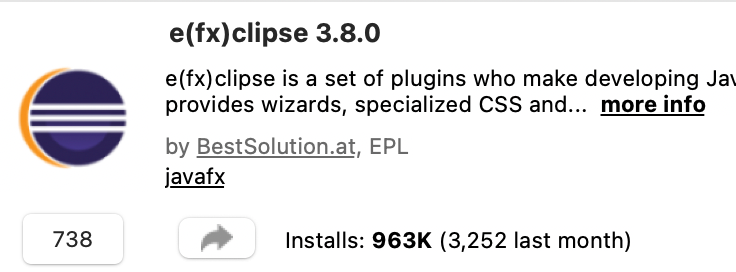
Then install this.
Make sure to approve the little pop up thing (that’s a little sus) after you choose install and reset Eclipse in order for the installations to be successful!
PART 2: USER LIBRARY JAVAFX
Go to Eclipse and command ,to open up Settings.
Search up java in settings and select the drop-down menu named: Build Path then select User Libraries.
Click onnew , then make name, I just named it JavaFX.

Select it after the thing is created!
On the right you should be able to see Add External JARs , select and go to the folder where you installed javaFX, go into

And select all (the jars in lib)
Import, then it will be added to JavaFX of user library! Now
I am skipping the part where you make or create a java project with a proper javaFX java file ready. You will need it tho!
Right click on the project folder and select the Configure Build Path to add the User Library: JavaFX into the Classpath!

Select and click on Add Library

Select User Library
Then toggle the JavaFX of the User Library.
APPLY AND CLOSE ❤
PART 3: CONFIGURATIONS
Now go back to the folder where you installed javaFX and copy the folder address.
Search up string substitution in settings.
Add new Variable. Choose any name you want.

I used JAVAFX_PATH
For the value, put in the folder address you copied. However, MAKE SURE YOU add
- BOTH
**“”**surrounding the address \\at the front of the address- and switch all the
/to\(i know… unfortunate :<)
APPLY AND CLOSE ❤
After you are in the javaFX file: head to the top, instead of running click on the little drop down by it.

Select Run Configurations

Select Arguments

Add the argument below + DESELECT Use the -Xstart….
--module-path ${JAVAFX_PATH} --add-modules javafx.controls,javafx.graphics,javafx.fxmlAPPLY AND CLOSE ❤
Try running, good luck, and i hope it helped and that it works now. it was pretty paintful for me. Save the VM arguments tho, you prob may need it later.
RESOURCE
Peak tutorial: https://www.youtube.com/watch?v=GPME1Fsv-jE
메타데이터
- post_id
- 0d384b2de3fe
- slug
- how-to-set-up-javafx-on-eclipse-0d384b2de3fe
- url
- https://medium.com/@auggieldoggie/how-to-set-up-javafx-on-eclipse-0d384b2de3fe
- canonical_url
- https://medium.com/@auggieldoggie/how-to-set-up-javafx-on-eclipse-0d384b2de3fe
- author_url
- https://medium.com/@auggieldoggie
- status
- ok
- fetched_at
- 2026-07-13 06:23:13

