Convert HTML to RTF (Rich Text) Using C#
This guide details how to implement the HTML to RTF conversion efficiently using C# and the free .NET library.
Convert HTML to RTF (Rich Text) Using C
In scenarios like office automation, document export, and report generation, converting between HTML and RTF formats is a frequent requirement. RTF (Rich Text Format) is a cross-platform rich text standard compatible with mainstream office tools such as Microsoft Word, while HTML serves as the universal format for web content.
**Free Spire.Doc for .NET** is a free, high-performance .NET document processing library that enables fast HTML-to-RTF conversion with no dependencies on Microsoft Office or third-party software. This guide details how to implement this conversion efficiently using C# and the library.
1. Install Free Spire.Doc via NuGet
To get started, install the library through NuGet Package Manager (or Package Manager Console):
Install-Package FreeSpire.DocThe free edition has a page limit per document. Only suitable for personal or small documents.
2. Core Principles of HTML-to-RTF Conversion
Free Spire.Doc for .NET simplifies the conversion process through four key steps:
- HTML Parsing: The built-in HTML parser extracts tags (e.g.,
<p>,<font>,<table>), attributes (e.g.,style,src), and content from HTML strings or files. - Style Mapping: HTML/CSS styles — including inline styles and
<style>tag rules—are mapped to RTF-supported rich text properties (font, color, paragraph spacing, table borders, etc.). - Document Construction: A
Documentobject (the library’s core model) is created, and parsed HTML content is converted into document elements likeSection,Paragraph, andTable. - RTF Export: The
Document.SaveToFile()method exports the document as an RTF file by specifyingFileFormat.Rtf.
3. Practical Examples (Covering Key Scenarios)
All examples below include detailed comments and are ready to run. First, add the required namespaces:
using System;
using System.IO;
using Spire.Doc;
using Spire.Doc.Documents;
3.1 Basic Scenario: Convert HTML String to RTF
Ideal for simple HTML content (no complex styles or images) requiring quick conversion.
class Program
{
    static void Main(string[] args)
    {
        try
        {
            // 1. Define HTML string with basic text and styles
            string htmlContent = @"
                <html>
                    <body>
                        <h1 style='color: #2E86AB; font-size: 24px;'>HTML to RTF Basic Example</h1>
                        <p style='font-family: Microsoft YaHei; font-size: 14px; line-height: 1.5;'>
                            This is an RTF document converted via Free Spire.Doc, supporting formats like <b>bold</b>, <i>italic</i>, and <u>underline</u>.
                        </p>
                        <ul style='color: #A23B72;'>
                            <li>List Item 1</li>
                            <li>List Item 2</li>
                        </ul>
                    </body>
                </html>";

            // 2. Initialize core Document object
            Document doc = new Document();

            // 3. Add a section and paragraph to the document
            Section section = doc.AddSection();
            Paragraph paragraph = section.AddParagraph();

            // 4. Append HTML content to the paragraph
            paragraph.AppendHTML(htmlContent);

            // 5. Save as RTF file
            string outputPath = @"D:\Output\BasicHtmlToRtf.rtf";
            doc.SaveToFile(outputPath, FileFormat.Rtf);
            Console.WriteLine($"RTF file generated successfully! Path: {outputPath}");
        }
        catch (Exception ex)
        {
            Console.WriteLine($"Conversion failed: {ex.Message}");
        }
    }
}
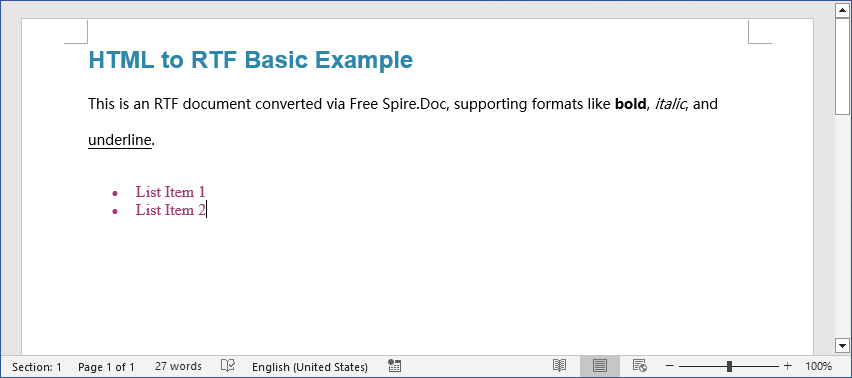
Output Result:
The RTF file opens seamlessly in Word, preserving title colors, fonts, list styles, and text formatting exactly as defined in the HTML.
Convert HTML to RTF
3.2 Advanced Scenario: Convert HTML with Images/Tables
Real-world HTML often includes images (local, web-based, or Base64-encoded) and tables. The following examples handle these cases.
3.2.1 HTML with Local/Web Images
class Program
{
    static void Main(string[] args)
    {
        Document doc = new Document();
        Section section = doc.AddSection();
        Paragraph paragraph = section.AddParagraph();

        // HTML content with local (absolute path) and web images
        string htmlWithImage = @"
        <html>
            <body>
                <h2>HTML Conversion with Images</h2>
                <p>Local Image:</p>
                <img src='C:\Users\Administrator\Pictures\test.png' width='300' height='200' alt='Local Image'/>
                <p>Web Image:</p>
                <img src='https://picsum.photos/400/250' width='400' height='250' alt='Web Image'/>
            </body>
        </html>";

        // Append HTML (image import is handled automatically)
        paragraph.AppendHTML(htmlWithImage);

        // Save RTF
        string outputPath = @"HtmlWithImage.rtf";
        doc.SaveToFile(outputPath, FileFormat.Rtf);
        Console.WriteLine($"RTF with images generated successfully: {outputPath}");
    }
}
Output:

Convert HTML with images to RTF
3.2.2 HTML with Tables (Borders & Merged Cells)
class Program
{
    static void Main(string[] args)
    {
        Document doc = new Document();
        Section section = doc.AddSection();
        Paragraph paragraph = section.AddParagraph();

        // HTML table with borders, merged cells, and styling
        string htmlWithTable = @"
        <html>
            <body>
                <h2>HTML Conversion with Tables</h2>
                <table border='1' cellpadding='5' cellspacing='0' style='border-collapse: collapse; width: 80%;'>
                    <tr style='background-color: #E8F4FD;'>
                        <th>Name</th>
                        <th>Age</th>
                        <th>Department</th>
                    </tr>
                    <tr>
                        <td>Lily</td>
                        <td>28</td>
                        <td rowspan='2'>R&D Department</td> <!-- Vertically merged cell -->
                    </tr>
                    <tr>
                        <td>Tom</td>
                        <td>32</td>
                    </tr>
                    <tr>
                        <td colspan='3' style='text-align: center;'>Employee Information Table</td> <!-- Horizontally merged cell -->
                    </tr>
                </table>
            </body>
        </html>";

        paragraph.AppendHTML(htmlWithTable);
        string outputPath = @"HtmlWithTable.rtf";
        doc.SaveToFile(outputPath, FileFormat.Rtf);
        Console.WriteLine($"RTF with table generated successfully: {outputPath}");
    }
}
Output:

Convert HTML with table to RTF
Critical Notes for Images/Tables:
- Local Images: Use absolute paths (or valid relative paths) to ensure the program has access permissions.
- Web Images: Ensure the application has internet access; download images locally first if offline.
- Supported Formats: JPG, PNG, GIF, BMP, and Base64-encoded images are supported (verify Base64 encoding for validity).
- Tables: Merged cells (
rowspan/colspan) and CSS styles (e.g.,border-collapse) are fully preserved.
3.3 Batch Conversion: Convert HTML Files in a Folder
Perfect for bulk processing (e.g., batch report exports).
class Program
{
    static void Main()
    {
        // Configure input/output folders (modify these paths as needed)
        string inputFolder = @"D:\HTML Files";
        string outputFolder = @"D:\RTF Output";

        try
        {
            // Validate input folder
            if (!Directory.Exists(inputFolder))
            {
                Console.WriteLine($"Error: Input folder not found → {inputFolder}");
                return;
            }
            // Create output folder if it doesn't exist
            if (!Directory.Exists(outputFolder))
            {
                Directory.CreateDirectory(outputFolder);
                Console.WriteLine($"Created output folder → {outputFolder}");
            }
            // Get all .html files (excludes subfolders)
            string[] htmlFiles = Directory.GetFiles(inputFolder, "*.html");
            if (htmlFiles.Length == 0)
            {
                Console.WriteLine("No HTML files found in the input folder.");
                return;
            }
            Console.WriteLine($"Found {htmlFiles.Length} HTML files. Starting conversion...\n");
            // Batch conversion logic
            foreach (string htmlFile in htmlFiles)
            {
                string fileName = Path.GetFileName(htmlFile);
                try
                {
                    // Use 'using' statement to auto-release resources
                    using (Document doc = new Document())
                    {
                        // Load HTML directly (no extra configuration)
                        doc.LoadFromFile(htmlFile, FileFormat.Html, XHTMLValidationType.None);
                        // Generate output path (retain original filename, replace extension with .rtf)
                        string rtfPath = Path.Combine(outputFolder, Path.ChangeExtension(fileName, ".rtf"));
                        // Save as RTF
                        doc.SaveToFile(rtfPath, FileFormat.Rtf);
                    }
                    Console.WriteLine($"✅ Success: {fileName}");
                }
                catch (Exception ex)
                {
                    Console.WriteLine($"❌ Failed: {fileName} → Reason: {ex.Message}");
                }
            }
            Console.WriteLine($"\nConversion completed! All RTF files saved to: {outputFolder}");
        }
        catch (Exception ex)
        {
            Console.WriteLine($"Program error: {ex.Message}");
        }
    }
}
4. Summary
Free Spire.Doc for .NET offers a streamlined, reliable solution for HTML-to-RTF conversion on the .NET platform. Key advantages include:
- No dependency on Microsoft Office or third-party tools.
- Seamless preservation of text, styles, images, tables, and merged cells.
- Support for single-file and batch conversion workflows.
This library is an excellent choice for developers building office automation tools, report systems, or document export features. For more advanced examples (e.g., HTML to Word,Images), refer to the online documentation.
메타데이터
- post_id
- 0dd3e264baa2
- slug
- convert-html-to-rtf-rich-text-using-c-0dd3e264baa2
- url
- https://medium.com/@andrewwil/convert-html-to-rtf-rich-text-using-c-0dd3e264baa2
- canonical_url
- https://medium.com/@andrewwil/convert-html-to-rtf-rich-text-using-c-0dd3e264baa2
- author_url
- https://medium.com/@andrewwil
- status
- ok
- fetched_at
- 2026-06-18 07:02:39