Building an Autonomous SOC/SOAR Platform: Integrating Wazuh SIEM with Generative AI and Automated…
How to transform a passive log aggregator into an active, intelligent defense system using Python, FastAPI, iptables, and OpenAI.
Building an Autonomous SOC/SOAR Platform: Integrating Wazuh SIEM with Generative AI and Automated Kernel-Level Containment
How to transform a passive log aggregator into an active, intelligent defense system using Python, FastAPI, iptables, and OpenAI.
Introduction
In modern cybersecurity operations, time-to-threat-mitigation is the metric that defines success or catastrophic failure. Traditional Security Operations Centers (SOCs) rely heavily on analysts to manually triage alerts, interpret logs, and execute firewall blocks. When an aggressive brute-force attack or reconnaissance scan hits an infrastructure footprint, every second spent copying and pasting IP addresses into a firewall rule is a second an attacker can use to pivot deeper into the network.
To eliminate this human latency, I developed an AI-Powered Security Orchestration, Automation, and Response (SOAR) Platform. By bridging the raw log-parsing power of Wazuh SIEM/XDR with an event-driven FastAPI backend, a live Streamlit visual dashboard, and the generative threat-intelligence capabilities of the OpenAI SDK, this system transforms security operations from a passive tracking grid into an active, self-healing tactical defense center.
The Architectural Blueprint
An automated defense system requires a resilient, deterministic lifecycle. The pipeline must ingest raw telemetry, evaluate severity, neutralize the malicious socket at the kernel layer, enrich the context with generative AI, and stream a comprehensive incident response brief to communication channels simultaneously.
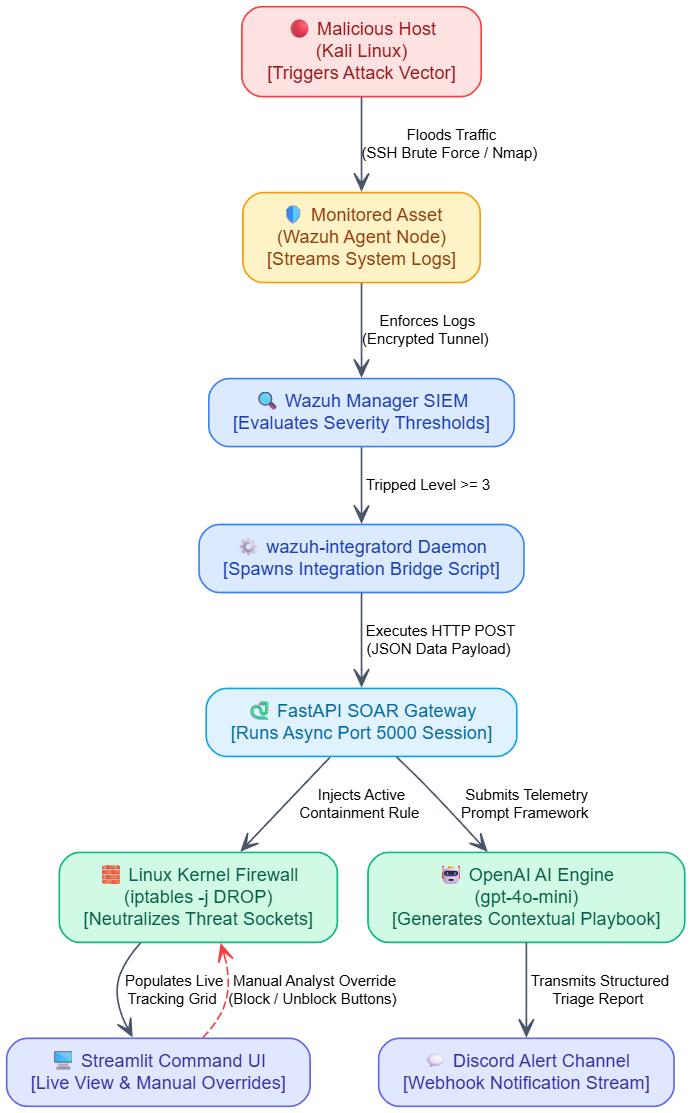
The Data Flow Pipeline:
- Host Monitoring: An external machine (e.g., a Kali Linux attacker asset) initiates high-velocity threat telemetry (like a brute-force attack or port scan).
- SIEM Ingestion: The central Wazuh Manager Core Engine ingests the system logs, evaluates the data stream against pre-configured rulesets, and alerts when threshold levels are breached.
- SOAR Active Response: The
wazuh-integratorddaemon hands the raw alert JSON data directly to a local FastAPI pipeline server. - Kernel Isolation: The FastAPI application instantly drops a localized packet filtering policy rule directly into the host operating system’s kernel space using
iptables, dropping the attacker's line link. - Cognitive Enrichment & Alerting: The payload is simultaneously passed to the OpenAI API (
gpt-4o-mini) to compile an advanced incident playbook report, which is instantly broadcasted to a dedicated Discord security channel via webhooks. - Analyst Command UI: A custom Streamlit Web Dashboard pulls live tracking tables from the local firewall kernel space, giving security analysts immediate visibility and full manual override (block/unblock) controls.
2. Infrastructure & System Specifications
To ensure enterprise-grade tracking and runtime safety, the platform relies on the following virtualized environment properties:
- Host Machine Hypervisor: VirtualBox 7.0+ or VMware Workstation.
- Operating System Base: Enterprise Linux Configuration Space (Amazon Linux 2023 / AL2023 minimal core environment template).
- Virtual Appliance Profiles: * Allocation: Minimum 4096 MB RAM and 2 vCPUs.
- Network Adapter Mode: Bridged Adapter (or localized Host-Only configuration using functional default DHCP parameters) to maintain unhindered bidirectional packet visibility between your laptop and the VM.
3. Step-by-Step System Deployment Phase
Phase 3.1: Kernel Security & Utility Provisioning
Log directly into your server console and execute the core package manager adjustments to clean stale file memories, load the firewall application, and locate its binary execution track:
Bash
# 1. Purge stale package registry caches
sudo dnf clean all
# 2. Force install the core iptables networking tool package
sudo dnf install iptables -y# 3. Locate the absolute path of the newly installed system binary
whereis iptablesPhase 3.2: Elevating Administrative Privileges (visudo)
To grant your automated dashboard script and custom scripts permission to edit kernel network rules without stalling the application with password entry queries, configure a secure exemption rule inside your system’s access configurations:
Bash
sudo visudoScroll completely to the absolute bottom line of the configurations profile layout and insert this rule exactly:
Plaintext
wazuh-user ALL=(ALL) NOPASSWD: /usr/sbin/iptablesSave changes and exit (Ctrl + O, Enter, Ctrl + X in nano).
Phase 3.3: Environment Sandbox Isolation & Library Setup
Create a dedicated project workspace directory, structure a local Python virtual environment sandbox wrapper, and isolate your third-party runtime library parameters:
Bash
# 1. Establish the dedicated workspace directory and enter it
mkdir -y ~/custom-soar && cd ~/custom-soar
# 2. Initialize a fresh virtual environment container instance
python3 -m venv venv# 3. Activate the local environment sandbox wrapper session
source venv/bin/activate(Verify your terminal prompt now clearly displays a leading (venv) tag text string on the left).
Bash
# 4. Bring your local pip engine parameters up to date
pip install --upgrade pip
# 5. Lock in the optimized package dependencies cleanly without utilizing local broken caches
pip install --no-cache-dir --upgrade "httpx>=0.23.0" openai fastapi uvicorn requests streamlit4. Production Application Source Code
Inside your active ~/custom-soar workspace, deploy the primary automation engine and your custom graphical user web interface application.
4.1: Deploying the Core Automation Engine (soar.py)
Bash
nano soar.pyPaste this complete production block code:
Python
import os
import requests
from fastapi import FastAPI, Request
from openai import OpenAI

app = FastAPI(title="Enterprise AI-SOAR Production Gateway")

# ==================================================================
# CONFIGURATION CONSTANTS
# ==================================================================
OPENAI_API_KEY = "PASTE_YOUR_ACTUAL_OPENAI_KEY_HERE"
DISCORD_WEBHOOK_URL = "PASTE_YOUR_DISCORD_WEBHOOK_URL_HERE"

client = OpenAI(api_key=OPENAI_API_KEY)

def trigger_active_containment(attacker_ip, target_system):
    """
    ACTIVE RESPONSE LAYER: Intercepts network indicators
    and updates host kernel firewalls to drop threat infrastructure.
    """
    print(f"[🚨 MITIGATION ENGAGED] Attacker IP {attacker_ip} identified as threat to {target_system}!")
    os.system(f"sudo /usr/sbin/iptables -A INPUT -s {attacker_ip} -j DROP")
    return f"SUCCESS: A Linux iptables rule was deployed to DROP all traffic from malicious actor IP: {attacker_ip}."

@app.post("/alerts")
async def intercept_wazuh_telemetry(request: Request):
    try:
        alert_payload = await request.json()
        rule_id = alert_payload.get("rule", {}).get("id", "Unknown ID")
        description = alert_payload.get("rule", {}).get("description", "No threat description.")
        severity_level = alert_payload.get("rule", {}).get("level", 0)
        monitored_host = alert_payload.get("agent", {}).get("name", "Unknown Endpoint")
        malicious_source_ip = alert_payload.get("data", {}).get("srcip", None)

        print(f"[+] SOAR Intercepted Event! Level {severity_level} on Host: {monitored_host}")

        mitigation_summary = "No automated countermeasures were deemed necessary for this warning category."

        # Determine containment rule execution matching alert severity thresholds
        if severity_level >= 3:
            if malicious_source_ip:
                mitigation_summary = trigger_active_containment(malicious_source_ip, monitored_host)
            else:
                mitigation_summary = "High severity event flagged, but no external source IP was found in log data to block."

        # Compile our contextual telemetry prompt configuration structure
        ai_context_prompt = f"""
        Analyze this network incident log and the subsequent automated action taken by our custom SOAR engine:
        - Target System Affected: {monitored_host}
        - SIEM Alert Severity Rating: {severity_level}/15
        - Threat Signature Rule ID: {rule_id}
        - Event Details: {description}
        - Attacker Source IP Address: {malicious_source_ip if malicious_source_ip else 'N/A'}
        - Automated Containment Action Status: {mitigation_summary}

        Compile a clear incident response report using precise technical Markdown styling. Include:
        ## 🚨 Intelligent Threat & Mitigation Report
        * **Event Diagnostics:** [Provide an executive explanation of the threat in plain English]
        * **Containment Metrics:** [Confirm exactly how the threat was neutralized by the Python script]

        ### 🛡️ Immediate Post-Incident Playbook Recommendations
        1. [Provide step 1 to audit or reinforce the local asset]
        2. [Provide step 2]
        """

        ai_response = client.chat.completions.create(
            model="gpt-4o-mini",
            messages=[
                {"role": "system", "content": "You are a professional network security defense engineer."},
                {"role": "user", "content": ai_context_prompt}
            ],
            temperature=0.2
        )

        structured_triage_report = ai_response.choices[0].message.content
        requests.post(DISCORD_WEBHOOK_URL, json={"content": f"⚡ **SOAR ACTIVE RESPONSE ALIGNMENT** ⚡\n\n{structured_triage_report}"})

        return {"status": "success", "action_taken": mitigation_summary}

    except Exception as e:
        print(f"[-] Pipeline Error: {str(e)}")
        return {"status": "error", "message": str(e)}

if __name__ == "__main__":
    import uvicorn
    uvicorn.run(app, host="0.0.0.0", port=5000)
Save and exit (Ctrl + O, Enter, Ctrl + X).
4.2: Deploying the Web Dashboard Interface (app.py)
Bash
nano app.pyPaste this complete production UI script block:
Python
import streamlit as st
import subprocess
import os

st.set_page_config(page_title="AI-SOAR Command Console", page_icon="🛡️", layout="wide")

st.title("🛡️ Enterprise AI-SOAR Analyst Control Console")
st.markdown("---")

# 1. Sidebar Configurations and Kill Switch
st.sidebar.header("🕹️ Automation Engine Configuration")
pipeline_active = st.sidebar.toggle("Arm Active Response Containment", value=True)

if pipeline_active:
    st.sidebar.success("⚡ System Automation Status: ARMED")
else:
    st.sidebar.warning("⚠️ System Automation Status: BYPASSED")

# 2. Section: Live Firewall Rules Monitor
st.header("🧱 Active Kernel Firewall Network Policies (iptables)")
st.caption("This component continuously monitors rules matching dropping configurations directly on the Linux kernel space.")

try:
    # Run the native system call mapping current rules using absolute path
    raw_iptables_output = subprocess.check_output("sudo /usr/sbin/iptables -L INPUT -v -n --line-numbers", shell=True).decode()
    st.text_area("Live Kernel Table Output", value=raw_iptables_output, height=220)
except Exception as e:
    st.error(f"Failed to query system firewall rule space maps: {e}")

# 3. Section: Interactive Control Panel for Analysts
st.markdown("---")
st.header("🎯 Manual Security Intervention Override")
st.markdown("Use this console to override automation filters and manually isolate or release a network host.")

col1, col2 = st.columns(2)

with col1:
    target_ip = st.text_input("Target Attacker IP Address", placeholder="e.g., 192.168.1.100")

with col2:
    st.write("##") # Visual alignment padding spacer
    btn_block = st.button("🔴 Manually Impose Drop Block", type="primary", use_container_width=True)
    btn_unblock = st.button("🟢 Manually Release (Unblock) IP", use_container_width=True)

# Process manual button overrides
if target_ip:
    if btn_block:
        os.system(f"sudo /usr/sbin/iptables -A INPUT -s {target_ip} -j DROP")
        st.success(f"Manual policy applied successfully. All traffic from {target_ip} is now dropped.")
        st.rerun()

    if btn_unblock:
        os.system(f"sudo /usr/sbin/iptables -D INPUT -s {target_ip} -j DROP")
        st.success(f"Manual override cleanup successful. Host {target_ip} restriction removed.")
        st.rerun()
Save and exit (Ctrl + O, Enter, Ctrl + X).
5. Connecting the SIEM Routing Daemon
To bridge your central logging system directly to your new automated Python framework microservice, inject a custom shell bridge script layout:
Bash
sudo nano /var/ossec/integrations/custom-soarPaste this execution script cleanly inside:
Bash
#!/bin/sh
ALERT_FILE=$1
curl -H "Content-Type: application/json" -X POST -d @"$ALERT_FILE" http://127.0.0.1:5000/alerts
Enforce the correct security write permissions and service group access boundaries so the background process can use it:
Bash
sudo chmod 755 /var/ossec/integrations/custom-soar
sudo chown root:wazuh /var/ossec/integrations/custom-soar
Now connect this configuration profile straight to the main SIEM engine configurations block:
Bash
sudo nano /var/ossec/etc/ossec.confScroll down near the bottom of the code stack file and place this script hook block exactly right above the closing </ossec_config> XML tag line:
XML
<integration>
    <name>custom-soar</name>
    <hook_url>http://127.0.0.1:5000/alerts</hook_url>
    <level>3</level>
    <alert_format>json</alert_format>
  </integration>
Reload the system management trackers and boot the server up fresh:
Bash
sudo systemctl daemon-reload
sudo systemctl restart wazuh-manager
6. Evidence Of Platform Working (Screenshots)
Use this section as a checklist template to see the working of platform

Background SOAR Engine Initialization
Instructions: Run your
soar.pyapplication inside your detached screen panel (screen -S soarrun). You will see the clean launch output confirming that youruvicornbackend worker has successfully initialized on port5000with no library or HTTP connection errors.

The Streamlit Operations Dashboard
Instructions: Boot up your
app.pyscript and load the localized link parameters inside your desktop web browser. You will see a graphical framework UI showing your text console data fields actively pulling lines from the kernelChain INPUTsystem space maps.

Noisy connection flood or SSH brute-force
Instructions: Execute your noisy connection flood or SSH brute-force scripting test looping structure directly from your external Kali Linux attack machine. You will see the active
DROPfirewall target line policy instantly trapping and blocking the attacker's network IP parameters inside your dashboard dashboard console view.

GenAI Security Analytics Report Stream On Discord
Instructions: Open up your target Discord Operations Channel. You will get a message showing the polished technical markdown incident tracking metrics report generated by your platform’s automated GPT-4o intelligence call.
메타데이터
- post_id
- 0e629ff8d7ea
- slug
- building-an-autonomous-soc-soar-platform-integrating-wazuh-siem-with-generative-ai-and-automated-0e629ff8d7ea
- url
- https://medium.com/@usmannazir5503/building-an-autonomous-soc-soar-platform-integrating-wazuh-siem-with-generative-ai-and-automated-0e629ff8d7ea
- canonical_url
- https://medium.com/@usmannazir5503/building-an-autonomous-soc-soar-platform-integrating-wazuh-siem-with-generative-ai-and-automated-0e629ff8d7ea
- author_url
- https://medium.com/@usmannazir5503
- status
- ok
- fetched_at
- 2026-06-21 12:17:11



