Microsoft Entra Tenant Governance
Find Configuration Drift
Microsoft Entra Tenant Governance
Find Configuration Drift
[embed]
Ensure your tenant configuration doesn’t drift from defined security and compliance requirements with Microsoft Entra Tenant Governance. Capture configuration as code across 200+ resource types in Entra, Intune, Exchange, Teams, Defender, and Purview. Turn that snapshot into a Monitor. It scans for drift every six hours and flags every policy change.
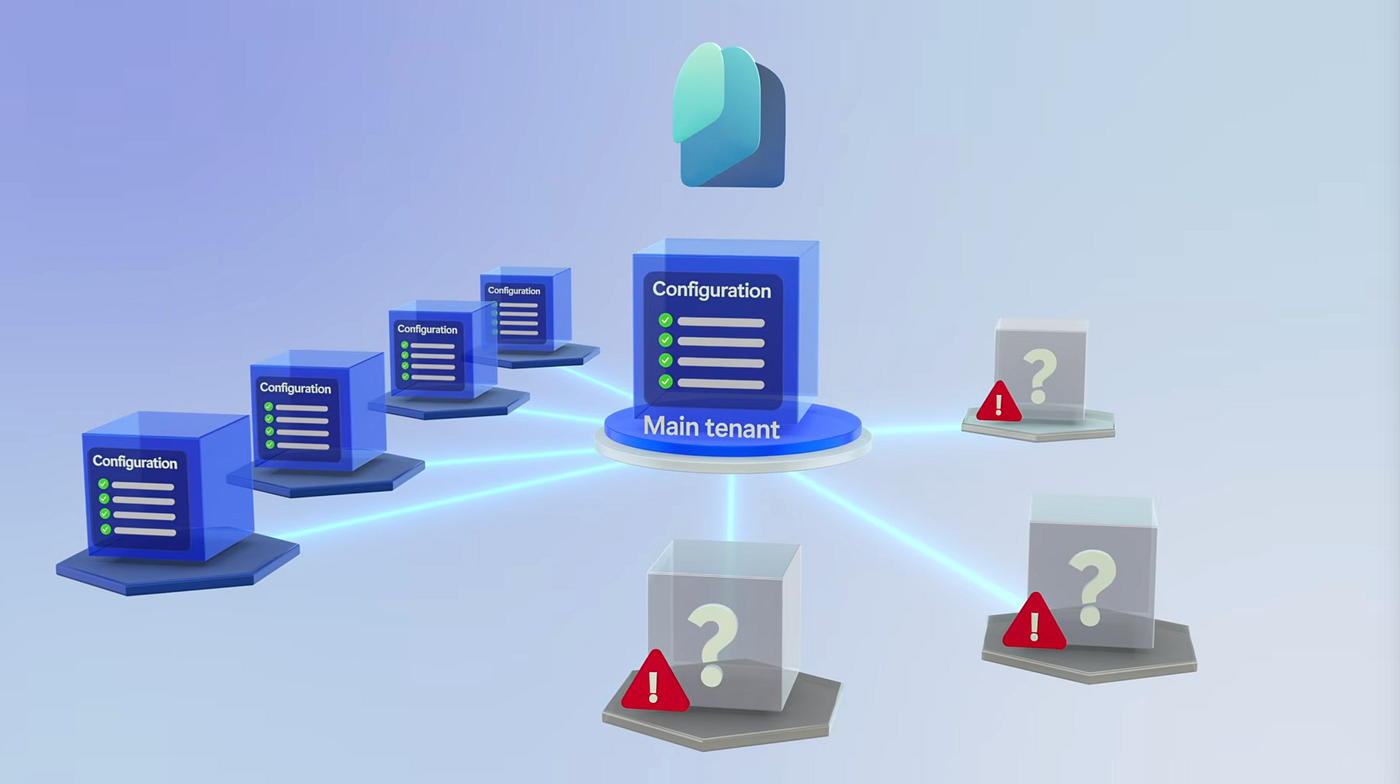
Extend control to the tenants you don’t fully see today. Entra Tenant Governance surfaces them automatically through B2B, multi-tenant app, and billing signals. Request governance with role-based templates. Complete the secure approval handshake in the Entra admin center, then administer the governed tenant from a single browser using the roles forged in that handshake.
Jeff Staiman, Microsoft Entra Principal Product Manager, shares how to bring every tenant under one governance model.
More than 200 resource types. One baseline.

Configuration Snapshots in Microsoft Entra Tenant Governance lock in your tenant config across Entra, Intune, Exchange, Teams, Defender, & Purview. Start here.
Every tenant connected to your org, surfaced.

Entra Tenant Governance assembles a live Related Tenants list from B2B traffic, multi-tenant app config, and Microsoft Commerce billing signals. Check it out.
Same browser, same login.

Entra Tenant Governance authenticates you through the role assignments from your governance handshake. See how it works.
QUICK LINKS:
00:00 — Prevent tenant configuration drift
00:57 — Create a configuration baseline
02:23 — Detect configuration drifts
03:08 — Identify related tenants to govern
04:05 — Governed tenants
05:01 — Incoming request
06:17 — Set up monitoring
07:40 — Wrap up
Link References
Get started at https://aka.ms/EntraTenantGovernance
Restrict tenant’s connections at https://aka.ms/TenantQuarantine
Unfamiliar with Microsoft Mechanics?
As Microsoft’s official video series for IT, you can watch and share valuable content and demos of current and upcoming tech from the people who build it at Microsoft.
- Subscribe to our YouTube: https://www.youtube.com/c/MicrosoftMechanicsSeries
- Talk with other IT Pros, join us on the Microsoft Tech Community: https://techcommunity.microsoft.com/t5/microsoft-mechanics-blog/bg-p/MicrosoftMechanicsBlog
- Watch or listen from anywhere, subscribe to our podcast: https://microsoftmechanics.libsyn.com/podcast
Keep getting this insider knowledge, join us on social:
- Follow us on Twitter: https://twitter.com/MSFTMechanics
- Share knowledge on LinkedIn: https://www.linkedin.com/company/microsoft-mechanics/
- Enjoy us on Instagram: https://www.instagram.com/msftmechanics/
- Loosen up with us on TikTok: https://www.tiktok.com/@msftmechanics
Video Transcript:
-To protect your organization, you need to ensure that your tenant configuration doesn’t drift from your defined security and compliance requirements. This needs to include all the Microsoft Entra tenants that you manage, whether for end-user collaboration, development and testing, mergers and acquisitions, or regional teams, as well as all the unsanctioned tenants set up by your employees, such as for testing or for shadow IT. Even a single configuration drift in one of your tenants can introduce vulnerability to your environment, and that’s where Microsoft Entra Tenant Governance comes in, to define configuration baselines as code in order to monitor configuration drift, to automatically find related tenants with existing B2B, billing, or multi-tenant app relationships, to request the permissions you need, to govern the tenants where you need visibility and control, and once approved by the related tenant admin, to monitor those configuration baselines in your governed tenants to detect drift from your desired state anywhere. Let’s start by creating a configuration baseline for our main tenant, Contoso Inc, to monitor for configuration drift.
-In the Microsoft Entra Admin Center, you can find Tenant governance under Entra ID. This tenant has several conditional access policies and cross-tenant access policies, as well as device compliance policies. We’ve already given the service permissions to read all the policies in this tenant, and that’s going to be required to run the snapshot process, and will be needed later to monitor for configuration drift. I’m going to give you a first look at the new configuration snapshots page, where you can capture the configuration of your existing tenant settings to detect drift or to use as a baseline for other tenants. I’ll create a new snapshot. I’ll begin by giving it a name, Contoso core compliance, and a description, Contoso core compliance May 2026. Then I select the resource types that I want to snapshot. You can use more than 200 resource types to monitor configuration across Entra, Intune, Exchange, Teams, Defender and Purview.
-First, I’ll select conditional access policies, then cross-tenant access policies, and external identity policies in Entra. Then in Intune, I’ll search for device compliance and I’ll choose iOS and Windows. I can review the resource permissions and expand out. Then I just need to confirm by clicking Create Snapshot. That’ll take a moment to query and write the configuration settings. Once it’s completed, I can click into it to view the details, and in the Configuration baseline tab, I can access adjacent representation of all the configuration settings.
-Now I want to set up monitoring so that I can automatically detect any configuration drift in any of these policies in my tenant that happens in the future. I can easily set this up by creating a monitor from this snapshot. In settings, it pre-populated the name and description. The monitors also pre-populate with the settings that were captured in the snapshot. We see that all the required permissions are in place. Monitoring a resource uses the same permissions as snapshotting it, so this is as expected. Now I can confirm and hit Create Monitor. It’ll run on a scheduled interval, currently every six hours. After the monitor has completed one or more runs in your tenant, you can check it for configuration drift. With our first run complete, I can check if there were any configuration drifts, and as you’d expect, everything looks good. No drifts.
-Now that I know I can keep the configuration of my main tenant healthy, let’s see how to identify other related tenants that I also need to govern. I’m still signed in as the admin for our main Contoso Inc tenant, and I’ll start from the related tenants list. It shows all tenants connected to my organization, including shadow tenants and external partner tenants. The list is automatically created and kept up to date by Entra’s tenant discovery signals, which look at B2B usage, multi-tenant app configuration, and Microsoft commerce billing. I see the Contoso 1 tenant in the list, which gets my attention since it has the Contoso name in it. I click on Contoso 1 to see the details. If I click into it and then I look at discovery signals, it shows B2B registration, B2B sign-in, admin app sign-ins, and multi-tenant apps, as well as billing relationships that were detected. I can get more detailed information in the Discovery Signals tab, where I can click to see the number of sign-ins for B2B and for admin apps. And in billing, it looks like our primary tenant is already paying for this one.
-Now let me show you how to establish governance over a related tenant. This is clearly a tenant that we need to govern, so I’ll close this view and I’ll move over to the Governed tenants view. Here you can see that I already have one governed tenant, Fabrikam, but not the Contoso 1 tenant. Let’s add it. So I click Request to govern. In the list of tenants, I can see the Contoso 1 tenant, and I’ll select it.
-To speed up the process, I’ve already created a few governance policy templates to define the access that my primary tenant needs over different types of governed tenants. Next, because this looks like a dev test tenant, I’ll choose the DevOps governance policy template, where I’ll request the global reader, security admin, and tenant governance admin rules. Templates are extensible to use your own multi-tenant resource management apps. This one contains the MegaMonitor app, which is a custom app that Contoso has written to monitor resources and govern tenants. From there, I just need to review and hit Create. The request gets sent via email. Now with the invitation sent, I’ll switch over to the perspective of the Contoso 1 tenant admin, who receives the incoming request. The email is sent from a Microsoft Security account in the microsoft.com domain and contains the details for the tenant governance request.
-For security, the request can’t be approved within the email directly. It needs to be approved in the Entra Admin Center. There’s a link in the email which takes you to the tenant governance relationship tab for pending requests. I see the request on the top of the list, and I click the request to see additional details. As I showed from the requester point of view, it contains the request for three roles: global reader, security admin, and tenant governance admin, and a request for that multi-tenant app called MegaMonitor to have permission to read audit logs and policies.
-From there, I can choose to accept or reject the request, and I’ll accept it. If the other tenant’s admin doesn’t approve your request, you can restrict their tenant’s connections to your primary tenant by blocking apps, preventing B2B access, stopping bill payment, or applying network blocks. To learn how, check out our documentation at aka.ms/TenantQuarantine. Once the request is accepted, the handshake between the tenants is complete and you can govern that other tenant.
-Now let’s switch back to the primary tenant admin’s point of view. Here I can see that the governance request was accepted and the governance status is now active.
-Now I can set up monitoring for that tenant to ensure that the conditional access policies and other policies meet Contoso Inc’s requirements. I need to create that new monitor while logged in as an admin in the newly governed tenant, and the good news is you don’t need to switch browser profiles or authentication contexts to do this. I copy the tenant ID from the Governed tenants page. Then I type entra.microsoft.com/ and I paste in the tenant ID from my clipboard. This signs me into the Entra Admin Center in the context of the governed tenant, Contoso 1. The authentication and authorization works using the Entra role assignment set up with a governance relationship, so there’s no need for a B2B account. You can see the authentication context in the user account area in the upper right corner of the admin center.
-Now I can go to the Tenant governance page. I navigate over to Monitors to create a new one. I start by giving it a name and description, and then I need to put in the configuration baseline for the monitor in Contoso 1. For that, I can go back to my primary tenant and go to my baseline and copy it. Now I’ll go back into the governed tenant and paste it in there.
-Next, there are the application permissions I showed before. A monitoring service in the Contoso 1 tenant needs the same permissions that it needed in the Contoso Inc tenant. To save time, I’ve added these read permissions in advance. Now all I need to do is review and hit Create. The monitoring service will run four times per day, and you’ll be able to review monitoring results from the governed tenant.
-And so that’s how tenant governance lets you keep all of your tenants securely configured on an ongoing basis, including related tenants that you don’t even know about today. To find out more and get started, check out aka.ms/EntraTenantGovernance. Keep watching Microsoft Mechanics for the latest tech updates, and thanks for watching.
메타데이터
- post_id
- 0fa9dca1c562
- slug
- microsoft-entra-tenant-governance-0fa9dca1c562
- url
- https://medium.com/@officegarageitpro/microsoft-entra-tenant-governance-0fa9dca1c562
- canonical_url
- https://medium.com/@officegarageitpro/microsoft-entra-tenant-governance-0fa9dca1c562
- author_url
- https://medium.com/@officegarageitpro
- status
- ok
- fetched_at
- 2026-06-09 15:37:30