Jetpack Compose State Basics: How remember Really Works
If you’ve ever worked with Jetpack Compose, you should have seen a line like this:
Jetpack Compose State Basics: How remember Really Works
If you’ve ever worked with Jetpack Compose, you should have seen a line like this:
var count by remember { mutableStateOf(0) }Most developers type it, accept that it works, and move on. The UI updates, recomposition happens, and everything feels almost… magical.
However, this single line is doing far more than it appears. It defines how your UI remembers data, how it reacts to change, and why Compose behaves so differently from XML-based Android views.
In this post, we’ll break it down and understand what is happening behind the scenes.
First, What is State in Jetpack Compose?
In simple terms, a state is any value that can change over time. It decides what should be displayed in the UI.
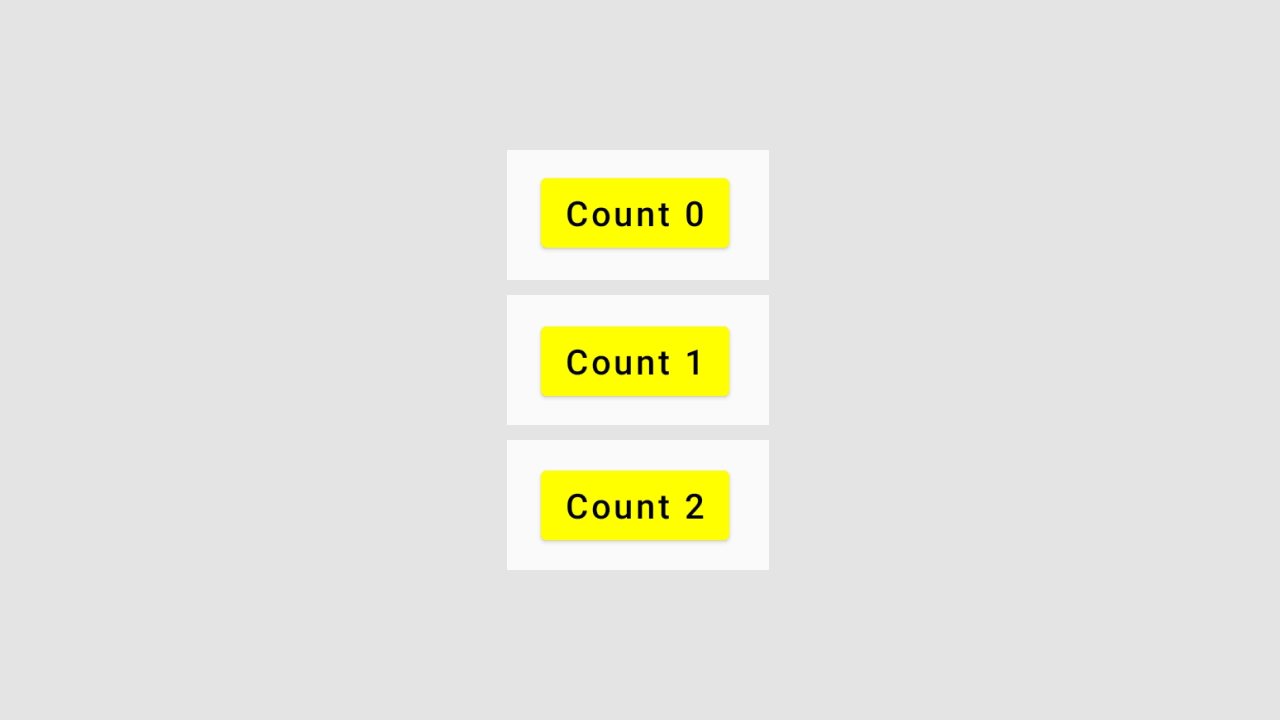
For this article, we will implement the following button as an example.

When you click on the button, the text is getting changed. In other words, the state is getting changed (or updated). Ready to see how that works under the hood? Let’s build this button from scratch.
First, create an empty Jetpack Compose project and open MainActivity. Create a MyUI() composable and call it from the onCreate() method.
import android.os.Bundle
import android.util.Log
import androidx.activity.ComponentActivity
import androidx.activity.compose.setContent
import androidx.activity.enableEdgeToEdge
import androidx.compose.foundation.layout.Arrangement
import androidx.compose.foundation.layout.Column
import androidx.compose.foundation.layout.Spacer
import androidx.compose.foundation.layout.fillMaxSize
import androidx.compose.foundation.layout.height
import androidx.compose.foundation.layout.padding
import androidx.compose.material3.Button
import androidx.compose.material3.ButtonDefaults
import androidx.compose.material3.Scaffold
import androidx.compose.material3.Text
import androidx.compose.runtime.Composable
import androidx.compose.runtime.getValue
import androidx.compose.runtime.mutableStateOf
import androidx.compose.runtime.remember
import androidx.compose.runtime.setValue
import androidx.compose.ui.Alignment
import androidx.compose.ui.Modifier
import androidx.compose.ui.graphics.Color
import androidx.compose.ui.unit.dp

class MainActivity : ComponentActivity() {
    override fun onCreate(savedInstanceState: Bundle?) {
        super.onCreate(savedInstanceState)
        enableEdgeToEdge()
        setContent {
            Material3JetpackComposeTheme {
                Scaffold(modifier = Modifier.fillMaxSize()) { innerPadding ->
                    Column(
                        modifier = Modifier
                            .padding(innerPadding)
                            .fillMaxSize(),
                        verticalArrangement = Arrangement.Center,
                        horizontalAlignment = Alignment.CenterHorizontally
                    ) {
                        MyUI()
                    }
                }
            }
        }
    }
}

@Composable
fun MyUI() {

}
Add a button in the MyUI().
@Composable
fun MyUI() {
    Button(
        onClick = {  },
        colors = ButtonDefaults.buttonColors(
            containerColor = Color.Yellow // use backgroundColor for Material 2
        )
    ) {
        Text(
            text = "",
            color = Color.Black
        )
    }
}
Run it. It shows a blank button with a yellow background.

We have to show the number of clicks. So, create a count variable and increment it in the onClick block. Display its value with the Text() composable.
@Composable
fun MyUI() {
    var count = 0

    Button(
        onClick = { count++  },
        colors = ButtonDefaults.buttonColors(
            containerColor = Color.Yellow // use backgroundColor for Material 2
        )
    ) {
        Text(
            text = "Count $count",
            color = Color.Black
        )
    }
}
Run the project. If you tap on the button, the count value will never increase.

To understand what is going on, log the count value before the Button() and inside the onClick block.
@Composable
fun MyUI() {
    var count = 0

    Log.d("Before Button()", "Count = $count")

    Button(
        onClick = {
            count++
            Log.d("Inside onClick", "Count = $count")
        },
        colors = ButtonDefaults.buttonColors(
            containerColor = Color.Yellow // use backgroundColor for Material 2
        )
    ) {
        Text(
            text = "Count $count",
            color = Color.Black
        )
    }
}
If you run the app, it displays Before Button(): Count = 0 first, and every time you click on the button, the count will be incremented.
Our UI is not updating even though the count value has been increased. This is because we are using normal Kotlin variables. They don’t have special powers in Compose. We have to use the objects of type State. It holds a value, and whenever the value is changed, it updates the UI (corresponding composables).
In Jetpack Compose, we can create a MutableState object in the following way.
var count by remember { mutableStateOf(0) }Write it at the beginning of the MyUI().
@Composable
fun MyUI() {
    var count by remember { mutableStateOf(0) }

    Button(
        onClick = {
            count++
        },
        colors = ButtonDefaults.buttonColors(
            containerColor = Color.Yellow
        )
    ) {
        Text(
            text = "Count $count",
            color = Color.Black
        )
    }
}
Run the app. You will get the expected output.
Let us understand the code.
mutableStateOf():
It is a function that accepts a value and creates a new MutableState object. It initializes the object with the passed value and returns it.
remember:
It is a composable function. It helps us to store a single object in memory. A value computed by remember is stored during the initial composition and returned whenever the UI is updated.
For example, when you first call the MyUI(), 0 is stored in the memory because 0 is the default value we sent to the mutableStateOf() method. When you click on the button, 0 is returned, and 1 is added to it. The result is stored in the memory. When you tap on the button second time, 1 is returned, and 1 is added to it. The process gets repeated again and again. The old values get replaced by the new values.
remember can be used to store both mutable and immutable objects.
by Delegate:
In simple words, it converts the MutableState object into a regular Kotlin variable.
In the above code, mutableStateOf() returns a MutableState object. The by Delegate changes it to Int. Place the mouse over the count variable. You will see its type.

If you don’t want to use by Delegate, you can also use =.
var count = remember { mutableStateOf(0) }But, you have to use count.value to update or get the count value.
@Composable
fun MyUI() {
    var count = remember { mutableStateOf(0) }

    Button(
        onClick = {
            count.value++
        },
        colors = ButtonDefaults.buttonColors(
            containerColor = Color.Yellow
        )
    ) {
        Text(
            text = "Count ${count.value}",
            color = Color.Black
        )
    }
}
This is because the count becomes a State object when we remove the by Delegate.

What happens if we use mutableStateOf() without remember?
The purpose of remember function is to save the data across recompositions. When we use mutableStateOf() alone, our data doesn’t survive recomposition. The moment our composable gets recreated, that value is gone. The UI is reset back to its initial value, as if nothing ever happened.
To understand why this happens, let’s look at how recomposition works.
Whenever your state changes, Compose automatically updates the screen to reflect that change, and that update process is called recomposition. For example, in the above code, the Button() gets redrawn on the screen when the count changes.
Only the composables that depend on the state will be redrawn. For example, look at the following code.
@Composable
fun MyComposable(text1: String, text2: String) {

    // This will recompose (re-drawn) when [text1] changes,
    // but not when [text2] changes
    Text(text = text1)

    // This will recompose when [text2] changes,
    // but not when [text1] changes
    Text(text = text2)
}
Call it from our MyUI().
@Composable
fun MyUI() {
    var text1 by remember {
        mutableStateOf("")
    }

    var text2 by remember {
        mutableStateOf("")
    }

    Button(
        onClick = {
            val randomNumber = (1..20).random()
            if (randomNumber % 2 == 0) {
                text1 = randomNumber.toString()
            } else {
                text2 = randomNumber.toString()
            }
        }
    ) {
        Text(text = "Click")
    }

    Spacer(modifier = Modifier.height(height = 20.dp))

    MyComposable(text1 = text1, text2 = text2)
}

@Composable
fun MyComposable(text1: String, text2: String) {
    // This will recompose (re-drawn) when [text1] changes,
    // but not when [text2] changes
    Text(text = text1)

    // This will recompose when [text2] changes,
    // but not when [text1] changes
    Text(text = text2)
}
Output:

If you want to verify the recompositions, go to Tools > Layout Inspector in Android Studio. Whenever an element is redrawn, it is highlighted in red.
Now, we have understood the recomposition. Let’s go back to our question. Remove the remember from our button count code and run it.
@Composable
fun MyUI() {
    var count = mutableStateOf(0)

    Button(
        onClick = {
            count.value++
        },
        colors = ButtonDefaults.buttonColors(
            containerColor = Color.Yellow
        )
    ) {
        Text(
            text = "Count ${count.value}",
            color = Color.Black
        )
    }
}
Output:
Even though we removed the remember, we still got the expected output. This is because Compose is smart enough to understand that there is only one button that depends on the count value. So, it will only recreate the button instead of recomposing the whole MyUI().
Let’s add some elements to trigger the MyUI() recomposition.
@Composable
fun MyUI() {
    var count = mutableStateOf(0)

    Column {
        Text(text = "Count: ${count.value}")

        Button(
            onClick = {
                count.value++
            },
            colors = ButtonDefaults.buttonColors(
                containerColor = Color.Yellow
            )
        ) {
            Text(
                text = "Count ${count.value}",
                color = Color.Black
            )
        }
    }
}
Output:

We got the expected output. Whenever we tap on the button, the count value changes, and the MyUI() gets recreated. Since we didn’t use remember, we lost our state on every click.
Let’s add the remember function.
@Composable
fun MyUI() {
    var count = remember {
        mutableStateOf(0)
    }

    Column {
        Text(text = "Count: ${count.value}")

        Button(
            onClick = {
                count.value++
            },
            colors = ButtonDefaults.buttonColors(
                backgroundColor = Color.Yellow
            )
        ) {
            Text(
                text = "Count ${count.value}",
                color = Color.Black
            )
        }
    }
}
Output:

This is all about the remember method in Jetpack Compose. I hope you have learned something new. If you have any questions or concerns, please leave a comment below. I will reply as soon as possible.
Related Articles:
메타데이터
- post_id
- 0feceb97ad49
- slug
- jetpack-compose-state-basics-how-remember-really-works-0feceb97ad49
- url
- https://blog.stackademic.com/jetpack-compose-state-basics-how-remember-really-works-0feceb97ad49
- canonical_url
- https://blog.stackademic.com/jetpack-compose-state-basics-how-remember-really-works-0feceb97ad49
- author_url
- https://medium.com/@kumar331
- status
- ok
- fetched_at
- 2026-06-22 12:55:45