Why Your C Drive Is Full Even Though Your D Drive Has Free Space
The Windows 11 storage rule that prevents many users from extending their C drive and how to fix it safely.
Why Your C Drive Is Full Even Though Your D Drive Has Free Space
The Windows 11 storage rule that prevents many users from extending their C drive and how to fix it safely.
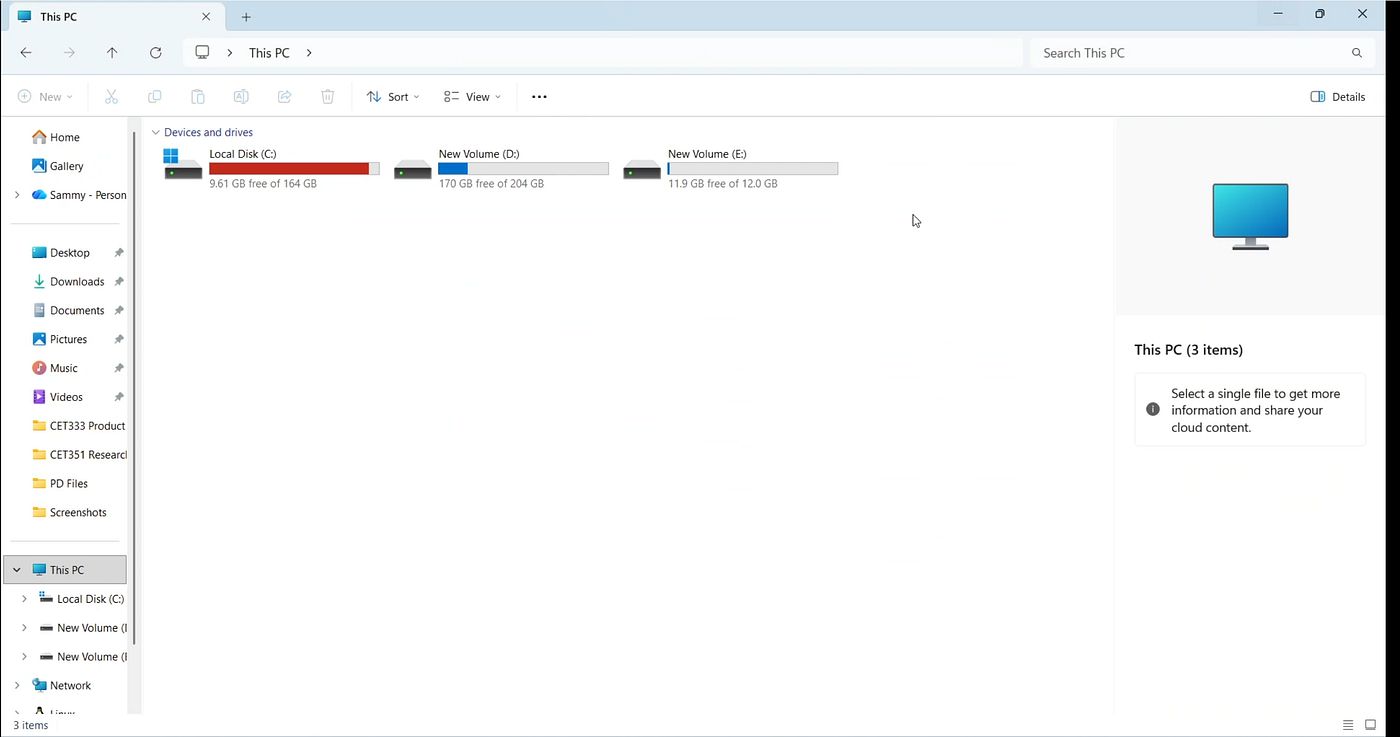
Many Windows users discover that their C drive is running out of storage while another partition still has plenty of free space.
Most Windows 11 users encounter the same frustrating problem sooner or later.
- The C drive starts turning red.
- Windows updates complain about low storage.
- Applications refuse to install.
- Games require more disk space than you have available.
Everything points to one conclusion:
Your C drive is almost full.
But then you open File Explorer and notice something confusing.
- Your D drive still has hundreds of gigabytes available.
- At first glance, the solution seems obvious.
- Why not simply move some of that free space from D: to C:?
Unfortunately, Windows doesn’t work that way.
The reason lies in how partitions are structured behind the scenes — and understanding this single concept can save you hours of frustration.
The Part Most Windows Users Never See
When you open File Explorer, your drives appear as separate storage locations.
You might see:
- Local Disk (C:)
- New Volume (D:)
- Recovery Partition
They look like independent drives, but in many computers they’re actually sections of the same physical SSD or hard drive.
Think of your storage drive as a long strip of land.
When Windows is installed, that land gets divided into separate plots called partitions.
Each partition receives its own drive letter and functions independently.
The important thing is that Windows cares about where those partitions physically sit on the drive not just how they appear inside File Explorer.
And that’s where most storage problems begin.
The Windows Rule That Confuses Everyone
Windows 11 follows a surprisingly strict rule when extending partitions.
A partition can only be expanded into Unallocated Space that exists immediately to its right.
This single rule explains why many users find that the Extend Volume option is unavailable.

Windows can only extend a partition into adjacent Unallocated Space.
Here’s the same concept in a simple disk layout:
This Works
|--- EFI ---|--- C: Drive ---|--- Unallocated Space ---|Because the empty space is directly beside the E drive, Windows can extend it.
This Does Not Work
|--- EFI ---|--- C: Drive ---|--- D: Drive ---|--- Unallocated Space ---|Even though free space exists on the drive, Windows cannot use it because the D drive blocks access.
Windows cannot simply jump over another partition.
As a result, the Extend Volume option remains grayed out.
How to Check Your Own Disk Layout
Fortunately, Windows includes a built-in tool that lets you see exactly how your storage is organized.
Press Windows + R and type:
diskmgmt.mscThen press Enter.
This opens Disk Management.

Disk Management shows the physical layout of partitions on your storage drive.
At the bottom of the window, you’ll see a graphical map of your storage devices.
Look for three things:
- Your C: drive
- Any partition immediately beside it
- Unallocated Space
If Unallocated Space already exists directly to the right of the C drive, you’re in luck.
The fix will take less than a minute.
If another partition sits between them, you’ll need an additional step.

Gray out version of the Extend Volume option
Why “Extend Volume” Is Grayed Out
The most common reason is simple.
The required Unallocated Space is not directly adjacent to the C drive.
Even though free space exists, Windows cannot use it because the Recovery Partition is blocking access.
This is not a storage problem.
It’s a partition layout problem.
The Limitation of Windows 11’s Built-In Tools
Windows Disk Management can:
- Create partitions
- Delete partitions
- Format partitions
- Extend partitions
But it cannot move partitions.
That means Windows has no built-in way to slide the D drive somewhere else to make room for the C drive.
To create usable Unallocated Space using native Windows tools, you typically need to remove the partition that is blocking access.
And that’s where the most important warning comes in.
Before You Delete Anything
Deleting a partition is not the same as deleting a file or folder.
When a partition is deleted, everything stored inside it disappears.
Before making any changes:
- Back up important files.
- Verify that the backup completed successfully.
- Double-check that nothing important remains on the partition.
A few minutes of preparation can prevent hours of data recovery work later.
How to Extend the C Drive in Windows 11
If Unallocated Space already exists beside your C drive, extending it is straightforward.
- Open Disk Management.
- Right-click the C: partition.
- Select Extend Volume.
- Click Next.
- Confirm the amount of space to add.
- Click Finish.

Deleting the Recovery Partition using the command prompt

Deleted the recovery Partition

Unallocated Spaces on right side of the C volume

The Extend Volume option becomes available when adjacent Unallocated Space exists.
Windows will immediately merge the available space into the C drive.

After Expansion of the volume size
No reinstall is required.
No system reset is necessary.
Your files on the C drive remain untouched.
But here in this case the Recovery Volume is deleted so we’ll have to manually setup and let the windows know where the recovery volume is.
Can You Extend the C Drive Without Deleting the D Drive?
Yes — but not with Windows Disk Management alone.
If your layout looks like this:
|--- C: ---|--- D: ---|--- Unallocated Space ---|Windows cannot move the D drive.
Many users instead use third-party partition management software that can relocate partitions without deleting them.
Even then, creating a backup beforehand is strongly recommended.
Any operation that changes partition structures carries some level of risk.
Frequently Asked Questions
Why is my C drive full while my D drive has plenty of space?
Because C: and D: are separate partitions. Free space on one partition cannot automatically be used by another.
Will extending my C drive delete Windows?
No. Extending a partition does not reinstall or remove Windows.
Will extending the C drive delete my files?
No. Extending the C drive itself does not erase files. However, deleting another partition to create Unallocated Space will remove the data stored on that partition.
Can I extend the C drive on an SSD?
Yes. The process is the same for SSDs and traditional hard drives.
Does extending the C drive improve performance?
Not directly. However, maintaining sufficient free space can help Windows updates, temporary files, and applications run more efficiently.
Final Thoughts

Once the partition is extended, Windows immediately adds the available space to the C drive.
Most storage problems aren’t caused by a lack of disk space.
They’re caused by a misunderstanding of how Windows partitions work.
Once you understand that Windows can only extend a partition into adjacent Unallocated Space, the behavior of Disk Management suddenly makes much more sense.
The next time you see a nearly full C drive and a mostly empty D drive, you’ll know exactly why Windows won’t let you combine the space — and what options are available to fix it safely.
A few minutes spent understanding partitions today can save hours of frustration tomorrow.
Tags: Windows 11, Tech Tips, Disk Management, Storage, PC Maintenance
SEO Keywords: extend C drive Windows 11, extend volume grayed out, Windows 11 disk management, increase C drive size, unallocated space, partition management, C drive full D drive empty
메타데이터
- post_id
- 100fe6c5e2ae
- slug
- why-your-c-drive-is-full-even-though-your-d-drive-has-free-space-100fe6c5e2ae
- url
- https://medium.com/@biplove.y/why-your-c-drive-is-full-even-though-your-d-drive-has-free-space-100fe6c5e2ae
- canonical_url
- https://medium.com/@biplove.y/why-your-c-drive-is-full-even-though-your-d-drive-has-free-space-100fe6c5e2ae
- author_url
- https://medium.com/@biplove.y
- status
- ok
- fetched_at
- 2026-07-13 09:45:54