Segments in Data 360
Use the Segmentation to breakdown the data into useful segment to understand target and analyze our customers.
Segments in Data 360
Use the Segmentation to breakdown the data into useful segment to understand target and analyze our customers.
What is Segmentation in Data 360?
Use the Segmentation to breakdown the data into useful segment to understand target and analyze our customers.
It is built on Data Model Objects(DMO)
⚠️ Composite Key Limitations
- Segment canvas supports only single-field joins
- Composite keys are not supported
- This leads to: Incorrect joins, Wrong population counts
- Best practice: Use single unique primary key Or handle joins using SQL/ Calculated Insights.
Example
👉 If an order is uniquely identified by CustomerID + ProductID, but Data Cloud uses only CustomerID, it may wrongly group multiple orders and give incorrect segment counts.
💡 One-Line Understanding:
👉 When one field is not enough to uniquely identify a record, we combine multiple fields — that combination is called a composite key
- Single key = One field
- Composite key = Multiple fields together
🛠️ Steps to Create a Standard Segment
Basic Flow
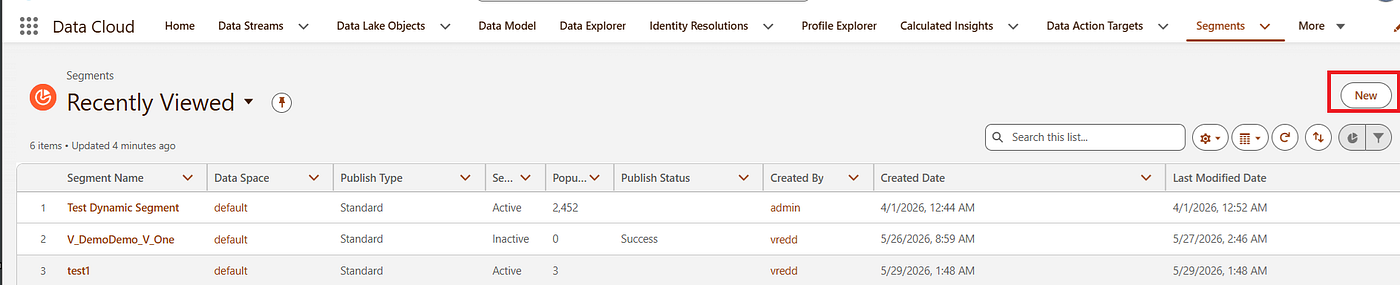
- Go to Segment → New
- Select Visual Builder
- Choose Standard Segment (Create a segment based on a data model object and its related objects and insights.) and Next
- Select the data space and Segment On (select the DMO that want to build segment).
- Set Lookback Window for segment.


Click on Next.

We have 2 Publish Types
- Standard Publish : Use the last 2 years of engagement data in segmentation rules and publish to any activation target.
- Rapid Publish : Use the last 7 days of engagement data in segmentation rules and publish to Marketing Cloud more frequently.
We have 2 Publish Schedule:
- Do Not Schedule
- Schedule

End has Never and At a time.
Note: If selected day doesn’t exist in that month → segment publish is skipped
Lookback Window
👉 Lookback Window = Time range of data used to build your segment
Lookback Window defines how far back Data Cloud should look into your data to evaluate segment rules
Lookback Window defines how far back Data Cloud should look into your data to evaluate segment rules
Example:
We want to create the segment, scenario as
Customers who purchased in last 30 days👉 If Lookback Window = 90 days
- Data Cloud checks last 90 days of data
- But your filter uses 30 days
✅ Final result = 30 days data (filter overrides)
Key points
- Default Value : Usually 90 days
- Maximum Range : Up to 2 years or 360 days (depending org settings)
- It will works with All segments which has Standard Segment, Rapid Segment, Waterfall ( indirect via child segments).
Common Mistakes
❌ Setting very large lookback unnecessarily 👉 Causes performance issues
❌ Expecting full data but filter reduces it 👉 Always check filter vs lookback
❌ Not aligning with business requirement 👉 Example: Campaign for “last 7 days” but lookback = 2 years
Best Practices
✔ Use minimum required time range ✔ Align with business use case ✔ Always validate with Preview ✔ Tune for performance (especially rapid segments)

Note : maximum number of segments that you can have in Salesforce is 9,950.
Segment On
It defines what entity you are segmenting
Example: Individual, Household, Order, Account
It controls:
- Available attributes in Attribute Library
- Type of data you can filter (profile, behavior, transactions)
🧩 Common Segment On Options
- Unified Individual (Recommended)
- Individual
- Unified Household
- Account / Orders / Reservations
⭐ Unified Individual vs Individual
✅ Unified Individual (Best Practice)
- Uses Identity Resolution
- Combines data from multiple sources
- Gives single unified customer view
- Enables:
- Profile + Behavioral + Transactional segmentation
❌ Individual
- No identity resolution
- Works on single source data
- May cause: Duplicate records / Missing customers
⚠️ Important Note
👉 Using Individual instead of Unified Individual may result in:
- ❌ Duplicate counts
- ❌ Skipped profiles
Segment Membership Data Model Object
👉 Whenever you publish a segment, Data Cloud automatically creates or updates a Segment Membership DMO
👉 This stores: ✅ Which profiles belong to that segment
segment
Segment Membership DMO = Table that stores segment results (who is included)
Types of Segment Membership:
- Latest (Current Data)
- Stores current segment members
- Updated after every publish
Individual_SM__dlm👉 Shows: ✅ Latest profile IDs in segment
- History (Past Data)
- Stores previous segment members (last 30 days)
Individual_SMH__dlm👉 Used to:
- Track changes
- Compare segment versions
🔍 How You Can Use It
You can interact with membership data using:
- ✅ Data Explorer → verify segment results
- ✅ Tableau → dashboards & insights
- ✅ SOQL / APIs → query segment members
Segment = Logic (rules) Segment Membership DMO = Output (who qualified)
🎯 Segment Membership DMO — Object Level

📊 Segment Membership DMO — Field Level

🔄 Special Field (History Only)

✅ Delta Type Values

View Segment Members in Data Explorer
After publishing your segment in Data 360, you can validate the segment membership in Data Explorer.
- Let validate the segments in Data Explorer, Go to Data Explorer
- Select the DMO Object and enter the DMO name which used in segments, here you enter “Individual” and select the Latest or History to view it.

Select the “Unified Individual — History” and enter
Result :

Query Data in Data Model using Tableau
Download your segment membership data in Data 360 and then analyze in Tableau.
- In Data Cloud, Click Data Model.
- Check the box next to your DMO table (Unified Individual or Individual)

- Click on Download Tableau Data Source File”
Query Data using SOQL
- In Data Cloud, Click on Data Explorer
- From the Object drop down select the DMO
- Click Copy SOQL, and click copy
- paste in Query Editor Workspace and run it.

Edit Segment
- Use Edit Rules/ Edit Properties
- If we can’t able to edit then, segment is created via API (limited actions)
Delete Segment
- Cannot re-enable after delete
- Even if restored: No edit, No delete again 👉 Must re-create segment
- If linked to activation → delete activation first
🚫 Deactivate
- Stops publishing
- Cannot use in activation
- ❌ Cannot re-enable 👉 If mistakenly deactivated → recreate
⚡ 1. Real-Time Segment
- Runs instantly (milliseconds)
- Uses real-time data graph
- ❌ No exclusion filters
- ❌ No manual publish or count 📌 Used for: real-time decisions (e.g., website personalization)
🪜 2. Waterfall Segment
- Uses multiple segments with priority order
- Ensures user belongs to only one segment (highest priority) 📌 Used for: multi-offer campaigns (no duplicates)
🔄 3. Dynamic Segment
- Runs on-demand (runtime)
- ❌ No data stored (no membership DMO)
- ❌ No schedule or publish from UI
- ✅ Trigger via API / flow 📌 Used for: API-based real-time queries
📦 4. Data Kit Segment
- Uses predefined templates
- You can edit and customize 📌 Used for: quick setup (no need to build from scratch)

🔗 Relationships (in Data Cloud Attribute Library)
- Objects (like Customer, Order) can have multiple relationships with other objects.
- If the same object is related multiple times → system shows object name + field name to avoid confusion.
- If an object relates to itself (nested) → shown only once.
✅ Important:
- Relationships depend on Match & Reconciliation Rules
- These rules create derived relationships between: Individual DMO, Unified Individual DMO
- These derived paths are visible and usable in segmentation.
⚠️ Case Sensitivity Rules
- Data linking is case-sensitive (strict matching)
- Example:
c12d3≠C12D3→ ❌ No match - So always ensure exact value matching for joins.
📌 Direct Attributes (Simple Fields)
- Single value per record
- Mostly demographic data
Examples:
- First Name
- Birthday
Relationship Types:
- 1:1 : One customer → one first name
- N:1: Many Orders → One Customer, Many Employees → One Department
🔄 Related Attributes (Behavior Data)
- Collection of multiple records/events linked to an entity
- Mostly behavioral/interaction data
Examples:
- Purchase history
- Products bought
- Email interactions
🎯 Value Matching Rules
- Queries are:
- ✅ Case-insensitive (canon = Canon)
- ❌ Accent-sensitive (Canon ≠ Cañon)
- ✅ Exact type matching required
Examples:
"0852"≠852- Special characters must match exactly
📊 Segment Count
- Shows number of matching profiles (e.g., Individuals)
Key Points:
1.Excludes:
- Deleted profiles
- “Restrict processing” profiles
Types of Counts:
- Segment Count → Total matched audience
- Filter-level Count → Count per condition
- Container-level Count → Count based on related data group
👉 You must click “Calculate Population” to see counts.

Note: Limitation : Max 50 filters per tab and Max 100 attributes per segment
🚫 Dynamic Segment Limitation
- If parameterized values are used:
- Segment count → ❌ Not available
- Population → Empty
🔑 Primary Key vs Foreign Key
- Primary Key → Unique ID (e.g., Customer ID)
- Foreign Key → Used to link tables
Important:
- These fields don’t appear in segmentation UI
✅ Workaround:
- Create a custom attribute (not marked as PK/FK)
- Use it inside segmentation
Resources:
메타데이터
- post_id
- 10eb83e4cf8d
- slug
- segments-in-data-360-10eb83e4cf8d
- url
- https://medium.com/@tumuvenkateswarareddy193/segments-in-data-360-10eb83e4cf8d
- canonical_url
- https://medium.com/@tumuvenkateswarareddy193/segments-in-data-360-10eb83e4cf8d
- author_url
- https://medium.com/@tumuvenkateswarareddy193
- status
- ok
- fetched_at
- 2026-06-21 07:44:09