Connecting GitHub to Snowflake
Snowflake can connect directly to GitHub, fetch repository files, and use those files inside Snowflake notebooks, worksheets, dbt projects…
Connecting GitHub to Snowflake
Photo by Sebastian Bednarek on Unsplash
Snowflake can connect directly to GitHub, fetch repository files, and use those files inside Snowflake notebooks, worksheets, dbt projects, and Snowflake Workspaces.
In this walkthrough, I will show how I connected GitHub to Snowflake for a FIFA World Cup analytics project. The project uses GitHub in two slightly different ways:
- A public GitHub repository as a data source:
openfootball/worldcup.json - A private project repository as a Snowflake Workspace:
snowflake-worldcup
The end result is a Snowflake workspace connected to GitHub, with working pull and pushcontrols inside the Snowflake UI.
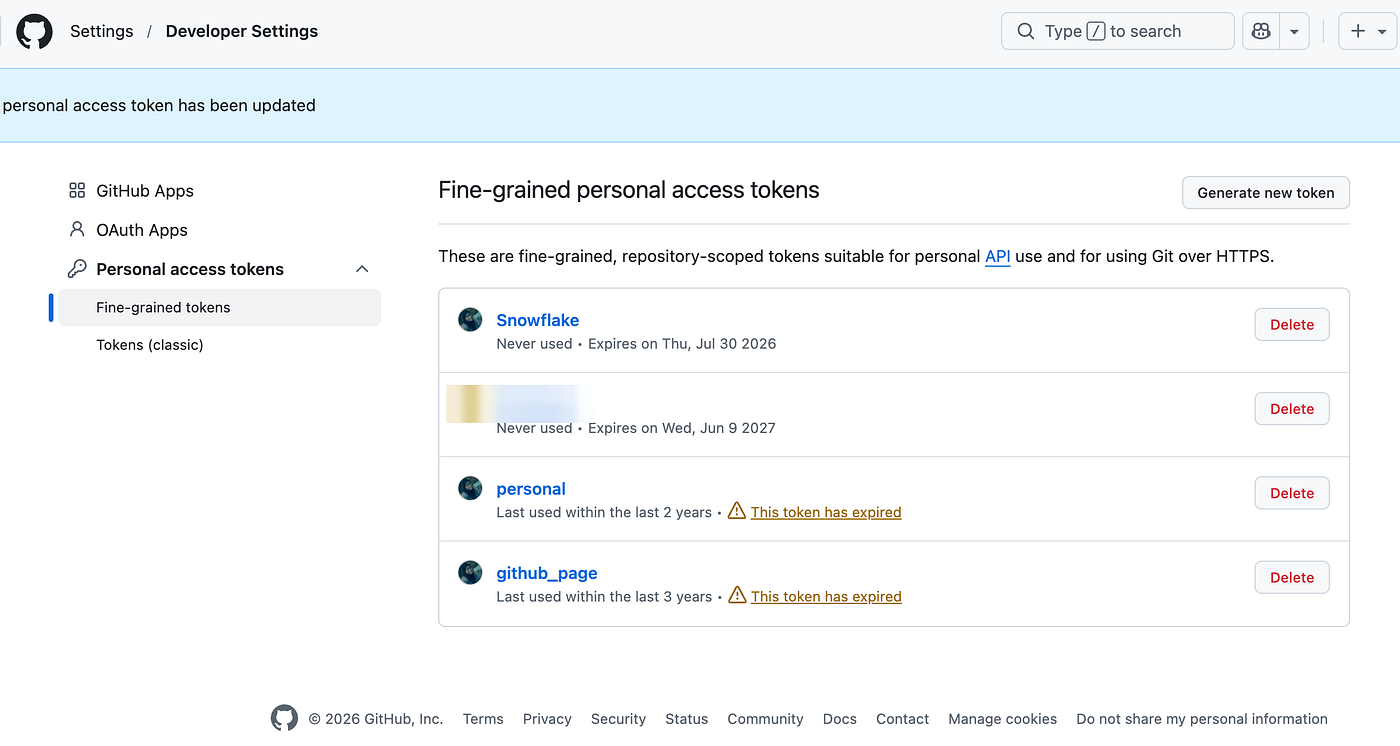
GitHub fine-grained token list
Why Connect GitHub to Snowflake?
For this project, GitHub is more than source control.
The raw World Cup JSON files live in the public openfootball/worldcup.jsonrepository. My Snowflake project code lives in a separate GitHub repository. Snowflake needs access to both:
- The public data repository, so a stored procedure can read tournament JSON files.
- The private project repository, so Snowflake Workspace can pull and push code.
That is why the setup creates two Git integrations.
Prerequisites
Before starting, you need:
- A Snowflake account
- The
ACCOUNTADMINrole, or another role allowed to create integrations and secrets - A GitHub repository
- A GitHub personal access token, if the repository is private
- A Snowflake warehouse
For my project, the main setup file is: *integrate_github.sql*
Run this in Snowsight, not from GitHub. This script creates a Snowflake secret that holds your GitHub personal access token. Run it directly in a Snowsight SQL worksheet, and keep only a placeholder (
<your-github-pat>) in any version of the file you commit. Never paste a real token into a file that lands in GitHub and remember the token is also written to Snowflake’s query history when the secret is created, so treat that account accordingly. The copy in this repo is a template with the secret blanked out on purpose.
Step 1: Create a Fine-Grained GitHub Token
In GitHub, go to:
Settings -> Developer settings -> Personal access tokens -> Fine-grained tokensCreate a new token and select only the repository Snowflake needs to access.
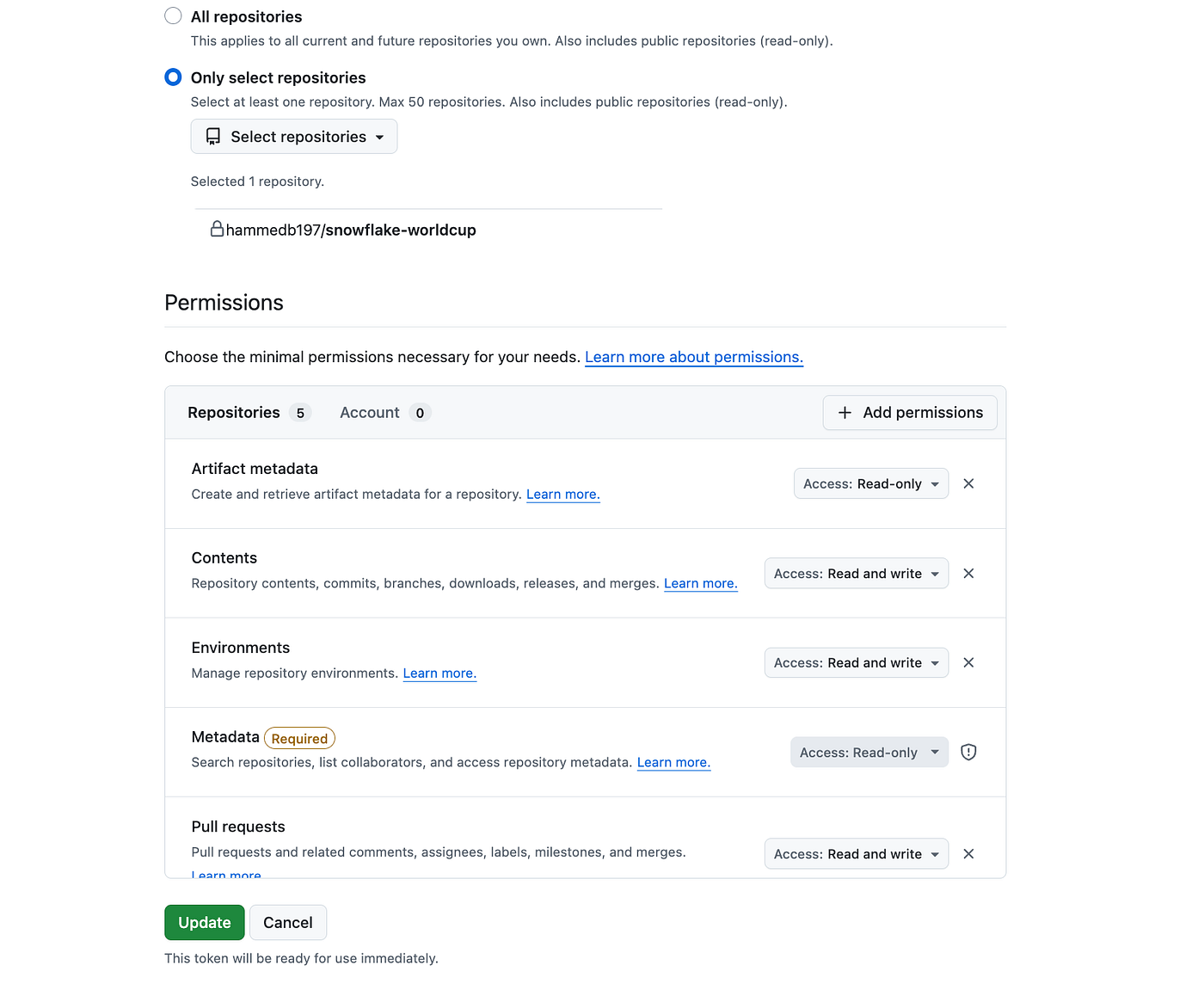
Selecting a repository and token permissions
For a read-only Snowflake Git repository connection, the most important repository permission is:
Contents: Read-onlyIf you want to push changes from Snowflake back to GitHub, use:
Contents: Read and writeGitHub automatically includes the required metadata permission.
Keep the token somewhere safe temporarily. You will paste it into Snowflake as a secret, but you should not commit the token to GitHub.
Step 2: Use ACCOUNTADMIN in Snowflake
Git repository integrations are account-level objects, so I run this setup with ACCOUNTADMIN:
USE ROLE ACCOUNTADMIN;The script also creates a shared database and schema for the Git objects:
CREATE DATABASE IF NOT EXISTS WAREHOUSE;
CREATE SCHEMA IF NOT EXISTS WAREHOUSE.SHARED;
You can choose different names, but I like keeping shared infrastructure objects in one predictable schema.
Step 3: Connect Snowflake to the Public GitHub Data Repository
The first integration connects Snowflake to the public World Cup JSON repository.
Because this repository is public, it does not need a GitHub personal access token.
CREATE OR REPLACE API INTEGRATION WORLD_CUP_JSON_GIT_API_INTEGRATION
API_PROVIDER = git_https_api
API_ALLOWED_PREFIXES = ('https://github.com/openfootball')
ENABLED = TRUE;
The important setting here is:
API_ALLOWED_PREFIXES = (‘https://github.com/openfootball')This limits the integration to GitHub URLs under the openfootball organization.
Next, create the Git repository object:
CREATE OR REPLACE GIT REPOSITORY WAREHOUSE.SHARED.WORLD_CUP_JSON_REPO
API_INTEGRATION = WORLD_CUP_JSON_GIT_API_INTEGRATION
ORIGIN = 'https://github.com/openfootball/worldcup.json.git';
Then fetch the repository:
ALTER GIT REPOSITORY WAREHOUSE.SHARED.WORLD_CUP_JSON_REPO FETCH;At this point, Snowflake can see the files from the public GitHub repository.
Step 4: Store the GitHub Token as a Snowflake Secret
For a private GitHub repository, Snowflake needs credentials. In this project, I store the token as a Snowflake secret:
CREATE OR REPLACE SECRET WAREHOUSE.SHARED.GITHUB_PAT
TYPE = PASSWORD
USERNAME = 'git'
PASSWORD = '<your-github-pat>';
Replace <your-github-pat>with your actual token.
The username can be git. The token goes in the password field. Do not commit a real token to your repository. In the committed SQL file, keep only a placeholder.
Step 5: Create the Private Repository API Integration
Now create the API integration for your private project repository:
CREATE OR REPLACE API INTEGRATION SNOWFLAKE_WORLDCUP_GIT_API_INTEGRATION
API_PROVIDER = git_https_api
API_ALLOWED_PREFIXES = ('https://github.com/<username>')
ALLOWED_AUTHENTICATION_SECRETS = (WAREHOUSE.SHARED.GITHUB_PAT)
ENABLED = TRUE;
Replace: <username>with your GitHub username or organization.
Two settings matter here:
API_ALLOWED_PREFIXES = (‘https://github.com/<username>')This controls which GitHub URLs Snowflake can access.
ALLOWED_AUTHENTICATION_SECRETS = (WAREHOUSE.SHARED.GITHUB_PAT)This tells Snowflake which secret is allowed to authenticate requests through the integration.
Step 6: Create the Snowflake Git Repository Object
Next, create the repository object that points to your project repo:
CREATE OR REPLACE GIT REPOSITORY WAREHOUSE.SHARED.SNOWFLAKE_WORLDCUP_REPO
API_INTEGRATION = SNOWFLAKE_WORLDCUP_GIT_API_INTEGRATION
GIT_CREDENTIALS = WAREHOUSE.SHARED.GITHUB_PAT
ORIGIN = 'https://github.com/<username>/snowflake-worldcup.git';
Then fetch it:
ALTER GIT REPOSITORY WAREHOUSE.SHARED.SNOWFLAKE_WORLDCUP_REPO FETCH;If the token and repository URL are correct, the fetch should succeed.
Full Setup Script
Here is the complete version of the setup pattern:
USE ROLE ACCOUNTADMIN;
CREATE DATABASE IF NOT EXISTS WAREHOUSE;
CREATE SCHEMA IF NOT EXISTS WAREHOUSE.SHARED;

CREATE OR REPLACE API INTEGRATION WORLD_CUP_JSON_GIT_API_INTEGRATION
API_PROVIDER = git_https_api
API_ALLOWED_PREFIXES = ('https://github.com/openfootball')
ENABLED = TRUE;

CREATE OR REPLACE GIT REPOSITORY WAREHOUSE.SHARED.WORLD_CUP_JSON_REPO
API_INTEGRATION = WORLD_CUP_JSON_GIT_API_INTEGRATION
ORIGIN = 'https://github.com/openfootball/worldcup.json.git';

ALTER GIT REPOSITORY WAREHOUSE.SHARED.WORLD_CUP_JSON_REPO FETCH;

CREATE OR REPLACE SECRET WAREHOUSE.SHARED.GITHUB_PAT
TYPE = PASSWORD
USERNAME = 'git'
PASSWORD = '<your-github-pat>';

CREATE OR REPLACE API INTEGRATION SNOWFLAKE_WORLDCUP_GIT_API_INTEGRATION
API_PROVIDER = git_https_api
API_ALLOWED_PREFIXES = ('https://github.com/<username>')
ALLOWED_AUTHENTICATION_SECRETS = (WAREHOUSE.SHARED.GITHUB_PAT)
ENABLED = TRUE;

CREATE OR REPLACE GIT REPOSITORY WAREHOUSE.SHARED.SNOWFLAKE_WORLDCUP_REPO
API_INTEGRATION = SNOWFLAKE_WORLDCUP_GIT_API_INTEGRATION
GIT_CREDENTIALS = WAREHOUSE.SHARED.GITHUB_PAT
ORIGIN = 'https://github.com/<username>/snowflake-worldcup.git';

ALTER GIT REPOSITORY WAREHOUSE.SHARED.SNOWFLAKE_WORLDCUP_REPO FETCH;
Step 7: Import the Repository as a Snowflake Workspace
After the Git repository object is created and fetched, you can import the repository into Snowflake as a Workspace.

In Snowflake, go to:
Projects -> Workspaces -> From Git repositoryChoose the Git repository you created and select the branch you want to use.
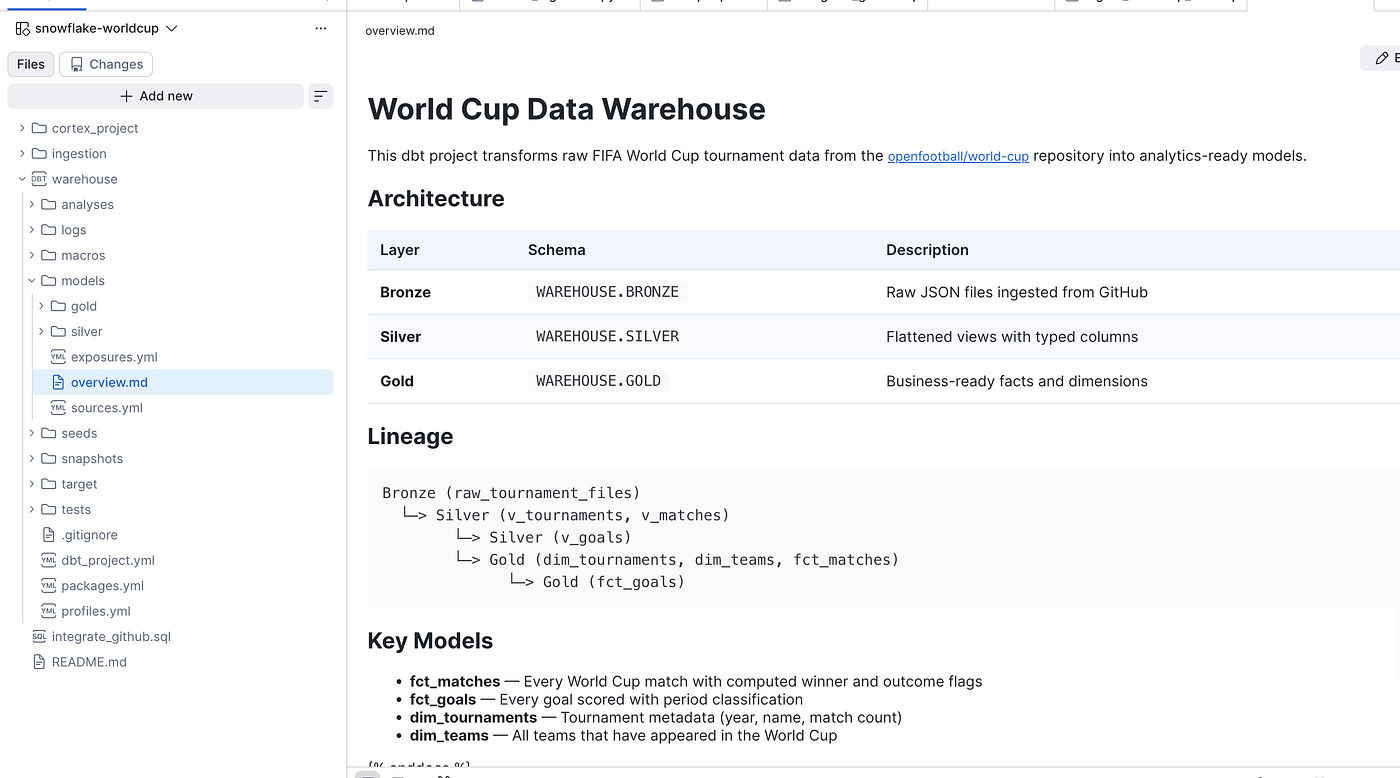
In my case, the workspace is connected to the snowflake-worldcup repository.
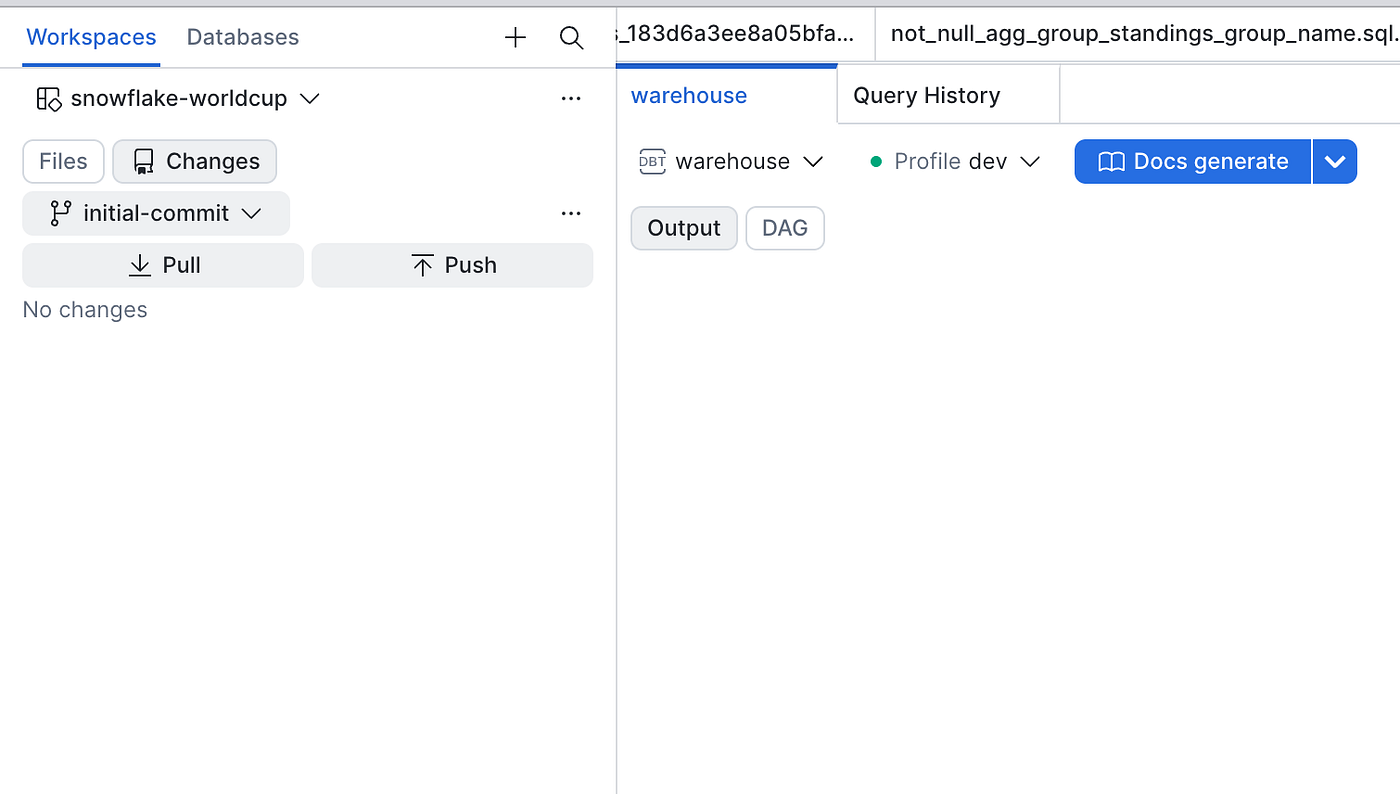
Snowflake Workspace connected to GitHub
Once imported, Snowflake shows Git controls inside the workspace:
pullbrings in changes from GitHub.pushsends local workspace changes back to GitHub.Changesshows modified files.- The branch selector lets you switch branches.
After GitHub is connected, the rest of the project can run from Snowflake:
Troubleshooting
If ALTER GIT REPOSITORY … FEATCH fails, check these things first.
- The token does not have access to the repo, make sure the fine-grained token is scoped to the repository you selected.
For pull-only access: Contents: Read-only
For pull and push access: Contents: Read and write
- The allowed prefix is too narrow or incorrect
This must match the GitHub URL you are trying to use:
API_ALLOWED_PREFIXES = (‘https://github.com/<username>')If your repository is under an organization, use the organization name instead of your personal username.
- The repository URL is wrong
Use the HTTPS clone URL: https://github.com/<username>/<repo>.git
- The secret was not allowed in the API integration
For private repositories, your API integration must include:
ALLOWED_AUTHENTICATION_SECRETS = (WAREHOUSE.SHARED.GITHUB_PAT)References
- Snowflake Git repository SQL commands: https://docs.snowflake.com/en/sql-reference/sql/create-git-repository
- Snowflake API integrations for Git: https://docs.snowflake.com/en/sql-reference/sql/create-api-integration
- Snowflake secrets: https://docs.snowflake.com/en/sql-reference/sql/create-secret
- GitHub fine-grained personal access tokens: https://docs.github.com/en/authentication/keeping-your-account-and-data-secure/managing-your-personal-access-tokens
메타데이터
- post_id
- 10ed0bc8a5b8
- slug
- connecting-github-to-snowflake-10ed0bc8a5b8
- url
- https://medium.com/snowflake/connecting-github-to-snowflake-10ed0bc8a5b8
- canonical_url
- https://medium.com/snowflake/connecting-github-to-snowflake-10ed0bc8a5b8
- author_url
- https://medium.com/@h_bushroh
- status
- ok
- fetched_at
- 2026-07-17 18:43:00