Add Lives with a Health Collectible
We’re progressing with our Powerups in our 2D Galaxy Shooter Game. Our next Powerup we’ll create is one for adding a Life back to our…
Add Lives with a Health Collectible
We’re progressing with our Powerups in our 2D Galaxy Shooter Game. Our next Powerup we’ll create is one for adding a Life back to our Player after receiving Damage.
We’ll start with asset creation. I like to ensure I use PNG files for animated frames as they support transparency. We also want to ensure our Sprites are of a dimension where the values are divisible by 4 for cleaner resizing for different screen sizes.

You can use any app you wish for asset creation. I like to ensure my frames have the necessary Alpha channel and transparency with a quick, portable app called PhotoFiltre (http://photofiltre.free.fr/download_en.htm) which also has the ability to make the background of my Sprite frames transparent if need be.

Once our edits are complete, we’ll add them to the Asset hierarchy in a subfolder named Health that resides within our Power_Ups folder.

We’ll create a new 2D Sprite GameObject within the Game Hierarchy for the Health Collectible.

If for any reason the transparency of our frames is not displaying, we can easily adjust the settings within Unity. We select all the images and ensure the following:
- Texture Type is set to Sprite (2D and UI)
- Alpha Is Transparency is turned ON
Click Apply to make changes.

We’ll create our animation as we have done in the past, previewing it before proceeding. We’ll add the necessary components and script to complete the Health collectible. Once that’s done, we’ll turn this GameObject into a Prefab, housing it within the Powerups prefab folder.

We’ll increase the size of the Powerups Elements within the Spawn Manager to “5”. We can then add our new Health Prefab to the additional space.

Now, let’s add our logic. We’ll increase the Random.Range value from 4 to 5 so that our application recognizes the new Powerup.

If the Player collects Health while still at 3 lives, we’ll end up with a game-breaking error. We’ll need to define the maximum amount of lives for our Health Collectible to work properly. By defining the maximum amount of lives, we’ll be able to make the collectible work only when it is supposed to.

Next, we’ll create the method that will add lives. The logic states the following:
- If the current _lives value is less than _maxlives, then we’ll gain one life and update the UI.
- We’ll ensure the Damage visuals are correct based on how many lives the Player has.

We’ll call the method created in the Player script within the Powerup script by adding a new case to our switch statement.

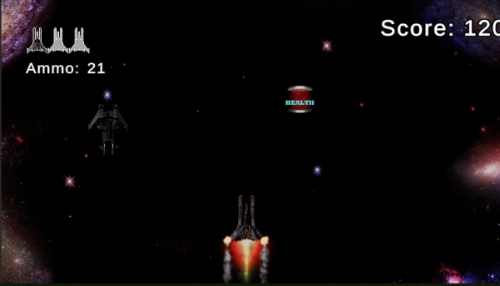
In this brief scene, we can see the Player is running into trouble, with plenty of Ammo, but only one Life remaining. The engines are flaming, and the Enemies continue to advance. Fortunately, our Player is able to grab a couple of Health Collectibles, repairing damage and continuing the quest. Up next, we’ll look at modifying our weapon choices beyond the Triple Shot. Can’t wait to see you then!
메타데이터
- post_id
- 10f2ed906d51
- slug
- add-lives-with-a-health-collectible-10f2ed906d51
- url
- https://medium.com/@stephdev/add-lives-with-a-health-collectible-10f2ed906d51
- canonical_url
- https://medium.com/@stephdev/add-lives-with-a-health-collectible-10f2ed906d51
- author_url
- https://medium.com/@stephdev
- status
- ok
- fetched_at
- 2026-08-15 10:21:01