How to Use Cosmostation Wallet to Burn ATONE and Mint PHOTON
Section 1: Introduction to Cosmostation Wallet
How to Use Cosmostation Wallet to Burn ATONE and Mint PHOTON
Section 1: Introduction to Cosmostation Wallet
- What Cosmostation wallet does:
Cosmostation is a non‑custodial wallet, giving users full ownership and responsibility over their assets. Every transaction is signed and controlled directly by the user.
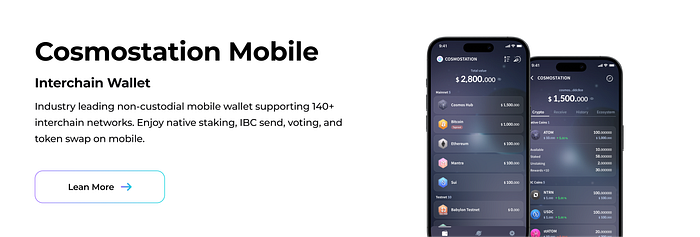
As a multi‑chain platform, it supports over 120 networks across the Cosmos, Ethereum, and Bitcoin ecosystems, offering a unified and intuitive way to explore Web3 and manage digital assets.
Designed for everyone from newcomers to experienced crypto users, Cosmostation provides a secure and user‑friendly environment for navigating multiple networks and engaging confidently with the decentralized world.
Section 2: How to Use Cosmostation Wallet
1. Installation
- iOS: APP Store
- Android: Google Play
2. Import a Wallet
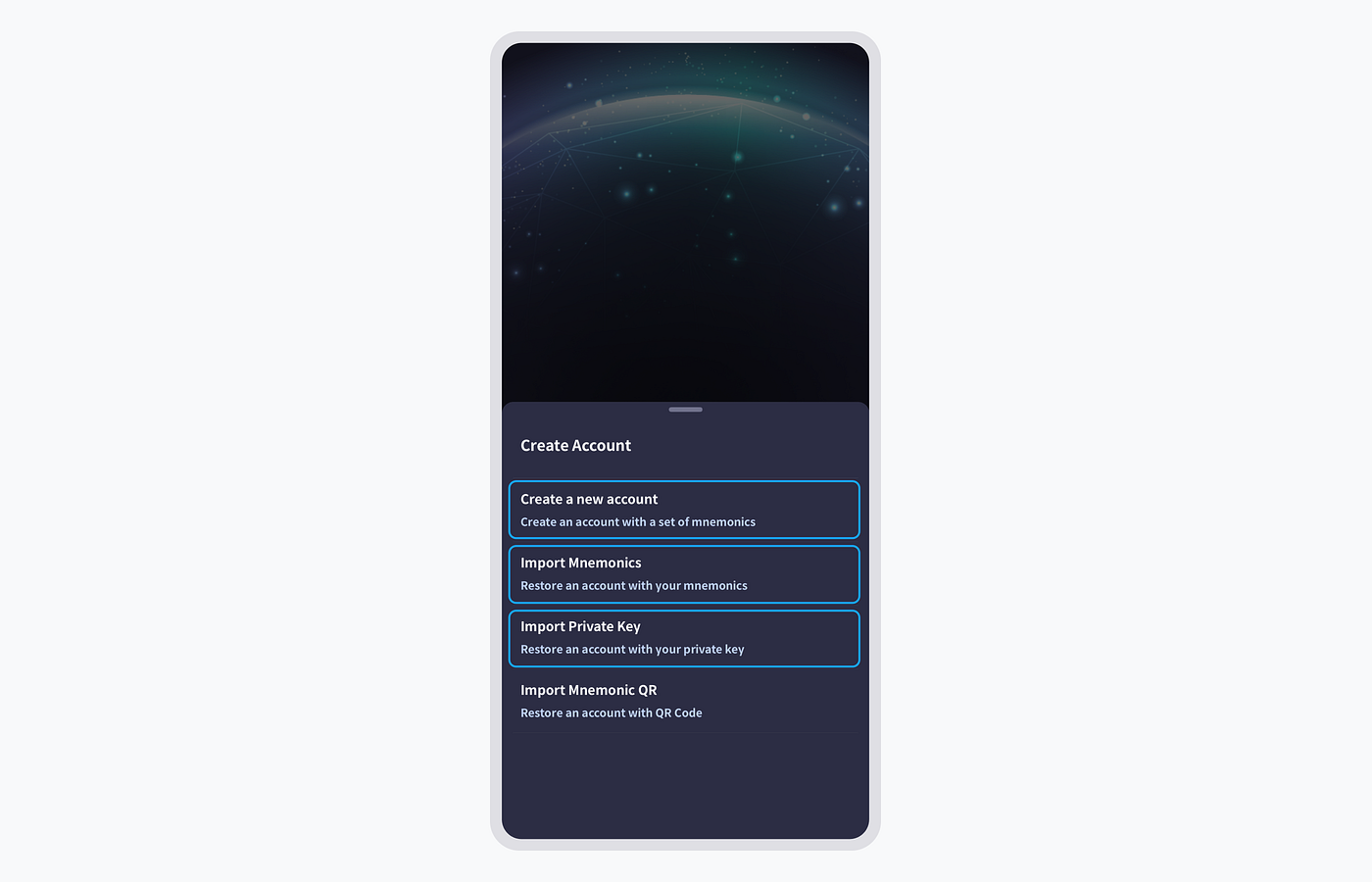
- If you have an existing wallet, you call restore it using the “Import Mnemonics” or “Import Private Key” option.
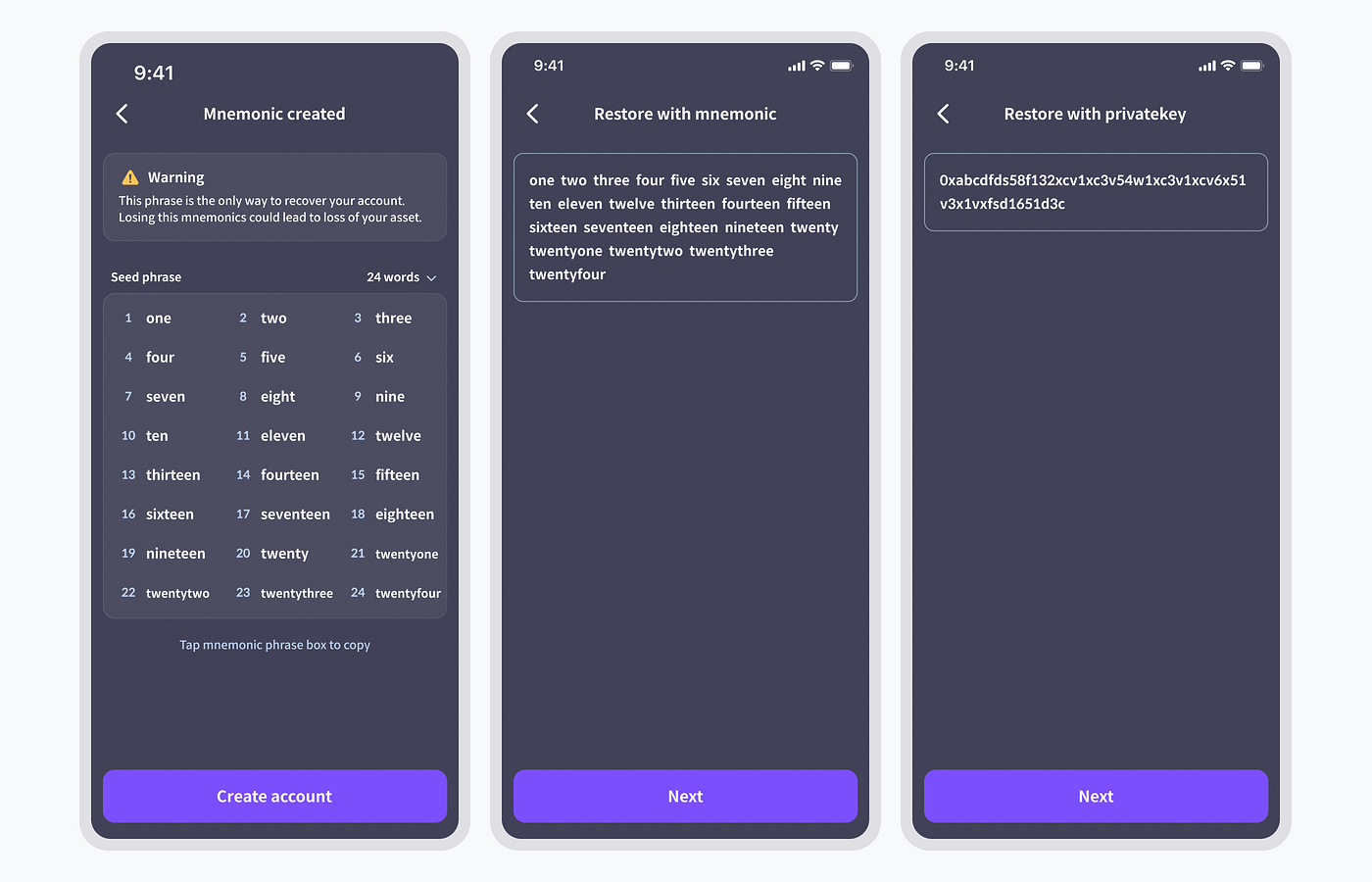
- If you’re setting up your wallet for the first time, or just curious about how to use it, check out our USER GUIDE.
3. Fund the Wallet
- How to deposit ATONE into Cosmostation wallet
You can acquire ATONE by trading on supported decentralized exchanges (DEXs) like Osmosis.
- DEX:
Simply connect your Cosmostation Wallet with the trading interface.
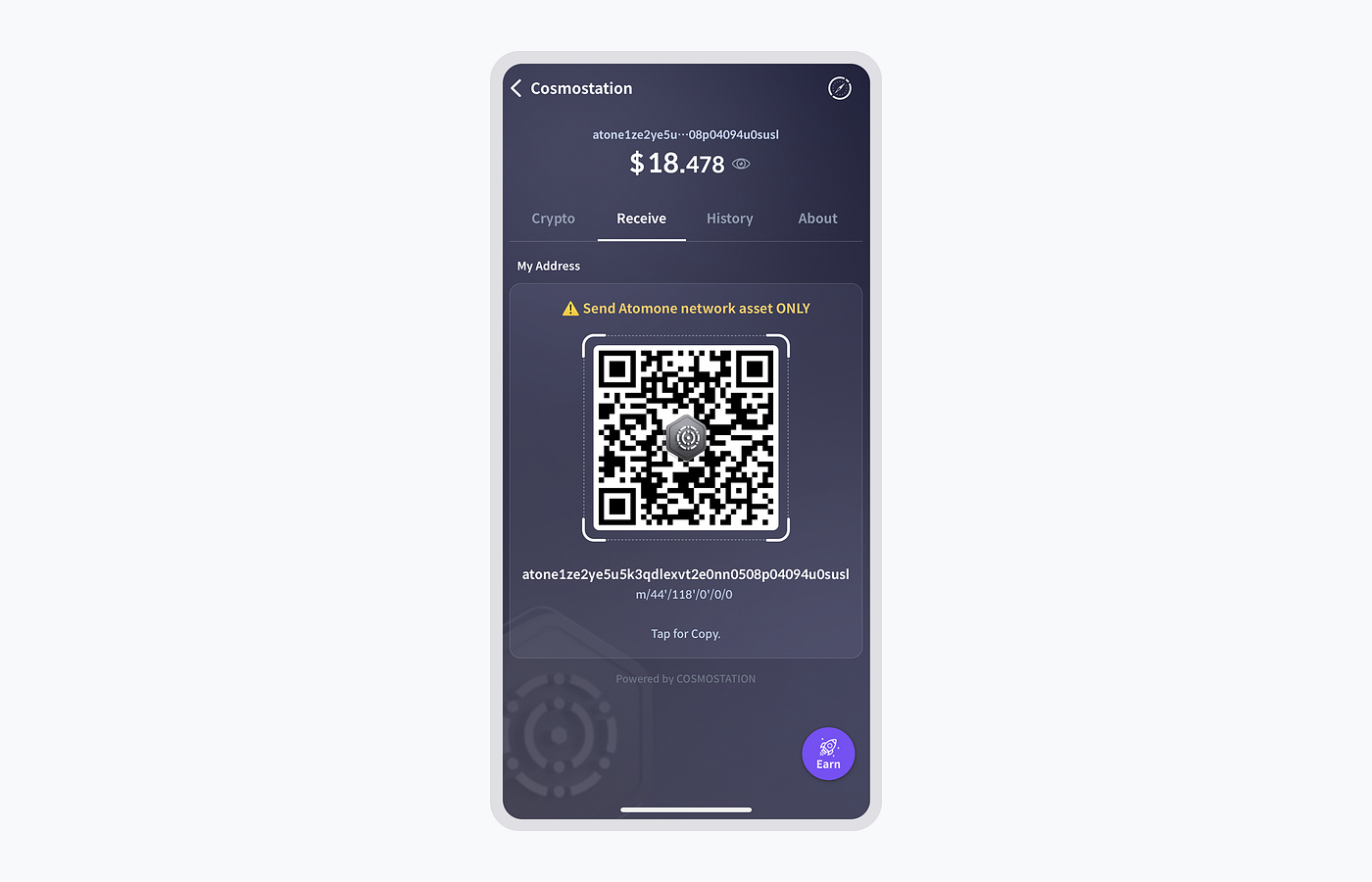
- How to find your ATONE address:
Simply tab “Receive” tab, you will find your ATONE address.
Section 3: Understanding AtomOne and the Dual-Token Mode
AtomOne was born out of a critical reassessment of ATOM’s original design philosophy — namely, that ATOM was intended solely as a staking token to secure the network, not as a store of value or medium of exchange. Over time, this purpose has been diluted. In response, Jae Kwon and other Atom 1.0 proponents launched AtomOne by forking Gaia, aiming to enhance hub security by separating token functionalities. One token dedicated to staking and network security, and another designated for payments and transaction fees.
For a deeper dive into AtomOne’s dual-token design, see our earlier article: The Dual-Token Model of AtomOne — A Return to the Original Cosmos Vision
According to the AtomOne Foundation, the community proposal to designate PHOTON as the sole fee token has already passed governance and been deployed on-chain. (See Proposal #10 on Mintscan.)
Section 4: The Roles of PHOTON
- Utility: Designed exclusively for fees and payments.
- Conversion Mechanism: One-way conversion from $ATONE to $PHOTON (burn-and-mint). Reversing this conversion is not allowed.
- Where to Use: Currently paid as transaction fees on AtomOne. In the future, PHOTON is expected to be used across ICS/VaaS shards and for IBC-based interactions.
Section 5: How to Burn ATONE and Mint PHOTON
-
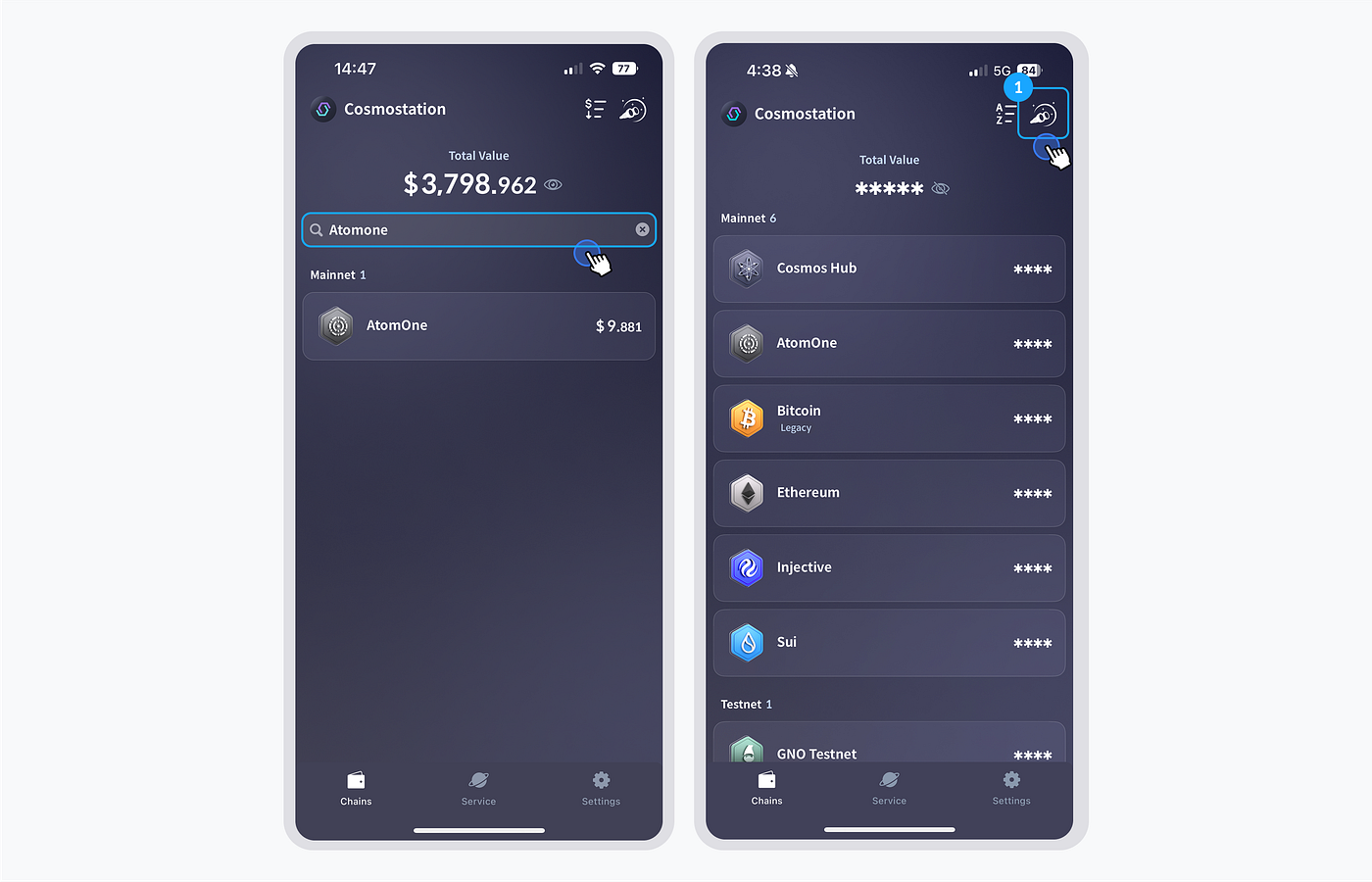
Go to the “Chains” tab and search for “AtomOne.”
-
If you don’t see AtomOne in the search results, tap the telescope icon in the top‑right corner and manually add it.
-
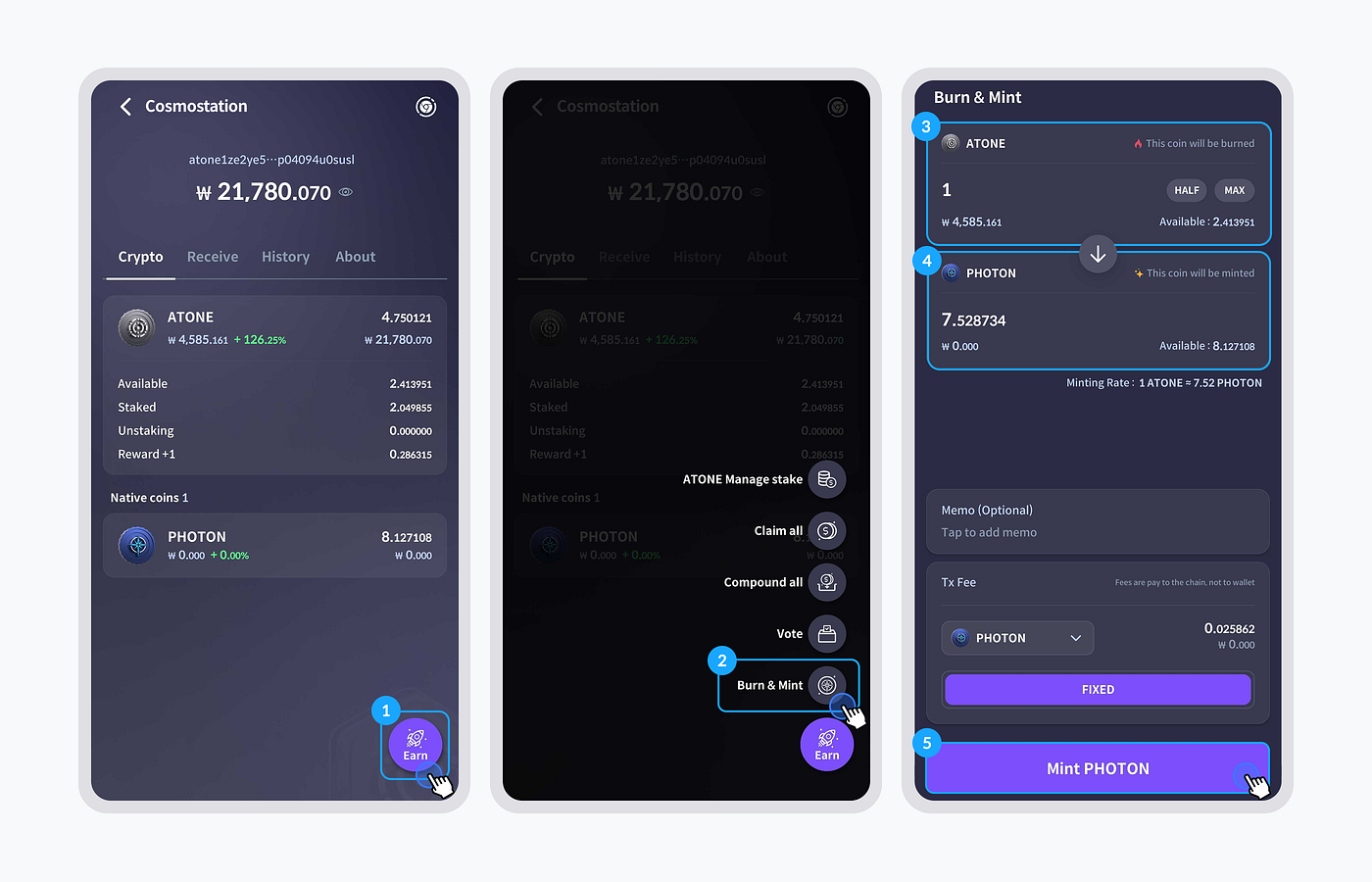
Click the purple “Earn” icon in the bottom right-hand side.
-
Click “Burn & Mint” button.
-
Enter the amount of ATONE to burn.
- The conversion ratio between ATONE and PHOTON is dynamic, determined by their respective supplies. For more details on how the conversion rate adjusts based on demand and supply, users can refer to the **ATONE–PHOTON Conversion Rate Simulator**.
- Click “Mint PHOTON” and confirm the transaction:
Approve the transaction using your wallet password (PIN code) or biometric authentication (Face ID for iOS, Fingerprint for Android).
Section 6. Mnemonic Backup and Security Reminders
If you are creating a new account on Cosmostation, your wallet will be secured with a mnemonic phrase consisting of 12, 18, or 24 words. This phrase is the only way to access and recover your wallet, so please make sure to back it up safely in an offline environment. Never share your mnemonic with anyone.
If you lose your mnemonic, you will permanently lose access to your wallet. Additionally, if someone else obtains it, they could steal your assets. Protect it at al costs.
Be cautious of phishing websites and fake browser extensions. Always verify that you’re visiting the official Cosmostation website and using legitimate services.
Please note that Cosmostation Wallet is a non-custodial wallet. This means your ATONE tokens and other assets are not stored by Cosmostation, but are managed entirely through your mnemonic (seed phrase). Cosmostation will never ask for your mnemonic. If you receive any such request, it is a scam — terminate the conversation immediately.
This guide provides a general overview of Cosmostation Wallet and how to burn ATONE and mint PHOTON using it. For the most up-to-date and accurate instructions, please refer to Cosmostation Wallet’s official support resources at support@cosmostation.io.
If you have any questions specifically related to the AtomOne chain, we recommend visiting the official AtomOne community channels for assistance.
About Cosmostation
Cosmostation has been a web3 infrastructure team contributing to more than 80 protocols since 2018. Our suite of products include Mintscan block explorer, Cosmostation non-custodial crypto wallet, and node validator service. At Cosmostation, we bootstrap networks and onboard end-users.
Links
Mintscan | Extension | Android | iOS | Web Wallet | Wallet Guide
메타데이터
- post_id
- 12e302bcf265
- slug
- how-to-use-cosmostation-wallet-to-burn-atone-and-mint-photon-12e302bcf265
- url
- https://medium.com/@mariano_1108TW/how-to-use-cosmostation-wallet-to-burn-atone-and-mint-photon-12e302bcf265
- canonical_url
- https://medium.com/@mariano_1108TW/how-to-use-cosmostation-wallet-to-burn-atone-and-mint-photon-12e302bcf265
- author_url
- https://medium.com/@mariano_1108TW
- status
- ok
- fetched_at
- 2026-07-17 02:55:38