I Tested 50+ Productivity Tools Over 2 Years (Only 7 Worked)
NotebookLM, Granola, Freedom, and 4 others that actually work when you are short on time and tired of building systems. Plus the popular…
I Tested 50+ Productivity Tools Over 2 Years (Only 7 Worked)
NotebookLM, Granola, Freedom, and 4 others that actually work when you are short on time and tired of building systems. Plus the popular tools I tested and deleted and exactly why.
I want to tell you something uncomfortable before we start.
The person most obsessed with productivity tools is usually the least productive person in the room.
I know this because I was that person for eighteen months. I had four task managers installed simultaneously. I spent three hours on a Sunday building a Notion system I stopped using by Wednesday. I bought a productivity book, used it as a coaster, and felt guilty about it for six weeks.
The best productivity tools are not the ones with the most features. They are the ones you actually use every single day without thinking about them. That is the standard I tested against.
Here is the honest report after two years of testing over 50 productivity tools. 88 percent failed. The 7 that survived are genuinely unusual. Some are free. Some cost less than a coffee per day. None of them are the tools every other article recommends.
What Are Productivity Tools and Why Most Definitions Miss the Point
Productivity tools are software or applications that remove specific friction points from your workflow without creating new ones.
That is the definition. Everything else is marketing.
Notice what is missing from that definition. There is no mention of features. No dashboards. No integrations. No automation. Just one question: does this tool remove friction or add it?
What are examples of productivity tools that actually pass this test? A research tool that synthesizes 8 documents in 5 minutes instead of 3 hours. A meeting notes app that writes up your meetings automatically so you leave calls with nothing unfinished. A calendar tool that protects your most important work time without you having to fight for it manually every morning.
What are examples of productivity software that fail this test despite being popular? Any tool that requires you to maintain it. Any platform where building the system takes more time than the system saves. Any application you spend more time configuring than actually using.
That distinction is what drove every decision in the two years of testing behind this article.
The 5 Filters Every Tool Had to Pass (With the Specific Moments That Created Each One)
Most productivity articles give you generic selection criteria. Here are mine, and the specific personal failure behind each one.
Filter 1: Still installed and used after 30 days
I created this filter after my Notion experience. I spent 4 hours on a Saturday building an elaborate research database. Color-coded. Linked. Tagged. I was genuinely proud of it. Nine days later I stopped opening it because maintaining the database was taking more time than the research it was supposed to help with. I now test every tool specifically on day 32, not day 7.
Filter 2: Works when I am tired
I created this filter after testing a project management tool that required me to think carefully before every input. Beautiful tool. Completely useless at 9pm on a deadline. I now test every tool specifically on late evenings and Monday mornings. If it requires peak mental condition to operate, it fails real-world conditions.
Filter 3: Solves exactly one problem extremely well
I created this filter after paying for an all-in-one workspace tool for six months. It had 47 features. I used four of them. The other 43 features created decision fatigue every time I opened the app. I now actively distrust tools that try to do everything.
Filter 4: Time saving is measurable within two weeks
I created this filter after using a “focus tool” for three weeks and feeling more productive without being able to point to a single specific output that was better or faster. Feeling productive and being productive are different things. I now track time before and after every tool introduction.
Filter 5: I would pay for it myself
This filter exists because I received free access to several tools for review purposes. Every time I had free access I noticed I was more generous in my assessment. Forcing myself to ask “would I pay for this with my own money” removed that bias immediately.
88 percent of the tools I tested failed at least one of these filters. Here are the 7 that passed all five.

Every tool had to pass all five. Most failed by filter two.
Tier 1: Best Productivity Tools for Research and Learning
1. NotebookLM
What it does
NotebookLM is Google’s free AI research assistant that works exclusively with documents, PDFs, URLs, and notes you upload rather than its general training data. You give it sources. It synthesizes, summarizes, and answers questions from those specific sources with citations showing exactly where each answer came from.
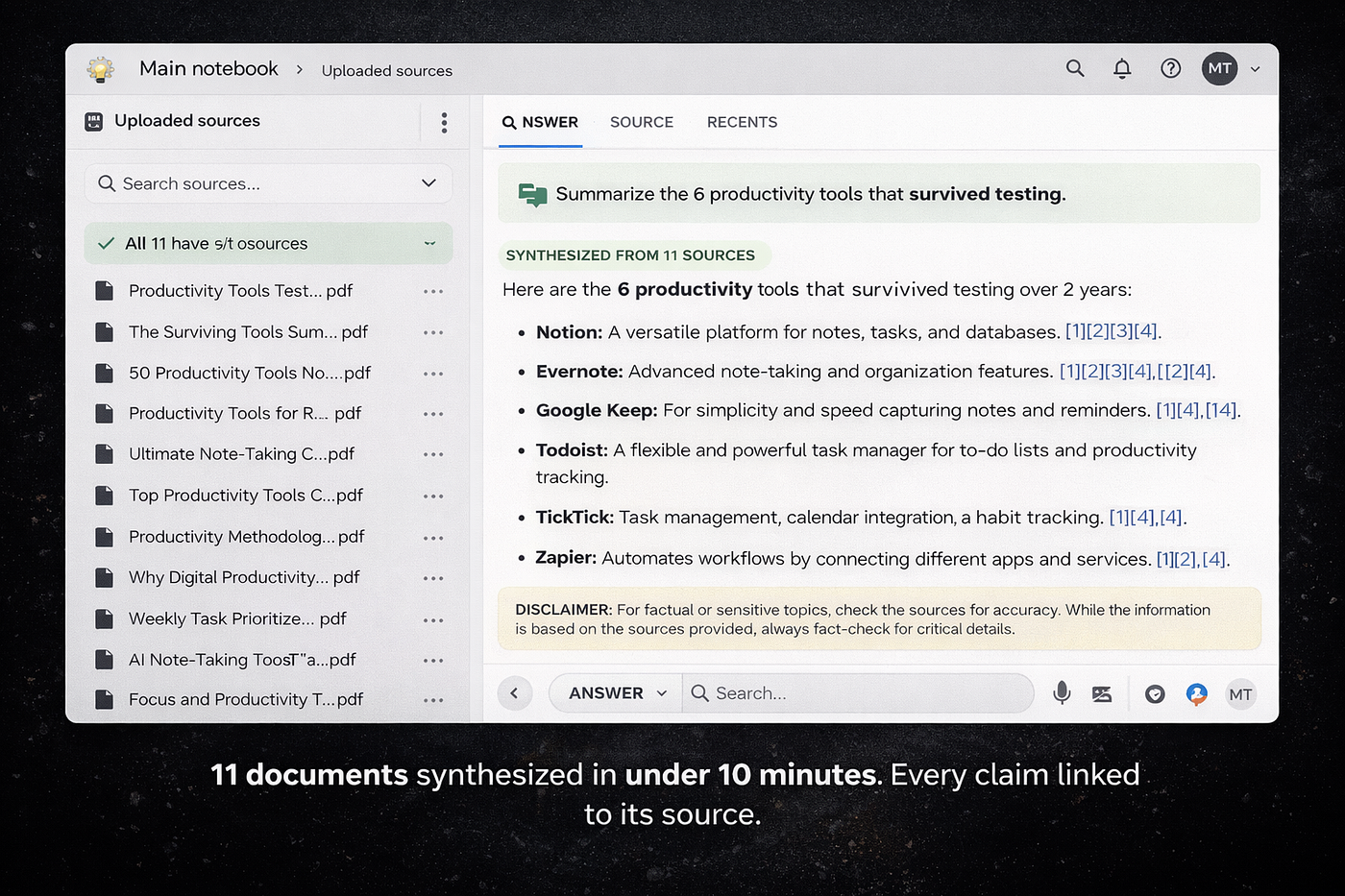
I discovered NotebookLM by accident in late 2025. I had 11 documents to research for a project. Normally that would take most of a working day. I uploaded all 11 sources, asked NotebookLM to synthesize the key findings and identify contradictions between sources. It did this in minutes with citations I could verify instantly.
The quality of analysis was better than what I produced manually after reading the same documents. That should not have surprised me as much as it did.
The feature nobody covers properly
The audio overview. NotebookLM generates a 10 to 15 minute podcast-style conversation between two AI hosts discussing your uploaded documents. I have listened to audio overviews of lengthy research reports while walking. That is a genuinely new way to process information that no other tool in this category offers.
Where it gets specific
I used it to generate a structured FAQ from a 47-page industry report, a briefing document from 6 conflicting news articles, and a comparison of 4 similar studies that disagreed on methodology. In each case it took under 10 minutes. Each of those tasks would have taken 2 to 3 hours manually.
Honest limitation
NotebookLM only knows what you give it. It cannot search the web or access information you have not uploaded. This is also its strength. The answers are grounded in your actual sources rather than AI-generated approximations.
Who this is for
Students, researchers, writers, consultants, lawyers, journalists. Anyone who has to read and synthesize large amounts of source material regularly.
Cost: Completely free. No credit card. No paid tier required for core features. Time saved per week: 3 to 5 hours for anyone doing regular research work.
2. Granola
What it does
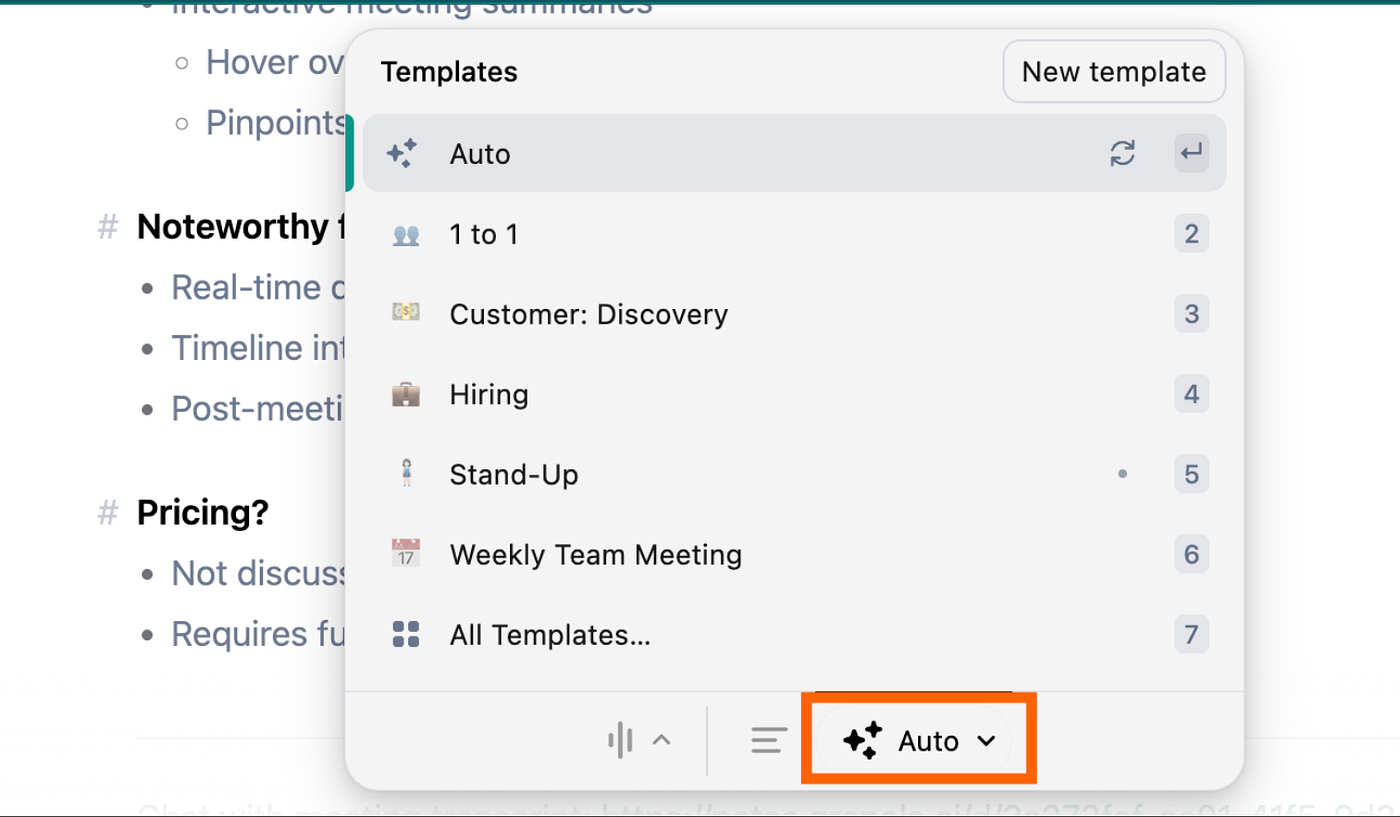
Granola is an AI meeting notepad for Mac that runs silently in the background during any call or meeting. You type rough notes during the meeting. When it ends, Granola combines your notes with AI transcription and generates clean structured meeting notes automatically.
I tested six meeting transcription tools over six months. Otter.ai, Fireflies, Fathom, Read.ai, and two others. Every one of them failed filter two: works when tired. They all required active management. You had to open them, start recording, remember to stop, go back later to review transcripts, manually extract action items.
Granola requires none of that. It runs as a simple notepad. You jot down anything important during the meeting. The rest happens automatically.
By March 2026, one month after starting to use Granola, I had stopped taking manual meeting notes entirely. The notes it generates are more complete and better organized than anything I produced manually, and I get them without effort.
The feature nobody else has
Granola combines your rough in-meeting notes with the AI transcription. Other tools just transcribe. Granola understands that the things you wrote down are the things you considered important, and weights the generated notes accordingly.
Where it gets specific
I used to spend 20 to 30 minutes after every client call writing up what was discussed and what needed to happen next. That is now zero minutes. Across 4 to 5 client calls per week that is 80 to 150 minutes returned to actual work every single week.
Honest limitation
Mac only as of June 2026. Windows users cannot use it yet.
Who this is for
Anyone with more than three meetings per week. Remote workers, managers, consultants, freelancers on client calls, students in seminars.
Cost: Free tier available. Paid plans approximately $10 per month. Time saved per week: 20 to 40 minutes per meeting eliminated from note-taking and follow-up.
Tier 2: Best Productivity Software for Time and Focus
3. Toggl Track
What it does
Toggl Track is a one-click time tracking application that records exactly where your working hours actually go across projects, tasks, and categories. It produces weekly reports showing the breakdown of your actual time allocation versus what you thought it was.
Most people believe they know how they spend their time. I believed I was spending 60 percent of my hours on high-value work and 40 percent on administration. After two weeks of Toggl tracking the actual numbers were almost exactly reversed.
That data was uncomfortable. It was also the most productive thing that happened to me that year. Once I could see where time was actually going I could change it deliberately.
The specific workflow change
I track every work block. Writing, research, email, meetings, admin, client calls. At the end of each week I spend 10 minutes reviewing the breakdown. That 10-minute review has changed my actual output more than any productivity system I have tried.
Where it gets specific
Week one showed me I was spending 11 hours on email and administrative tasks I had mentally categorized as “quick things.” Those tasks were not quick. They were 11 hours. Seeing that number made cutting them to 6 hours feel urgent rather than aspirational.
The way most people fail with time tracking
They try to track every individual task in perfect detail. That becomes its own overhead. I only track categories. Writing is one category. Email is one category. Good enough data consistently beats perfect data occasionally.
Honest limitation
Toggl only records what you tell it. Forgetting to start the timer means gaps in the data. The habit takes three weeks to build solidly.
Who this is for
Anyone who feels busy all the time but cannot point to what they accomplished. Freelancers who bill by the hour. Remote workers trying to protect deep work time.
Cost: Free forever for individuals. Paid team plans from $9 per user per month. Time saved: Not direct time saving. The value is insight that produces better time allocation over weeks and months.
4. Reclaim.ai
What it does
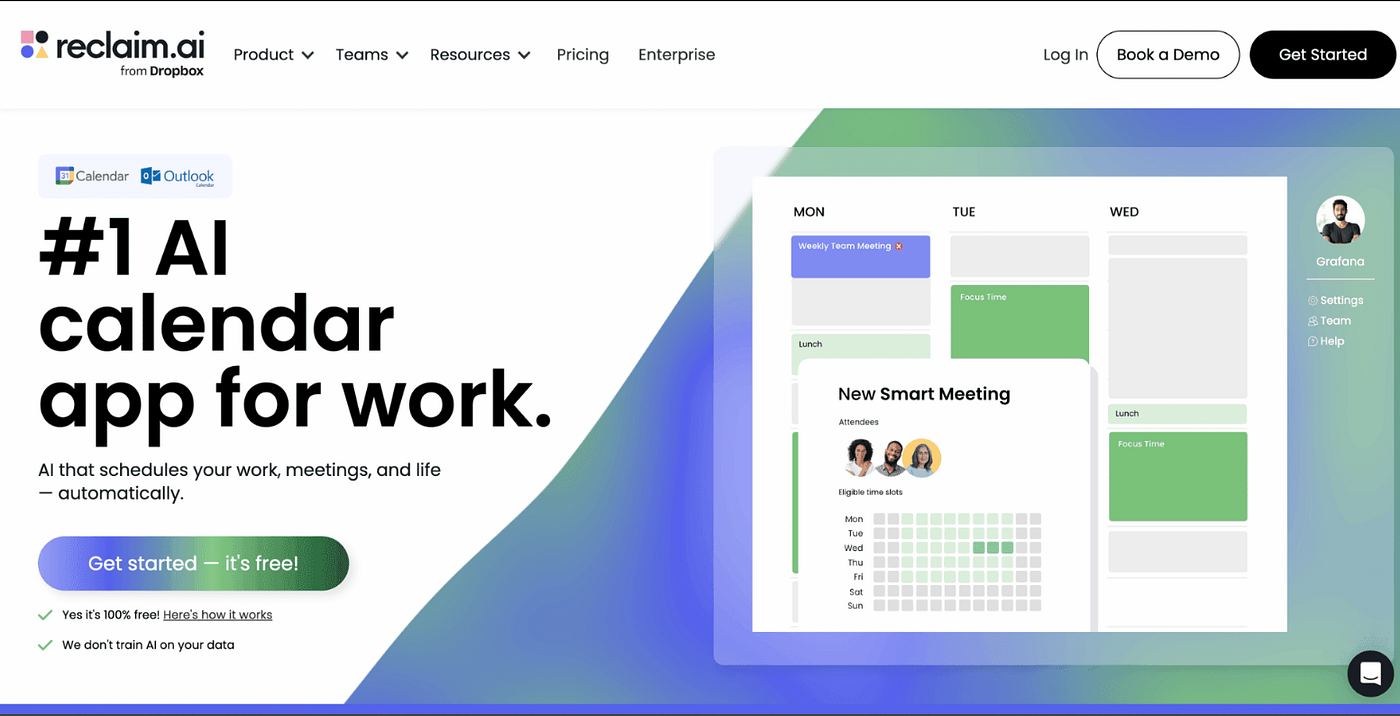
Reclaim.ai is an AI scheduling tool that connects to Google Calendar and automatically finds time for your tasks, habits, focus blocks, and meetings based on your stated priorities and your observed behavior patterns over time.
I resisted AI calendar tools for a long time because the ones I tested were prescriptive. They scheduled my day based on algorithms that did not understand my work rhythms. Reclaim.ai is different because it learns from behavior over time rather than imposing rules from day one.
The specific problem it solved: I was spending 15 to 20 minutes every morning manually planning my day. Moving tasks around meetings. Finding windows for focused work. That planning time added up to over 80 hours per year of meta-work that produced nothing directly.
After connecting Reclaim.ai that planning happens automatically. It knows I protect morning hours for deep work. It knows which tasks are urgent. It schedules them into my next available focused window without me thinking about it.
The feature that surprised me
The meeting cost calculator. Reclaim shows the monetary cost of your meeting schedule based on hourly rate and number of attendees. Seeing that a weekly status meeting costs a specific dollar amount per occurrence changed how I evaluated whether it needed to happen weekly.
Where it gets specific
Three weeks after connecting Reclaim.ai, my average daily planning time dropped from 18 minutes to 4 minutes. That is 70 minutes per week returned to actual work purely from reducing planning overhead.
Honest limitation
Works with Google Calendar primarily. Initial setup requires genuine time to configure your priorities correctly. The first week while it is learning your patterns can feel slightly off.
Who this is for
Anyone with a complex calendar managing multiple responsibilities. Managers, freelancers juggling clients, anyone who regularly says yes to meetings and then has no time for actual work.
Cost: Free tier available. Paid plans from $8 per month. Time saved per week: 15 to 25 minutes of manual planning plus measurable improvement in high-priority task completion.
5. Freedom
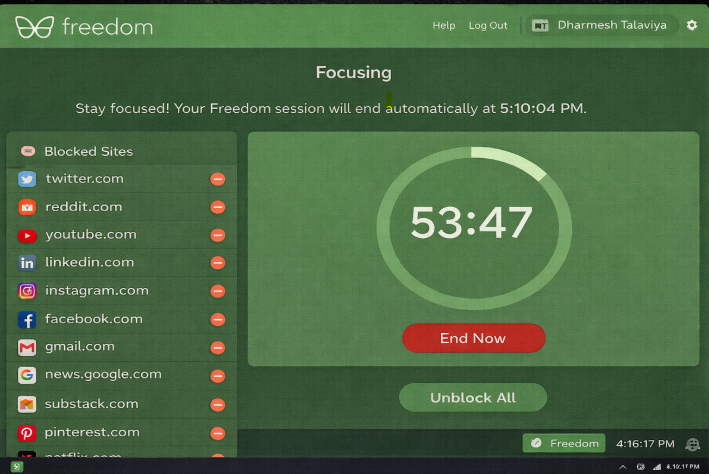
3 focused hours. 2.3 tasks completed per hour versus 0.9 during unblocked time. The data convinced me.
What it does
Freedom is a distraction blocking application that locks access to websites and apps across all your devices simultaneously during scheduled focus sessions. You set a block. It applies across Mac, Windows, iPhone, and Android at the same time.
I have tried every focus technique and focus application. Website blockers. Pomodoro timers. Ambient sound apps. The only one that produced a measurable change in my ability to do deep work was simple aggressive blocking.
The specific reason Freedom beats free alternatives: it syncs across all devices simultaneously. Blocking social media on your laptop while your phone is still in your hand means you have not blocked anything. Freedom removes that escape route.
I run a Freedom session from 9am to 12pm every working day. Those three hours produce more output than the entire rest of my working day combined. That ratio is not subtle.
The feature most reviews undersell
Locked mode. Once you start a session in locked mode you cannot end it early even if you decide you urgently need to check something. This sounds extreme and is extremely effective. Removing the possibility of overriding the block eliminates the constant micro-negotiation with yourself about whether to check one thing quickly. That negotiation is exhausting and you usually lose it.
Where it gets specific
I tested my hourly output during Freedom sessions versus unblocked hours over four weeks. During Freedom sessions I completed an average of 2.3 substantial tasks per hour. During unblocked hours the average was 0.9 tasks per hour. The difference was larger than I expected.
Honest limitation
Freedom does not solve the underlying habit. When the session ends, old behaviors return without deliberate work on building focus habits alongside the blocking.
Who this is for
Anyone who opens Instagram while working without consciously deciding to. Anyone whose phone is within arm’s reach during their most important work. Which is most people.
Cost: $3.33 per month on annual plan. The cheapest paid tool on this list. Time saved per week: 3 focused hours that produce the output of 6 interrupted hours.
Tier 3: Best AI Productivity Tools for Creation
6. Descript
What it does
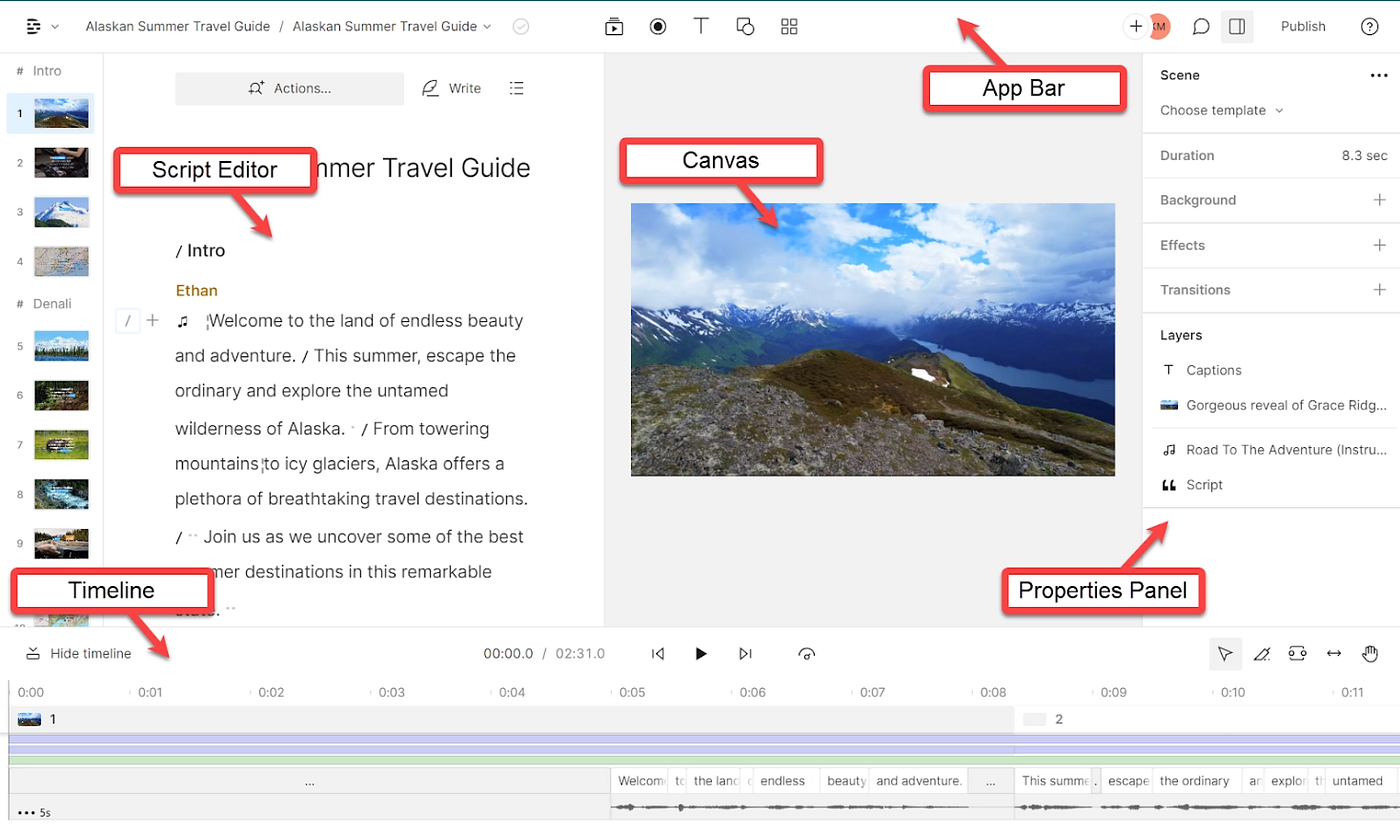
Descript is a video and audio editing application where you edit media by editing its transcript. Delete words from the text and the video cut happens automatically. Record your screen, edit the recording like a document, publish the result.
I have no video editing background. I spent two days trying to learn Adobe Premiere and produced a 3-minute video I was embarrassed to publish. I spent two hours learning Descript and produced a 12-minute tutorial I was genuinely proud of.
The core idea is genuinely innovative. If you can edit a document you can edit a video in Descript. The barrier to video creation that previously required either professional skills or professional help is removed.
Where it gets specific
A task that previously took me 3 to 4 hours in other tools takes 45 minutes to 1 hour in Descript for comparable output. Across two video projects per week that is 4 to 6 hours returned to other work every week.
The feature that surprised me
AI eye contact correction. Descript adjusts your gaze in recorded video to look directly at the camera even when you were reading notes on a second screen. The result is not perfect but it is meaningfully better than obvious off-camera reading eyes in professional contexts.
The feature I use most
Remove filler words with one click. Descript identifies every “um,” “uh,” and “you know” in your recording and removes them all in seconds. That alone saves 20 minutes of manual editing per video.
Honest limitation
The AI-generated voice for word replacement sounds close but not identical to natural speech. For casual content it is fine. For broadcast professional use it would need manual re-recording.
Who this is for
Anyone creating video or audio content. YouTubers, podcasters, course creators, screen recording tutorials, anyone who has avoided video because of the editing learning curve.
Cost: Free tier available with 1 hour of transcription per month. Paid plans from $12 per month. Time saved per week: 4 to 6 hours compared to traditional video editing tools.
7. Tally
What it does
Tally is a free form builder that creates visually polished forms without design skills, works more flexibly than Google Forms, and replaces Typeform for most use cases at zero cost.
I was using four separate tools for variations of the same basic job: collecting structured information from people. Google Forms for surveys. Typeform at $25 per month for client onboarding. A separate contact form tool for my website. Email for feedback collection. Four tools for one category of task.
Tally replaced all four. The forms look genuinely good. You can embed them anywhere. You can accept payments, build multi-step forms with conditional logic, and send automated responses. The free plan covers everything a solo operator or small business needs.
[embed]This replaced a $25 per month Typeform subscription. The form took 20 minutes to build
Where it gets specific
I needed a tool submission form for my review site. Typeform would have cost $25 that month for a form I needed to build in 30 minutes. Tally took 20 minutes and cost nothing. I have not paid for Typeform since.
The feature nobody mentions
Partial submission saving. If someone starts filling out a long form and does not finish, their partial responses are saved automatically. For multi-step forms collecting detailed information this prevents losing data from people who run out of time.
Honest limitation
Design customization is less extensive than Typeform for complex branded experiences. If you need pixel-perfect form design matching enterprise brand standards precisely, Tally may not be enough. For most people it is more than enough.
Who this is for
Freelancers needing client onboarding forms. Small business owners needing contact forms. Researchers needing survey forms. Anyone currently paying for Typeform or JotForm.
Cost: Genuinely free for most use cases. Paid plan at $29 per month for white-label features most people never need. Time saved: Elimination of $25 per month Typeform subscription plus consolidation of four separate tools.
The Productivity Apps I Tested and Deleted: The Honest Section
Most best productivity tools articles leave this part out entirely. Here is exactly what I tested, what failed, and specifically why.
Notion
The most powerful personal productivity software I tested. Also the one where I spent more time maintaining the system than the system saved me in return. By month four my Notion setup had 23 databases, 7 templates, and a weekly review process that took 90 minutes. Notion is genuinely powerful for teams with dedicated people to maintain it. For individuals it often creates overhead that exceeds the benefit.
Specific number: I tracked the time I spent in Notion versus the time I saved because of Notion during month eight. The ratio was 1.3 hours spent maintaining for every 1 hour saved. Negative ROI on my own productivity software.
Motion
The AI scheduling promises are real. My specific problem: it rescheduled time-blocked focus sessions I had deliberately placed to accommodate meetings I could have declined. After the third time this happened I stopped trusting it with my calendar. Reclaim.ai handles the same job with more respect for my explicit priorities.
Otter.ai
Excellent transcription quality. The meeting notes organization required manual cleanup that defeated the purpose. Granola solved the same problem with a significantly better experience.
Superhuman
Beautiful. Fast. Saved me exactly 8 minutes per day based on two weeks of specific timing. At $30 per month I would need to value my time at $112.50 per hour for the ROI to work. I cancelled it. If you receive 100+ emails daily and your hourly rate is genuinely high the calculation changes completely. For most people it does not.
Every AI writing tool I tested for long-form content generation: Rytr, Writesonic, and several others. The honest verdict: the output requires so much editing that the claimed time saving evaporates in practice. The tools that disappointed me most were the ones with the most confident marketing claims about saving hours per article. AI tools that improve your writing are useful. AI tools that replace your writing create more work than they eliminate.
The Real Cost of Productivity Tools That Actually Work
Here is every tool, what it costs, and the specific problem it removes:
NotebookLM — Free 3 to 5 hours of research synthesis returned every week. The most impactful free tool I have ever used.
Granola — $10/month 80 to 150 minutes of post-meeting note writing eliminated every week. Pays for itself in the first two meetings.
Toggl Track — Free No direct time saving. What it gives you is uncomfortable data about where your time actually goes. That data changes everything over months.
Reclaim.ai — $8/month 15 to 25 minutes of daily manual calendar planning removed every morning. Small number, big compounding effect.
Freedom — $3.33/month 3 focused hours that produce the output of 6 interrupted ones. The cheapest paid tool on this list and the one with the most measurable impact on daily output.
Descript — $12/month 4 to 6 hours of video editing time per week collapsed into 45 minutes to 1 hour. Made video creation accessible to someone with zero editing background.
Tally — Free Cancelled a $25/month Typeform subscription on day one. Replaced three other form tools simultaneously. Total saving: $25/month and one less category of tool to think about.
Total monthly cost: $33.33 Tools this stack replaced: 8 Previous monthly spend on productivity software: $163
The most expensive productivity platform I was using before this stack cost $180 per month. I used 15 percent of its features. This stack costs $33.33 combined and I use every tool every single day.
The Moment That Changed How I Think About Productivity Software
Six months into my testing experiment I had a specific realization that changed everything.
I was managing a side project alongside my main work. I had installed a sophisticated project management tool to track it. Every Sunday I spent 45 minutes updating the project board. Task statuses. Progress notes. Dependencies. It looked impressive.
Then I looked at what the project had actually produced in the previous eight weeks. Two deliverables. Both of them created in two focused three-hour sessions. Zero correlation between the elaborate project tracking and the actual output.
I had built a system that tracked productivity instead of enabling it.
That is the mistake most productivity tools articles accidentally encourage. They treat the accumulation of tools and systems as the goal. The goal is not a beautiful Notion dashboard or a perfectly organized task list. The goal is the work that only you can do.
Every tool I deleted was deleted because it was better at looking like productivity than at producing it. Every tool I kept passed one simple test: did it give me more time and energy for the actual work?
What Productivity Tools Are Actually For in 2026
Productivity tools exist to protect your attention, not fill it.
The best personal productivity apps in 2026 do not add features to your workflow. They remove friction. NotebookLM removes the friction of manual research synthesis. Granola removes the friction of post-meeting note writing. Freedom removes the friction of constant digital interruption. Tally removes the friction of paying $25 per month for a form builder.
The productivity apps that fail in 2026 all have the same characteristic: they add something to your workflow before removing something. More places to check. More things to update. More decisions to make.
The tools that survive are the ones that ask less of you while returning more.
Frequently Asked Questions About Productivity Tools
What are productivity tools?
Productivity tools are software applications that remove specific friction points from your workflow. The best ones save measurable time, reduce cognitive overhead, or protect focus without requiring significant maintenance. The worst ones add complexity while promising to reduce it.
What are the best free productivity tools in 2026?
The best free productivity tools in 2026 are NotebookLM for research synthesis, Toggl Track for time awareness, Tally for form creation, and Google Calendar for time blocking. These four tools together address the most common productivity bottlenecks without any monthly cost.
What are the best AI productivity tools right now?
The best AI productivity tools for most people in 2026 are NotebookLM for research, Granola for meeting notes, and Reclaim.ai for calendar management. These three AI powered productivity tools address real workflow problems rather than adding AI features to existing tasks that did not need AI.
What is the best productivity software for remote workers?
For remote workers specifically, the most impactful productivity software is Granola for meeting notes, Freedom for focus protection during home working environments, and Reclaim.ai for calendar management across multiple time zones and projects. Remote work creates specific friction points around meetings and distraction that these tools address directly.
What are examples of productivity software that most people already have but underuse?
Google Calendar with proper time blocking, Google Docs for quick capture and collaboration, and Google Sheets for project tracking are productivity software examples that most people have free access to and use at 20 percent of their capability. Before paying for any new tool, maximizing what you already have is the highest ROI move.
Which productivity tools are worth paying for?
Productivity tools are worth paying for when the time they save exceeds their cost calculated at your working hourly rate. At $10 per month, a tool needs to save approximately 20 minutes per week at a $30 per hour rate to justify its cost. Apply that calculation honestly to every paid subscription you currently have.
What is the best productivity tool for someone who hates productivity systems?
Freedom and Toggl Track. Freedom requires zero system building, you just turn it on. Toggl Track requires only that you click start and stop. Neither tool asks you to build or maintain anything. Both produce measurable results quickly for people who have been burned by complex productivity systems before.
What are the best office productivity tools for small businesses?
For small businesses the most impactful office productivity tools are Tally for forms and client onboarding, Reclaim.ai for team scheduling, Toggl Track for time and billing transparency, and Granola for meeting documentation. These four tools address the specific friction points that consistently slow down small business operations.
Are AI productivity tools actually useful or just hype?
It depends entirely on which problem the AI is solving. AI tools that synthesize information you provide, like NotebookLM, or automate genuinely tedious tasks, like Granola with meeting notes, deliver real measurable value. AI tools that generate content you then have to heavily edit, or AI tools that automate tasks that were not actually bottlenecks, rarely justify their cost.
What productivity tools do professionals actually use daily?
Based on two years of testing and observation: time blocking in Google Calendar, one focused note-taking system, a distraction blocker during deep work hours, and one AI research assistant for information synthesis. The most productive professionals tend to use fewer tools than average, not more.
I publish detailed hands-on reviews of AI and productivity software at ReviewMyTool.com. Every review is based on real testing, no affiliate links, no sponsored opinions. If any tool in this article interests you for a deeper breakdown, the full reviews are there.
메타데이터
- post_id
- 1411b8a6d377
- slug
- best-productivity-tools-1411b8a6d377
- url
- https://medium.com/@dp73590/best-productivity-tools-1411b8a6d377
- canonical_url
- https://medium.com/@dp73590/best-productivity-tools-1411b8a6d377
- author_url
- https://medium.com/@dp73590
- status
- ok
- fetched_at
- 2026-06-13 09:11:36






