How to Set Up Make Notifications in FraudLabs Pro for Real-Time Fraud Alerts
Real-time fraud notifications can make a major difference when you are trying to stop suspicious activity before it becomes a costly…
How to Set Up Make Notifications in FraudLabs Pro for Real-Time Fraud Alerts
Photo by Jonas Leupe on Unsplash
Real-time fraud notifications can make a major difference when you are trying to stop suspicious activity before it becomes a costly problem.
For merchants, every delayed response can increase the risk of chargebacks, unauthorized account access, lost revenue, and customer frustration. That is why instant alerts are an important part of a proactive fraud prevention strategy.
FraudLabs Pro has updated its Make app to support instant notifications after an order has been validated. With this update, merchants can respond faster to suspicious transactions, follow up on customer inquiries more efficiently, and automate fraud-related workflows without relying on manual monitoring.
In this guide, we will walk through how to connect FraudLabs Pro with Make and create an automated notification workflow.
What Is Make?
Make is an automation platform that lets users connect different apps and services to build automated workflows without advanced coding knowledge.
These workflows are called scenarios. A scenario usually starts with a trigger in one app, followed by one or more actions in other connected apps.
For example, when FraudLabs Pro detects a status change in an order, Make can automatically send an email, create a task, update a spreadsheet, notify a team in Slack, or trigger another action in your workflow.
By integrating FraudLabs Pro with Make, merchants can build automation that fits their own business logic instead of relying on a fixed notification process.
This helps reduce repetitive work, speed up fraud response, and free up teams to focus on higher-value tasks.
Example Use Case
In this tutorial, Gmail is used as the action app to send email notifications.
However, Make supports many other apps, so you can replace Gmail with another tool depending on your workflow. For example, you could send alerts to a team messaging app, update a CRM, create a support ticket, or log transaction details in a database.
How to Create a Scenario in Make
- After logging into the Make dashboard, click on the “+ Create scenario” button on the top to create a new scenario.
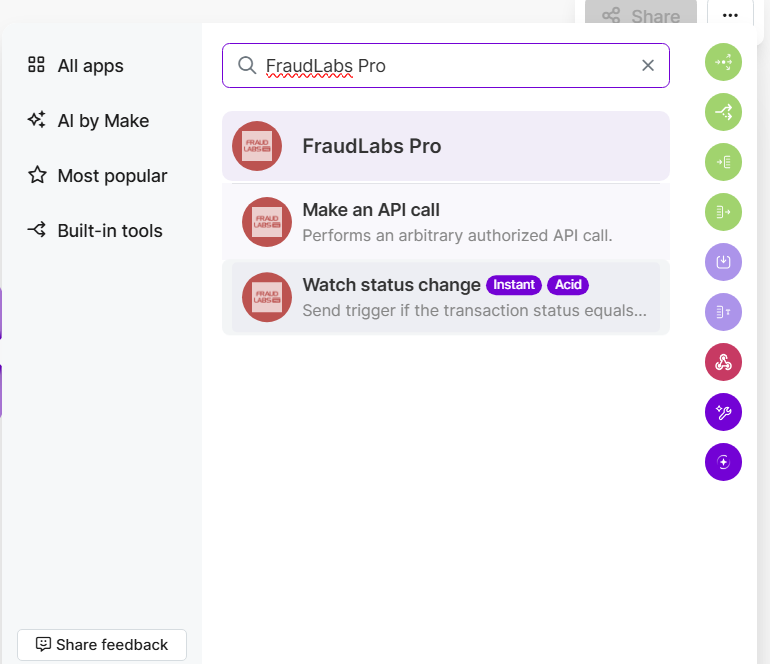
- Search for the “FraudLabs Pro” in the search bar, and click on the “Watch status change” in the search result.
-
Click on the “Create a webhook” button, name the webhook and click on the “Create a connection” button.
-
Enter FraudLabs Pro API Key and click on Save button.
-
Click on the + sign, search for the “Gmail”, and select the “Send an email” from the search result.
-
Click on the “Create a connection” button and click on the “Sign in with Google” account to connect your Gmail account to Make.
-
Customize the email template. Remember to click on the save button at the bottom to save the changes.
-
Click on the toggle button at the bottom to deploy the scenario.
-
Done.
How to Enable Make Notifications in FraudLabs Pro
- Login to FraudLabs Pro Merchant Area.
- Click on the Settings in the left menu bar.
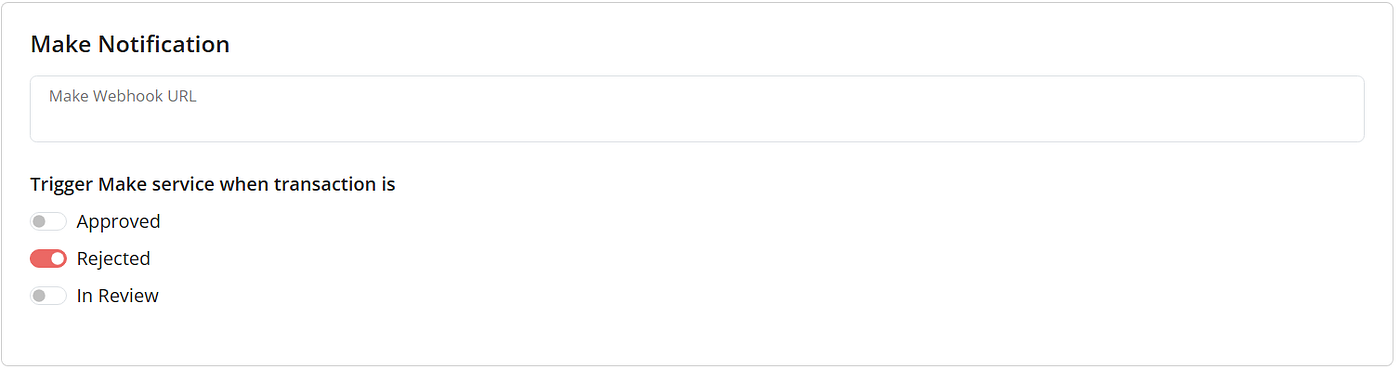
- Under the Make Notification section, select the status to enable the notification.
-
Click on Save Changes.
-
Done.
Benefits of Using Make Notifications with FraudLabs Pro
Integrating Make with FraudLabs Pro gives merchants more control over fraud response workflows.
Real-time Fraud Response
The first major benefit is faster fraud response. Since notifications are triggered in real time, merchants can quickly review suspicious transactions and take action before problems escalate.
Personalized Automation
Another benefit is workflow customization. Every business has different fraud review processes, and Make allows merchants to build automations around their specific operational needs.
Operational Efficiency
It also improves efficiency. Instead of manually checking order statuses or copying transaction details into other tools, Make can handle repetitive tasks automatically.
Business Scaling
Most importantly, automation supports business growth. As order volume increases, merchants can rely on automated workflows to maintain speed and consistency without adding unnecessary manual workload.
Conclusion
Make notifications in FraudLabs Pro help merchants respond to fraud events faster and more efficiently.
By connecting FraudLabs Pro with Make, businesses can create automated workflows that send alerts, update internal tools, and trigger follow-up actions as soon as an order status changes.
This integration reduces manual work, improves operational efficiency, and helps merchants maintain a safer transaction environment while focusing on scaling their business.
Secure your business from fraud for free now with FraudLabs Pro: https://www.fraudlabspro.com/checkout-micro
메타데이터
- post_id
- 142e43cf42f8
- slug
- how-to-set-up-make-notifications-in-fraudlabs-pro-for-real-time-fraud-alerts-142e43cf42f8
- url
- https://medium.com/fraudlabs-pro-fraud-prevention/how-to-set-up-make-notifications-in-fraudlabs-pro-for-real-time-fraud-alerts-142e43cf42f8
- canonical_url
- https://medium.com/fraudlabs-pro-fraud-prevention/how-to-set-up-make-notifications-in-fraudlabs-pro-for-real-time-fraud-alerts-142e43cf42f8
- author_url
- https://medium.com/@fraudlabspro
- status
- ok
- fetched_at
- 2026-06-15 20:49:13