Building My Own Private AI Server on an Old Dell PC — Part 1
I was tired of paying monthly for AI tools and sending random thoughts, code, and half-finished ideas to someone else’s server. I had an…
Building My Own Private AI Server on an Old Dell PC — Part 1
I was tired of paying monthly for AI tools and sending random thoughts, code, and half-finished ideas to someone else’s server. I had an old Dell workstation sitting unused in my room, so I decided to see if I could turn it into my own private, fully offline AI server.
I thought this would be a weekend project. It turned into a real lesson in Linux, Docker networking, and storage management. Here’s how it actually went, including every problem I ran into along the way.
The Stack
- Hardware: an old Dell PC, CPU only, no GPU
- OS: Ubuntu Server + CasaOS, for a dashboard I can manage remotely
- AI engine: Ollama
- Frontend: Open WebUI
Problem 1: Ubuntu Desktop Wouldn’t Boot
I started by installing Ubuntu Desktop, mostly out of habit — having a GUI felt like a safety net in case something went wrong. That safety net never showed up. Every time I tried to boot into the desktop environment, I just got a black screen. The graphics card and Ubuntu’s display drivers weren’t cooperating, and nothing I tried got me past it.
Eventually it hit me: a server doesn’t need a monitor. I wiped the drive, installed Ubuntu Server instead, and put CasaOS on top of it. CasaOS gives you a web dashboard to manage the whole machine remotely, so I still got the easy management I wanted, just without a GUI running on the box itself.
Problem 2: Where Did My Storage Go?
Once CasaOS was running, I opened the storage manager and saw only about 100GB out of my 500GB drive. The rest was nowhere to be found.
This turned out to be a common Ubuntu Server default. The installer uses LVM and only assigns part of the disk to the root partition, leaving the rest unallocated. I didn’t need that extra flexibility, I needed the space for AI models. So instead of reinstalling anything, I extended the logical volume to grab the rest of the disk:
sudo lvm lvextend -l +100%FREE /dev/ubuntu-vg/ubuntu-lv && sudo resize2fs /dev/ubuntu-vg/ubuntu-lvThe full 500GB showed up right after.
Problem 3: Docker Couldn’t Find Its Own Backend
To run an LLM locally, I needed an engine, so I installed Ollama through the CasaOS app store with no issues. The trouble started when I added Open WebUI as the frontend.
Open WebUI defaults to port 8080, which was already taken by AdGuard Home (my ad blocker) running on the same machine. I remapped it to 8082, which seemed like an easy fix.
Except when I opened http://[my-ip]:8082, there was no login screen, just a 500 Internal Error, and CasaOS flagged the container as unhealthy.
It took me a while to figure out why: Docker containers are isolated from each other, so when Open WebUI tried to reach Ollama at localhost:11434, "localhost" meant the Open WebUI container itself, not the host machine where Ollama actually lives. They were sitting on the same physical box with no way to see each other. The earlier crash had also left the Docker volume corrupted.
The fix was to clear out the broken container and volume, then redeploy Open WebUI while explicitly telling it where Ollama actually was, using the OLLAMA_BASE_URL environment variable:
# Clear the broken container and corrupted volume
sudo docker rm -f big-bear-open-webui && sudo docker volume rm open-webui
# Redeploy with the correct IP routing
sudo docker run -d -p 8082:8080 -e OLLAMA_BASE_URL=http://192.168.1.13:11434 -v open-webui:/app/backend/data --name big-bear-open-webui --restart always ghcr.io/open-webui/open-webui:main(That’s my server’s local IP — swap it for your own if you’re following along.)
A minute later, the login page loaded. Frontend and backend were finally talking to each other.
Where I Left Off
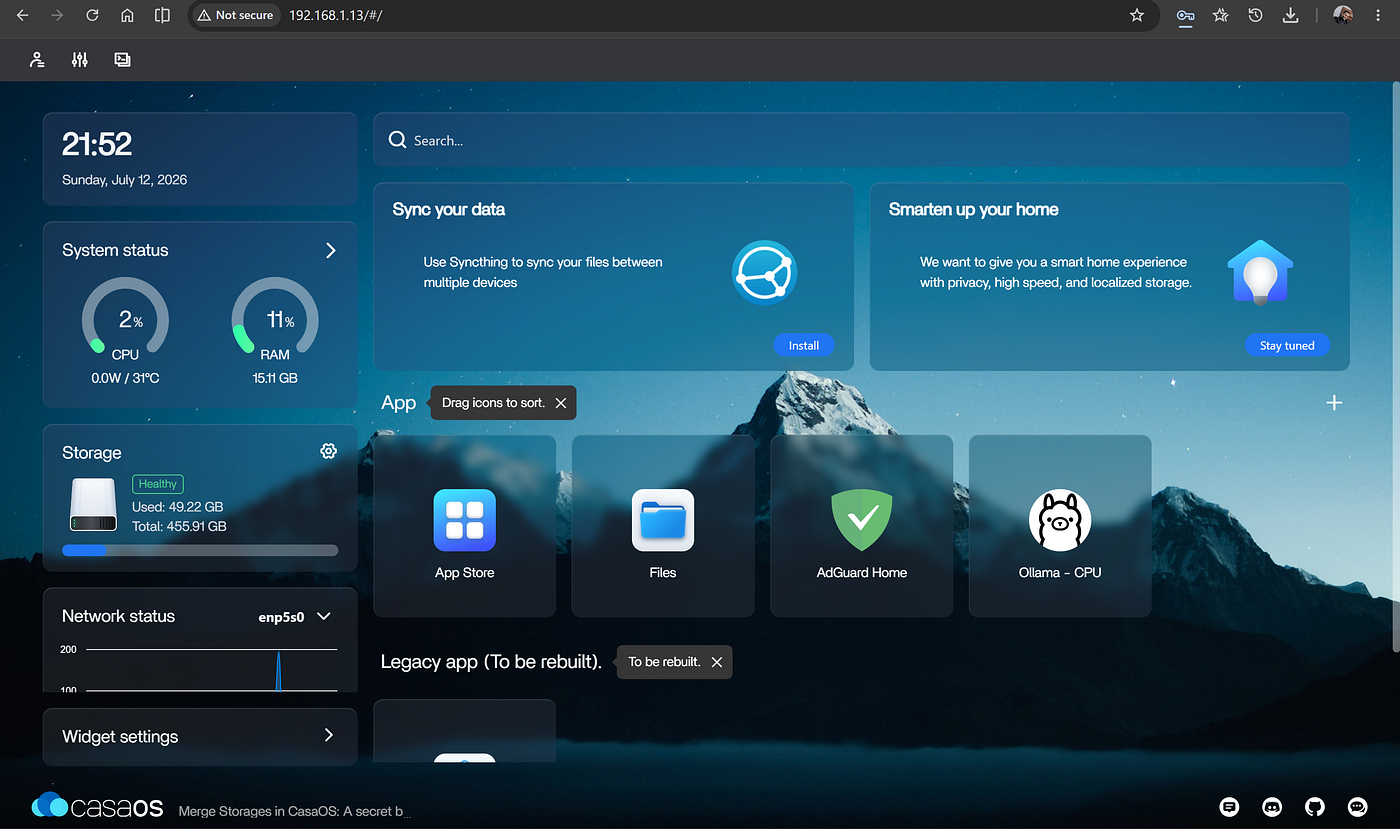
By this point, the whole stack was working: Ubuntu Server, CasaOS, Ollama, and Open WebUI all wired up correctly. The only thing left was pulling down Microsoft’s Phi-3 model and actually chatting with it.
Then my internet quota ran out for the day.
So that’s where Part 1 ends — everything set up and ready to go. In Part 2, I’ll get Phi-3 downloaded, see how it performs on a CPU-only setup, and actually start using this thing day to day.
If you’ve dealt with similar Docker networking or LVM headaches on your own homelab, I’d like to hear about it .. thank you for you precious time.
메타데이터
- post_id
- 1796cd0218ca
- slug
- building-my-own-private-ai-server-on-an-old-dell-pc-part-1-1796cd0218ca
- url
- https://medium.com/@amr888131/building-my-own-private-ai-server-on-an-old-dell-pc-part-1-1796cd0218ca
- canonical_url
- https://medium.com/@amr888131/building-my-own-private-ai-server-on-an-old-dell-pc-part-1-1796cd0218ca
- author_url
- https://medium.com/@amr888131
- status
- ok
- fetched_at
- 2026-07-18 11:23:00