How to Connect Claude Code To A Cheaper Model: GLM 5.2
If you don’t know by now, Claude Code can connect to other models. And recently, a heavy-duty model was dropped by z.ai called GLM 5.2, and…
How to Connect Claude Code To A Cheaper Model: GLM 5.2
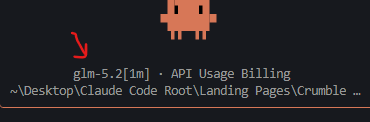
Claude Code Connected To glm-5.2 (https://docs.z.ai/guides/llm/glm-5.2)
If you don’t know by now, Claude Code can connect to other models. And recently, a heavy-duty model was dropped by z.ai called GLM 5.2, and it’s a lot less expensive than Anthropic’s Models. I’ve been testing a way to run Claude Code using GLM models through z.ai, and I want to share the setup with you so you can try it in your own projects.
This lets you point Claude Code away from Anthropic’s API and route it through z.ai instead, which gives you access to GLM without changing how you work inside Claude Code. Same experience, different model under the hood.
The steps below are going to be specific to a project, so don’t worry; it’s not a global change to the model, only contained inside your specific project folder.
🚗So Claude Code is the Car; the model is the engine. We are just switching out the engine. ⚙️
Here’s how to set it up:
👉Step 1: Sign up for z.ai: Go to https://api.z.ai and create an account. Once you’re in, grab your API key from the dashboard.
👉Step 2: Find your project folder: Open the project folder where you want to use GLM with Claude Code.
👉Step 3: Create the .claude folder: Inside your project root, create a folder called .claude (with the dot in front).
👉Step 4: Create the settings file: Inside the .claude folder, create a file called settings.local.json and paste in the following:
{
  "env": {
    "ANTHROPIC_BASE_URL": "https://api.z.ai/api/anthropic",
    "ANTHROPIC_AUTH_TOKEN": "your-z-ai-api-key-here",
    "ANTHROPIC_API_KEY": "",
    "API_TIMEOUT_MS": "3000000",
    "ANTHROPIC_DEFAULT_OPUS_MODEL": "glm-5.2",
    "ANTHROPIC_DEFAULT_SONNET_MODEL": "glm-5.2",
    "ANTHROPIC_DEFAULT_HAIKU_MODEL": "glm-5.2",
    "ANTHROPIC_SMALL_FAST_MODEL": "glm-5.2",
    "CLAUDE_CODE_SUBAGENT_MODEL": "glm-5.2"
  }
}
👉Step 5: Add your API key: Replace your-z-ai-api-key-here with the actual key you copied from z.ai in Step 1.
👉Step 6: Keep your key off GitHub: If you’re using git, add this line to your .gitignore file (so it is not posted to Github):
.claude/settings.local.jsonThis makes sure your API key never gets committed to your repo.
👉Step 7: Launch Claude Code: Open Claude Code in that project folder as usual. It will automatically pick up the settings and route everything through z.ai using GLM.
To confirm it worked, type /status inside Claude Code and check which model and provider are active.
Note: this setup only applies to the folder where you put the .claude folder. If you open Claude Code in a different project, it will use your normal settings.
메타데이터
- post_id
- 18dce6306c01
- slug
- how-to-connect-claude-code-to-a-cheaper-model-glm-5-2-18dce6306c01
- url
- https://medium.com/@sol.farahmand1986/how-to-connect-claude-code-to-a-cheaper-model-glm-5-2-18dce6306c01
- canonical_url
- https://medium.com/@sol.farahmand1986/how-to-connect-claude-code-to-a-cheaper-model-glm-5-2-18dce6306c01
- author_url
- https://medium.com/@sol.farahmand1986
- status
- ok
- fetched_at
- 2026-07-09 20:10:33