From Zero to Live in Minutes: Automate Your Docker App Deployment on AWS EC2 with Packer, Terraform…
Turn tedious AWS provisioning into a one-command magic trick using Packer, Terraform, S3 and Docker.
From Zero to Live in Minutes: Automate Your Docker App Deployment on AWS EC2 with Packer, Terraform and S3
Turn tedious AWS provisioning into a one-command magic trick using Packer, Terraform, S3 and Docker.
If you don’t have medium account, read full article free ***here***. (no login needed)
Imagine deploying your Dockerized application to AWS EC2 with a single command — no manual setups, no repetitive tasks.
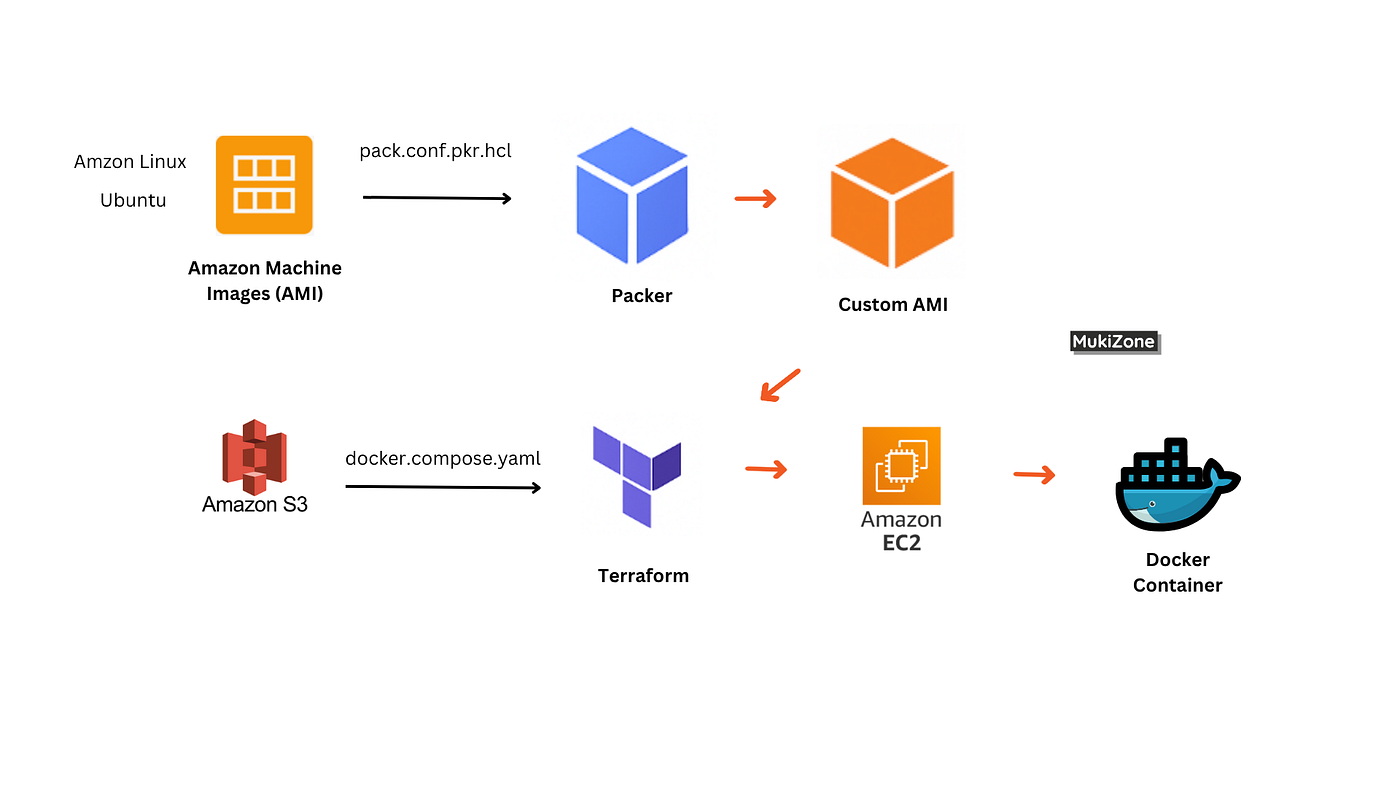
In this article, we’ll explore a powerful and reproducible way to automate EC2 instance provisioning using tools like Packer (Automates the creation of machine images), Terraform (Manages infrastructure as code), Docker (Containers for application deployment) and Amazon S3, while comparing the two main automation techniques: Packer-based AMI baking and User Data scripts.
✨ Why Automate EC2 Instance Creation?
Manual EC2 workflows:
- Launch EC2 from console:
- SSH into the instance
- Install Docker, Docker Compose, dependencies
- Clone code, copy Compose files.
- Launch containers manually
Problems:
- Time-consuming
- Not repeatable
- Prone to misconfiguration
By automating you get:
- Efficiency: Rapid deployment reduces time-to-market.
- Scalability: Easily replicate environments.
- Cost-Effectiveness: Ephemeral instances save resources.
- Immutable infrastructure
- Version-controlled images
Real-World Use Cases where this setup shines:
- 🔁 CI/CD Pipelines: Automatically spin up clean, isolated environments to run integration tests using Docker Compose apps.
- 🧪 Demo/POC Environments: Create demo-ready stacks for product showcases or client trials.
- 👩💻 Per-Developer Environments: Give each developer their own disposable sandboxed EC2 environment.
- 📦 Microservice Previews: Test new microservice versions in a consistent isolated setup without polluting shared infra.
- 🏫 Workshops or Bootcamps: Provision N identical instances using the same AMI to simplify technical training or cloud labs.
- 💸 Cost-Optimized Dev Servers: Use Terraform’s destroy lifecycle to spin down environments outside business hours.
Here’s a walkthrough of a simple HelloWorld Nginx app as an example.
While the example is intentionally simple, it serves as a launchpad for mastering more advanced concepts. By containerizing even a basic app and deploying it automatically with Packer and Terraform, you gain hands-on understanding of key DevOps practices:
- 🔄 Immutable Infrastructure: The base image doesn’t change between launches, eliminating config drift.
- 🚀 Infrastructure as Code (IaC): You treat environment creation like software builds — repeatable, tested, and version-controlled.
- 🔐 IAM and Permissions: The setup introduces using roles for granting least-privilege S3 access to instances.
- ⚙️ User Data vs Prebaked AMIs: You experience the pros/cons of dynamic vs static environment bootstrapping.
- 📈 CI/CD Simulation: Replace Nginx with your app and integrate into pipelines for automated testing or ephemeral previews.
🧪 Step-by-Step Setup Guide
✅ Confirm Prerequisites Checklist
- You have AWS access and
aws configureis done - You have an SSH Key Pair in EC2
- Your security group allows port 80 (HTTP)
- You created an S3 bucket
- You have installed: AWS CLI, Terraform, Packer. Check install instructions here.
📁 Expanded Project File Structure with Contents
This “Hello World” is just the seed — how far you take it is up to your use case! This is based on Amazon Linux 2 with a t3.micro instance.
hello-aws-ephemeral-app/
├── packer/
│   └── docker-amazon.pkr.hcl         # Packer HCL file to build AMI with Docker
├── terraform/
│   ├── main.tf                       # Terraform EC2 provisioning logic
│   ├── iam.tf                        # IAM Roles/Policies used in main.tf
│   ├── variables.tf                  # Variables used in main.tf
│   ├── outputs.tf                    # Output EC2 public IP
│   └── terraform.tfvars              # User-supplied values
├── docker-compose/
│   └── docker-compose.yml            # Simple Nginx Hello World app
├── scripts/
│   ├── launch_instance.sh            # Runs terraform to launch instance
│   └── destroy_instance.sh           # Destroys provisioned resources
Here is the link to the full code — https://github.com/mukizone/hello-aws-ephemeral-app
🔧 Step 1: Prepare a Base AMI (1-time setup using Packer)
packer/docker-amazon.pkr.hcl
packer {
  required_plugins {
    amazon = {
      version = ">= 1.0.0"
      source  = "github.com/hashicorp/amazon"
    }
  }
}
source "amazon-ebs" "amazon-linux-docker" {
  region           = "ap-south-1"
  source_ami_filter {
    filters = {
      name                = "al2023-ami-2023*"
      virtualization-type = "hvm"
      architecture         = "x86_64"
      root-device-type    = "ebs"
    }
    owners      = ["137112412989"]  # ← Amazon official AMI owner
    most_recent = true
  }
  instance_type    = "t3.micro"
  ssh_username     = "ec2-user"
  ami_name         = "amazon-linux-docker-t3.micro-ami"
}
build {
  sources = ["source.amazon-ebs.amazon-linux-docker"]
  provisioner "shell" {
    expect_disconnect = true
    valid_exit_codes  = [0]
    inline = [
      "sudo dnf update -y",
      "sudo dnf install -y docker",
      "sudo systemctl enable docker",
      "sudo systemctl start docker",
      "sudo usermod -aG docker ec2-user",

      # Install AWS CLI v2
      "curl \"https://awscli.amazonaws.com/awscli-exe-linux-x86_64.zip\" -o \"awscliv2.zip\"",
      "unzip awscliv2.zip",
      "sudo ./aws/install",

      # Install Docker Compose plugin to system-wide path
      "sudo mkdir -p /usr/libexec/docker/cli-plugins",
      "sudo curl -SL https://github.com/docker/compose/releases/download/v2.24.5/docker-compose-linux-x86_64 -o /usr/libexec/docker/cli-plugins/docker-compose",
      "sudo chmod +x /usr/libexec/docker/cli-plugins/docker-compose"
    ]
  }
}
This shell provisioner runs a list of Linux commands inside the EC2 instance during the Packer build. It’s like pre-installing everything into the AMI. This script ensures the EC2 image you’re building with Packer:
- Has Docker installed and running
- Has AWS CLI installed to fetch files from S3
- Supports Docker Compose v2
- Lets the default user run Docker commands without
sudo
Packer command:
cd hello-aws-ephemeral-app/packer
packer init .
packer build .\docker-amazon.pkr.hcl
Packer output:

Verify on AWS console that the AMI image ‘amazon-linux-docker-t3.micro-ami’ is created: e.g ami-01c08610922e8555e

🔁 Note the output AMI ID and replace in
terraform.tfvars.
🏗️ Step 2: Terraform Script (Launch EC2 Instances and containers in it using Docker Compose)
docker-compose/docker-compose.yml
version: '3.8'
services:
  hello:
    image: nginx:latest
    ports:
      - "80:80"
This launches the official Nginx Docker image exposing port 80. When you hit the instance IP, you’ll see the default “Welcome to Nginx” page.
terraform/main.tf
terraform {
  required_providers {
    aws = {
      source  = "hashicorp/aws"
      version = "~> 5.0"
    }
  }
}
...
...

resource "aws_instance" "docker_app" {
  ami           = var.ami_id
  instance_type = var.instance_type
  key_name      = var.key_name
  subnet_id     = var.subnet_id
  vpc_security_group_ids = [aws_security_group.docker_sg.id]
  iam_instance_profile   = aws_iam_instance_profile.ec2_s3_instance_profile.name

  root_block_device {
    volume_size = var.volume_size      # in GB
    volume_type = "gp3"                # or "gp2", "io1" etc.
    delete_on_termination = true
  }

  user_data = <<-EOF
              #!/bin/bash
              cd /home/ec2-user
              aws s3 cp s3://${var.s3_bucket}/hello-compose.prod.yaml /home/ec2-user/docker-compose.yml
              docker compose -f docker-compose.yml up -d
              EOF

}
Using the Script in EC2
user_data(Dynamic at Launch)
✅ What It Means: You pass the script in the
user_datafield during EC2 creation via Terraform, CLI, or console.
🧠 How It Works: AWS Cloud-Init runs this script only once at instance launch. The script can:
Pull files from S3 Install software Start services
Check code in **terraform/main.tf**
🛡️ IAM Permissions Reminder
Make sure the EC2 instance has S3 read permissions, either via:
- Attached IAM Role with policy like:
{
  "Effect": "Allow",
  "Action": ["s3:GetObject"],
  "Resource": "arn:aws:s3:::your-s3-bucket/*"
}- Define the IAM Role & Policy in Terraform
Check code in **terraform/iam.tf**
Update the following in terraform/terraform.tfvars:
ami_id(from packer output)aws_region , vpc_id,subnet_id,key_name,s3_bucket
terraform/terraform.tfvars
aws_region        = "aws-region"        # <- your aws region e.g ap-south-1
ami_id            = "ami-0a4f9fdadc49150df" # <— your AMI from packer
instance_type     = "aws-instance-type" # <— choose your instance type, t3.micro
key_name          = "your-key-name"     # <— must exist in AWS EC2 > Key Pairs
vpc_id            = "vpc-xxxxxxxx"      # <- get from your VPC
subnet_id         = "subnet-xxxxxxxx"   # <— get from your VPC Subnets
volume_size       = "xx"                # <- size of EBS Volume eg 4,8..
s3_bucket         = "your-aws-bucket"   # <- S3 bucket having COmpose file
run scripts/launch_instance.sh

Terraform will:
- Launch EC2 instance with your AMI
- Create IAM role + S3 policy
- Attach policy to role
- Create instance profile
- Launch EC2 with IAM profile attached
- Your EC2 instance can now run
aws s3 cpcommands! - Inject user-data that pulls Compose from S3
- Start your container (e.g. NGINX)
It takes ~1–2 minutes.

When you hit the instance IP, you’ll see the default “Welcome to Nginx” page.

Check the instance and “docker ps” to see running containers:

Ready to streamline your AWS deployments? Implement this approach and share your experience!
Thank you for reading. Follow me on Medium & LinkedIn
🧱 Appendix
Appendix 1 : Prerequisites
[embed]
Appendix 2 : Delete or Destroy the instances using terraform script
Run the script in scripts/destroy_instance.sh
Appendix 3 : To check if your user_data ran and debug it:
SSH into your instance. (ssh -i your-key.pem ec2-user@<EC2-PUBLIC-IP>)
Then run:
📄 1. Main cloud-init log
cat /var/log/cloud-init-output.logThis shows you both stdout and stderr of your user_data script. Look here to confirm if:
- Docker commands ran
- S3 file copy failed
- Any other errors occurred
📄 2. System log (from AWS Console)
Alternatively, from the AWS Console:
- Go to EC2 → Instances
- Select your instance
- Click Actions > Monitor and troubleshoot > Get system log
This shows boot-level output and early cloud-init script results.
Appendix 4 : Docker Restart Ability
Add These Enhancements to Your Packer Template
1. Enable Docker at Boot (already present)
This line: Ensures Docker service starts on every reboot ✅
sudo systemctl enable docker2. Add Docker Compose restart policy in your docker-compose.yml
This is critical to restart containers, not just the Docker daemon. Add the *restart: always* block to each service:
version: '3.8'services:
  hello:
    image: nginx
    ports:
      - "80:80"
    restart: always  # ← This is key
This makes your containers auto-restart after EC2 reboot.
메타데이터
- post_id
- 1a67294882cd
- slug
- from-zero-to-live-in-minutes-automate-your-docker-app-deployment-on-aws-ec2-with-packer-1a67294882cd
- url
- https://blog.devops.dev/from-zero-to-live-in-minutes-automate-your-docker-app-deployment-on-aws-ec2-with-packer-1a67294882cd
- canonical_url
- https://blog.devops.dev/from-zero-to-live-in-minutes-automate-your-docker-app-deployment-on-aws-ec2-with-packer-1a67294882cd
- author_url
- https://medium.com/@mukesh.vast
- status
- ok
- fetched_at
- 2026-08-10 08:44:23