How to adjust the page display height? What is sheetPresentationController?
Learn Swift from scratch and challenge to create 100 apps — Pirate King App
How to adjust the page display height? What is sheetPresentationController?
Learn Swift from scratch and challenge to create 100 apps — Pirate King App
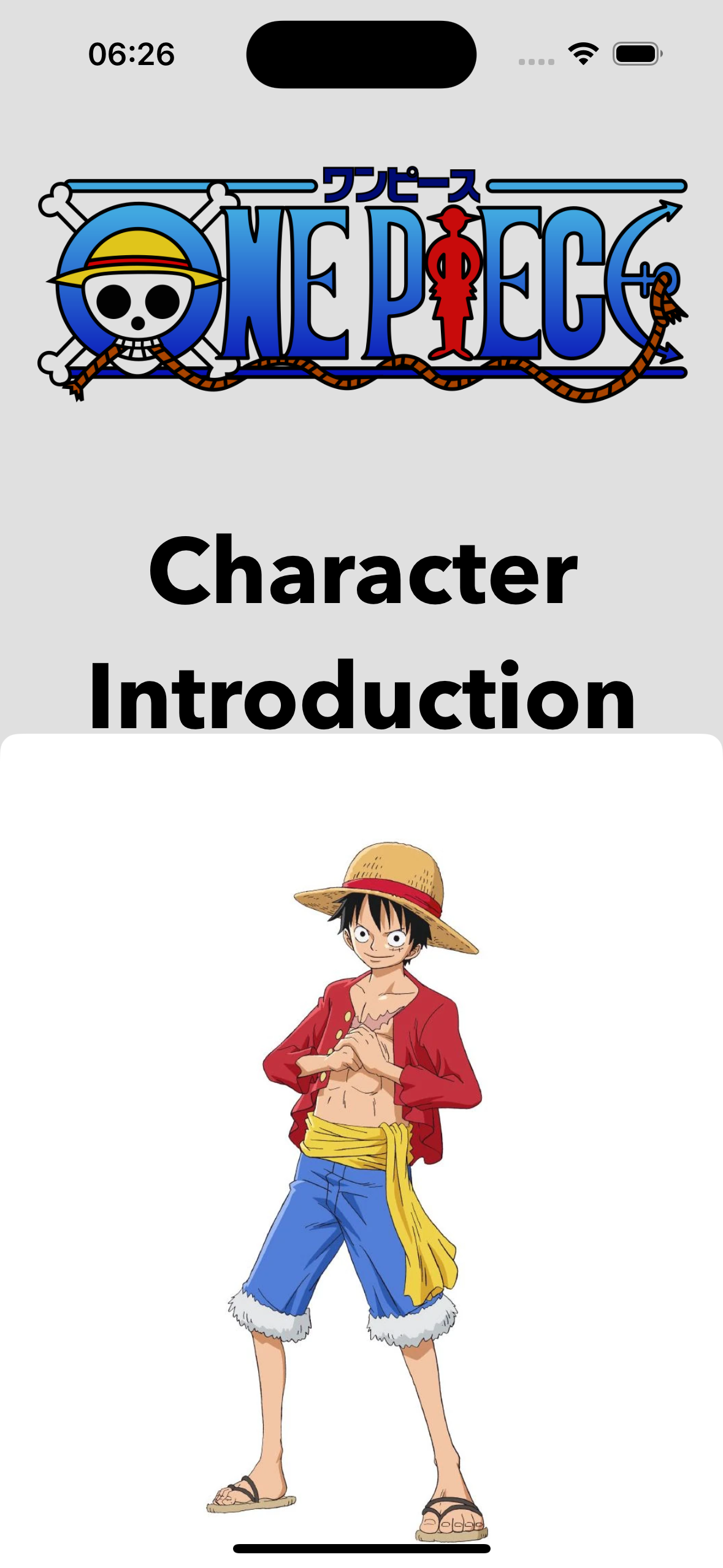


Figure 1 shows the animation of the Pirate King App. In this app, the user can choose whether to display the full-size character introduction page or just half-size. As for the button label, if click on the ‘Full’ button, the introduction page will be full-size. On the other button, the next page will display only half-size.

Figure 1 The animation of the Pirate King App
Now, let’s start with the step-by-step instructions on how to create this app!
1. Set up the character introduction page
As shown in Figure 2, two Buttons have been used on the first page to control the display height of the character introduction page. On the second page, it will display the character's picture, name, and brief introduction.
To make it easier to control the second page, we create a class called ResultViewController and set it as the class of the second page.

Figure 2 The layout of the setting in Storyboard
2. Pull a Segue from ViewController(First page)
To make the storyboard page look clean, we pull a segue from the Viewcontroller on the first page to the second page instead of from the 2 buttons separately.
Next, set up the identifier of this segue to controller later, as shown in Figure 3. Here, we named it ‘next’.

Figure 3 The setting of the identifier
3. Use performSegue to go to the next page.
After clicking the button, the showNext() function will be triggered. In this function, ‘performSegue’ will follow the set segue identifier to jump to the specified page, the entire code shown in Figure 4.

Figure 4 The code for the performSegue function
4. Use sheetPresentationController to set the height of the page
The height should be set before the page jumps to the second page, so it is best to use sheetPresentationController in IBSegueAction to set it. ‘sheetPresentationController’ is one of ViewController’s properties which is used to set up the height of the page.
The whole code of IBSegueAction is shown in Figure 5, let’s break it down to understand it easily:
let nameBtn = sender as? UIButton: This line of code attempts to castsenderas a UIButton type. If the cast is successful, it assigns it to thenameBtnvariable. Thesenderparameter is usually the object that triggered this Segue Action.if nameBtn == halfBtn { ... }: This is a conditional statement checking ifnameBtnis equal tohalfBtn. If the condition is true, the subsequent code block is executed.if let sheetController = controller?.sheetPresentationController { sheetController.detents = [.medium()] }: If the condition is true, this line of code sets an attribute ofsheetController, which is obtained fromcontroller'ssheetPresentationController. Then it setsdetentsto an array with one element, which is of medium size. The functionality of this part depends on the specific implementation of yourResultViewControllerandsheetPresentationController.

Figure 5 The code for setting the height of the page
Finally, the Pirate King application is done! If you have any questions or recommendations, feel free to comment below.

메타데이터
- post_id
- 1da36552eb0d
- slug
- how-to-adjust-the-page-display-height-what-is-sheetpresentationcontroller-1da36552eb0d
- url
- https://medium.com/@chiauli/how-to-adjust-the-page-display-height-what-is-sheetpresentationcontroller-1da36552eb0d
- canonical_url
- https://medium.com/@chiauli/how-to-adjust-the-page-display-height-what-is-sheetpresentationcontroller-1da36552eb0d
- author_url
- https://medium.com/@chiauli
- status
- ok
- fetched_at
- 2026-07-29 15:09:44