How Small Business Owners Can Use Claude Code Without Being Technical
Let me get the obvious question out of the way first.
How Small Business Owners Can Use Claude Code Without Being Technical
Let me get the obvious question out of the way first.
No, you do not need to know how to code. You do not need a terminal, a command line, or anything that looks remotely technical. If you can download a file and click a toggle, you can have these skills running in under five minutes.
The barrier is lower than almost anything else you’ll set up for your business this year.
What You Actually Need
Before anything else, here’s the short list:
- A computer, phone, or tablet
- A Claude account at claude.ai (Free, Pro, or Max)
- The skill files you want to install (more on this below)
- About 5 minutes
That’s it. No software to install. No technical background. No terminal.
How Claude Skills Work
A Claude skill is a small file — a plain text document — that gives Claude a detailed, permanent set of instructions for a specific task.
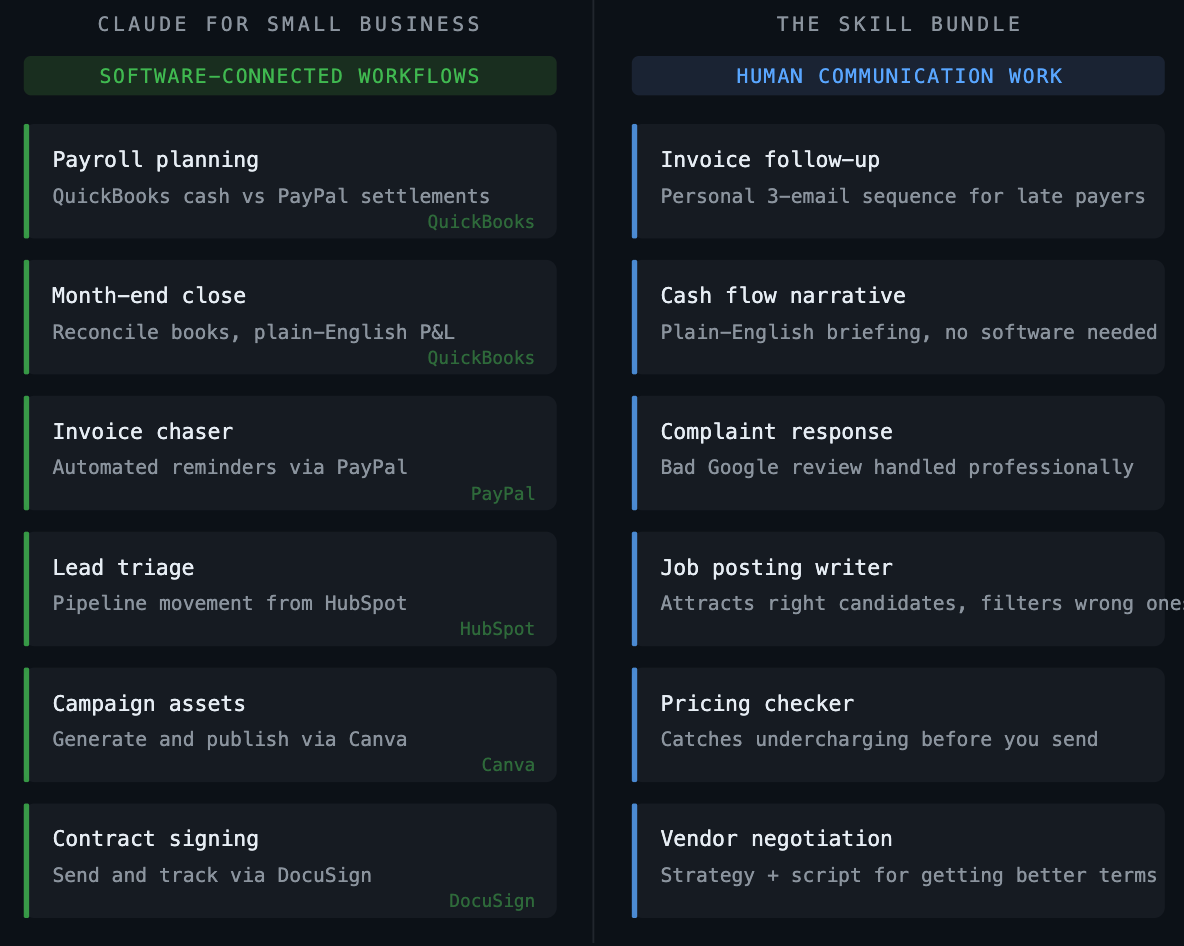
Think of it like hiring a specialist who already knows exactly how to handle a situation before you say a word. One skill handles invoice follow-up emails. Another writes job postings. Another analyzes your cash position and tells you in plain English where you stand.
Once a skill is installed and toggled on, Claude picks it up automatically when you describe a situation that matches. You don’t have to remember a command or name the skill — you just describe what you need and Claude figures out the rest.
Step 1: Get Your Skill Files
Skills come as a ZIP file — a single download that contains all the skill files bundled together.
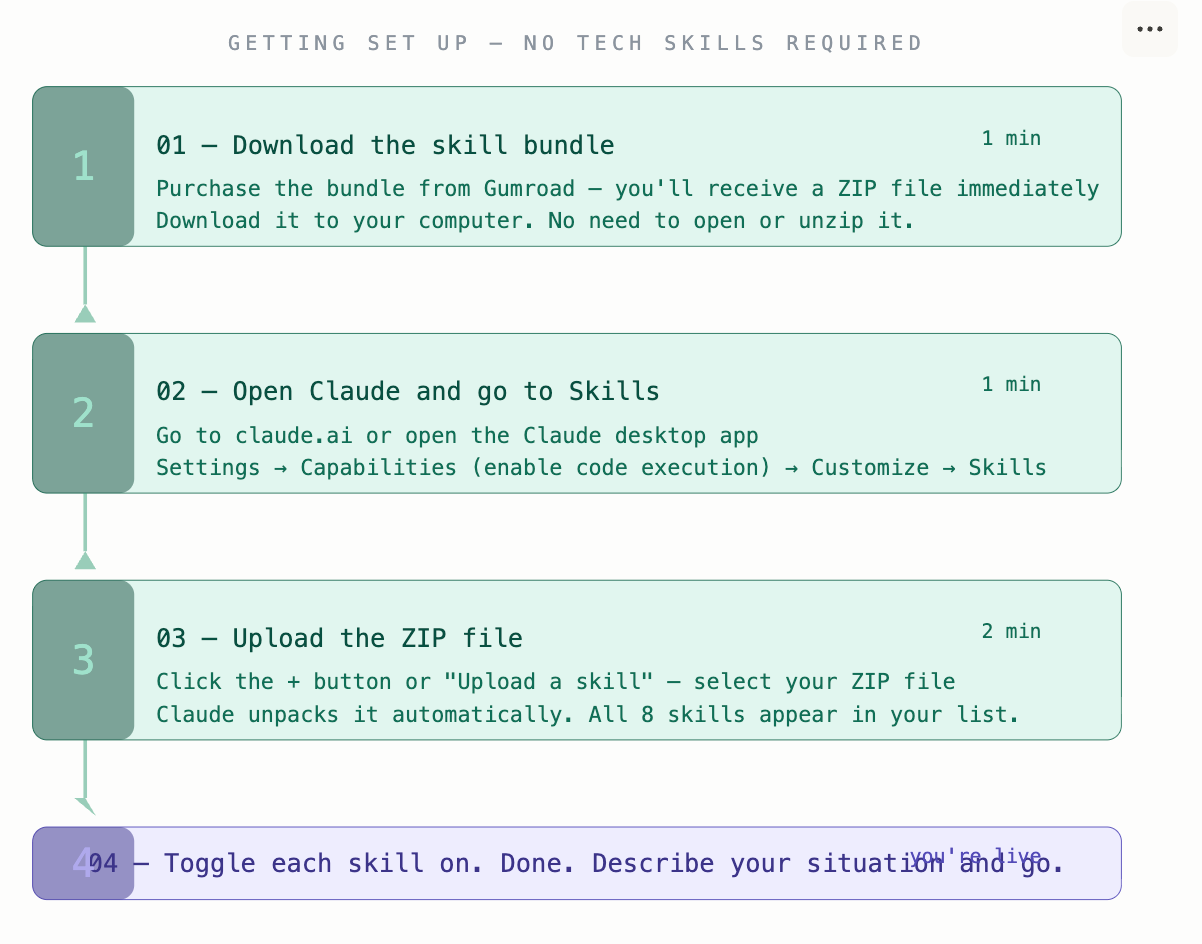
If you purchased the small business skill bundle, you’ll receive a ZIP file from Gumroad immediately after checkout. Download it to your computer. You don’t need to open or unzip it — Claude handles that automatically during the upload process.
Step 2: Open Claude and Go to Skills
Go to claude.ai in your browser or open the Claude desktop app.
Click your profile icon or settings — then navigate to:
Customize → Skills
You’ll see a Skills section showing any skills you currently have installed. If this is your first time, it’ll be empty.
Step 3: Upload the Bundle
In the Skills section, look for the + button or an Upload a skill option.
Click it. A file picker will open. Select the ZIP file you downloaded in Step 1.
Claude will unpack the bundle automatically and your skills will appear in the list — one card for each skill in the bundle.
Step 4: Toggle Them On
Each skill has a toggle switch next to it. Flip each one to on.
That’s the entire setup. You’re done.
Using a Skill
Once your skills are toggled on, using them is just a conversation. Open a new chat in Claude and describe your situation the same way you’d describe it to a knowledgeable assistant.
For example:
“I need to follow up on an invoice. Client is Mike Henderson, $2,400, 12 days past due. Long-term client — we’ve done three jobs together.”
Claude recognizes the situation, pulls up the invoice follow-up skill, and works through it with you — asking for any missing details, then producing the full three-email sequence ready to send.
You don’t type a command. You don’t name the skill. You just describe what you need.
What Using It Actually Feels Like
The honest description: it feels like texting a very capable assistant who already knows how to handle the situation.
You give it the context. It asks for anything it’s missing. It produces the output. You copy it, make any small adjustments you want, and use it.
Most owners spend more time reading and personalizing the output than they do setting up the skill or interacting with Claude. That’s the right ratio — Claude does the structural work, you apply your judgment at the end.
A few things that might catch you off guard the first time:
It asks questions before it writes anything. This is intentional. A skill that asks “is this a new client or a long-term client?” before writing a complaint response is going to produce something dramatically more useful than one that guesses. Answer the questions honestly and the output reflects your actual situation.
The output is a draft, not a finished product. Read it before you send it. In most cases you’ll change a word or two, add a detail, adjust the tone slightly. It’s 85% of the work done — you finish the last 15%.
Each chat starts fresh. Claude doesn’t remember previous conversations by default. The skills persist because they’re installed — the context of a previous job or client does not. If you’re picking up where you left off, give Claude a quick one-sentence summary at the start.
A Realistic Time Estimate
Here’s what setup actually looks like, timed:
- Download the ZIP from Gumroad: 1 minute
- Navigate to Customize → Skills in Claude: 1 minute
- Upload the ZIP and toggle skills on: 2 minutes
- Run your first skill: 5–10 minutes including reading the output
Total: under 15 minutes to go from zero to a working invoice follow-up sequence, a cash flow narrative, or a complete job posting.
Most of that time is the first skill conversation — learning the rhythm of how it asks questions and produces output. The second time you use it takes about three minutes.
If You Get Stuck
The most common issue is not seeing the Skills section in Claude. Make sure:
- You’re logged into your Claude account
- Code execution is enabled under Settings → Capabilities
- You’re on a plan that supports skills (Free, Pro, and Max all do)
If a skill shows as greyed out after uploading, toggle it on — skills need to be manually enabled before Claude can use them.
Anthropic’s help documentation at support.claude.com covers any other setup questions in plain language.
Where to Get the Skills
The small business skill bundle — eight skills covering operations and finance — is available here: [Skills.Ownerless.com]
One ZIP file. Upload it to Claude in under five minutes. Eight skills ready to use immediately.
I build AI-powered tools for small business owners and managers. The skill bundle mentioned in this article is available here: [Skills.Ownerless.com].
메타데이터
- post_id
- 221105d309a2
- slug
- how-small-business-owners-can-use-claude-code-without-being-technical-221105d309a2
- url
- https://medium.com/@tsshirley/how-small-business-owners-can-use-claude-code-without-being-technical-221105d309a2
- canonical_url
- https://medium.com/@tsshirley/how-small-business-owners-can-use-claude-code-without-being-technical-221105d309a2
- author_url
- https://medium.com/@tsshirley
- status
- ok
- fetched_at
- 2026-06-09 15:37:30