One Apple Note Runs My Whole Life. Here’s Exactly How to Build It.
A pinned Home Base in Apple Notes, set up in about fifteen minutes, with no new app and no subscription.
One Apple Note Runs My Whole Life. Here’s Exactly How to Build It.
A pinned Home Base in Apple Notes, set up in about fifteen minutes, with no new app and no subscription.
Most productivity advice starts with a download. A new app, a better template, a system someone swears by online. You move in for a week, the novelty wears off, and your life ends up spread a little thinner across one more place than it was before.
Source: Image created by me
I built this after realising I was not forgetting the big things. I was losing the small ones. A renewal date here, a message I meant to reply to, an idea saved in the wrong app. Nothing dramatic on its own, just enough daily leakage that I stopped trusting my own setup.
The problem was never the tools. Your phone already holds a calendar, reminders, notes, files and mail, every one of them capable. What it lacks is a front door. Nothing tells you where to look first, so you check everything and trust none of it.
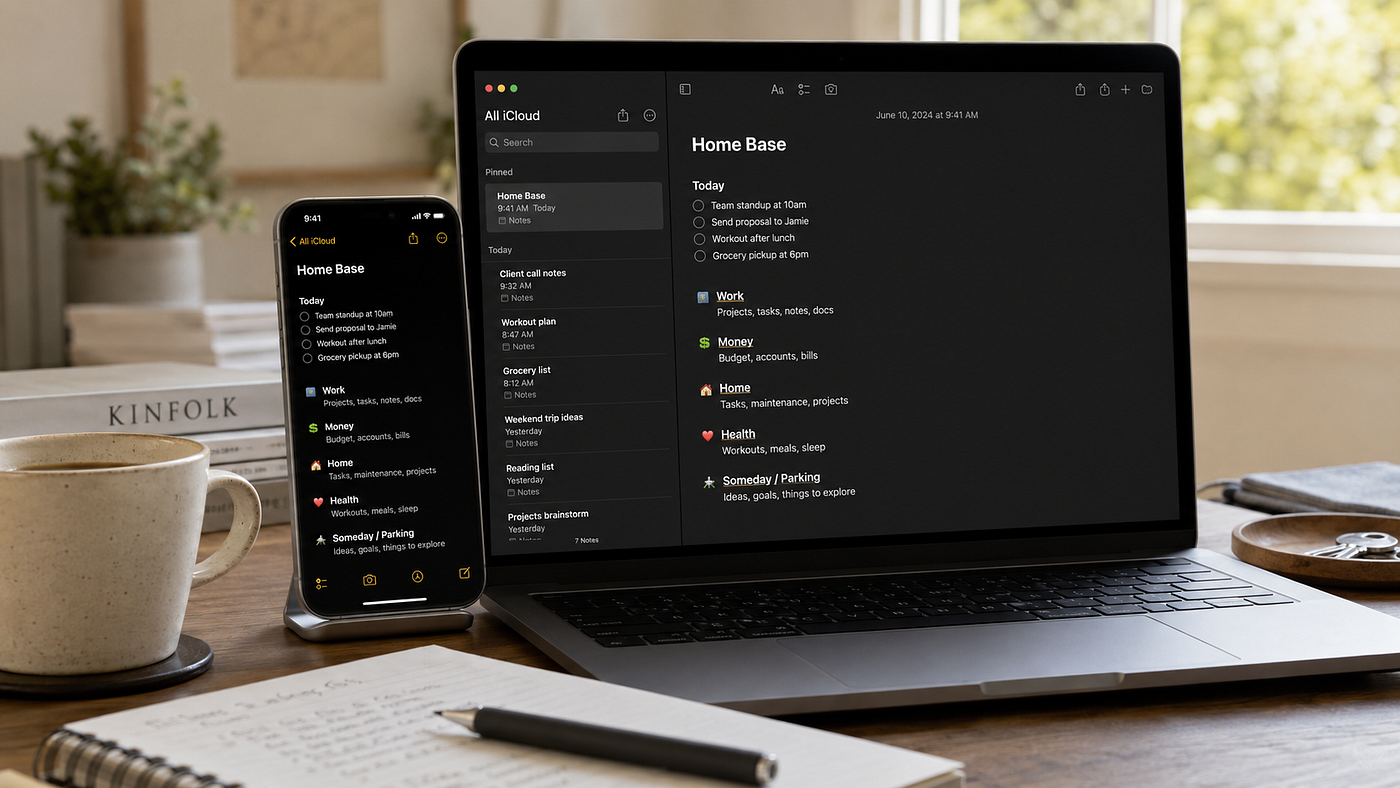
A Home Base fixes that. It is a single note, pinned to the top of Apple Notes, that links out to every part of your life. One screen you open first in the morning and last at night. Not another app to maintain, but a map to the ones you already own.
Here is how to build it.
Step one: create the note and pin it
Open Apple Notes and start a new note. Write “Home Base” on the first line and make it a large, bold title so it reads like a cover rather than a to-do list. Now swipe right on the note in your list, or long-press it, and choose Pin.
Pinning is the whole trick. It keeps this note above everything else you will ever write, so it stays the first thing you see when the app opens. A Home Base that you have to search for is not a Home Base.
Step two: add a Today block
Under the title, add a short heading called Today. This is the only part of the note that changes daily. Three or four lines at most, the things that genuinely have to happen before midnight.
Keep it brutal. If everything lives here, nothing does. The Today block works as a filter, not a holding pen, and most people quietly break their system by treating it like the latter.
Step three: name your Areas
Below Today, list the areas of your life that need a home. For most people that means work, money, home and health, perhaps with one or two more. These are not tasks. They are the rooms of your life, and each one gets its own separate note.
Create a note for each area now, even if it is empty. You are putting up the walls first and furnishing them later.
Step four: link the Areas into the Home Base
This is the step that turns a list into a system, and it is the one almost nobody has tried. In your Home Base note, type the name of an area, say Work. Select that text, open the formatting options, and choose Add Link, then Note. Apple Notes can link straight to another note. Pick your Work note, and the word becomes tappable. Repeat for every area.
Your Home Base is now a switchboard. Tap Work and you land in your work note. Tap the back arrow and you are home again. Your whole life sits one tap from a single screen, with nothing buried more than a tap deep.
Step five: add a Parking spot
At the very bottom, add a heading called Someday, or Parking. This is where stray thoughts go when they do not belong to today and have not yet found an area. A book worth reading, an idea you cannot place yet, the thing you keep meaning to look into.
Having one agreed place for loose ends is what stops them drifting back across ten different apps.
That is the entire build. Fifteen minutes, give or take.
What goes inside an Area note
An area note is just a smaller Home Base. Open Work and you might keep a running project list, a few links you reach for often, and a short log of what you decided and when. Money might hold your subscriptions, renewal dates and a note of what you are saving towards.
The point is not to fill them on day one. The point is that there is now a right place for every kind of thing, so nothing has to live in your head or on a sticky note again.
Why Apple Notes, and not Notion
People reach for Notion the moment a system starts to feel interesting, and a Home Base is exactly the point where that itch arrives. I would resist it.
Notion is a powerful thing you have to go and visit. Apple Notes is already open and already synced across your iPhone, iPad and Mac. It is private by default, and it costs nothing on top of the devices sitting in your pockets and on your desk. For the one note you open twenty times a day, speed beats features every time. The friction of launching a separate workspace is the very friction that kills the habit before it forms.
You could rebuild this in any tool you like. The reason it lasts in Apple Notes is that there is nothing extra to launch and nothing new to remember.
How to actually live in it
The build is easy. The habit is the system, and two small rules carry it.
Open the Home Base first. Before your mail and before any feed, while the day is still yours to order. Ten seconds reading Today and you have set the shape of your morning instead of letting it be set for you.
Run a weekly reset. Once a week, sit with the note for five minutes. Clear what is done and move what slipped. Empty the Parking spot into its proper area. A system without a reset slowly rots, and this is the cheapest insurance you will ever keep.
The mistakes that break it
A few habits quietly kill a Home Base. The first is too many areas, until the structure becomes its own chore. The second is a Today block that holds everything, until it means nothing. The last is skipping the weekly reset, after which the whole note drifts out of date and you abandon it.
Avoid those and this single note will outlast every app you were ever tempted to download instead.
Build it from a head start
If you would rather not stare at a blank screen, I put together a free Apple Life OS Starter. It gives you the Home Base already laid out, along with copy-and-paste templates for the Today block and the weekly reset, in the same dark layout I use myself. You can pick it up here: **apple-life-os-starter**
I’m Anil. I write about getting more out of Apple devices without paying for another subscription to do it, mostly native-first systems built from the apps already on your iPhone. If this was useful, the rest of my writing lives on my newsletter, and I would be glad to have you follow along: **@anilkumarbakkashetti**
메타데이터
- post_id
- 22c99a54b2be
- slug
- one-apple-note-runs-my-whole-life-heres-exactly-how-to-build-it-22c99a54b2be
- url
- https://medium.com/macoclock/one-apple-note-runs-my-whole-life-heres-exactly-how-to-build-it-22c99a54b2be
- canonical_url
- https://medium.com/macoclock/one-apple-note-runs-my-whole-life-heres-exactly-how-to-build-it-22c99a54b2be
- author_url
- https://medium.com/@Anilkumarbakkashetti
- status
- ok
- fetched_at
- 2026-07-20 02:25:49