How to Play PvZ Gardendless on Steam Deck & Bazzite (WebView2 Fix)
Fix black screens, bypass the WebView2 Runtime error, and run this amazing PC port directly from Game Mode. :D
How to Play PvZ Gardendless on Steam Deck & Bazzite (WebView2 Fix)
Fix black screens, bypass the WebView2 Runtime error, and run this amazing PC port directly from Game Mode. :D
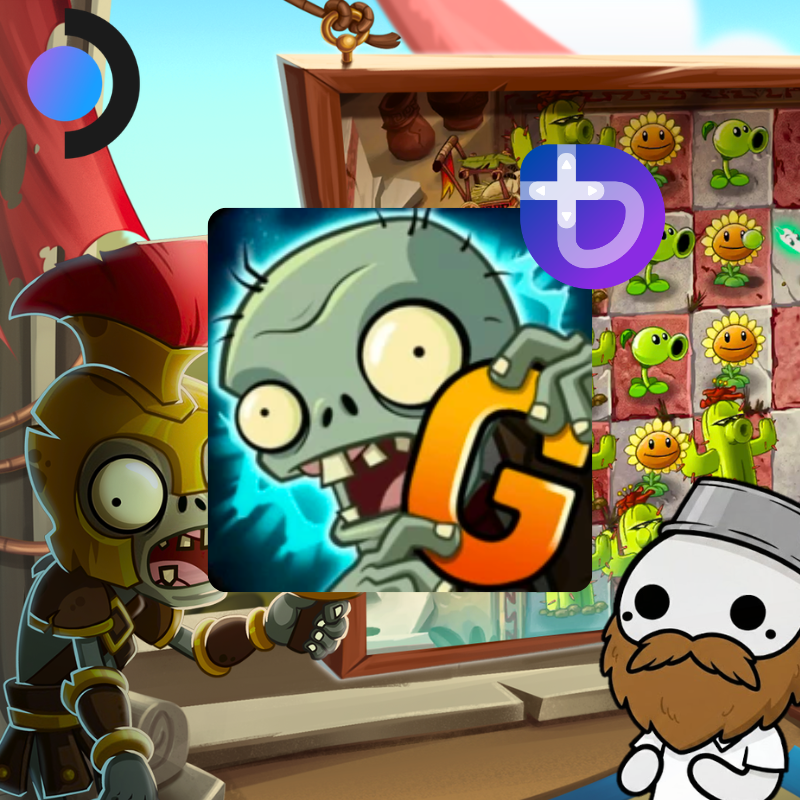
Hey everyone! :D
Are you trying to play the amazing standalone PC port of PvZ Gardendless on Bazzite or SteamOS, but you keep hitting a wall?
If you try running it out of the box, you will likely get a “Could not find the WebView2 Runtime” error. And if you somehow bypass that, you are often greeted by a completly black screen. Because this is a web-based game packaged for windows, linux’s Proton translation layer needs a little extra help to render it properly.
This guide is the fast, no-nonsense solution to install the required microsoft components, fix the black screen, and get those peashooters planted right from Game Mode! :D
Step 1: Download & Organize
Since this is a standalone windows port, we need to download it and put it in a safe place.
- Switch to Desktop Mode.
- Open your browser and go to the official site: https://pvzge.com/en/
- Download the PC version (it will likely be a .zip or .rar file).
- Open your File Manager (Dolphin) and extract the contents.
- Create a safe, permanent folder for it. (For example, create a Games folder inside your Home directory:
~/Games/PvZ_Gardendless). - Move the extracted game files there. Please dont leave it in Downloads, or you might accidently delete it later! :D
Step 2: Add to steam
Now we actully need to tell steam where the game is hiding.
- Open Steam (stay in Desktop Mode).
- Click Add a Game at the bottom left -> Add a Non-Steam Game…
- Click the Browse… button.
- Navigate to your safe folder (
~/Games/PvZ_Gardendless). Note: Make sure to change the file type filter at the bottom to “All Files” if you dont see the game! - Select the game’s main
.exefile and click Open, then Add Selected Programs.
Step 3: The WebView2 Fix (The Switcharoo Trick)
If you run the game now, you will get the WebView2 error.
Quick Warning about Protontricks: A lot of people try to use Protontricks to install WebView2, but it actully breaks the dependencies and triggers the black/white screen loop. Save yourself the headache and do the manual Switcharoo trick instead! It’s way safer.
Here is the trick to install it inside the game’s Proton sandbox:
- Go to the official Microsoft download page: WebView2 Download
- Scroll down to the Evergreen Standalone Installer section and download the x64 version.
- Save that
.exeinstaller inside yourPvZ_Gardendlessgame folder so it's easy to find. - Go to your Steam Library, right-click your new PvZ Gardendless shortcut -> Properties.
- In the Shortcut tab, copy the entire path inside the Target field and paste it somewhere safe (like a blank text document). We will need it back in a minute!
- Click Browse… right below it, and select the WebView2 Installer you just downloaded.
- Close the properties window and click the green Play button in Steam. This runs the microsoft installer inside the game’s prefix! Follow the steps to install it.
- Once it finishes, go back to the game’s Properties, delete the installer path from the Target field, and paste your original game path back in.
Step 4: Fixing the Black Screen (GE-Proton)
The game now has the web engine it needs, but standard Proton might give you a completly black screen. We need a custom community version called GE-Proton! :D
- Open the Discover Store.
- Search for ProtonUp-Qt and click Install.
- Open ProtonUp-Qt and click Add version.
- Make sure the Compatibility tool is set to GE-Proton, select the latest version (like GE-Proton9-XX), and click Install.
- IMPORTANT: Completly close steam (Right-click the Steam icon in your taskbar -> Exit) and open it again so it detects the new tool.
Step 5: Final Polish & Game Mode
- Go to the Properties of your game in steam -> Compatibility tab.
- Check the box for Force the use of a specific Steam Play compatibility tool.
- Select your new GE-Proton version from the dropdown menu.
- Switch back to Game Mode and launch the game! It will now load perfectly. :D
Note for Ultrawide Users: Since this game was designed for traditional aspect ratios, you will see black bars on the sides if you play on your PC’s 21:9 monitor. This is completly normal! On a handheld console, it will fill the screen perfectly :)
Plan B: The Lutris Alternative (If steam is stubborn) :(
Sometimes, steam just flat out refuses to cooperate with specific webview setups. Lutris is your best friend here!
- Open Discover, search for Lutris and install it.
- Download the WebView2 Evergreen Installer (x64).
- Open lutris and click the “+” -> Add locally installed game. Name it PvZ Gardendless.
- Go to the Game options tab. For the Executable, point it to the WebView2 Installer
.exe. - One final check: Go to Configure -> Runner options, and make sure your wine version is set to a recent Wine-GE (using ProtonUp-Qt).
- Hit Save, then click Play. lutris will actully run the microsoft installer inside a fresh wine prefix! Follow the prompts to finish the install.
- Once it’s done, right-click the game in lutris -> Configure. Go back to Game options and change the Executable path to your main
PvZ_Gardendless.exefile. - Want it on steam? Right-click your game in lutris -> Create Steam shortcut. Close and reopen steam. Now you can play directly from Game Mode! :D
Author’s Note :D
Setting up web based fan games on linux can be a little tricky with the WebView2 requirements, but the “Switcharoo” trick is a lifesaver you can use for many other non-Steam games too!!
I highly recommend right-clicking the empty game icon in your steam library and adding some custom artwork (Grid, Hero, and Logo) from SteamGridDB to make it look official.
If you prefer to read this guide on Steam, add it to your favorites, or drop a comment to the community, you can check out the official Steam version right here: Read and Favorite the Official Steam Guide Here
Have fun defending your garden! :D
Disclaimer: This technical guide was written and formatted by ThatGVguy :D to help the linux and handheld gaming community troubleshoot compatibility issues. PvZ Gardendless is a fan-made project. All original Plants vs Zombies assets, characters, and intellectual properties belong to PopCap Games and Electronic Arts (EA). This guide does not host, provide, or directly distribute the game files or microsoft binaries.
메타데이터
- post_id
- 231eda4606a2
- slug
- how-to-play-pvz-gardendless-on-steam-deck-bazzite-webview2-fix-231eda4606a2
- url
- https://medium.com/@ThatGVguy/how-to-play-pvz-gardendless-on-steam-deck-bazzite-webview2-fix-231eda4606a2
- canonical_url
- https://medium.com/@ThatGVguy/how-to-play-pvz-gardendless-on-steam-deck-bazzite-webview2-fix-231eda4606a2
- author_url
- https://medium.com/@ThatGVguy
- status
- ok
- fetched_at
- 2026-07-13 22:08:31