Linux Commands That Look Simple but Are Essential for Everyday DevOps Tasks
Usually when you start working with Linux and begin learning DevOps, you need to become familiar with Linux commands. To fully understand…
Linux Commands That Look Simple but Are Essential for Everyday DevOps Tasks
Photo by Gabriel Heinzer on Unsplash
Usually when you start working with Linux and begin learning DevOps, you need to become familiar with Linux commands. To fully understand what you are doing, it is very important to have a strong foundation. This article will help you gain that stronger understanding of the fundamentals that you need to master the technical aspects of DevOps.
In this article, we are going to take a deep dive into some commonly used Linux commands that can have significant impact on strengthening your fundamentals knowledge. I will break down the content into following topics and will also explain practical scenarios that you can try yourself to get hands on experience.
1. Introduction and Usage
2. The “pwd” Command and Its Behavior
3. The “ls” Command and Its Behavior
4. The “cd” Command and Its Behavior
5. The “mkdir” Command and Its Behavior
6. The “cp” Command and Its Behavior
7. The “chmod” Command and Its Behavior
Introduction and Usage
Photo by Mohammad Rahmani on Unsplash
When you initially take dive into DevOps as a beginner or start using Linux components these commands would appear everywhere.
These commands would appear in docker tutorials, CI/CD pipelines, cloud servers, deployment scripts, Kubernetes containers and troubleshooting guides as a software engineer these are like must know facts.
As a DevOps Engineer or as a Software Engineer you may need to
- Navigate through server directories
- Inspect application files
- Create deployment folders
- Copy configuration files
- Run shell scripts
- Change file permissions
- Investigate file permissions
- Investigate application logs
- Troubleshoot failed deployments
Basic Linux commands help us perform all these tasks.
The “pwd” Command and Its Behavior
pwd - Find your current locationThe pwd command means basically print the working directory.
pwd --> execute command
/mnt/c/Users/User1/linux-practise  --> example output
This command is mostly helpful to identify whether you are in the correct application directory.
The “ls” Command and Its Behavior
ls - listThe ls command displays the files and directories inside your current location.
Say for an example your directory contains below files, then the ls command would print out all the files in the terminal.
- index.js
- readme.txt
- services.js
Useful ls options
ls-l : Long format
ls-lThis displays
- File permissions
- File owner
- Group
- File size
- Last modified date
- File or directory name
When you run the command ls-l you will get an output like below. Through the below diagrams you can learn exactly what this result expresses.
-rwxrwxrwx 1 user1 user1 0 Jul 18 21:09 sample.txt 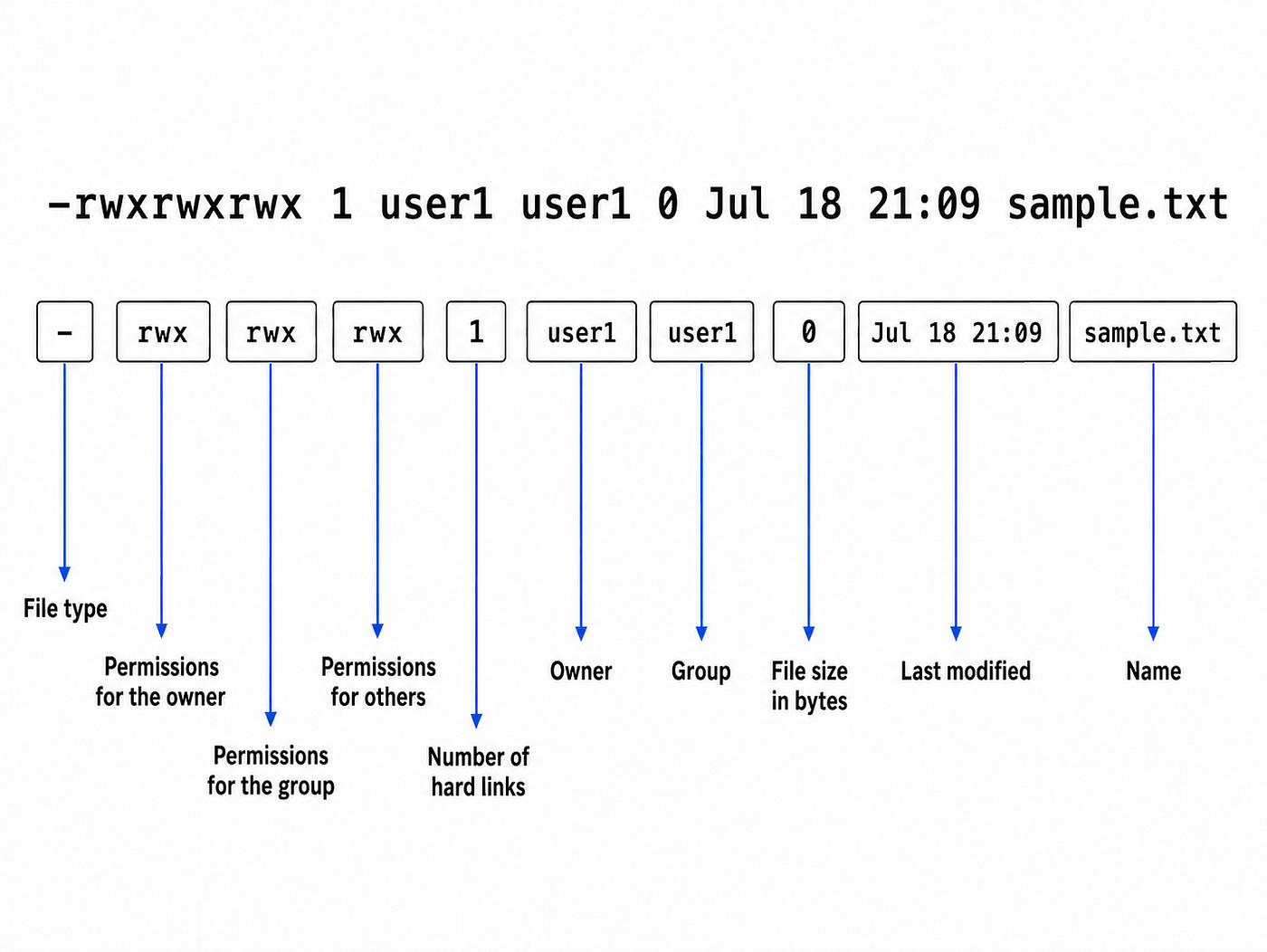
ls-l command explanation

File permissions
Hope you now has a better understanding of what interprets from the longer format of ls command.
ls -a : Display hidden files
This command usually brings out the files which are hidden.
Display hidden files with Details : ls — la
The ls command variations discussed above are widely used in day-to-day DevOps work and Linux environments. I hope you now have a better understanding of how they work.
The “cd” Command and Its Behavior
The cd command means change directory.
This command allow us to move from directory to another.
You can use to enter a directory : cd frontend To move back one level : cd .. To returns home directory: cd ~ To move to root directory: cd / To return to previous directory : cd -
You can also you relative path and absolute path with the cd command as well.
Relative path starts from your current location. cd project/src/components
Absolute path start from your Linux root directory cd /home/username/project/src/components

Common Linux Path Symbols
The “mkdir” Command and Its Behavior
The mkdir command means make directory.
It creates a new folder
mkdir deployment
you can create several directories at once: mkdir dev test production
Creating Nested directories
use -p option to create parent and child directories together.
mkdir -p application/config/nginx
This command create the complete directory structure.

Folder structure created by the mkdir -p command
Without -p, the command may fail if the parent directories do not already exist
mkdir: cannot create directory ‘application/config/nginx’: No such file or directoryThe “cp” Command and Its Behavior
The cp command means copy.
Its basic structure is cp SOURCE DESTINATION
Copy a File
cp config.json config-backup.json
This creates a copy of **config.json named `config-backup.json`**
Copy a file into another directory
cp config.json backup/
Copy and rename a file
cp config.json backup/old-config.json
Copy a directory
To copy a directory and everything inside it, use the **-r **option:
cp -r frontend frontend-backup
The **-r means recursive**.
Without **-r**, Linux will not normally copy a directory.
The “chmod” Command and Its Behavior
The **chmod command stands for change mode. It is used to change the permissions of files and directories in Linux**.
Permissions determine who can read, modify or execute a file.
Basic Syntax is: chmod PERMISSONS FILE_NAME
Example : chmod 755 deploy.sh This changes the permissions of the deploy.sh file
The three main permissions are

Permission types
Linux permissions are normally assigned to three categories

Permission groups
The permission order is always
Read → Write → Execute
The category order is always
User/Owner → Group → Others
For example:
rwxmeans that read, write, and execute permissions are granted.
r-xmeans:
r = Read permission is granted
- = Write permission is not granted
x = Execute permission is granted
The dash does not represent another permission. It shows that the permission in that position is missing.
Permission set Meaning

rwx   Read, write, and execute
rw-   Read and write
r-x   Read and execute
r--   Read only
-w-   Write only
--x   Execute only
---   No permissions
In an ls -l result such as: -rwxr-xr-x
the permissions are divided like this

Permission flow
Numeric Permission Method
Linux permissions can be represented using numbers.

Numeric permission
Number Permission result

7 : Read, write, and execute
6 : Read and write
5 : Read and execute
4 : Read only
3 : Write and execute
2 : Write only
1 : Execute only
0 : No permissions
Understanding chmod 755
Consider this command:
chmod 755 deploy.shThe three digits follow this order:

755 command explanation
The meaning is:
User/owner: 7 = read + write + execute
Group:      5 = read + execute
Others:     5 = read + execute
In permission symbols, this becomes:
rwxr-xr-xAfter running the command, ls -l may display:
-rwxr-xr-x 1 user1 user1 120 Jul 18 21:09 deploy.shThe owner can read, modify, and execute the script. The group and other users can read and execute it, but they cannot modify it.
Symbolic Permission Method
Linux also allows permissions to be changed using letters.
The general format is:
who + action + permissionFor example:
u + xmeans:
u = User/owner
+ = Add permission
x = Execute permission
Therefore:
chmod u+x deploy.shmeans:
Add execute permission for the file owner.
Permission Operators
Symbolic mode uses three main operators:

Permission Operators
Add a permission
chmod u+x deploy.shAdds execute permission for the owner.
Suppose the owner previously had: rw- After adding execute permission, it becomes: rwx
Remove a permission
chmod g-w deploy.shRemoves write permission from the group.
Set exact permissions
chmod u=rx deploy.shSets the owner permissions to read and execute only.
If the owner previously had write permission, it will be removed because = replaces the existing permission set.
Below are few examples I came up with so you could have a better understanding.
Add read permission for the group:
chmod g+r file.txtRemove write permission from others:
chmod o-w file.txtAdd execute permission for everyone:
chmod a+x deploy.shHere, a means all categories:
a = user + group + others
Set different permissions for all three categories:
chmod u=rwx,g=rx,o=rx deploy.shu=rwx User/owner receives read, write, and execute
g=rx Group receives read and execute
o=rx Others receive read and executeThis command is equivalent to:
chmod 755 deploy.shHowever, the following command is not valid:
chmod rwxr-xr-x deploy.shWhen using symbolic mode, the categories such as **u, `g, **ando` must be included.
The correct symbolic form is:
chmod u=rwx,g=rx,o=rx deploy.shNumeric Mode vs Symbolic Mode
Both change the permissions but they are used in different scenarios.
Numeric mode
chmod 755 deploy.shNumeric mode sets the complete permission structure. It is useful when you already know the exact permissions required.
Symbolic mode
chmod u+x deploy.shSymbolic mode changes only a specific permission. It is useful when you want to add or remove one permission without changing the others.
For example:
chmod u+x deploy.shonly adds execute permission for the owner.
However:
chmod 755 deploy.shreplaces the complete owner, group, and others permission structure.
I hope you now have a better understanding of these Linux commands and have strengthened your fundamental knowledge. The best way to become confident with Linux is to practise these commands and try them yourself in different scenarios. You can also return to this article whenever you need to refresh your knowledge and reinforce what you have learned.
메타데이터
- post_id
- 239257ea9fb7
- slug
- linux-commands-that-look-simple-but-are-essential-for-everyday-devops-tasks-239257ea9fb7
- url
- https://medium.com/@oshanvikasith1998/linux-commands-that-look-simple-but-are-essential-for-everyday-devops-tasks-239257ea9fb7
- canonical_url
- https://medium.com/@oshanvikasith1998/linux-commands-that-look-simple-but-are-essential-for-everyday-devops-tasks-239257ea9fb7
- author_url
- https://medium.com/@oshanvikasith1998
- status
- ok
- fetched_at
- 2026-08-01 14:11:17



