How to use SWE-1.7 and SWE-1.7 Lightning in Devin CLI
Cognition’s newest model runs at a blazing 1,000 tokens per second in Devin CLI. Here’s how to install it, configure it, and put it to…
How to use SWE-1.7 and SWE-1.7 Lightning in Devin CLI
Cognition’s newest model runs at a blazing 1,000 tokens per second in Devin CLI. Here’s how to install it, configure it, and put it to work.
I write about the configuration patterns that make AI coding agents genuinely reliable, so subscribe to catch the next one.
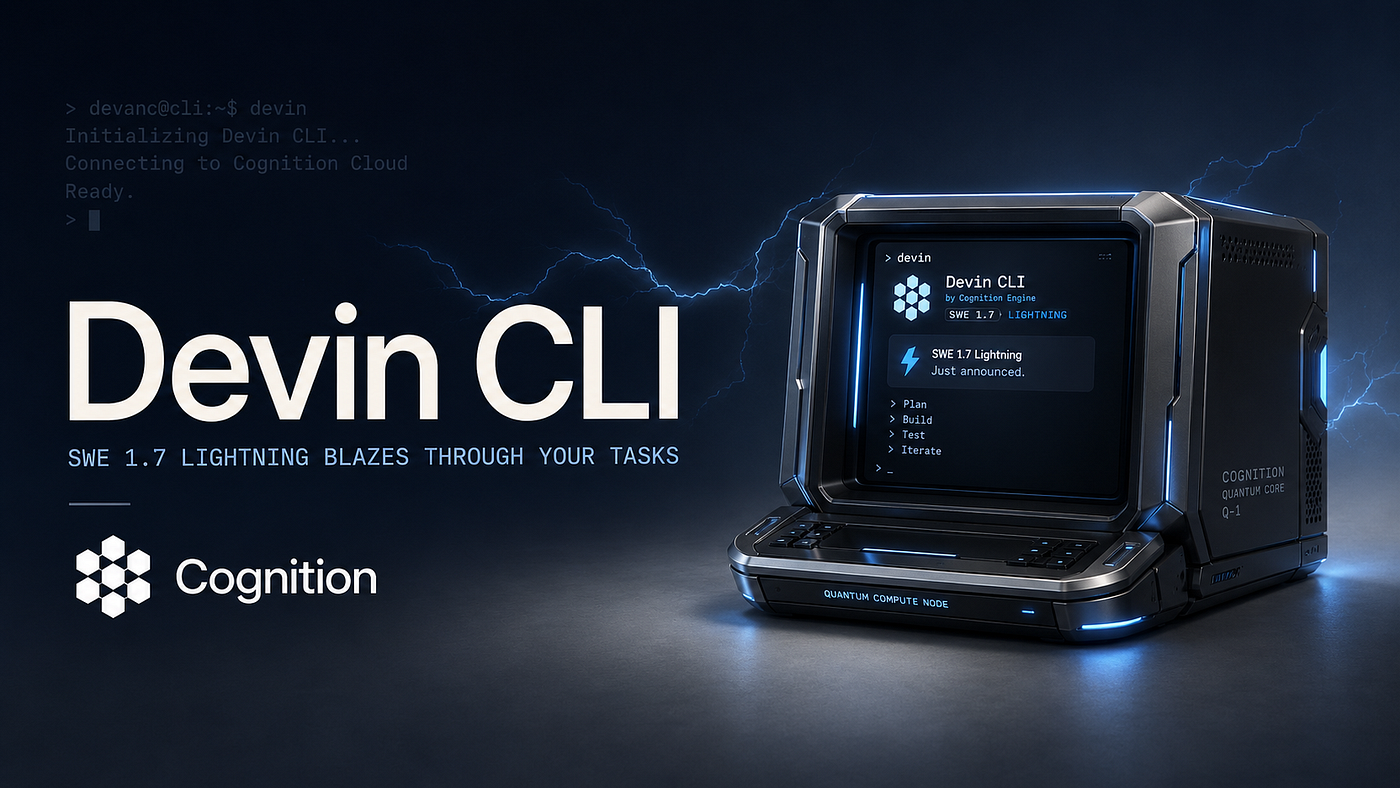
What SWE-1.7 does and where it fits
Cognition released SWE-1.7 today. The company calls it the most capable model it has trained so far, and the numbers it published are definitely hard to ignore. On Cognition’s own FrontierCode 1.1 Main benchmark, SWE-1.7 scores 42.3%, landing shy of a few points of GPT-5.5 and Claude Opus 4.8 while reportedly costing far less per rollout. It also scores 81.5% on Terminal-Bench 2.1 and 77.8% on SWE-Bench Multilingual.
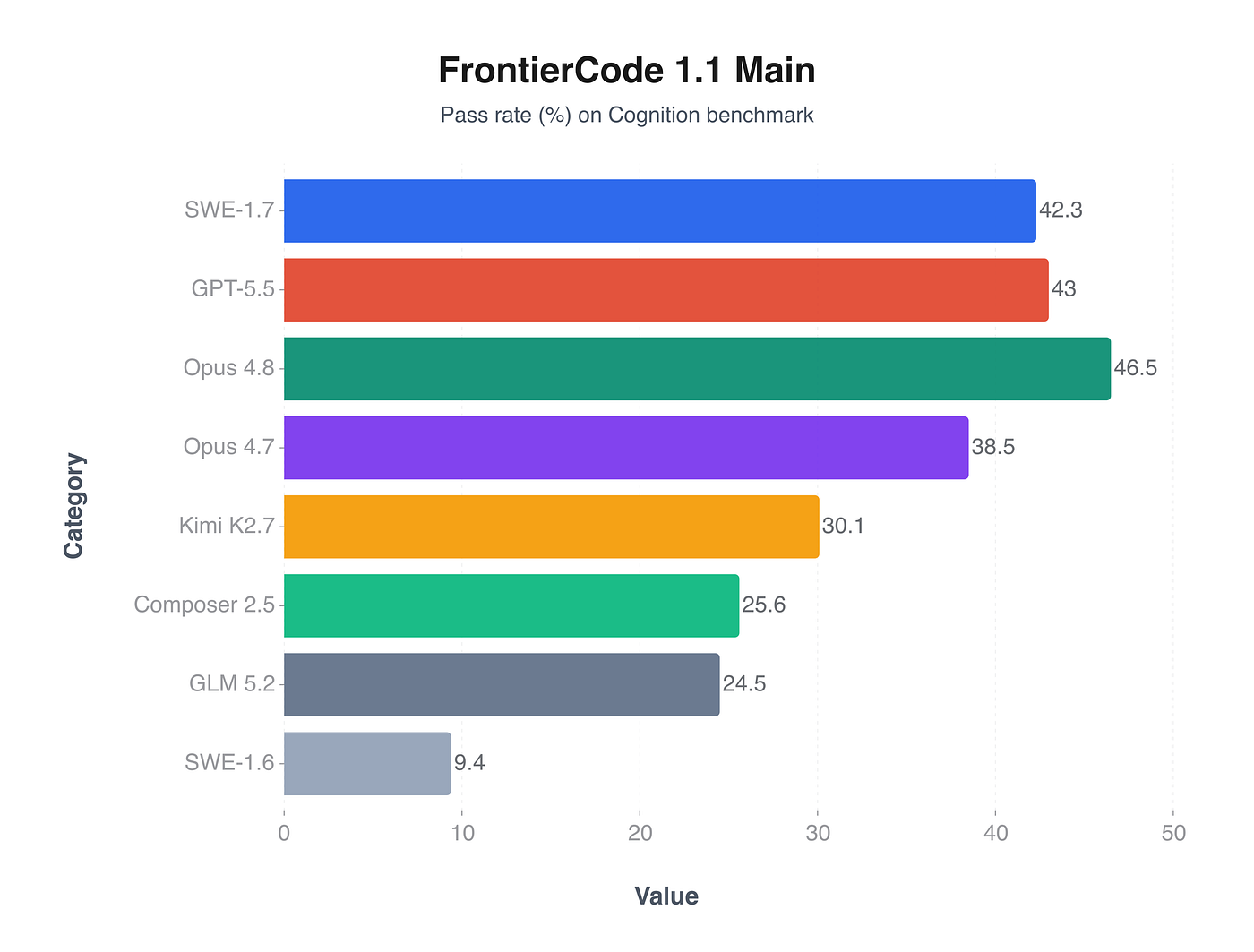
Pretty impressive numbers.
SWE-1.7 is trained from a Kimi K2.7 base, then pushed through a long reinforcement-learning (RL) run that spans multiple continents. The model isn’t just faster or cheaper; it’s built for long-horizon, asynchronous software-engineering work. Cognition says rollouts during training reached up to six hours, with the agent learning to summarise its own state and resume from the summary when it neared the context window.
For a developers and enthusiasts like you and I, the key bits are speed and availability. SWE-1.7 is live in Devin Web, Desktop, and CLI, and the CLI route fits most naturally into an existing terminal workflow.
In the CLI it’s served through Cerebras at around 1,000 tokens per second. (Yep, the same Cerebras that powers GPT 5.3-Codex-Spark.) That’s fast enough that the agent can stream its reasoning in real time while you watch, instead of disappearing for minutes and returning with a finished patch.
Pricing is unusually gentle for a frontier-grade model. As of this writing, the standard SWE-1.7 model is in a free preview for paid Devin users until 8 August 2026. The faster SWE-1.7 Lightning variant, also served on Cerebras, costs $2.50 per million input tokens and $12.50 per million output tokens, with $1.00 per million cached-input tokens.

SWE-1.7 Lightning is fast as fck.*
What makes SWE-1.7 different
Most coding models are judged on benchmark averages. SWE-1.7’s training story explains why the benchmark numbers are only part of the picture.
Cognition starts with Kimi K2.7, a model that has already been through extensive RL post-training, and then runs its own long asynchronous RL pipeline on top. The team says this challenges the idea of a “post-training ceiling”: the model keeps improving well past the point where earlier runs used to stall. Four things stand out.
Entropy preservation. Long RL runs tend to collapse as the model stops exploring and just repeats high-reward patterns. Cognition uses top-p sampling with a sampling-distribution replay trick so the trainer sees the same token mask the rollout used. The result is a policy whose entropy stays roughly flat across training and whose training-inference divergence stays bounded.
Multi-cluster training. RL doesn’t need all inference compute in one building. Cognition runs the trainer on a single US cluster and streams compressed weight deltas to rollout clusters across three continents. For a 1T-parameter model, a cross-continental weight update completes in one to two minutes and pauses inference for only three to four seconds.

At least this map didn’t miss New Zealand.
Self-compaction. When an agent runs for hours, the context window eventually fills. SWE-1.7 is trained to write a summary of its working state and resume from that summary. The team reports training rollouts lasting up to six hours, with the model learning both to compress its state and to keep working from the compressed version.
Alternating length penalty. Rather than always punishing long outputs, the training phases alternate between unconstrained and budget modes. The model learns to think longer on hard tasks and compress its reasoning on tasks it already knows how to solve. That’s why the chain-of-thought is condensed: fewer function words and shorter sentences than the base model, but still complete.
The behaviours that come out of this are quite useful. SWE-1.7 tends to explore the codebase more thoroughly before editing, probes edge cases and adversarial inputs, and even writes small Python scripts to test ambiguous semantics instead of guessing. The cost is slightly broader change scope: the agent may touch more files and add more tests than the literal task requires. Cognition notes this as a trade-off they’re working to tighten. But hey, it’s there to get the job done, right?
Install Devin CLI and pick your model
If you already have Devin Desktop, the CLI may already be available. Otherwise the install is one command.
On macOS, Linux, or WSL:
curl -fsSL https://cli.devin.ai/install.sh | bashOn macOS you can also use Homebrew:
brew install --cask devin-clibrew upgrade --cask devin-cliOn Windows, open PowerShell and run:
irm https://static.devin.ai/cli/setup.ps1 | iexRestart your terminal, move into a project directory, and type:
devin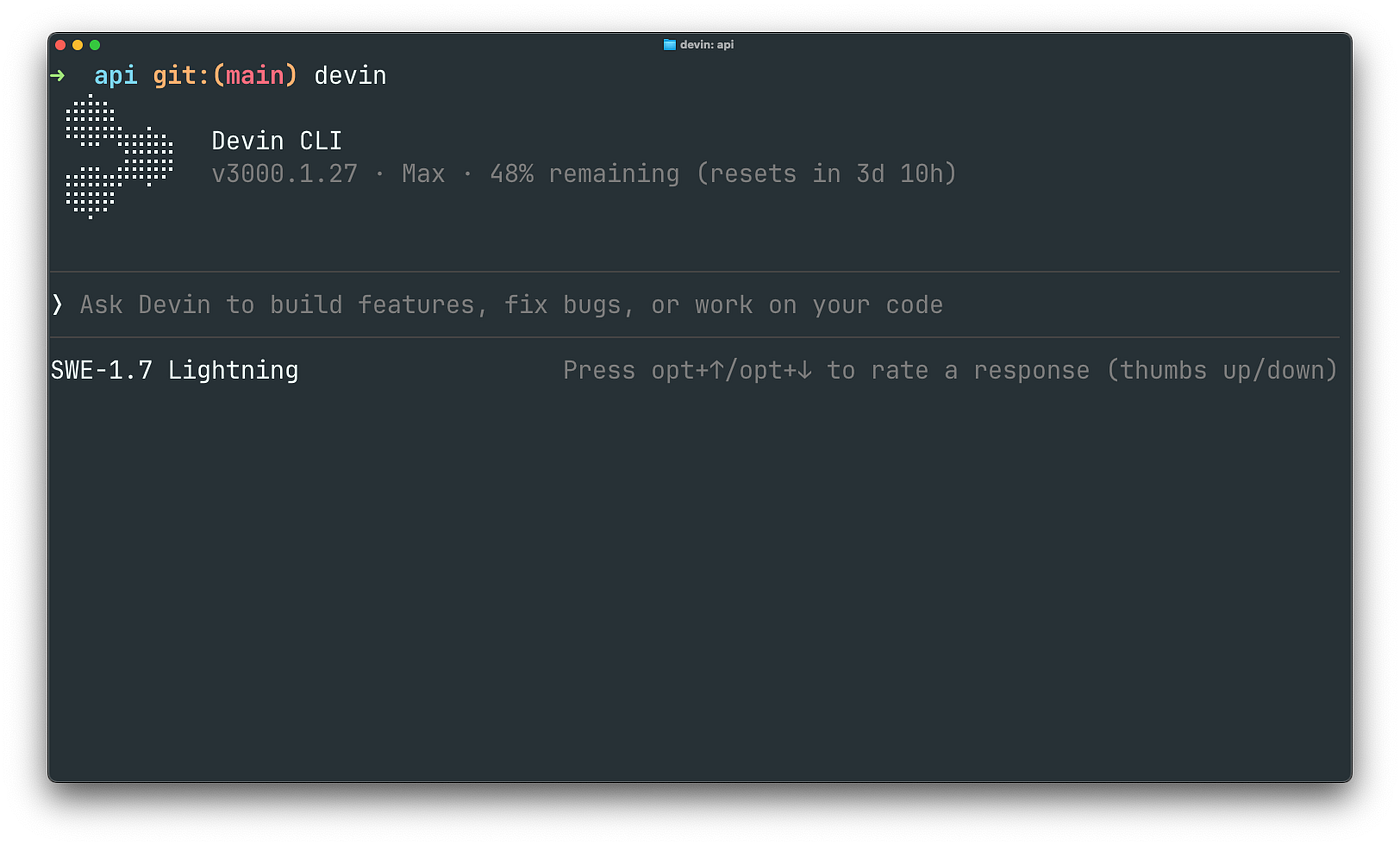
You should see the REPL. To preload a prompt without the interactive interface, use --:
devin -- check out this code and suggest a feasible, helpful featureExpected output:

For one-shot, non-interactive runs, use -p:
devin -p "list the top 5 code smells in app/"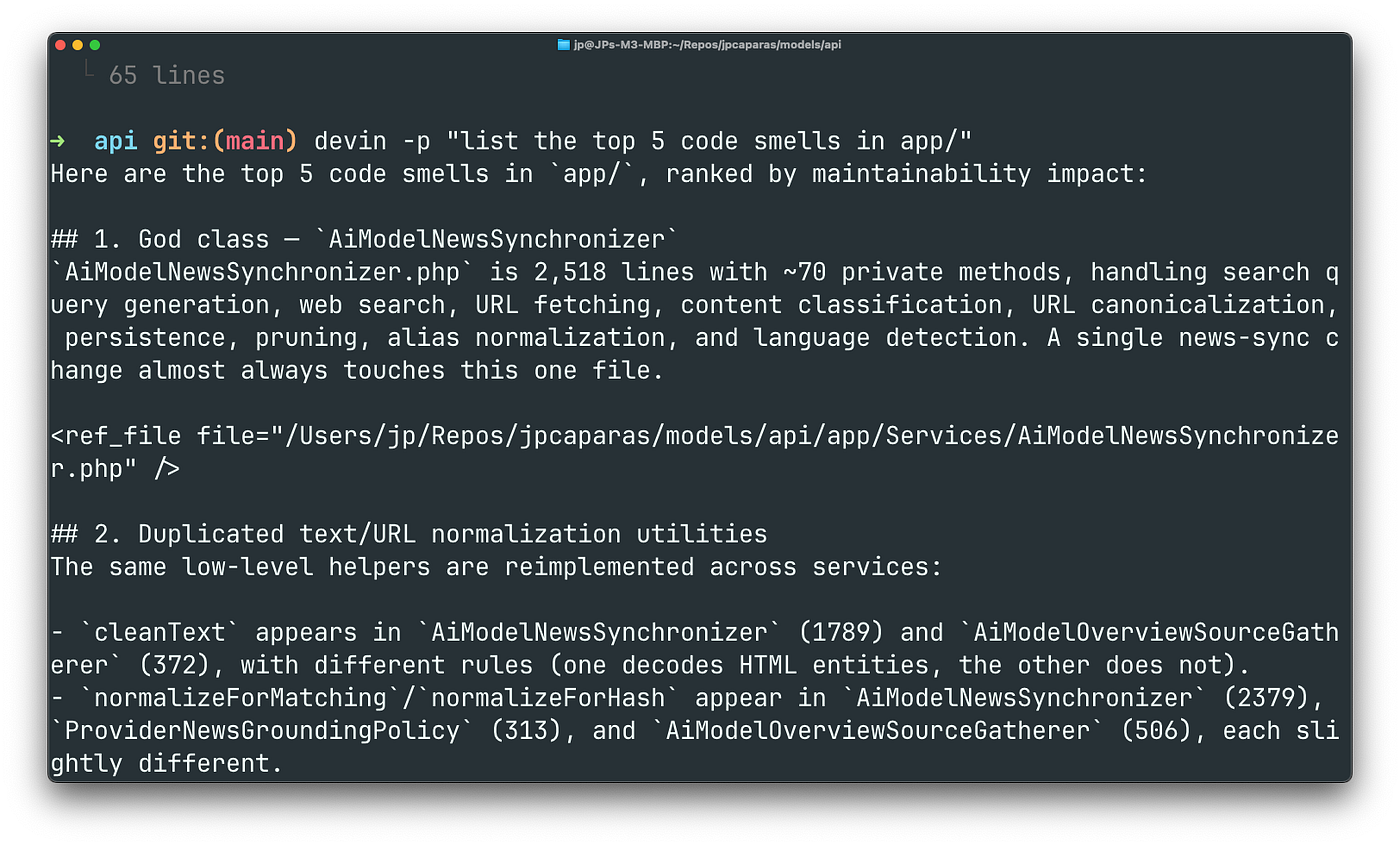
If you use claude -p, then you’ll feel right at home.
Sessions are saved locally. Resume the most recent one with -c, open a picker with -r, or resume a specific session by ID:
devin -cdevin -rdevin -r brisk-otterInside the REPL, /continue and /resume do the same thing. /ls lists recent sessions in the current directory, and /ls --all shows sessions across all directories.
To switch to SWE-1.7, use the model command:
/model swe-1.7
You can also use /models to list all the available models.
Or start the session with the model flag:
devin --model swe-1.7For the Cerebras-backed fast variant:
/model swe-1.7-lightning
1000 tokens per second. Blazing fast.
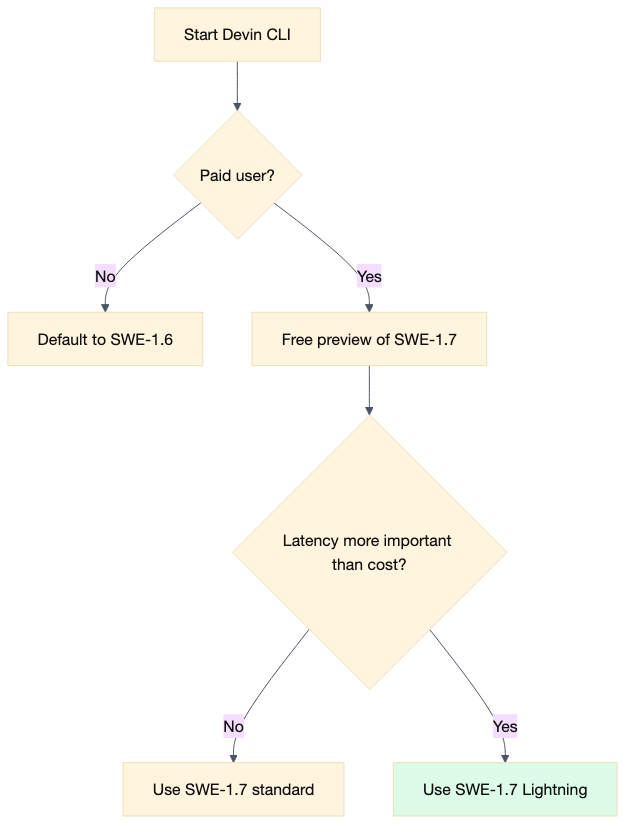
The standard model is the one to try first. It’s free during the preview period for paid users. Lightning is the right choice when latency matters more than cost: the same intelligence at 1,000 tokens per second.
Set permission modes for real work
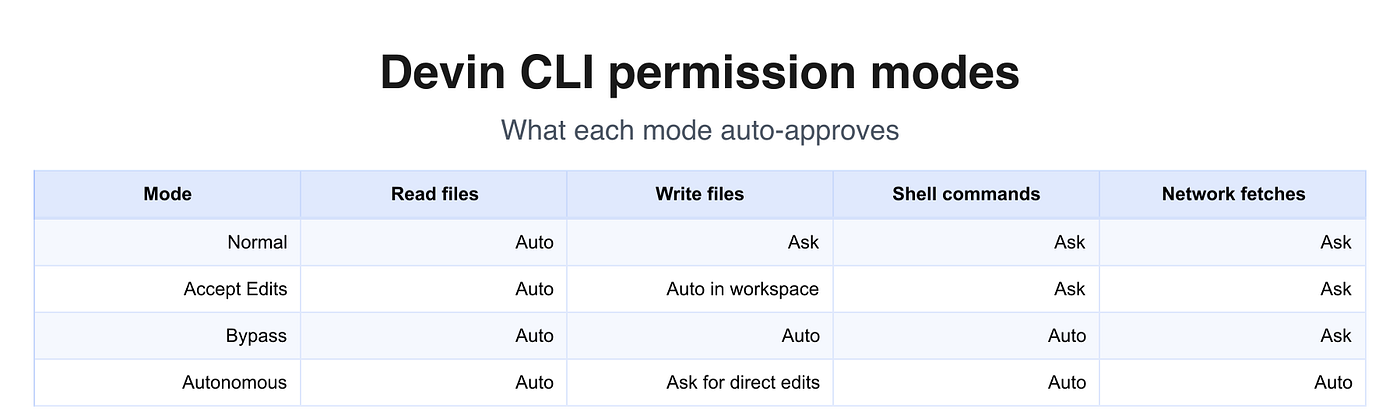
Out of the box, Devin CLI runs in Normal mode. Reads inside your project directory auto-approve, but writes and shell commands prompt you every time. That’s safe for exploration, but it becomes tedious if you run the agent all day.
Devin CLI has four permission modes. Switch between them with Shift+Tab or /mode.
- Normal: Read-only calls in the workspace auto-approve; writes and shell commands ask. Use this when you’re exploring unfamiliar code or working in a sensitive repo.
- Accept Edits: File edits inside the workspace auto-approve; shell commands and writes outside the workspace still prompt. Most developers end up here once they trust the agent on a project.
- Bypass: Reads, writes, and shell commands all auto-approve. Aliased as
/yoloand/dangerous. Enterprise deny rules still apply regardless of this mode. - Autonomous: Sandbox mode. Requires the
--sandboxflag. Shell commands and network fetches auto-approve because the operating system enforces the boundary. Direct file edits viaeditandwritestill prompt, because those tools run in the CLI process and can't be bounded by the sandbox.
Start in Bypass mode from the command line:
devin --permission-mode bypass
Use with care.
Or start sandboxed Autonomous mode:
devin --sandbox --permission-mode yolo
The difference between Bypass and Autonomous is worth understanding. Use --sandbox when you want the agent on its own isolated computer with enforced boundaries. Use Bypass when you trust it on your machine and want the fastest loop. If you want Bypass speed with isolation, cloud Devin is the better fit.
For a production setup, combine Accept Edits with explicit allow, deny, and ask rules in .devin/config.json. More on that in the next section.
Write AGENTS.md rules that stick
Every session starts with the agent knowing only what it can read from the file system. An AGENTS.md file at your project root changes that. It's a persistent briefing document the agent always has open.
Create AGENTS.md at the project root:
# Project rules

- Use TypeScript for all new files
- Run `npm run lint` before committing
- Use pnpm, not npm or yarn
- Write tests for all new utility functions
- Never edit migration files directly
Expected output when the agent loads:
Loaded rules from /Users/you/project/AGENTS.mdDevin CLI also reads AGENT.md and CLAUDE.md at the same level. If you're migrating from Cursor, Windsurf, or Claude Code, you can tell Devin CLI to import their configs:
{
    "read_config_from": {
        "cursor": false,
        "windsurf": true,
        "claude": true
    }
}
Rules stack at multiple levels:
- Project rules live at
AGENTS.mdin the repo root. - Global rules live at
~/.config/devin/AGENTS.mdand apply across all projects. - Subdirectory rules are loaded lazily when the agent accesses files in that directory.
One tip the documentation buries: keep AGENTS.md short. Long, verbose rule files dilute the agent's attention. If a rule applies to a specific workflow rather than every session, put it in a skill instead.

You can also set a default model in your user config:
{
"agent": {
"model": "swe-1.7"
}
}
Place that in ~/.config/devin/config.json and every new session starts with SWE-1.7.

Build skills for repeatable workflows
Skills are self-contained prompts stored as SKILL.md files. You invoke them with /skill-name during a session, or let the agent trigger them automatically when it judges them relevant.
A minimal skill at .devin/skills/review/SKILL.md:
---
name: review
description: Review staged changes for issues
allowed-tools:
- read
- grep
- glob
- exec
permissions:
allow:
- Exec(git diff)
- Exec(git log)
---
Review the current changes:
!`git diff --staged`
Check for:
1. Logic errors or edge cases
2. Security issues
3. Style inconsistencies with the rest of the codebase
Summarise findings with specific line references.
Expected invocation:
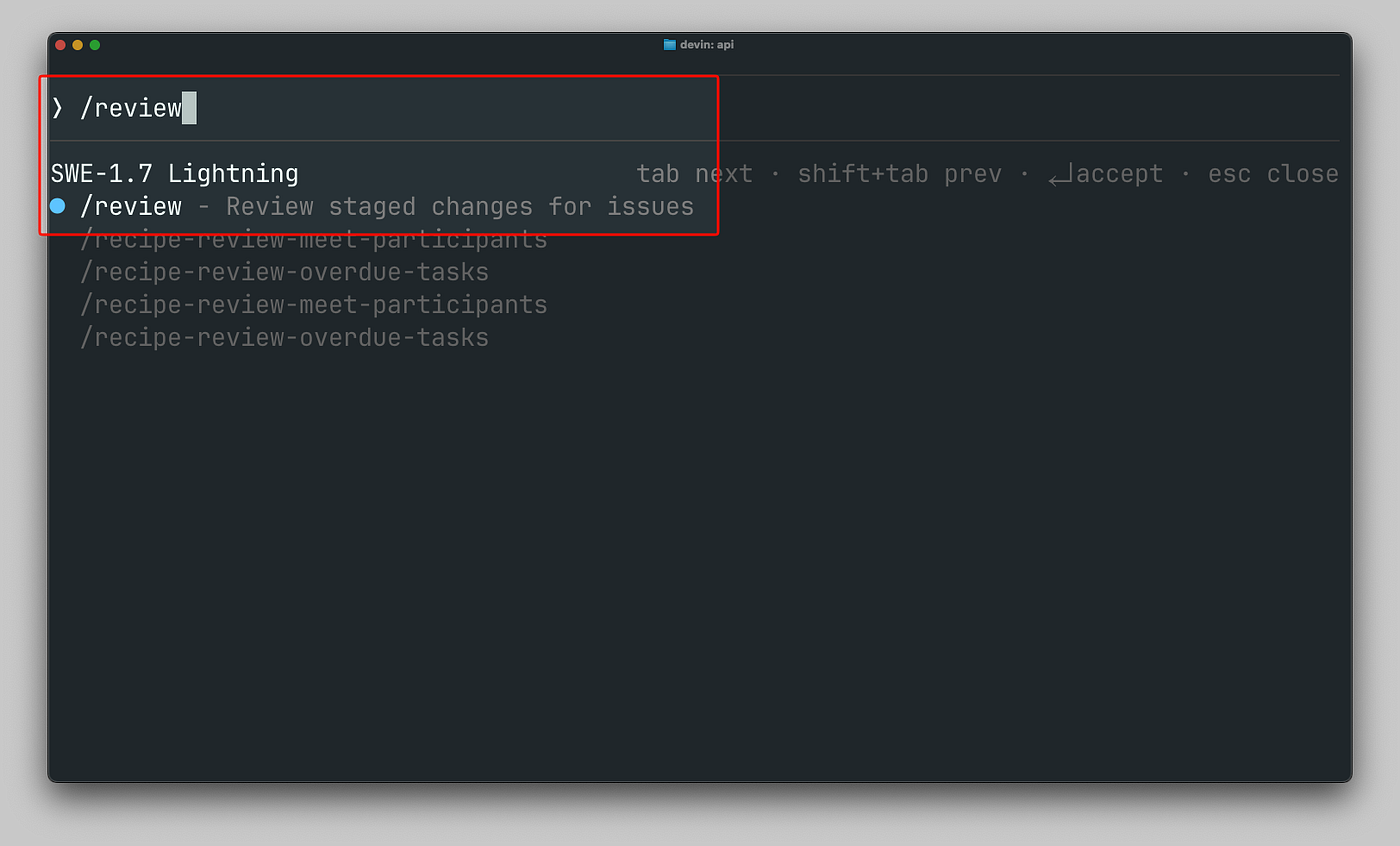
The directory name is the skill identifier. A skill at .devin/skills/review/ is invoked with /review.
Frontmatter options worth knowing:
allowed-toolsrestricts which tools the skill can use. For safety-critical workflows, always restrict to the minimum needed.modeloverrides the model for this skill.subagent: trueruns the skill as an independent worker with its own context window.triggers: [user]prevents the agent from invoking the skill on its own.

Skills support dynamic injection. Arguments from the slash command are available as $1, $ARGUMENTS, and so on. File inclusion uses @filename.md. Live command output uses backtick escape syntax:
!`git diff --staged`If you work across multiple harnesses, you can store skills in .agents/skills/ instead of .devin/skills/. The directory name still becomes the invocation name.
Enforce policy with hooks
Hooks are the policy layer. They run shell commands or LLM prompts at specific points in the agent’s lifecycle, and they can block destructive commands, inject context before tool calls, auto-approve safe operations, or log what the agent does.

If you have existing Claude Code hooks, they’ll work out of the box too.
The hook format is compatible with Claude Code hooks, so any hooks you already have will work here. Create .devin/hooks.v1.json:
{
    "PreToolUse": [
        {
            "matcher": "exec",
            "hooks": [
                {
                    "type": "command",
                    "command": "python3 -c \"import sys, json; data = json.load(sys.stdin); cmd = data.get('tool_input', {}).get('command', ''); sys.exit(2 if 'rm -rf' in cmd else 0)\""
                }
            ]
        }
    ]
}
Exit codes control the outcome:
0: allow the tool call to proceed.1: block the tool call.2: block the tool call and show the agent the output as a reason.
To return a reason, write JSON to stdout:
{
    "decision": "block",
    "reason": "Destructive command blocked by policy"
}
You can also auto-approve safe commands. This hook approves any command that starts with git:
{
    "PermissionRequest": [
        {
            "matcher": "exec",
            "hooks": [
                {
                    "type": "command",
                    "command": "python3 -c \"import sys, json; data = json.load(sys.stdin); cmd = data.get('tool_input', {}).get('command', ''); print(json.dumps({'decision': 'approve'})) if cmd.startswith('git ') else sys.exit(0)\""
                }
            ]
        }
    ]
}
The matcher field is a regex, not a glob. "exec" matches any tool name containing "exec". "^exec$" matches only the exact exec tool. For MCP tools, use "^mcp__github__.*" to match all tools on the github server.
Hook events include PreToolUse, PostToolUse, PermissionRequest, Stop, and more. A Stop hook can require the agent to run tests before it considers a task done:
{
    "Stop": [
        {
            "matcher": "",
            "hooks": [
                {
                    "type": "command",
                    "command": "echo '{\"decision\": \"block\", \"reason\": \"Please run the test suite before stopping.\"}'"
                }
            ]
        }
    ]
}
Be careful with Stop hooks that always block. If the condition is never satisfied, the agent loops and burns tokens.
Hooks load from .devin/hooks.v1.json, the "hooks" key in .devin/config.json or .devin/config.local.json, ~/.config/devin/config.json, and even .claude/settings.json if read_config_from.claude is enabled. Use /hooks inside a session to see every loaded hook, its source file, and its event type.

I asked Devin to summarise a stop hook in one of my projects.
Wire in MCP servers
MCP, the Model Context Protocol, lets you connect external tool servers to Devin CLI. When you add an MCP server, its tools become available as mcp__<server>__<tool>. A GitHub server with a create_issue tool appears as mcp__github__create_issue.
Add servers via the command line:
devin mcp add github https://api.githubcopilot.com/mcp/devin mcp add -s project sentry https://mcp.sentry.dev/mcp
The -s project flag scopes the server to the shared project config so teammates inherit it. The default -s local writes to .devin/config.local.json, which is gitignored.
Servers also live in .devin/config.json:
{
    "mcpServers": {
        "github": {
            "url": "https://api.githubcopilot.com/mcp/"
        }
    }
}
For secrets, split the config. Define the server in .devin/config.json, then add the token in .devin/config.local.json:
{
    "mcpServers": {
        "myMcpServer": {
            "env": {
                "MY_TOKEN": "YOUR_TOKEN_HERE"
            }
        }
    }
}
OAuth-based remote servers such as Notion, Linear, and Atlassian require authentication after adding:
devin mcp add linear https://mcp.linear.app/mcpdevin mcp login lineardevin mcp login opens a browser window for the OAuth flow. Tokens are stored locally and refreshed automatically.

Control which MCP tools the agent can use with permissions:
{
    "permissions": {
        "allow": [
            "mcp__github__list_issues",
            "mcp__github__create_issue"
        ],
        "deny": [
            "mcp__github__delete_repo"
        ],
        "ask": [
            "mcp__linear__*"
        ]
    }
}
The pattern mcp__server__* matches all tools on a server. mcp__* matches every MCP tool. The permission system honours the same precedence as built-in tools: deny beats ask, which beats allow.
Delegate to subagents
Subagents are independent workers the main agent can spawn. Each has its own context window and doesn’t inherit the parent conversation. You can ask for one explicitly, or let the agent decide when a task benefits from independent focus.
Two built-in profiles cover most cases:
subagent_exploreis read-only. It gets grep, glob, read, and web search. It can't edit files.subagent_generalgets full tool access in the foreground. In the background it inherits only permissions already granted in the current session.
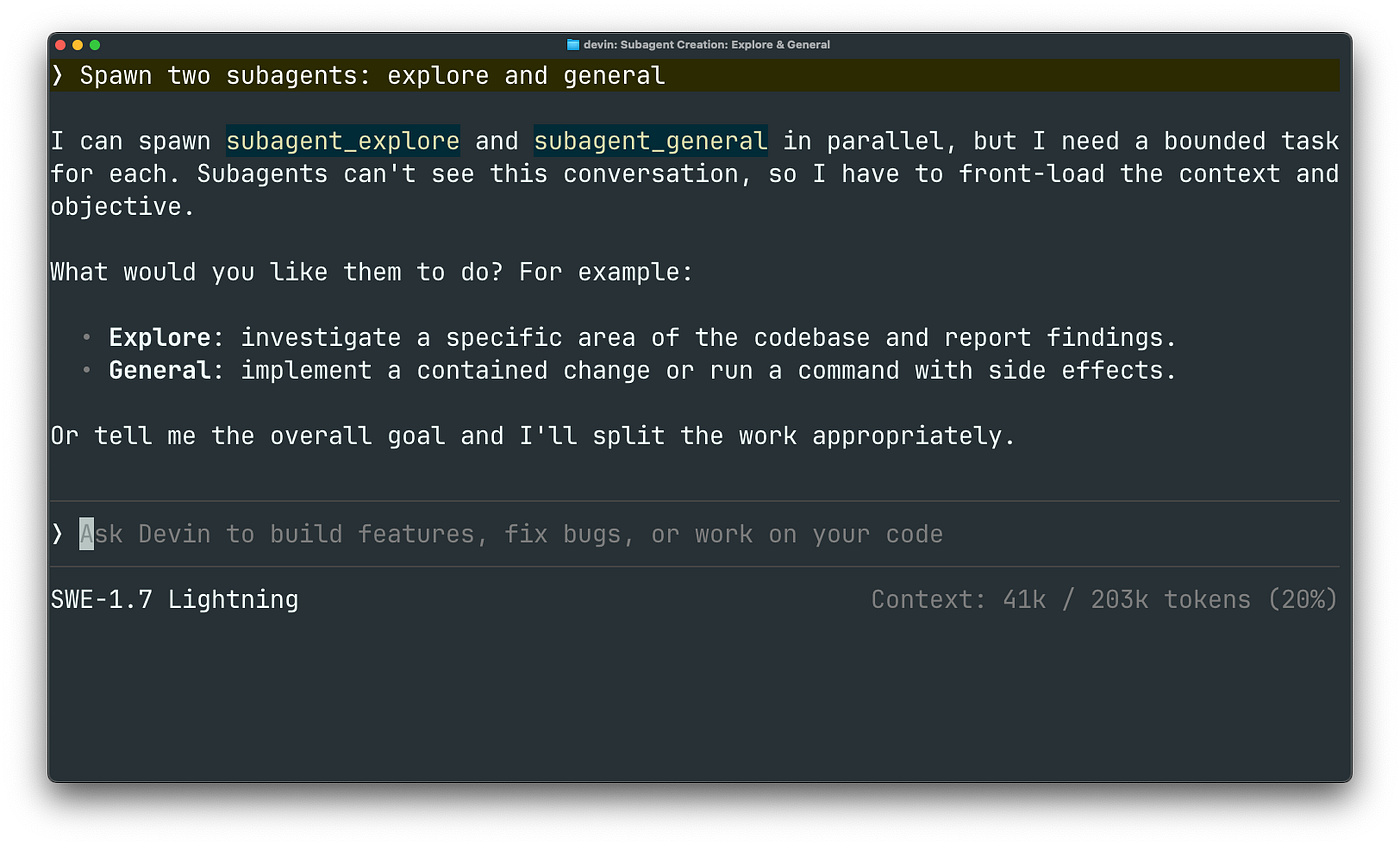
Foreground subagents run inline. The parent pauses, you see the spinner, and you can approve tool calls as usual. Press Ctrl+B to push a foreground subagent to the background. Background subagents run in parallel while the parent continues. Any tool call that wasn't pre-approved is denied automatically.
Custom profiles live at .devin/agents/<name>/AGENT.md:
---
name: reviewer
description: Reviews code changes for correctness and style
model: swe-1.7
allowed-tools:
- read
- grep
- glob
- exec
permissions:
allow:
- Exec(git diff)
- Exec(git log)
deny:
- write
- edit
---
You are a code review subagent. Review code changes thoroughly and report findings back to the parent agent.
Focus on:
1. Correctness: logic errors, edge cases, off-by-one mistakes
2. Security: potential vulnerabilities
3. Style: consistency with the rest of the codebase
Always cite specific file paths and line numbers in your findings.Ask for it by name: “review this PR using the reviewer subagent.”
By default, only the root agent can spawn subagents. If you need nesting for an orchestration workflow, add max-nesting: 3 to the AGENT.md frontmatter. Use it deliberately; each nesting level adds cost.
A complete workflow from prompt to pull request
Here’s how the pieces fit together in practice. The goal is a small feature: add a created_at timestamp to a user record and expose it through the API.
1. Start the session with the right model and project rules.
cd ~/work/my-apidevin --model swe-1.7The agent reads AGENTS.md, loads the project config, and knows you use TypeScript and pnpm.
2. Describe the task.
/add a created_at timestamp to the user model and return it in the user API response. Update tests and run the test suite before stopping.3. Let it explore.
SWE-1.7 tends to search and read before it edits. You’ll see it grep for User, read the model file, the API route, and the test file, and maybe write a tiny script to confirm the database schema.
4. Review the plan.
The agent proposes changes. In Accept Edits mode, file edits auto-approve inside the workspace; you still see a diff at the end. In Normal mode, you approve each edit.
5. Run tests automatically.
A Stop hook checks that tests passed before the agent can stop:
{
    "Stop": [
        {
            "matcher": "",
            "hooks": [
                {
                    "type": "command",
                    "command": "sh -c 'npm test'"
                }
            ]
        }
    ]
}
The agent runs npm test, sees the result, and either fixes failures or reports success.
6. Delegate review to a subagent.
/reviewer review the user timestamp changes for logic errors and style issuesThe reviewer subagent reads the diff, checks for off-by-one errors and missing edge cases, and returns a short report.

7. Open the pull request.
If you connected the GitHub MCP server, the agent can create the PR:
Create a pull request for this branch with a conventional commit message and a short description.Expected output:
Created PR #127: feat(user): add created_at timestampThe whole loop stays in the terminal. You didn’t switch contexts, and the agent didn’t guess your stack because the config told it up front.
The next few weeks
SWE-1.7 is a preview, so expect changes. Cognition is explicit about the trade-offs: the model thinks more, explores more, and touches more files than the literal task requires. That’s exactly what you want for research-heavy or ambiguous work, and also exactly what you want to watch for when the scope needs to stay tight and right.
The free preview for paid Devin users runs until 8 August 2026. After that, expect either a paid tier or a new promotional structure. The harness you build now (the .devin/config.json, the AGENTS.md, the skills, the hooks, the MCP servers) will outlast the preview pricing. Model names change; the configuration layer keeps paying off.
If you want to go deeper on the configuration side, my guide “Devin CLI beyond the defaults” walks through permission modes, shell integration, AGENTS.md, skills, hooks, MCP, and subagents in more detail. The official docs are also worth keeping open. They’re a joy to read.
The real payoff is a fast model inside a flexible, Rust-based CLI. Configure that pairing once, and SWE-1.7 becomes a teammate that already knows how you work.

Try it out now.
You can do more with this article
- Try SWE-1.7 in Devin CLI with a real task from your current project.
- Read the essential commands and model reference for the full command set.
- Check the Devin Desktop getting started page for current desktop availability.
- Follow the Cognition research announcement for the training details behind the model.
- Read “Devin CLI beyond the defaults” for a deeper configuration walkthrough.
메타데이터
- post_id
- 2495d4bcf3e3
- slug
- how-to-use-swe-1-7-and-swe-1-7-lightning-in-devin-cli-2495d4bcf3e3
- url
- https://ai.sulat.com/how-to-use-swe-1-7-and-swe-1-7-lightning-in-devin-cli-2495d4bcf3e3
- canonical_url
- https://ai.sulat.com/how-to-use-swe-1-7-and-swe-1-7-lightning-in-devin-cli-2495d4bcf3e3
- author_url
- https://medium.com/@jpcaparas
- status
- ok
- fetched_at
- 2026-07-10 22:02:13