Encrypted RDS instance snapshot — Cross Account Migration
I came across a specific request for sending an instance snapshot cross account. There was a document regarding how to do that but I…
Encrypted RDS instance snapshot — Cross Account Migration
I came across a specific request for sending an instance snapshot cross account. There was a document regarding how to do that but I wanted something more. I wanted to understand how the encryption flow really happens. This blog is tutorial + description of what happens in the backend — to have a grasp how KMS makes snapshot migration possible.
Base Configurations:
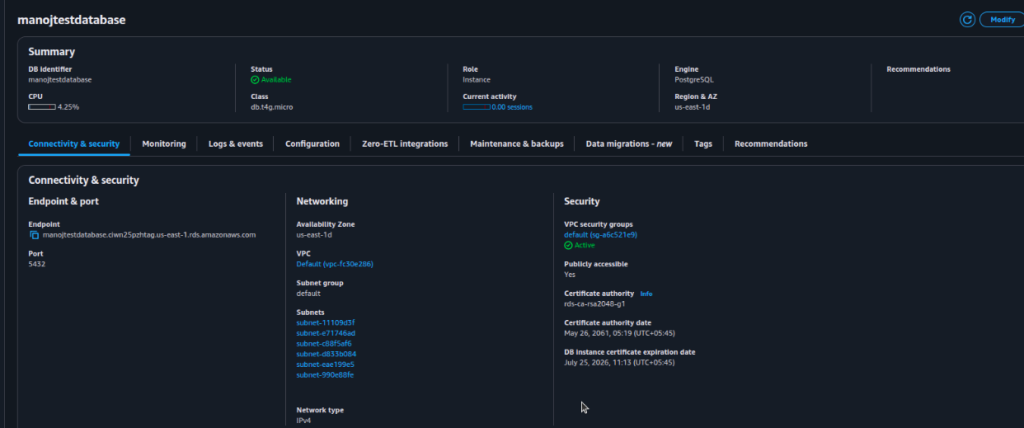
Nothing too complicated, I am running a postgre RDS instance inside my VPC

This picture is to show that the RDS instance is encrypted at rest.
Task 1: Creating Snapshot
I guess you guys know this one. The steps are outlined below.
- Log in to the AWS Management Console.
- Type RDS in the top search bar.
- Click on RDS from the results list.
- Click on Databases in the left-hand menu.
- Locate the specific database you want to back up.
- Click the selection circle (radio button) next to that database name.
- Click the Actions dropdown button at the top right of the table.
- Select Take snapshot from the dropdown menu.
- Type a name for your backup in the Snapshot Name field (e.g., my-db-backup-01).
- Click the orange Take Snapshot button.
- Wait for the status to change from Creating to Available in the Snapshots list.
Congratulations ! You’ve now made a RDS snapshot. Now were ready to move to next step.
Task 2: Understanding the Encryption-Decryption process
I first read this document for migrating RDS snapshots. The main confusion I got was how the decryption was happening, meaning if I select a KMS key for encryption before sending the snapshot, will the snapshot be encrypted twice ? How does AWS handles that ?
I made a workflow explaining that situation.

To summarize:
- Encrypted RDS Volume: Start with the volume using default encryption.
- Encrypted Snapshot: Create a snapshot using the default encryption key.
- Create CMK: Generate a Customer Managed Key in AWS KMS.
- AWS Snapshot Copy: Initiate a copy of the snapshot to change encryption.
- Decryption: (Happens in background) Decryption of the snapshot happens using the default key.
- Encryption: (Happens in background)Re-encryption of the snapshot happens using the customer managed key.
- Share: Share the snapshot and the CMK with the Destination Account.
- Snapshot Restore: Access the snapshot storage and start the restore process.
- Decryption: Decrypt the snapshot in the new account using the shared CMK.
- Encryption of choice: Restore to a new RDS volume with your preferred encryption.
Short Demo
( Optional but helpful) If you’re sand-boxing or testing cross account migration, I suggest you to have make snapshots for non empty RDS instances as it would be easier to verify integrity of database.
We’ll be using the RDS snapshot that we had taken before.
After that
Customer Managed Keys Configuration:

Make alias and have labels

After that, Skip through this page

Now the crucial part:
In Other AWS accounts option, insert ID of the destination account so that the destination account can also use the customer managed key.

Critical Note: The Key does not appear in the console of the destination account even though it’s shared. But we can use it for the actions described in the KMS policy(Source account).
For info, here how my policy looks:

Now the part we had been waiting for: Snapshot Sharing
Here’s the snapshot that we had made previously.

Now make a copy snapshot ( necessary for encryption with our customer managed KMS key). First while copying, make sure that the snapshot is in the same region as the key.

Then select the KMS key as our newly created customer managed KMS Key.

Now we can go ahead and share our newly encrypted snapshot with the destination account.

Add the account number of destination account:
Confirm that you can see the snapshot in Shared with me section,
Now again copy the snapshot, now we are using the default KMS dey for encryption:
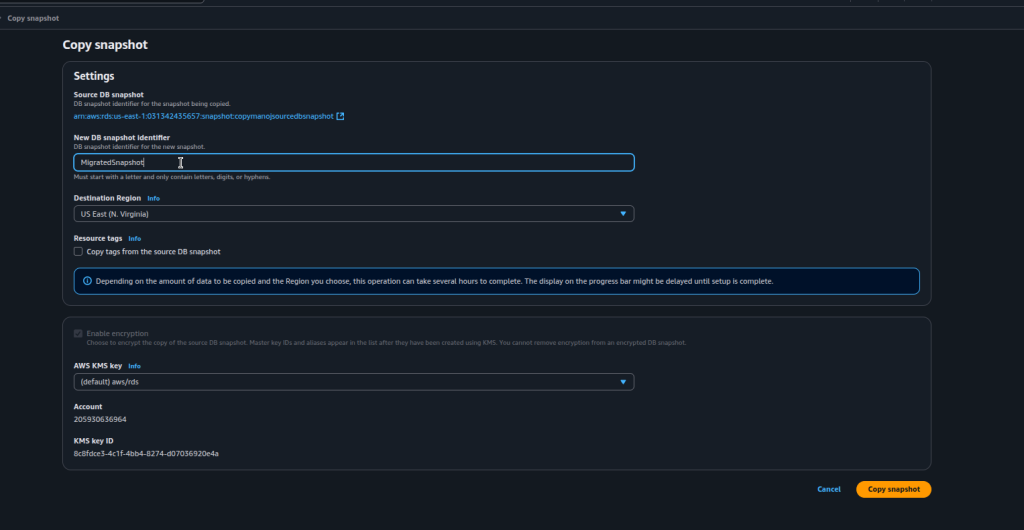
The snapshot has been copied

Now we restore the snapshot, we use the default KMS key.

Now the database has been successfully restored.
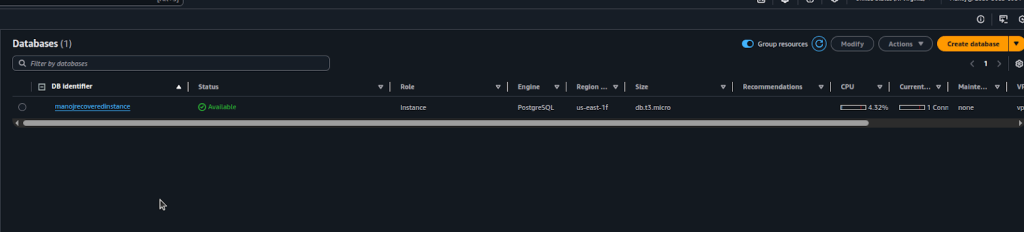
I had example table setup in my RDS instance before taking snapshot. So, let me check the database Integrity:
Checking the database Integrity:
This deems our procedure as success !
메타데이터
- post_id
- 2499116fa690
- slug
- encrypted-rds-instance-snapshot-cross-account-migration-2499116fa690
- url
- https://medium.com/@manoj.cloud/encrypted-rds-instance-snapshot-cross-account-migration-2499116fa690
- canonical_url
- https://medium.com/@manoj.cloud/encrypted-rds-instance-snapshot-cross-account-migration-2499116fa690
- author_url
- https://medium.com/@manoj.cloud
- status
- ok
- fetched_at
- 2026-07-24 22:02:14