Deploying a Website on a Linux Virtual Machine (IaaS)
Introduction
Deploying a Website on a Linux Virtual Machine (IaaS)
Introduction
Cloud computing has transformed the way applications and websites are hosted. One of the most common cloud service models is Infrastructure as a Service (IaaS), which allows users to provision and manage virtual machines in the cloud. In this project, I deployed a website on an Azure Linux Virtual Machine and made it publicly accessible through the VM’s public IP address.
This article documents the deployment process, including the creation of the virtual machine, installation of the web server, deployment of the website files, and verification of public access.
Project Overview
The objective of this project was to deploy a Babycare website on a Linux Virtual Machine. The website was hosted using the Nginx web server and accessed through the VM’s public IP address.
Project Goals
- Create and configure an Azure Linux Virtual Machine.
- Install and configure a web server.
- Deploy website files to the server.
- Configure networking to allow public access.
- Verify successful website deployment.
CREATE A LINUX VIRTUAL MACHINE ON AZURE
- Login to your azure account
- Ensure you have an active subscription
- Search and select Virtual Machines from the search bar
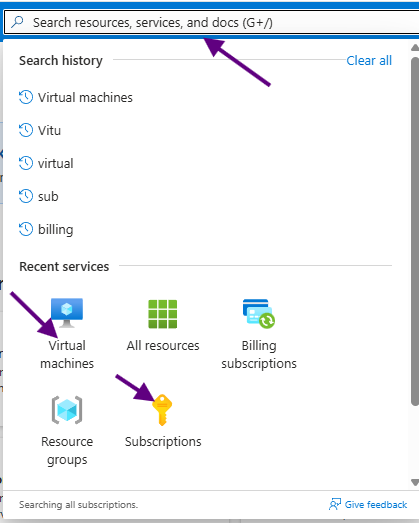
- select create

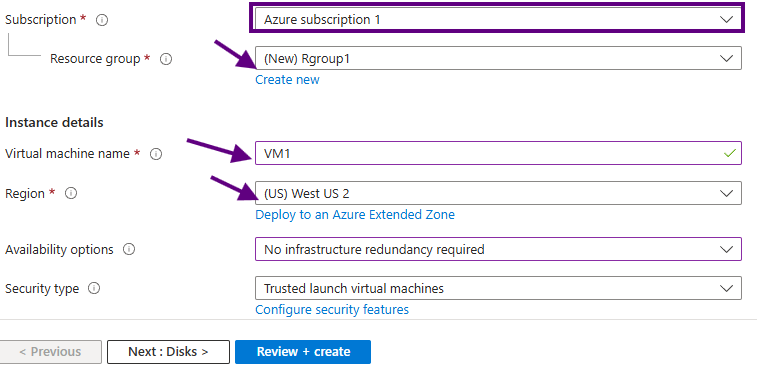
- Select your subscription
- create a new resource group or choose an existing one
- create a name for your VM-VM1
- choose the region you want to deploy the azure extension
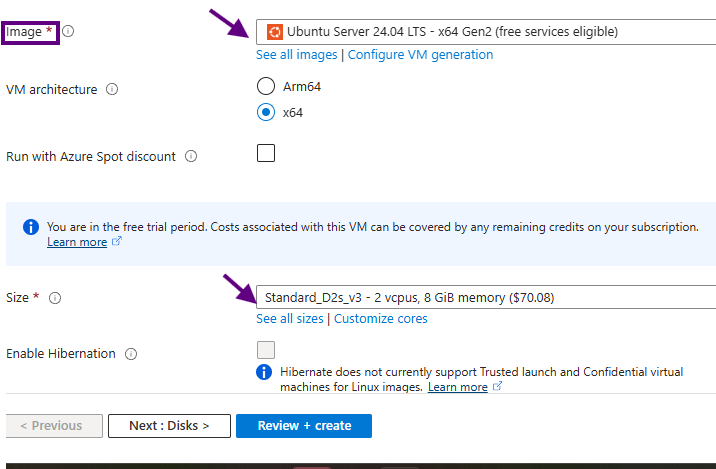
- select the image (OS)you wish to use -Ubuntu server 24.04LTS
- Select the memory size for the project
- select SSH key public key for authentication
- select generate key pair to download key pair
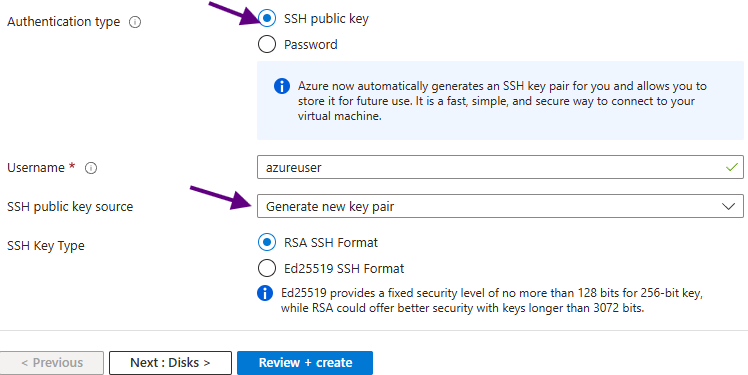
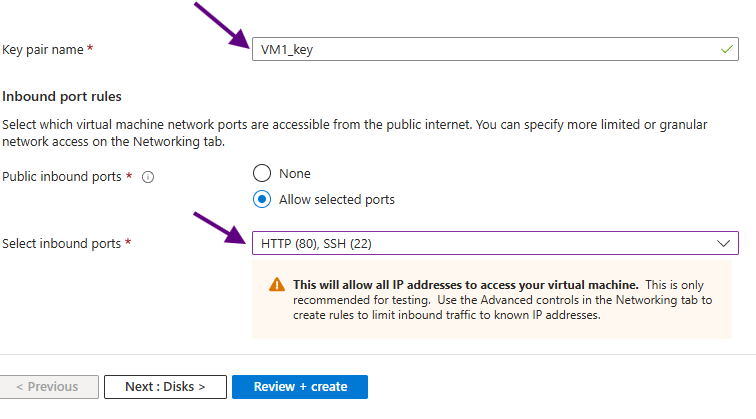
- keypair name VM1_KEY
- select HTTP 80 for access to browser 22 allows all IP address to access VM
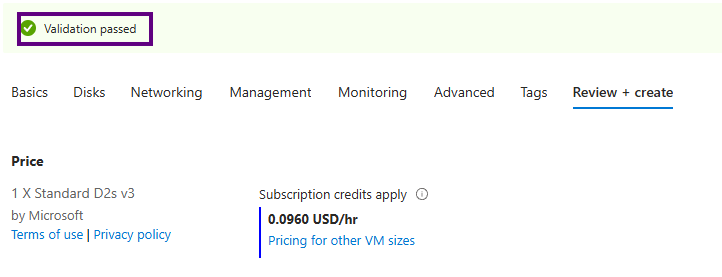
- After validation process
- click create
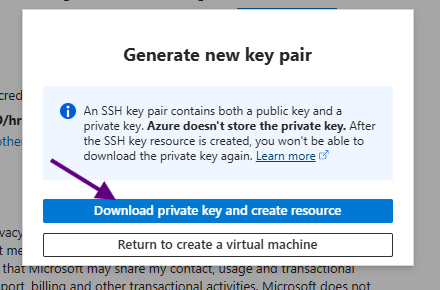
- download private key and return to create VM
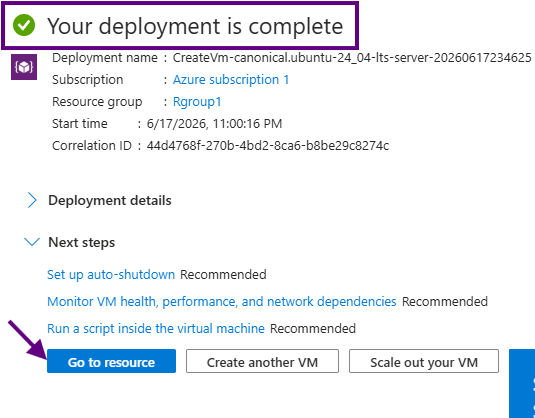
- After complete deployment, click on go to recourses
- connect to virtual machine

- Edit setting to provide missing private key path and save changes
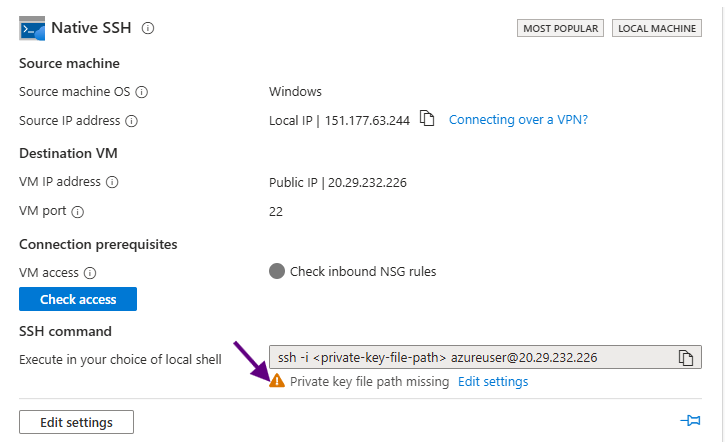
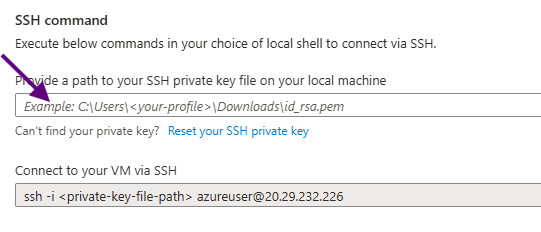
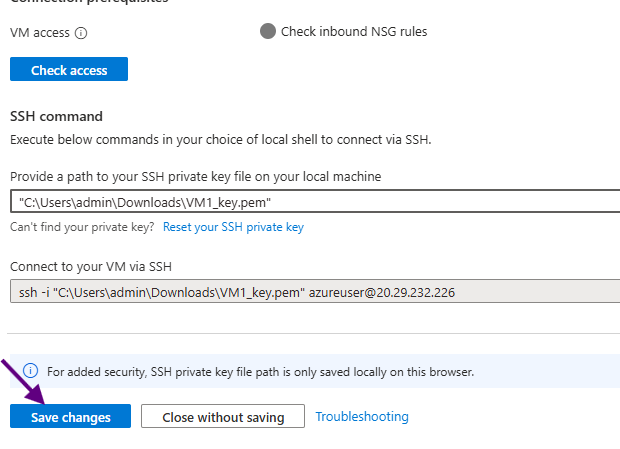
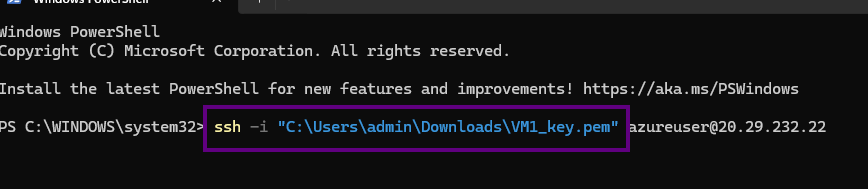
- Go to PowerShell and paste the SSH-I key.
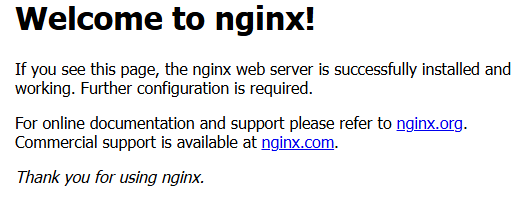
- update and install NGINX web server
- Deploy the website






메타데이터
- post_id
- 252ec66ef9b1
- slug
- deploying-a-website-on-a-linux-virtual-machine-iaas-252ec66ef9b1
- url
- https://medium.com/@oluchisam/deploying-a-website-on-a-linux-virtual-machine-iaas-252ec66ef9b1
- canonical_url
- https://medium.com/@oluchisam/deploying-a-website-on-a-linux-virtual-machine-iaas-252ec66ef9b1
- author_url
- https://medium.com/@oluchisam
- status
- ok
- fetched_at
- 2026-06-26 21:52:29



